中文 (台灣)
  日本語
日本語  한국어
한국어  Italiano
  Français
  Português
  Español

[2026 Guide] How to Record Audio From YouTube Easily
- Category:YouTube Music Tips
- Xiny
- 2026-08-27
YouTube contains millions of songs, podcasts, interviews, and educational videos, and many users want to save the audio for offline listening or personal projects. If you are wondering how to record audio from YouTube, there are several ways to capture the sound, including using audio recorders, screen recording tools, or dedicated audio converters.
Traditional recording methods can work well for short clips, but they usually require real-time playback. If you want to save multiple songs, keep better audio quality, or create a personal music library, converting YouTube audio directly can be a more efficient option.
This post explains how to record YouTube audio as MP3 and explores when converting YouTube Music to local audio files is a better option.
Can You Record Audio From YouTube?
Yes, you can capture audio from a YouTube video using an audio recorder or screen recorder that supports system audio. The recorded file can then be trimmed and exported in a format such as MP3.
However, recording is not always the most convenient solution. Since the audio must play in real time, a 5-minute song usually takes 5 minutes to record. Long videos, playlists, or multiple tracks can become time-consuming.
Before you begin, keep in mind that YouTube’s official offline downloads are different from audio files saved directly on your device. Copyright rules, platform terms, and local laws may vary, so only record, save, or reuse content that you own, have permission to use, or are otherwise allowed to access offline.
How to Record Audio from YouTube to MP3 with an Audio Recorder
One common way to record YouTube audio is to use an audio recording program that can capture system sound. This method is useful when you only need a short section of audio or want to record specific content in real time.
The exact buttons vary by recorder, but the workflow is usually the same.
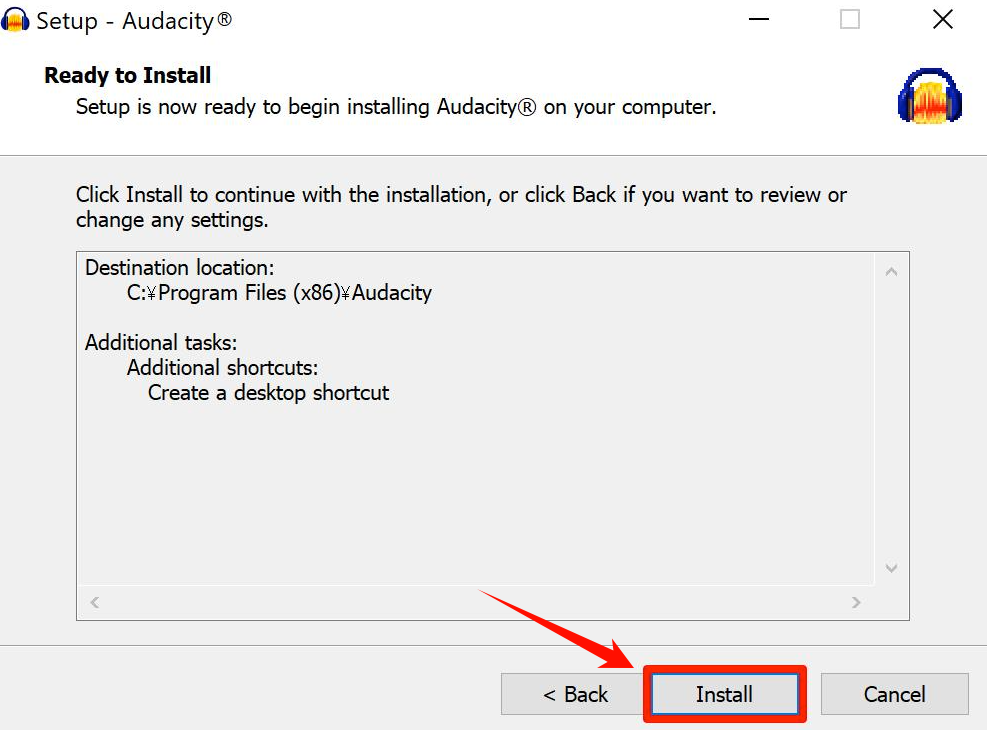
Step 1: Install an Audio Recorder
Download an audio recorder that supports system audio capture and MP3 export, then follow the on-screen instructions to install it. Popular options include Audacity, OBS Studio, and Movavi Screen Recorder.
Step 2: Enable System Audio Recording
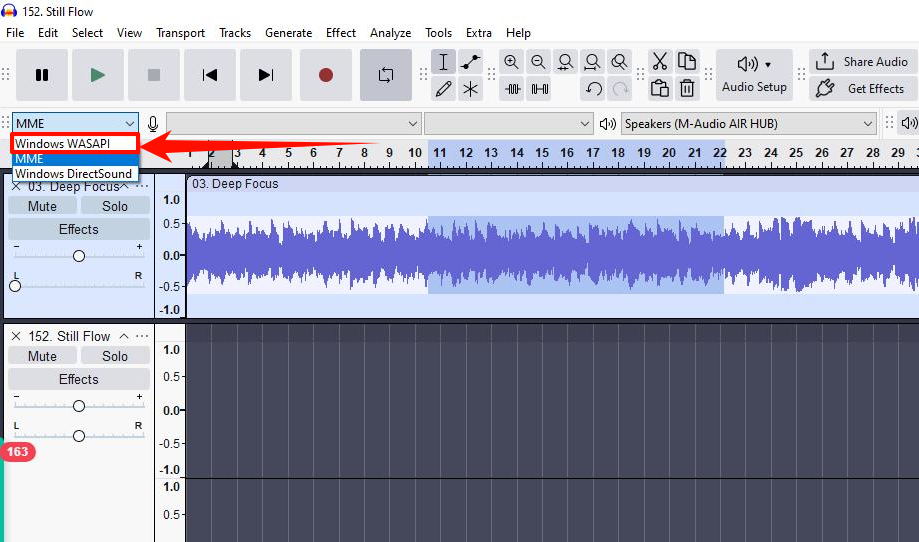
Launch the software and choose System Audio, Computer Sound, or Internal Audio as the recording source. Turn off the microphone if you do not want to capture your voice or background noise.
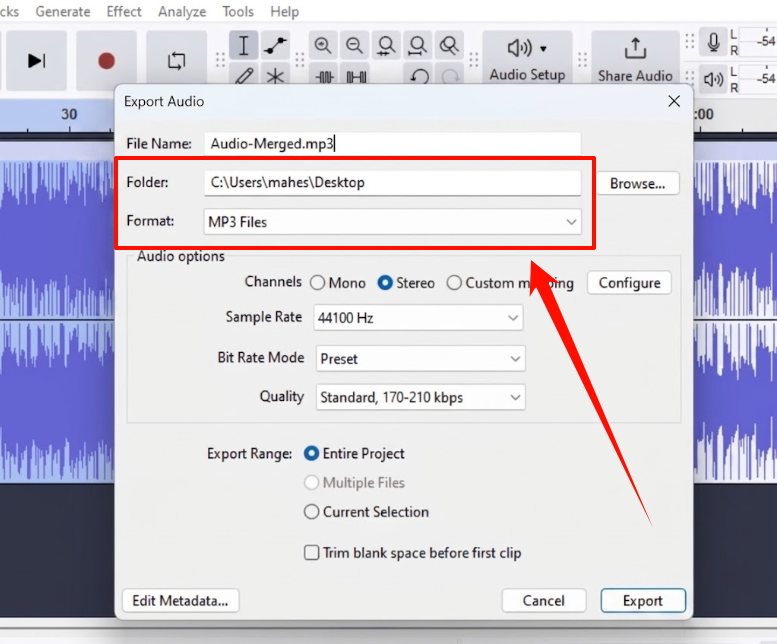
Step 3: Set MP3 as the Output Format
Open the recording settings and select MP3 as the output format. You can also choose an output folder so the recorded file is easy to find later.
Step 4: Play the YouTube Video
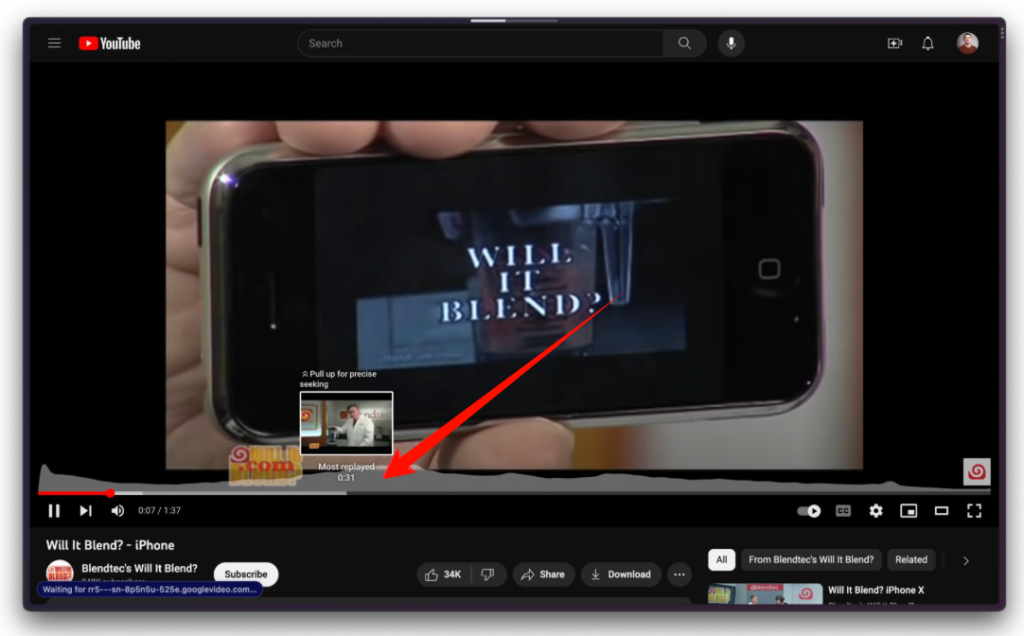
Go to YouTube and open the video you want to record. Move the playhead to the point where you want the audio recording to begin.
Step 5: Start Recording the YouTube Audio
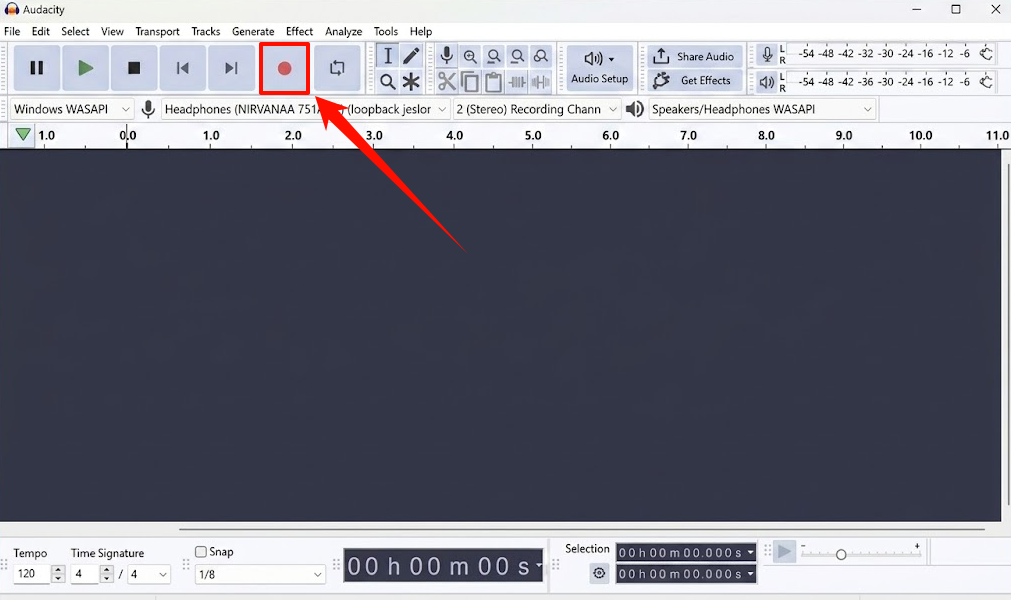
Click the Record button in the audio recorder, then play the YouTube video. Let the audio play until you have captured the section you need.
Step 6: Stop and Save the Recording
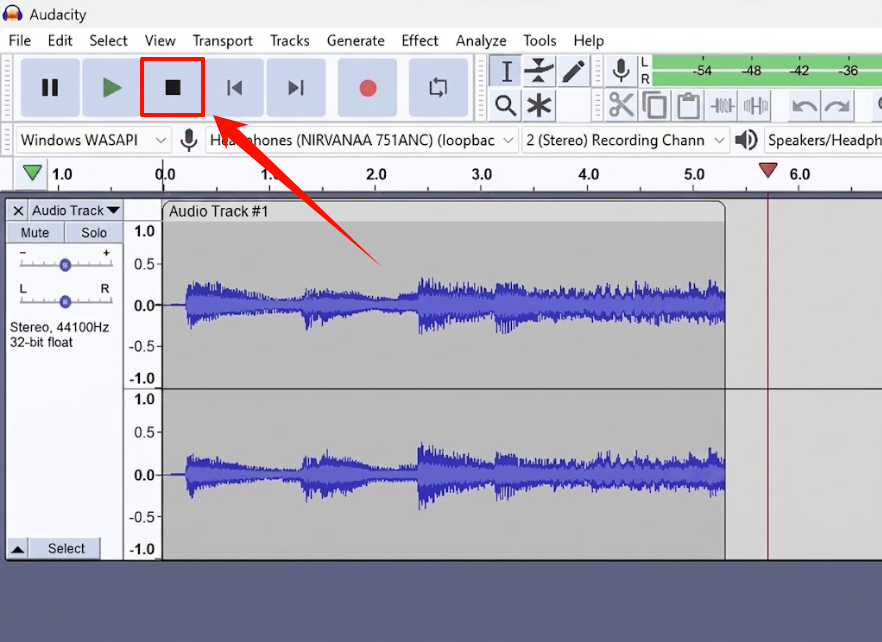
Return to the recorder and click Stop when the audio is finished. The software will save the recording as an MP3 file in your selected output folder.
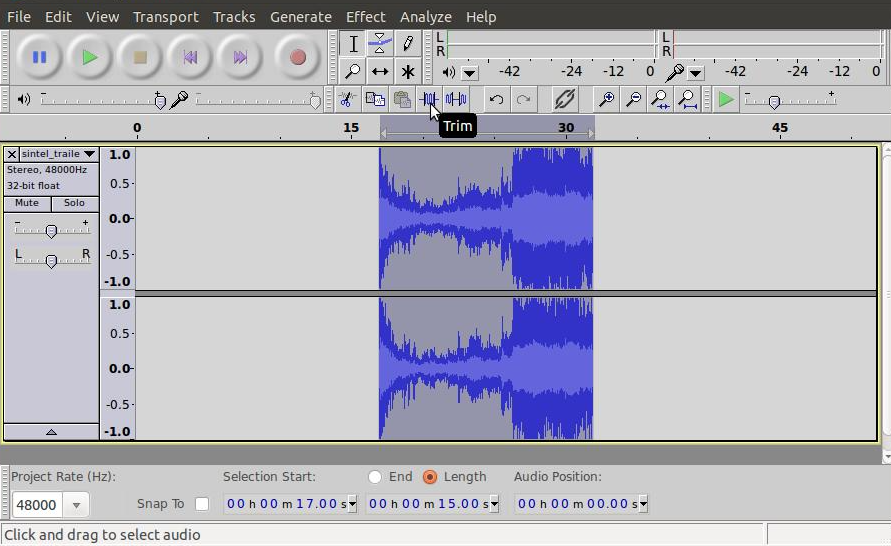
Step 7: Trim the Audio If Needed
If the recording includes silence, ads, or unwanted sections, use the recorder’s built-in editor or another audio editor to trim the file before saving the final version.
How to Record Music off YouTube for Different Needs
The best way to record music off YouTube depends less on the device you own and more on what you plan to do with the audio afterward.
Recording a Short Clip, Quote, or Soundbite
For a brief segment, real-time recording is usually enough. An audio recorder lets you capture only the part you need, whether it is a spoken quote, music reference, or sound effect for a permitted personal project.
Saving a Full Song for Personal Listening
Recording a whole song is possible, but it is not always efficient. You need to keep the audio playing for the entire duration and avoid interruptions. If the song is long, or if you want to save several tracks, a workflow designed for local audio files may be more practical
Building a Local Music Library
If your goal is to build a local music library, recording individual tracks may not always be the most convenient option. A well-organized library requires clear file names, artist information, album details, cover artwork, and a consistent output format for easier browsing and playback across devices.
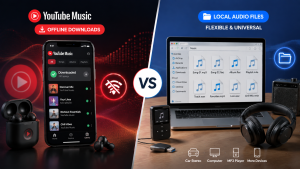
Ultimately, the best method depends on whether you need a quick recording or a more flexible way to manage saved audio. Let’s compare recording and converting YouTube audio to see which option works better for different situations.
Recording vs. Converting YouTube Audio: Which Is Better for You?
Both recording and converting can help you save YouTube audio, but they are designed for different tasks.
| Feature | Real-Time Audio Recording | Converting to Local Audio Files |
| Processing speed | Usually matches the playback length | Not tied to real-time playback |
| Large playlists | Possible, but time-consuming to manage | Better suited to handling multiple tracks |
| Interruptions | Notifications or other system sounds may be captured | Not affected by live recording interruptions |
| Metadata | File names and tags may need to be added manually | Track details and artwork may be retained when available |
| Output formats | Limited by the recorder’s export options | Can offer multiple formats, such as MP3, WAV, FLAC, AAC, or M4A |
| Audio quality | Depends on system settings, volume, and recording setup | Depends on the selected output settings |
| Organization | Needs to be named and sorted manually | Can be saved to a selected folder and managed as a local library |
| Best for | Short clips, quotes, and soundbites | Full songs, albums, and playlists |
Both methods have their advantages, but the better choice depends on your goal. If you only need a short piece of audio, recording YouTube sound is a practical option. For full songs, playlists, or a more organized local music library, converting may better match your workflow.
How to Save YouTube Music as MP3 With MusicFre
MusicFre offers an alternative to recording system audio in real time. It is designed to help users convert YouTube Music content into local audio files for permitted personal use.
Instead of waiting for every track to play while recording, you can choose an output format, add the YouTube Music content you want to process, and save the resulting files to a selected folder. MusicFre can also help preserve available track information such as song title, artist, album, and cover artwork, making local files easier to manage.
Here is the basic process:
Step 1: Install and Launch MusicFre
Download MusicFre from the official website, install it on your Windows or Mac computer, and then launch the program.






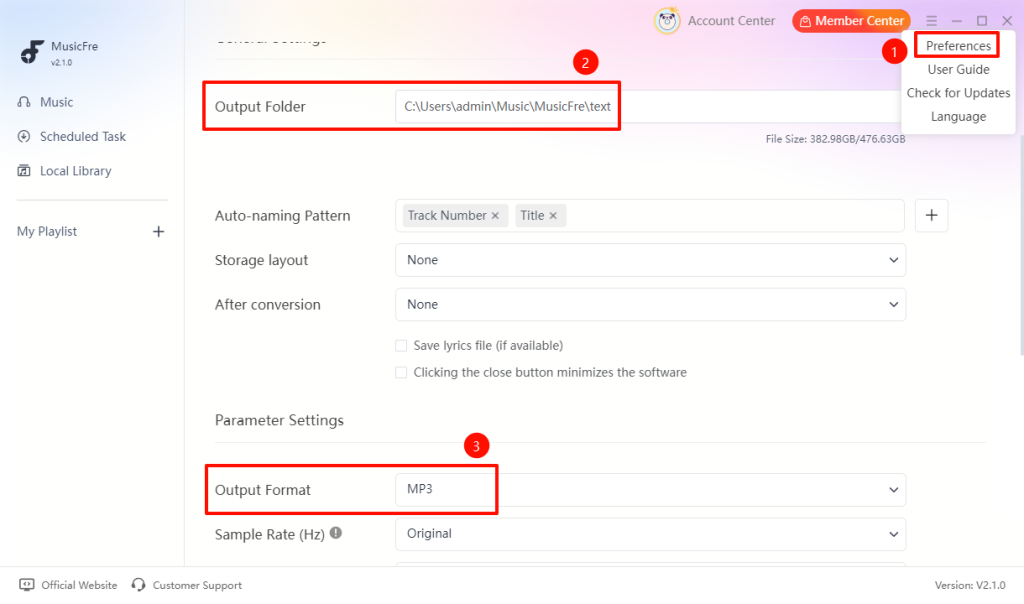
Step 2: Select MP3 as the Output Format
Go to Preferences, set MP3 as the output format, and choose the folder where you want to save the converted files.
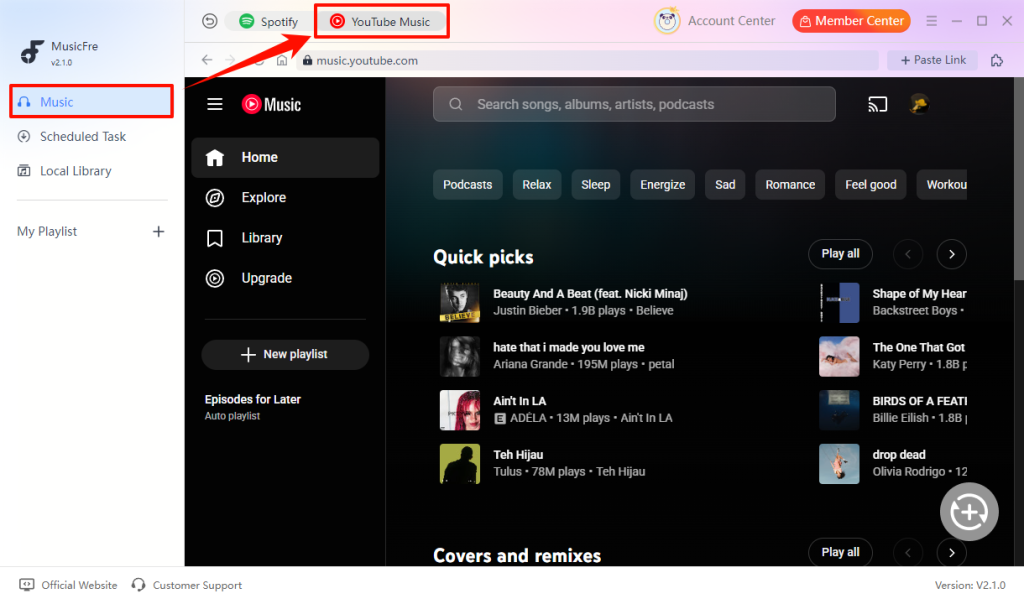
Step 3: Open YouTube Music
Click Music in the left sidebar, then select the YouTube Music tab at the top to open the YouTube Music interface.
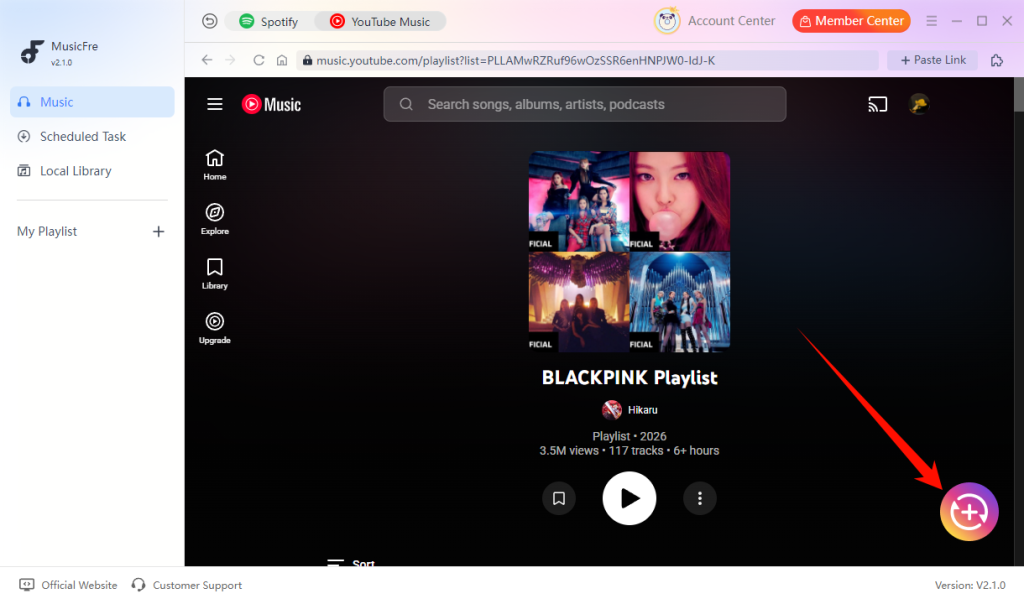
Step 4: Find and Add the Music You Want to Save
Search for a song, album, or playlist, then click the Add button to place it in the conversion list.
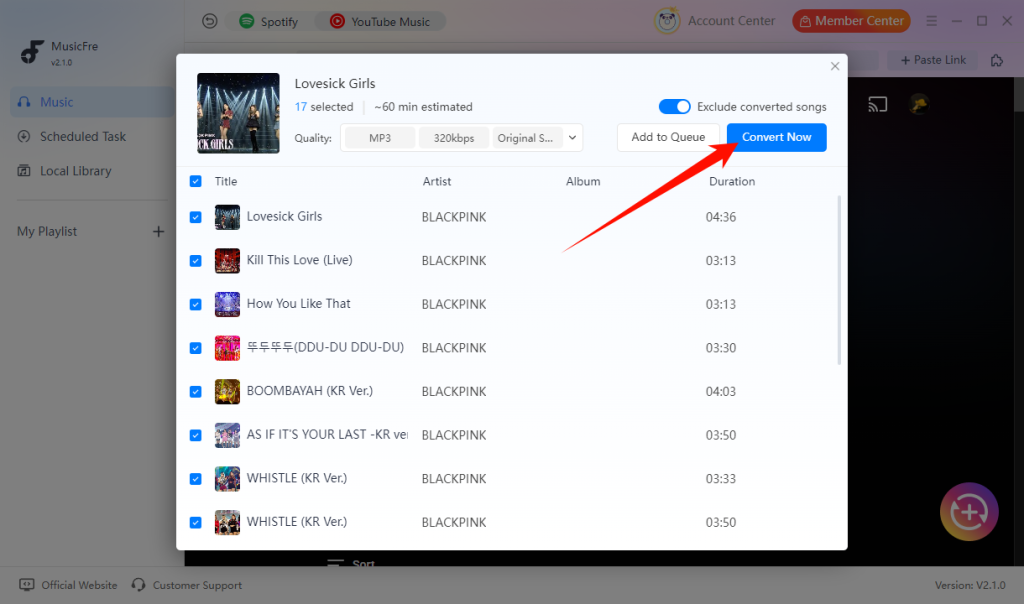
Step 5: Convert and Access Your MP3 Files
Click Convert Now to start the conversion. Once the process is complete, open the output folder to play, organize, transfer, or add your MP3 files to a local music library.
FAQs About Recording Audio from YouTube
1Why is my YouTube recording silent?
Your recorder may be set to the microphone instead of System Audio. Check the audio source and run a short test before recording.
2Does recording YouTube audio affect sound quality?
It can. The quality depends on your recording settings, playback volume, and the original audio quality.
3Is converting YouTube audio faster than recording it?
Usually yes. Converting does not require real-time playback, making it more efficient for full songs or playlists.
4Can I transfer saved audio files to a phone or USB drive?
Yes. You can move compatible audio files to other devices for playback, storage, or organization.
Final Thoughts
Recording audio from YouTube is a simple solution when you only need a short clip or a specific moment from a video. For longer YouTube Music content, full albums, or playlists you are permitted to save, converting to organized local audio files can be a more efficient alternative to recording in real time.
Choose the method that best fits your needs, organize your files for easier access, and always respect the rights and rules related to the content you use.