中文 (台灣)
  日本語
日本語  한국어
한국어  Italiano
  Français
  Português
  Español

3 Easiest Ways to Play YouTube Music on Alexa in 2026
- Category:YouTube Music Tips
- Xiny
- 2026-08-27
Alexa devices such as Amazon Echo, Echo Dot, and Echo Show make it easy to listen to music with voice commands. However, many YouTube Music users find that they cannot connect their account or find YouTube Music in the Alexa app.
While Alexa does not offer an official YouTube Music skill, you can still play YouTube Music through an Amazon Echo using several workarounds, including Bluetooth connections, the Silk Browser on Echo Show devices, and local audio files. This post covers each method, its limitations, and how to choose the best option based on your device and listening habits.
Can Alexa Play YouTube Music Directly?
Currently, Alexa cannot play YouTube Music directly through an official integration.
Unlike Spotify, Apple Music, or Amazon Music, YouTube Music does not appear as a music service that you can link in the Alexa app and set as the default provider. As a result, you cannot simply connect your YouTube Music account, ask Alexa to play a playlist, or control playback using voice commands.
However, this does not mean YouTube Music is completely unavailable on Echo devices. You can still listen to YouTube Music on Alexa through alternative methods.
Before choosing a method, it helps to understand the difference:
● Native music service: You ask Alexa to find and play songs directly from a linked service.
● Bluetooth playback: Your phone or computer starts the music, while Echo plays the audio as a wireless speaker.
● Echo Show browser playback: You open YouTube Music in a browser on a screen-equipped Echo device.
How to Play YouTube Music on Alexa
Although there is no official YouTube Music integration, you can still enjoy YouTube Music on Alexa using the following methods.
Method 1:Stream YouTube Music to Alexa via Bluetooth
Bluetooth is the quickest way to play YouTube Music on Alexa. It works with most Echo devices, including Echo, Echo Dot, Echo Pop, and many Echo Show models. Your Echo acts a Bluetooth speaker, while your phone or computer remains the device used to open YouTube Music and control playback.
Play YouTube Music From an iPhone or Android Phone
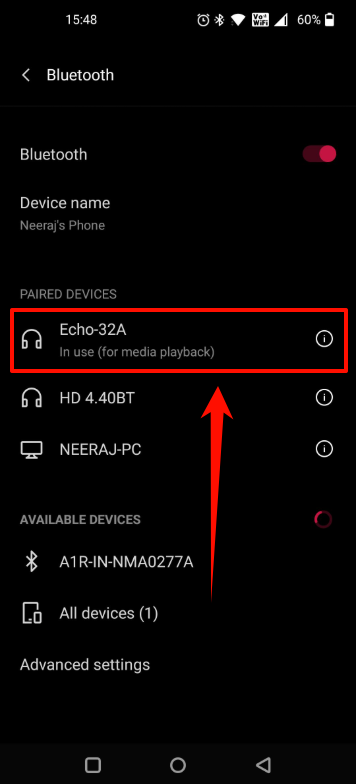
Step 1. Make sure your Echo device is powered on and connected to Wi-Fi.
Step 2. Say, “Alexa, pair Bluetooth.”
Step 3. Open Bluetooth settings on your iPhone or Android phone.
Step 4. Select your Echo device from the available Bluetooth devices.
Step 5. Wait for Alexa to confirm that the connection is complete.
Step 6. Open the YouTube Music app on your phone.
Step 7. Choose a song, album, or playlist, then tap Play.
You can also manage the pairing from the Alexa app:
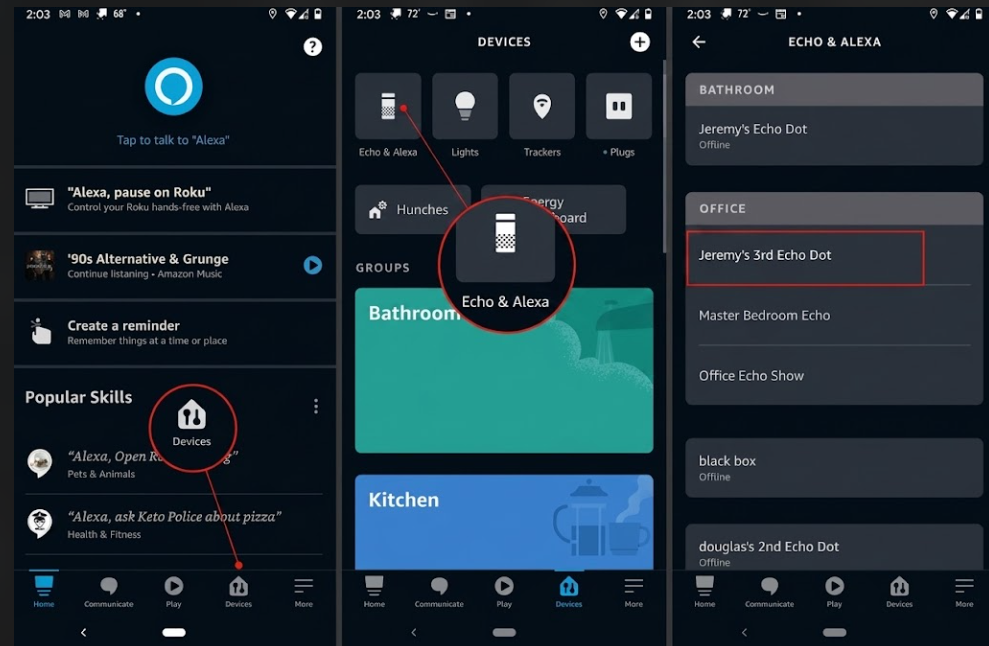
Step 1. Open the Alexa app on your phone.
Step 2. Go to Devices and select Echo & Alexa.
Step 3. Choose the Echo device you want to connect.
Step 4. Open Bluetooth Devices and Tap Pair a New Device.
Play YouTube Music From a Windows PC or Mac
Step 1. Say, “Alexa, pair Bluetooth.”
Step 2. On Windows, open Settings > Bluetooth & devices and select your Echo.
Step 3. On Mac, open System Settings > Bluetooth and connect to your Echo.
Step 4. Open YouTube Music in a browser or desktop app.
Step 5. Start playback.
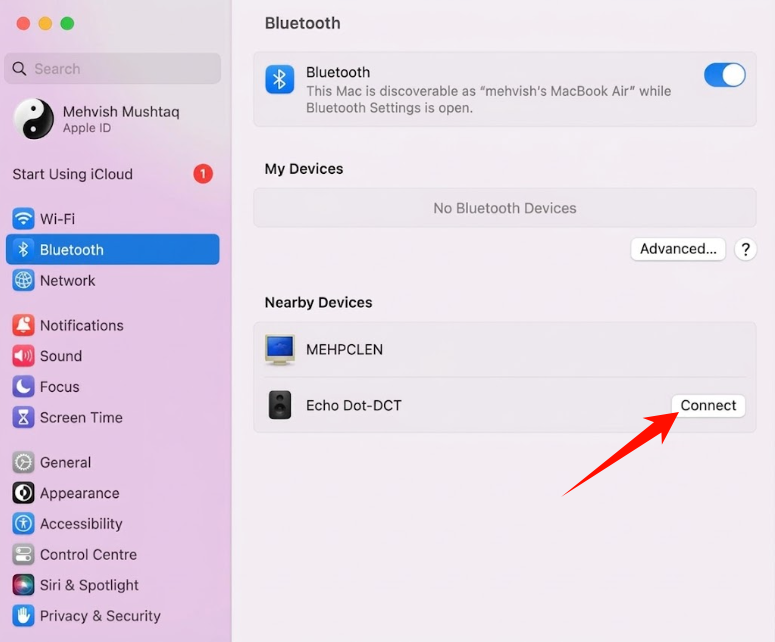
If music continues to play from your computer speakers, check the system audio output.
- On Windows: select the sound icon in the taskbar and choose your Echo as the output device.
- On Mac: go to System Settings > Sound > Output, then select the Echo.
Limitations of Bluetooth Playback
Bluetooth is easy to set up, but it has several limits that become more noticeable during daily listening.
- Your phone or computer needs to stay connected to the Echo.
- The source device must remain within Bluetooth range.
- Streaming from YouTube Music still needs a working internet connection.
- You cannot use Alexa voice commands to search for songs or manage playlists.
- Calls, notifications, battery-saving settings, browser pauses, or computer sleep mode can interrupt playback.
For occasional listening, Bluetooth works well. However, if you want a personal music library that is available without relying on live streaming every time, local audio files may be a better fit.
Method 2:Play YouTube Music on Echo Show Using the Silk Browser
If you have an Echo Show, you may be able to use the built-in Silk Browser to access YouTube Music directly on the device.
This option is only relevant to Echo Show models with a display. It does not apply to speaker-only devices such as Echo Dot, Echo Pop, or standard Echo speakers.
Follow these steps:
Step 1. Say, “Alexa, open Silk.”
Step 2. In the browser, go to the YouTube Music website.
Step 3. Sign in to your YouTube Music account if needed.
Step 4. Search for the music you want to hear.
Step 5. Start playback from the on-screen player.
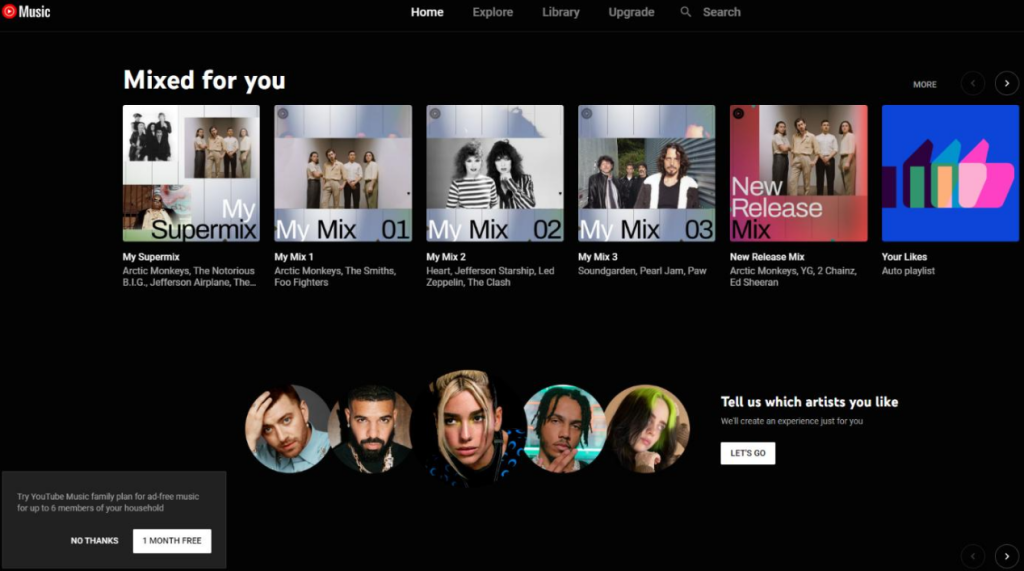
This method can be practical for users who want YouTube Music on Amazon Echo Show without keeping another device connected.
Method 3:Use MusicFre to Prepare Local Files for Echo Playback
If you prefer to keep a local music library instead of relying entirely on streaming, MusicFre can help you prepare audio files for playback on Echo and other devices.
This method is especially useful when you want to organize music on your computer, reduce dependence on mobile data or Wi-Fi during playback, and use the same files on multiple devices.
The workflow is simple:
Step 1. Install and open MusicFre on Windows or Mac.






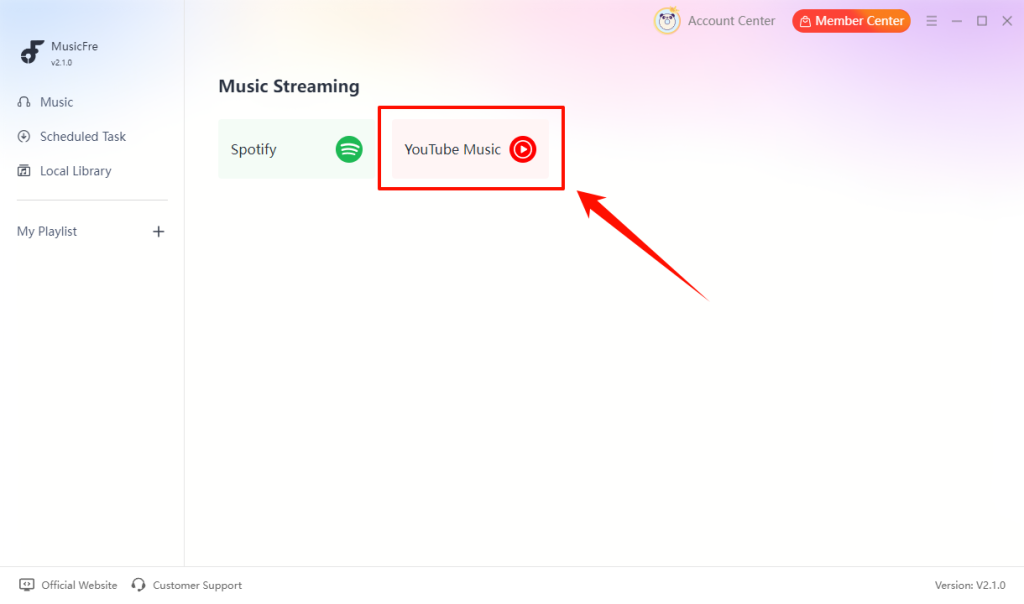
Step 2. Select YouTube Music in the MusicFre interface.
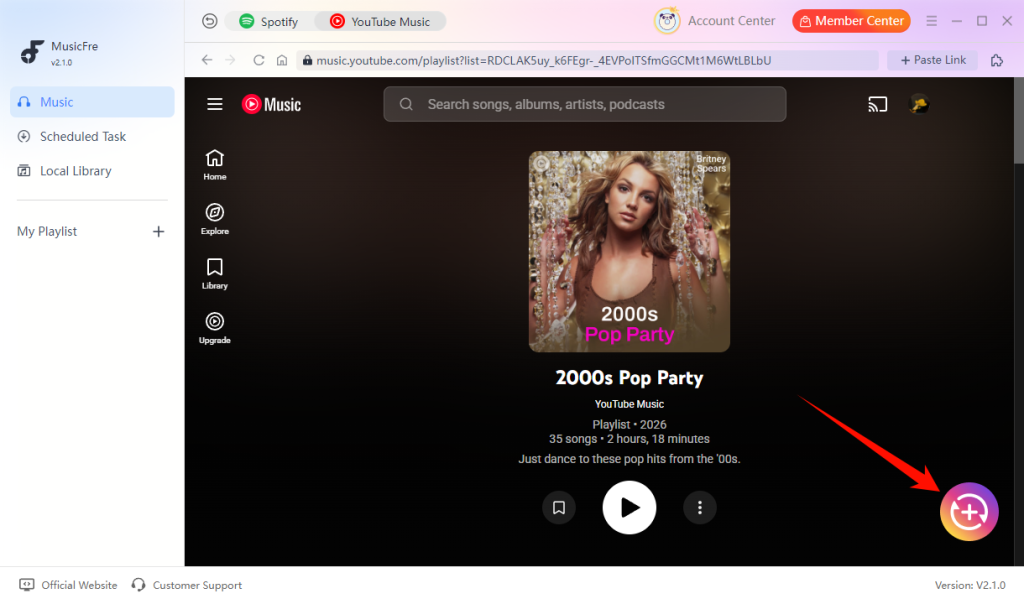
Step 3. Add the songs, albums, or playlists you want to save.
Step 4. Choose an output format, such as MP3 for better compatibility.
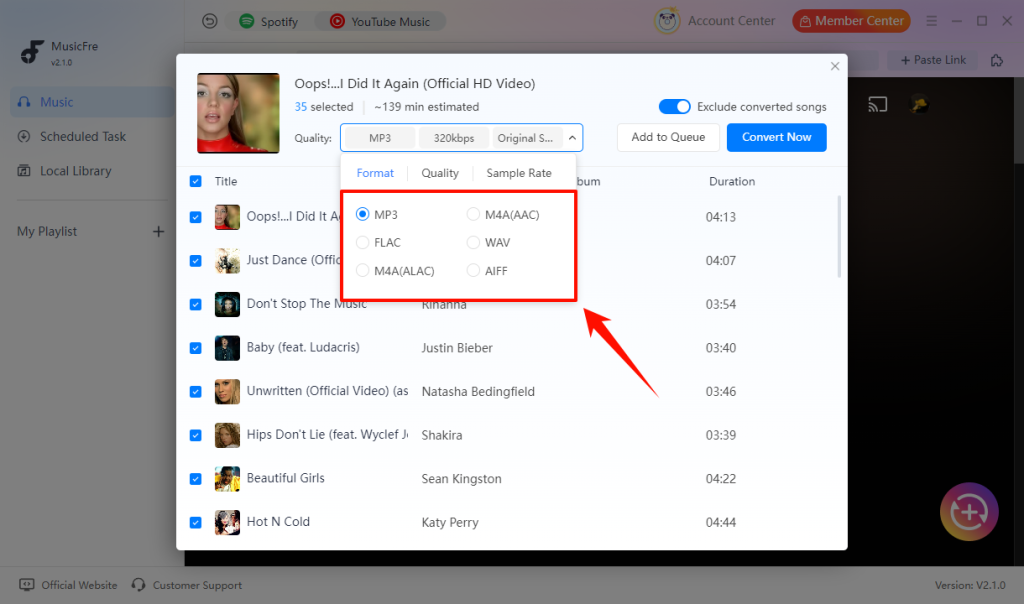
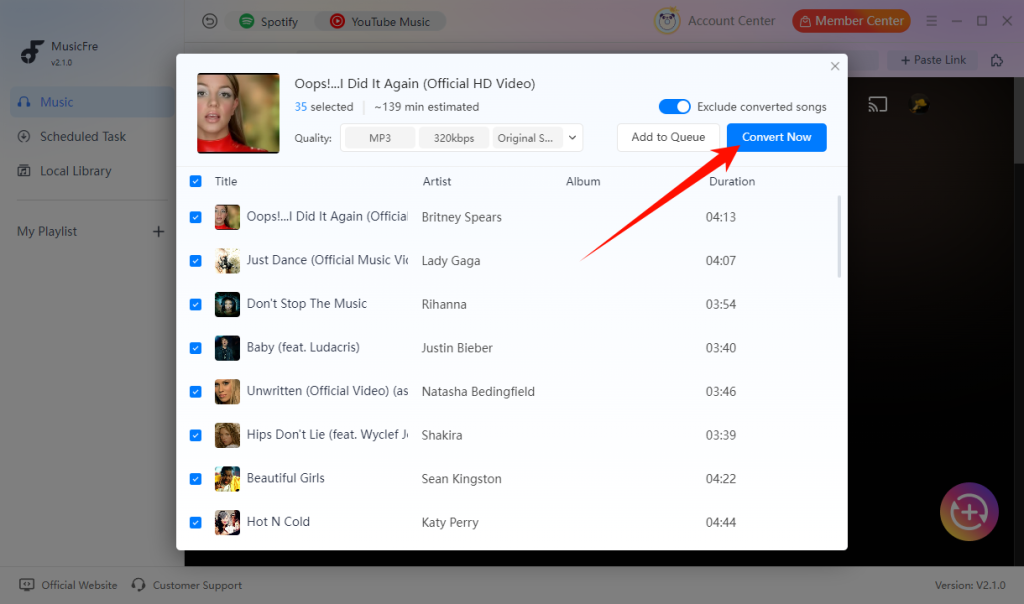
Step 5. Click Convert Now to start the process.
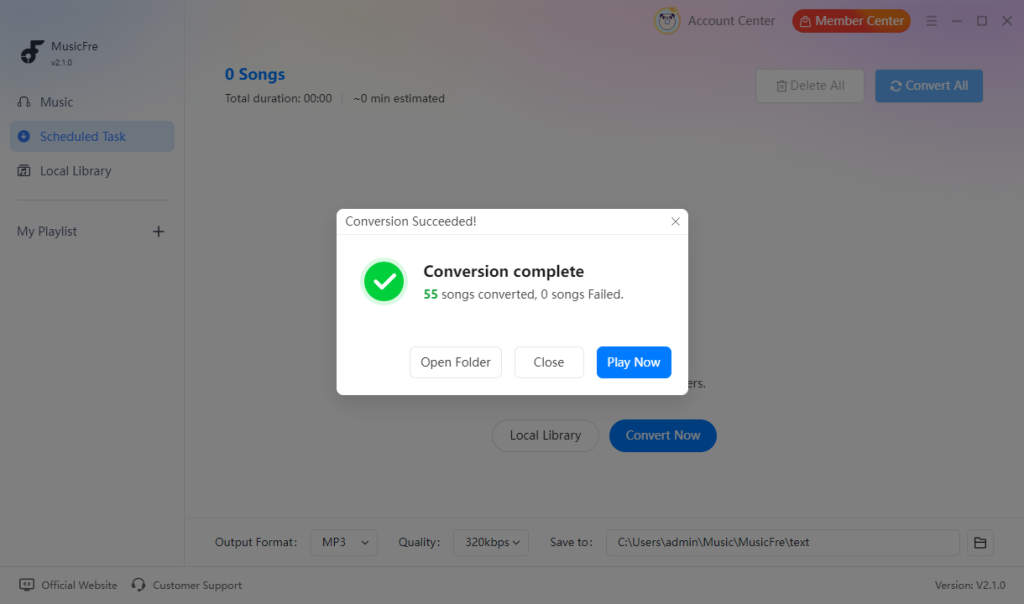
Step 6. Export the files and play them through your paired Echo.
Local files can help reduce interruptions caused by unstable streaming, app playback problems, or a lack of internet access. However, one limitation remains: if you use Bluetooth playback, the phone or computer still needs to stay paired and within range of the Echo.
Which Method Is the Best Way to Play YouTube Music on Alexa?
The best method depends on how you use YouTube Music and your Alexa device.
| Method | Best For | Internet Needed | Limitations | Stability |
| Bluetooth Connection | Users who want a quick and simple way to play YouTube Music on Alexa | Yes | Requires a phone or computer to stay connected | Medium |
| Silk Browser on Echo Show | Echo Show users who want to access YouTube Music without another device | Yes | Only available on display-equipped Echo devices | Medium |
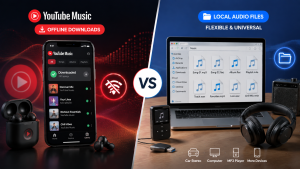
| Local Audio Files | Building a more flexible and reliable music library | Depends on the playback method | The paired device still needs to stay within Bluetooth range | High |
For most users, Bluetooth is the quickest choice. Echo Show users can try Silk Browser, while MusicFre is the stronger option for people who want to keep and manage a local collection for Echo playback and other devices.
FAQs About Playing YouTube Music on Alexa
1Can Alexa play YouTube Music playlists?
Yes, but usually through Bluetooth or an Echo Show browser. You need to start the playlist from your phone, computer, or browser rather than asking Alexa to find it directly.
2Does YouTube Music Premium work better with Alexa?
No, but Premium can provide a smoother experience by reducing ads and enabling background playback on supported devices.
3Can Alexa play YouTube Music when my phone is locked?
It depends on your phone settings and YouTube Music account. If the app supports background playback and Bluetooth stays connected, music can continue after the screen is locked.
4Does YouTube Music work on all Echo devices?
Bluetooth works with most Echo devices, while Silk Browser playback requires an Echo Show with a display.
5Is Spotify better than YouTube Music for Alexa?
For Alexa users, Spotify offers better integration because it supports direct linking and voice control.
In Conclusion
While Alexa does not currently support YouTube Music directly, you can still enjoy your favorite songs through Bluetooth, Echo Show’s Silk Browser, or local audio files.
Bluetooth is the simplest option for most Echo owners. Echo Show users can also try Silk Browser for on-device playback. If you want a music library that is easier to keep, organize, and play across multiple devices, MusicFre can help you prepare local audio files for Echo playback through a paired phone or computer.
Choose the method that matches your listening habits, device setup, and need for offline flexibility.