中文 (台灣)
  日本語
日本語  한국어
한국어  Italiano
  Français
  Português
  Español

3 Quick Ways to Convert YouTube to AIFF [Desktop, Online & Recording]
- Category:YouTube Music Tips
- Xiny
- 2026-08-31
Looking for a YouTube-to-AIFF converter? AIFF is a useful format when you want an uncompressed audio file for editing, sampling, or use in Apple-focused workflows.
There are several ways to save YouTube audio as AIFF. You can use a desktop converter for songs and playlists, an online tool for an occasional file, or recording software when you only need a specific part of a video. Each method has different trade-offs in convenience, control, and output management.
This post explains how to save YouTube audio as AIFF using all three methods. You’ll also learn which method best suits your needs and how AIFF compares with MP3 and WAV.
Note: Only download, convert, or record content that you own, are licensed to use, or are otherwise permitted to use. Always follow YouTube’s terms and applicable copyright laws.
Can You Convert YouTube to AIFF?
Yes. YouTube does not offer AIFF as a built-in download format, but you can create an AIFF file from permitted YouTube audio with a desktop music converter, an online conversion service, or audio-recording software.
The best option depends on what you need to save:
- Desktop converter: Best for processing multiple songs, albums, or playlists while keeping your files organized.
- Online tools: Convenient for occasional conversions without the need to install software.
- Audio recording: Useful for capturing short excerpts, such as an intro, spoken quote, sound effect, or specific section of a longer video.
If your goal is simply to create an AIFF file from audio you can legally access, choosing the right workflow can save time and avoid unnecessary conversion steps.
Why Choose AIFF for YouTube Audio?
AIFF (Audio Interchange File Format) is an audio format developed by Apple and widely used for music production, audio editing, and professional audio workflows, particularly on Mac.
Unlike MP3, AIFF is normally uncompressed, so exporting to AIFF does not add another round of lossy compression. This also means AIFF files are much larger than MP3 files, but the format can be a better choice if you plan to edit the audio later.
Does Converting YouTube to AIFF Improve Audio Quality?
No. Converting YouTube audio to AIFF cannot restore audio details that were already lost in the original source.
This is an important distinction. Although AIFF itself is an uncompressed format, the audio you get from YouTube is already compressed for streaming. When you export that available audio as AIFF, you avoid adding another lossy encoding step, but you do not turn the result into a studio master.
In simple terms, YouTube audio is already compressed when you receive it. Saving that available audio as AIFF does not restore any lost detail, but it also does not add another lossy compression step. On the other hand, converting the same audio to a low-bitrate MP3 may discard additional detail during encoding.
So, AIFF can be a good choice for editing and local workflows, but it should not be presented as a way to “upgrade” YouTube audio quality.
How to Convert YouTube to AIFF
There are three common ways to convert YouTube audio to AIFF. Before going through the steps, here’s a quick comparison to help you choose.
YouTube to AIFF: Desktop vs Online vs Recording
| Method | Best for | Advantage | Limitation |
| Desktop converter | Songs, albums, playlists, and repeated use | Batch conversion, format and quality settings, metadata preservation | Requires installation |
| Online tool | One-off conversions | No installation required | Often limited in speed, file size, formats, or reliability |
| Audio recording | Specific clips or sections | More control over the exact part you capture | Real-time process and audio depends on recording settings |
Method 1: Save YouTube Music as AIFF in Bulk with MusicFre
MusicFre is a desktop music converter that can help you save YouTube Music songs, albums, and playlists as local audio files. It supports several output formats, including AIFF, and is designed for people who want more control over their music library and conversion settings. This method is especially suitable if you want to work with several tracks at once instead of handling every file individually.
Step 1. Visit the official website to download and install MusicFre on your Windows PC or Mac.






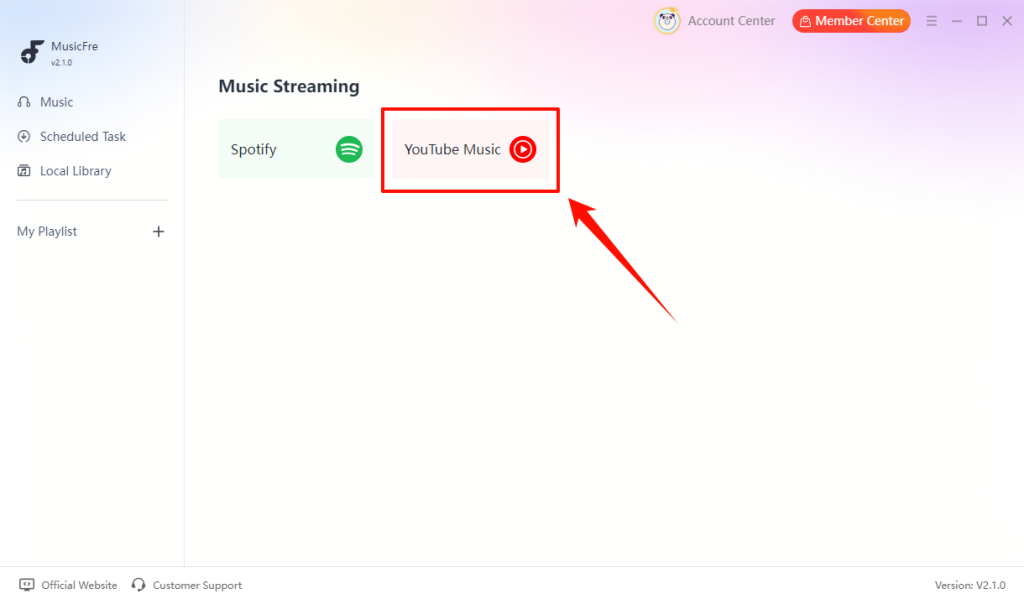
Step 2. Launch MusicFre and select YouTube Music from the main interface.
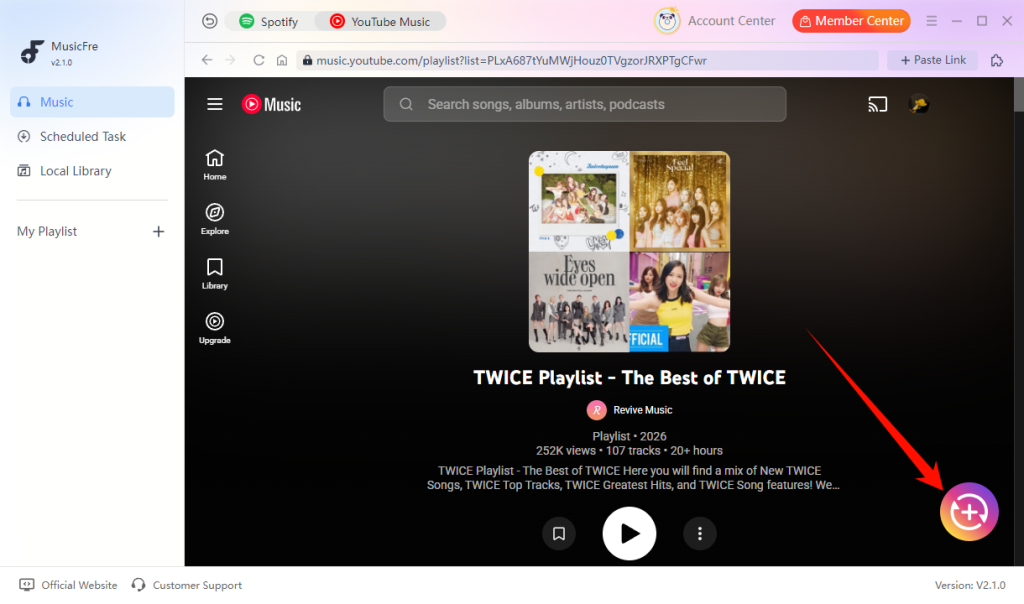
Step 3. Find the songs, albums, or playlists you want, then click the Add button to add them to the conversion list.
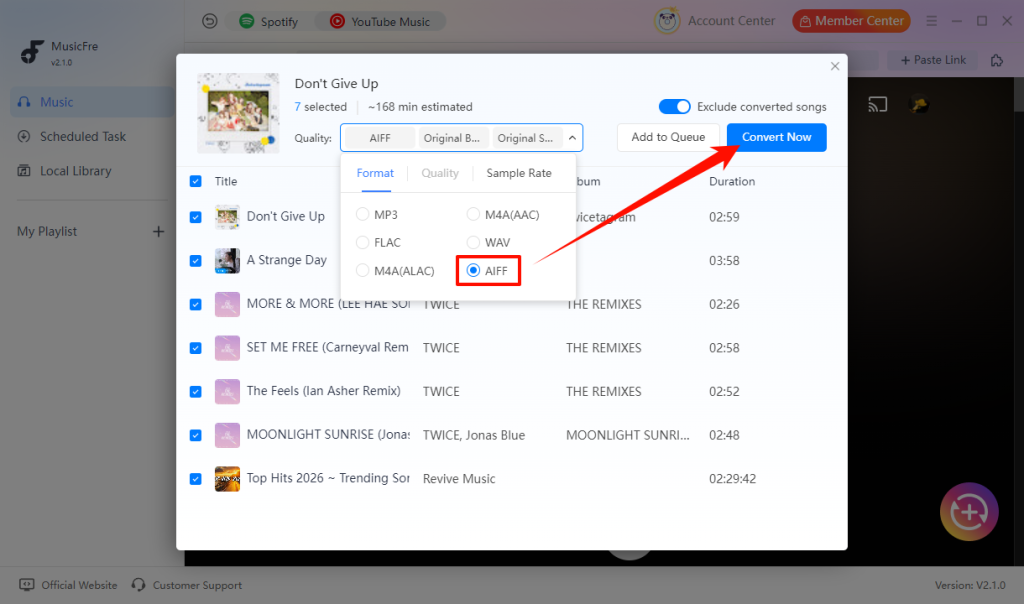
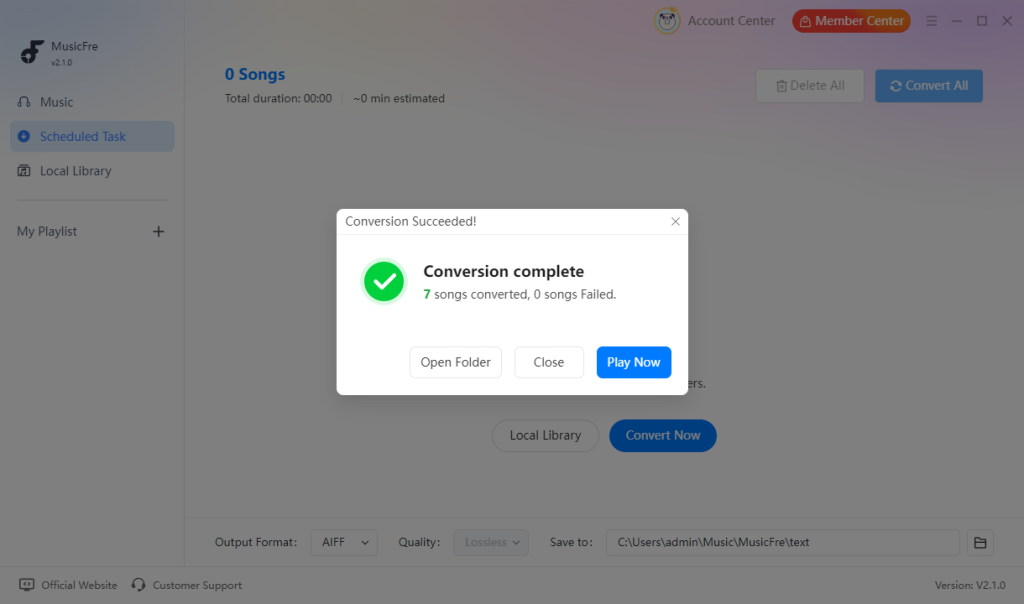
Step 4. Select AIFF as the output format, then click Convert Now to start the conversion.
Step 5. When the conversion is finished, open the output folder to access your AIFF files.
Method 2: Convert YouTube Audio to AIFF Online
An online YouTube to AIFF converter can be convenient if you only need to process a small number of files and do not want to install a desktop application. Keep in mind that some online tools do not support direct AIFF export, so you may need to convert the file to WAV first and then convert WAV to AIFF.
The general process usually looks like this:
Step 1. Open YouTube and copy the URL of the video you are permitted to use.
Step 2. Visit a reputable online YouTube audio converter and paste the link into the input field.
Step 3. Choose AIFF as the output format if it is available.
Step 4. Start the conversion and download the generated audio file to your computer.

However, there are several things to check before using an online service.
AIFF Support May Vary
Many online services focus on common formats such as MP3 or M4A. Direct AIFF output may not always be available.
Some workflows may require two steps, such as converting the audio to WAV first and then converting WAV to AIFF. This can work, but it adds another step that may not be necessary if you have access to a tool that can directly output AIFF.
Check File and Batch Limits
Free online tools often have limits on file size, conversion frequency, speed, batch processing, and available formats. These limits may be fine for one or two files, but they can become inconvenient when converting a playlist or a larger collection.
Consider Privacy and Website Quality
Before using an unfamiliar online service, make sure the site is trustworthy and check its privacy practices. Avoid sites with excessive pop-ups or unnecessary data requests.
Method 3:Record YouTube Audio and Export It as AIFF
Recording is different from direct conversion. Instead of processing an existing source through a converter, you play the audio and capture it with recording software.
When Is Recording a Better Option?
Recording can be a practical choice when you only need a specific section or timestamp from a longer video. It also allows you to remove unwanted parts or make basic edits before saving the audio. For example, if you only need a 30-second clip from a longer video, recording and trimming that section may be more practical than saving and processing the entire source.
How to record YouTube audio as AIFF:
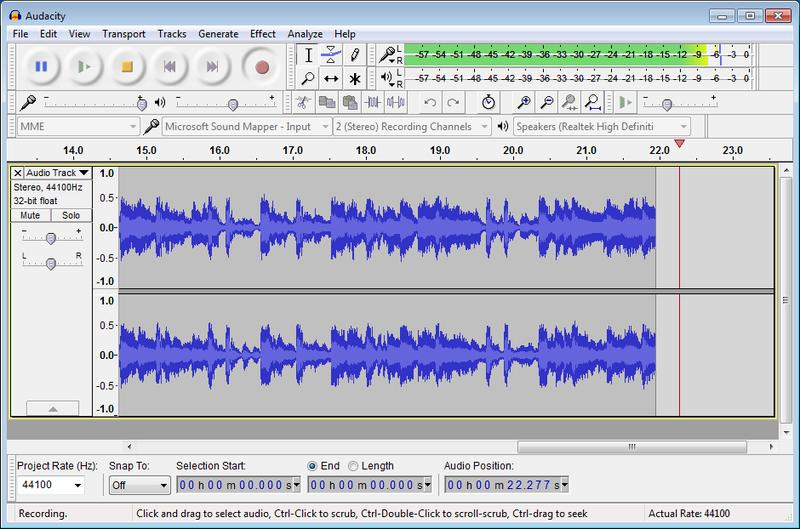
Step 1. Install and open an audio recording program.
Step 2. Set the recording input to your computer’s system audio.
Step 3. Open the video and move to a few seconds before the section you want to capture.
Step 4. Start recording and play the selected section of the video.
Step 5. Stop the recording when the clip ends.
Step 6. Trim unwanted audio, then choose the export option and save the clip in AIFF format.
AIFF vs MP3 vs WAV: Which Format Should You Choose?
Choosing between AIFF, MP3, and WAV depends more on how you plan to use the audio than on which format is universally better.
| Format | Compression | File Size | Best For | Limitation |
| AIFF | Uncompressed | Large | Editing and AIFF-compatible workflows | Requires more storage space |
| MP3 | Lossy | Small | Everyday listening and portability | Re-encoding may further reduce audio detail |
| WAV | Uncompressed | Large | Broad audio-editing compatibility | Metadata support can be less convenient |
For YouTube audio, AIFF and WAV are both practical if your next step is editing. The key is not to expect either format to restore audio detail that was not present in the original YouTube stream.
FAQs About YouTube to AIFF
1Can I convert a YouTube playlist to AIFF?
Yes, if the tool supports playlist processing. A desktop converter such as MusicFre is usually more suitable for converting multiple songs or an entire YouTube Music playlist.
2What sample rate should I choose for an AIFF file?
For most music projects, 44.1 kHz is a practical choice. If you are working with video, 48 kHz is commonly used.
3Can I edit an AIFF file and export it again later?
Yes. You can edit AIFF files in compatible audio software and export them again in AIFF or another supported format.
4Is AIFF better than WAV for audio editing?
Not necessarily. Both are typically uncompressed and can provide similar audio quality. The better choice mainly depends on your software and workflow.
Final Words
There are several ways to convert YouTube to AIFF, and the right choice depends on what you need.
For multiple YouTube Music tracks or playlists, a desktop tool such as MusicFre can provide a more convenient batch workflow. For an occasional conversion, an online tool may be enough if it supports AIFF output. If you only need a specific section of a video, recording the audio and exporting it as AIFF can give you more control.
Before you start, consider what you actually need the audio for, such as editing, archiving, building a local library, or simply listening. Choosing the format based on your specific use case will help you decide whether AIFF, MP3, or WAV is right for you.