中文 (台灣)
  日本語
日本語  한국어
한국어  Italiano
  Français
  Português
  Español

Best Ways to Convert YouTube to a WAV File in 2026 [Windows & Mac]
- Category:YouTube Music Tips
- Xiny
- 2026-09-01
Need a YouTube to WAV file for editing, sampling, a video project, or offline playback? WAV is often one of the first formats worth considering when you want an uncompressed working file without introducing additional quality loss through a lossy export.
There are several ways to save YouTube audio as a WAV file, including using a desktop converter or an online tool. The right method depends on how many files you need to process, how much control you want over the output, and whether you need batch conversion.
In this guide, we’ll compare the main ways to convert YouTube to WAV on Windows and Mac, look at the advantages and limitations of desktop and online tools, and walk you through the conversion process step by step.
Important: Only convert or save YouTube content when you have the necessary rights or permission to do so, and always comply with YouTube’s Terms of Service and applicable laws.
Why Save YouTube Audio as a WAV File Instead of MP3?
Before choosing a YouTube-to-WAV converter, it helps to understand what a WAV file is and what you can expect from this format.
What Is a WAV File?
WAV, short for Waveform Audio File Format, is an audio container commonly used for uncompressed PCM audio. Unlike MP3, which uses lossy compression to reduce file size, a typical PCM WAV file stores audio without applying another lossy compression step. This makes WAV particularly useful for audio editing, music production, video post-production, and other workflows where you may need to process the audio further.
WAV vs MP3: What’s the Difference?
WAV and MP3 differ in several key areas, including compression, file size, editing flexibility, device compatibility, and their typical use cases.
| Feature | WAV | MP3 |
| Compression | Usually uncompressed | Lossy compression |
| File size | Large | Small |
| Editing flexibility | Better for further editing | Less suitable for repeated editing |
| Device compatibility | Broad, but less storage-friendly | Very broad and convenient |
| Best for | Editing, sampling, production | Everyday listening and sharing |
When Should You Choose WAV Over MP3?
A WAV file can be a good choice when you plan to:
- Edit audio in a DAW or audio editor
- Keep a local working copy for a production project
- Avoid another round of lossy compression before editing
- Work with professional audio applications
Does Converting YouTube to WAV Improve Audio Quality?
No. Converting a YouTube video to WAV does not magically improve the quality of the original audio. This is an important distinction to keep in mind. YouTube audio is typically delivered in a compressed streaming format, and converting it to WAV only creates an uncompressed output file. It does not restore any detail that may have been lost during compression. What WAV can do is help you avoid an additional lossy export.
Top YouTube to WAV Converters for Windows and Mac
There are several ways to get a WAV file from YouTube, but they are not equally convenient for every situation.
For Batch WAV Files and an Organized Music Library: MusicFre
A desktop converter is generally a better fit if you need to save multiple YouTube Music tracks, albums, or playlists as WAV files. MusicFre is designed for this repeated-use scenario. It lets you convert permitted YouTube Music content to local formats, including WAV on Windows and Mac. Instead of copying and pasting one link at a time into different websites, you can add several items to one conversion queue and manage the output in one place.
For users building a local music library or preparing files for editing, the value goes beyond simply getting a download. MusicFre can make the entire process more consistent, efficient, and easier to manage:
For Occasional Files: Online YouTube-to-WAV Converters
An online YouTube to WAV converter can be convenient when you only need to process a file occasionally. The workflow is usually simple: copy the video link, paste it into the site, choose WAV, and download the result.
However, the experience varies significantly between services. Before using an unfamiliar online converter, consider the trade-offs:
- Some sites show pop-ups, redirects, or misleading download buttons.
- Playlist and batch processing are often unavailable.
- Conversion speed can vary depending on server load.
- Metadata, such as artist, title, and album artwork, may not be retained.
For occasional use, those limitations may be acceptable. For repeated conversions or a larger collection, a desktop tool such as MusicFre generally provides a more stable and organized experience.
How to Get High-Quality WAV Files from YouTube
Below are two practical ways to convert audio to WAV, depending on your workflow.
Method 1: Save YouTube Music as WAV with MusicFre
Step 1. Download and install MusicFre on your Windows PC or Mac.






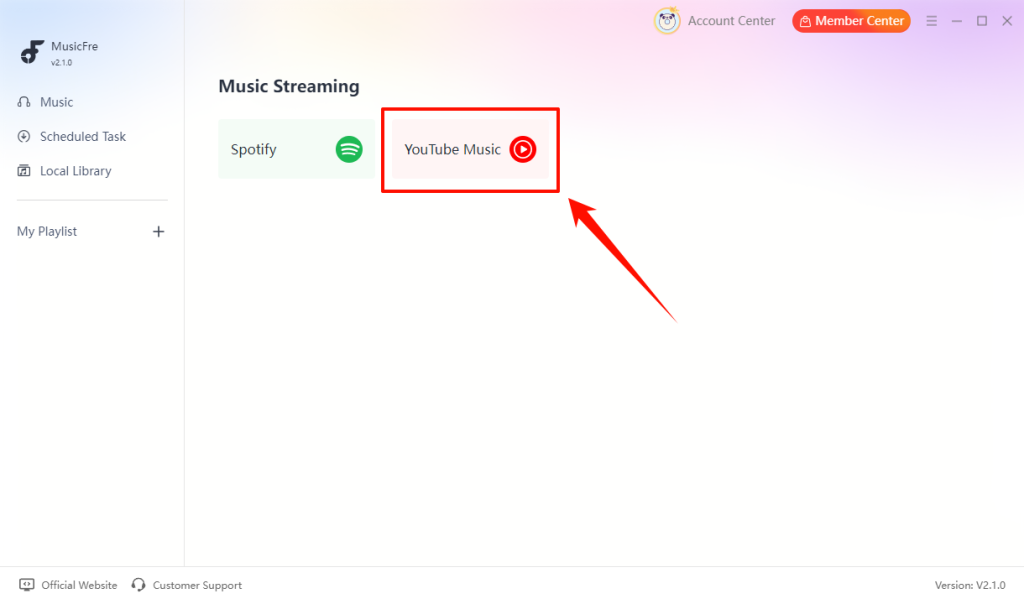
Step 2. Open MusicFre and select YouTube Music from the main interface.
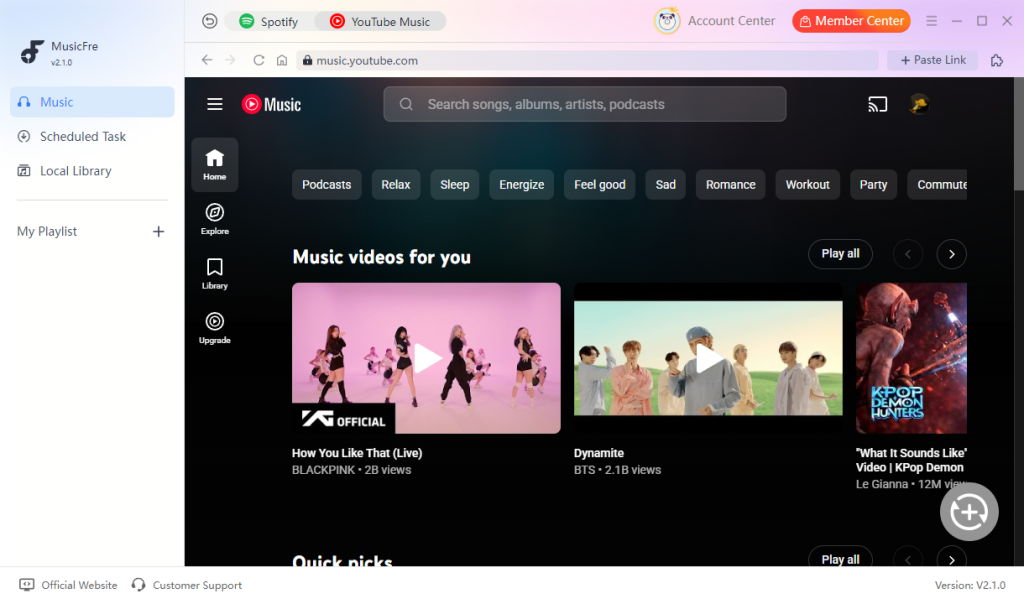
Step 3. Search for the content you want to get, then add it to the conversion list.
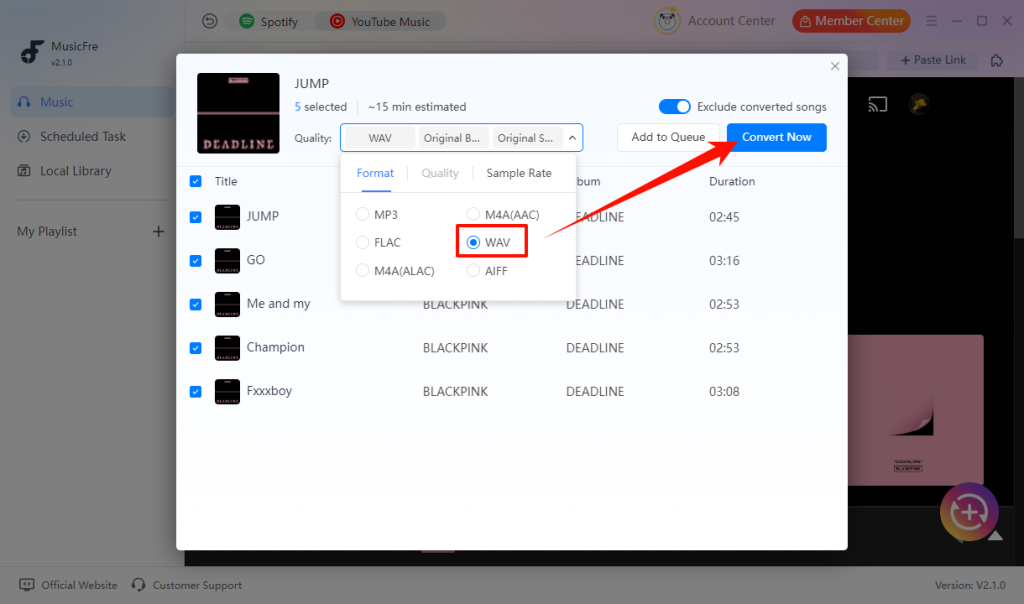
Step 4. Choose WAV as the export format, and click Convert Now to start.
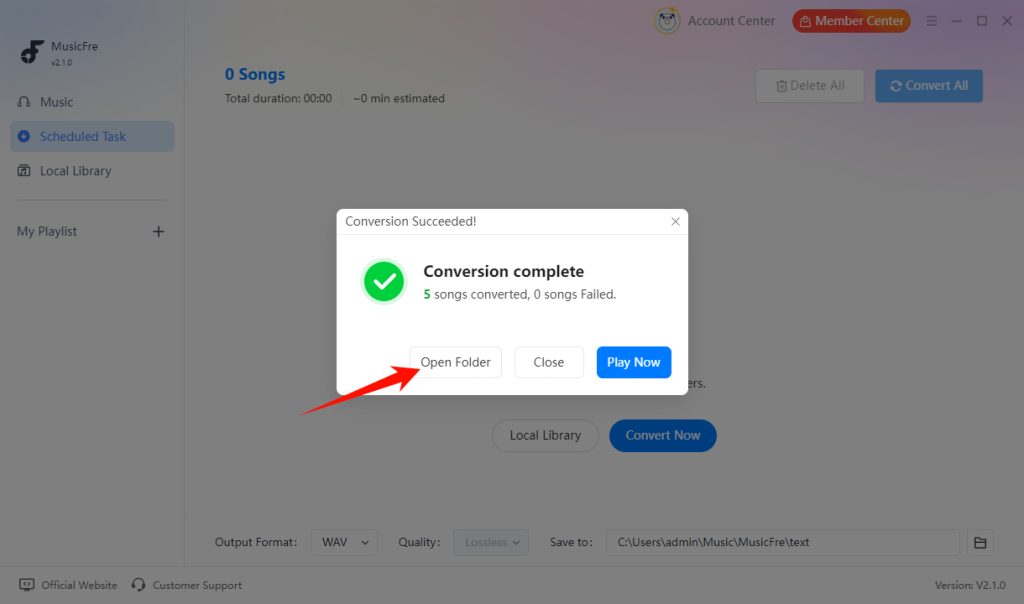
Step 5. When processing is complete, open the output folder to access the WAV files.
User Experience
“I’ve been using MusicFre mainly for converting YouTube Music playlists to WAV, and it’s been pretty easy to work with. Being able to process multiple tracks at once is probably the feature I use most. I also like that the files keep useful information such as the song title and artist, which saves me some time when organizing them. It’s not something I use every day, but when I need to prepare a batch of tracks for editing, it makes the process much less tedious.”
Method 2:Use an Online YouTube to WAV Converter
If you do not want to install software, an online service can provide a simpler alternative.
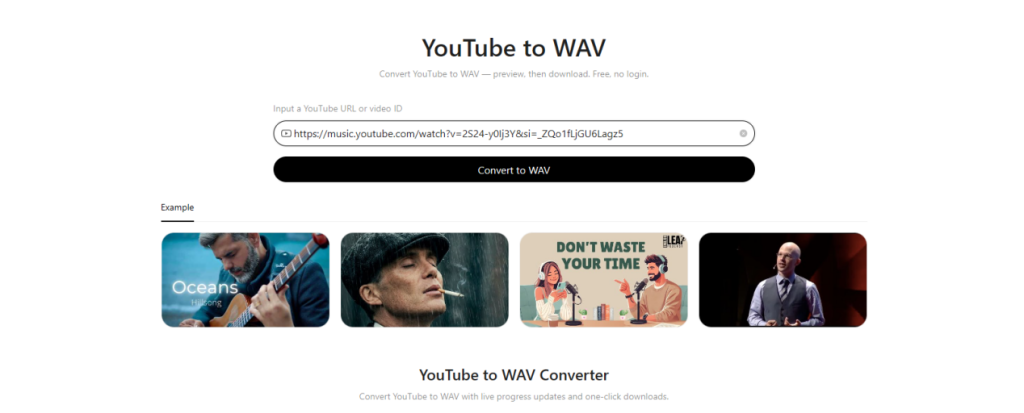
Step 1. Open YouTube and copy the URL of the video you want to process.
Step 2. Open a reputable online conversion service.
Step 3. Paste the URL into the conversion box.
Step 4. Choose WAV as the output format.
Step 5. Start the conversion, then download the completed WAV audio file.
User Experience
“I only needed to convert a few YouTube tracks, so using an online converter was convenient enough. It was quick for individual files, and I didn’t need to install anything. However, the experience was less smooth when I tried several tracks, as the conversion speed varied and some pages had quite a few ads. For occasional use, though, it gets the job done.”
Recommended WAV Settings for YouTube Audio
Choose settings based on how you will use the WAV file. The important thing to remember is that higher numbers make files larger, but do not automatically mean better source audio.
| Use case | Recommended setting |
| Music listening or general use | 44.1 kHz / 16-bit |
| Music editing or sampling | 44.1 kHz / 16-bit or 24-bit |
| Video editing | 48 kHz / 16-bit or 24-bit |
| Storage is limited | 44.1 kHz / 16-bit, or consider MP3 |
Tip: 44.1 kHz / 16-bit is a practical default for most users. Choose 48 kHz for video projects, and use 24-bit only when your project specifically requires it.
FAQs About YouTube to WAV
1Is it safe to use an online YouTube to WAV converter?
It depends on the site. Avoid tools with excessive pop-ups, redirects, or unknown software downloads. For frequent conversions, desktop software offers a more stable workflow.
2How much storage does a YouTube WAV file need?
A stereo WAV file at 44.1 kHz / 16-bit uses about 10 MB per minute. A one-hour file can take roughly 600 MB, so check your available storage before converting long videos or playlists.
3Is WAV better than MP3 for editing?
Yes, WAV is usually better for editing. It is typically uncompressed, so it is more suitable for trimming, mixing, sampling, and exporting the audio again.
4Can I save only part of a YouTube video as a WAV file?
Yes. If you only need a short permitted clip, use an audio recorder or a tool with trimming options. This is often more practical than saving the entire video and editing it afterward.
In Conclusion
Converting YouTube audio to WAV can be useful when you need a file for audio editing, video production, music workflows, or local archiving. However, WAV should not be treated as a way to improve the quality of the original YouTube source.
For occasional conversions, an online YouTube-to-WAV converter can be a convenient option. If you regularly work with multiple YouTube Music tracks or playlists, need batch processing, and want to keep your files organized, a dedicated desktop converter such as MusicFre can make the entire process easier and more efficient on Windows and Mac.