中文 (台灣)
  日本語
日本語  한국어
한국어  Italiano
  Français
  Português
  Español

Top 5 Methods to Download YouTube Music to iPhone [2026 Guide]
- Category:YouTube Music Tips
- Xiny
- 2026-09-02
Want to download YouTube Music to your iPhone for offline listening or save YouTube songs as local audio files? There are several ways to do it, depending on what you actually need.
If you simply want to listen to music without an internet connection, YouTube Music Premium provides an official offline download option. If you want actual MP3, WAV, FLAC, or other audio files that you can organize, sync, and play outside the YouTube Music app, you will need a different approach.
In this guide, we’ll cover five practical ways to download or save YouTube Music to iPhone, including the official offline method, a desktop converter, direct file transfer, online converters, and iOS Shortcuts.
Can You Download YouTube Music Directly to an iPhone?
Yes, but the answer depends on what you mean by “download.”
With YouTube Music Premium, you can download music directly to your iPhone for offline listening in the YouTube Music app. It’s the simplest option for everyday listening, but the tracks remain within the app and are tied to your Premium subscription. You’ll also need to reconnect to the internet at least once every 30 days to keep your downloads available.
If you want to add YouTube Music to your iPhone Music Library, play it in another app, or transfer between devices, you’ll need to use a method that creates a standard audio file first.
How to Download Songs from YouTube to iPhone
There are several ways to get YouTube Music to your iPhone. Here are five options to consider.
Method 1: Use YouTube Music Premium for Offline Listening
The official method is the most direct way to download YouTube Music on iPhone. With an active YouTube Music Premium or YouTube Premium subscription, you can save available songs, albums, playlists, and podcasts for offline playback.
Here is how to do it:
Step 1. Open the YouTube Music app on your iPhone.
Step 2. Sign in to your YouTube Music Premium account.
Step 3. Find the song, album, or playlist you want to save.
Step 4. Tap the three-dot menu next to a song, or open an album or playlist.
Step 5. Select Download to start saving the content.
Step 6. Go to Library > Downloads to access your offline content.
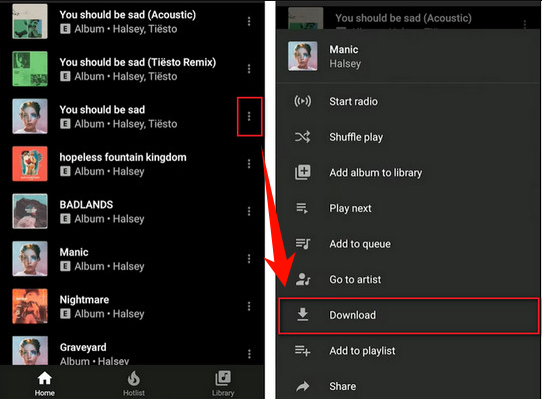
This is a good choice if your main goal is simply to get YouTube Music on your iPhone for offline playback. However, there is an important limitation: an offline YouTube Music download is not the same as downloading an MP3 file. The content remains part of the YouTube Music app’s offline system rather than appearing as a normal audio file that you can freely manage in the Files app.
Best for: users who want convenient offline listening without managing local music files.
Method 2: Save YouTube Music as Local Audio Files with MusicFre
If you want more control over your music files, MusicFre provides a desktop workflow for saving YouTube Music as local audio files on Windows or Mac. Once converted, the files can be transferred to your iPhone and played through Apple Music or another compatible app.






Here is the basic process:
Step 1. Get MusicFre set up on your Windows PC or Mac.
Step 2. Open the YouTube Music section in MusicFre.
Step 3. Search for the songs, albums, or playlists you want to convert.
Step 4. Click the Add button to place the selected tracks in the conversion queue.
Step 5. Choose an output format, then click Convert Now to start the process.
Step 6. Open the output folder after the conversion is complete.
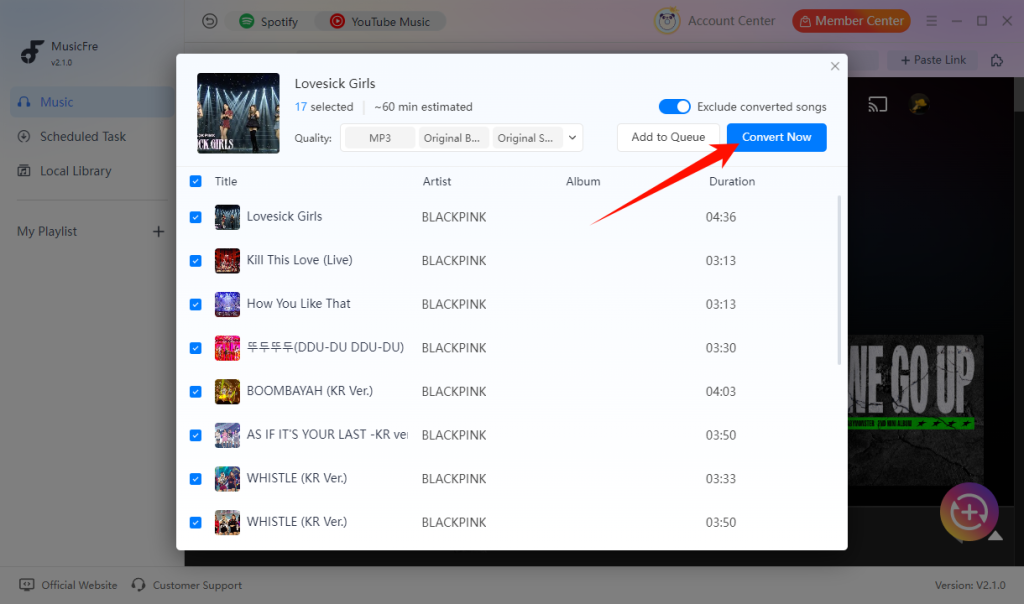
For iPhone users, M4A and MP3 are usually the most practical formats. After conversion, continue to the transfer guide below to sync the local files to your iPhone.
Best for: users who want local YouTube audio files, batch conversion, multiple output formats, or a more manageable music library.
Method 3:Transfer Downloaded Music Files to iPhone
If you have compatible audio files such as MP3, AAC, M4A, or WAV, you don’t need another downloader. You can simply transfer the existing music files to your iPhone. This section works for MusicFre-converted files as well as music files that already exist on your computer.
Windows: Sync Music to iPhone with Apple Devices
On current versions of Windows, Apple provides the Apple Devices app for managing and syncing content with an iPhone. Apple also requires the Apple Music app to be installed for music syncing.
Step 1. Install and open the Apple Music app and Apple Devices app on your Windows PC.
Step 2. Connect your iPhone to the computer with a USB cable.
Step 3. Open Apple Devices and select your iPhone.
Step 4. Select Music in the sidebar and turn on Sync music onto [your iPhone].
Step 5. Choose to sync selected artists, albums, genres, or playlists.
Step 6. Click Sync to start the process.
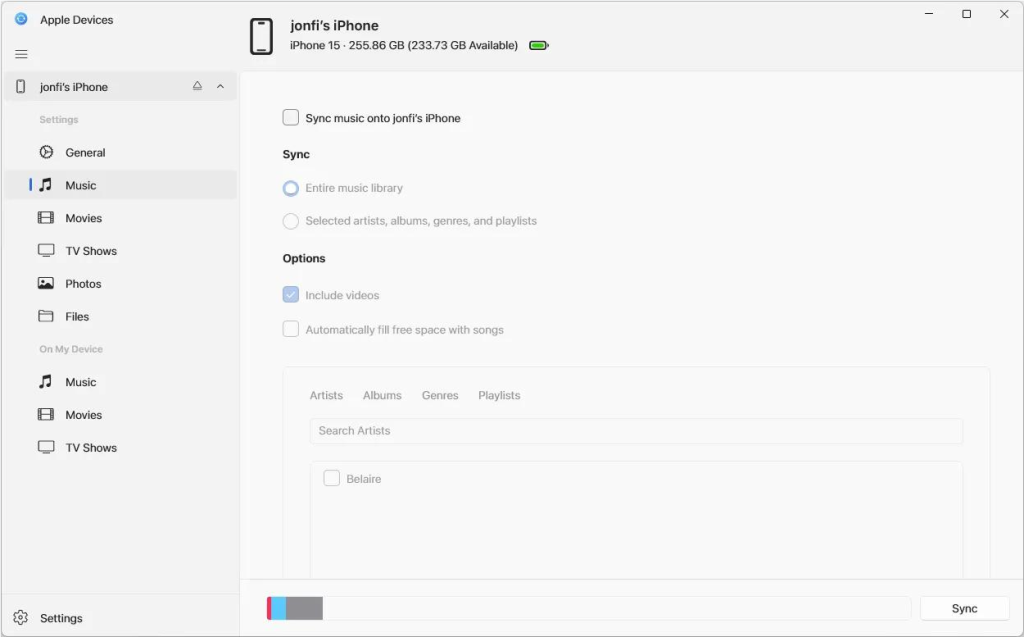
Mac: Sync Music to iPhone with Finder and Music
On a Mac, you can use Finder and the Music app to sync music between your computer and iPhone. Apple supports both USB/USB-C and Wi-Fi syncing after the initial setup.
Step 1. Open the Music app on your Mac.
Step 2. Select File > Import and choose the audio files you want to add.
Step 3. Connect your iPhone to your Mac with a USB cable.
Step 4. Open Finder and select your iPhone in the sidebar.
Step 5. Open the music-syncing section.
Step 6. Choose the songs, albums, or playlists you want to transfer.
Step 7. Click Apply to start syncing.
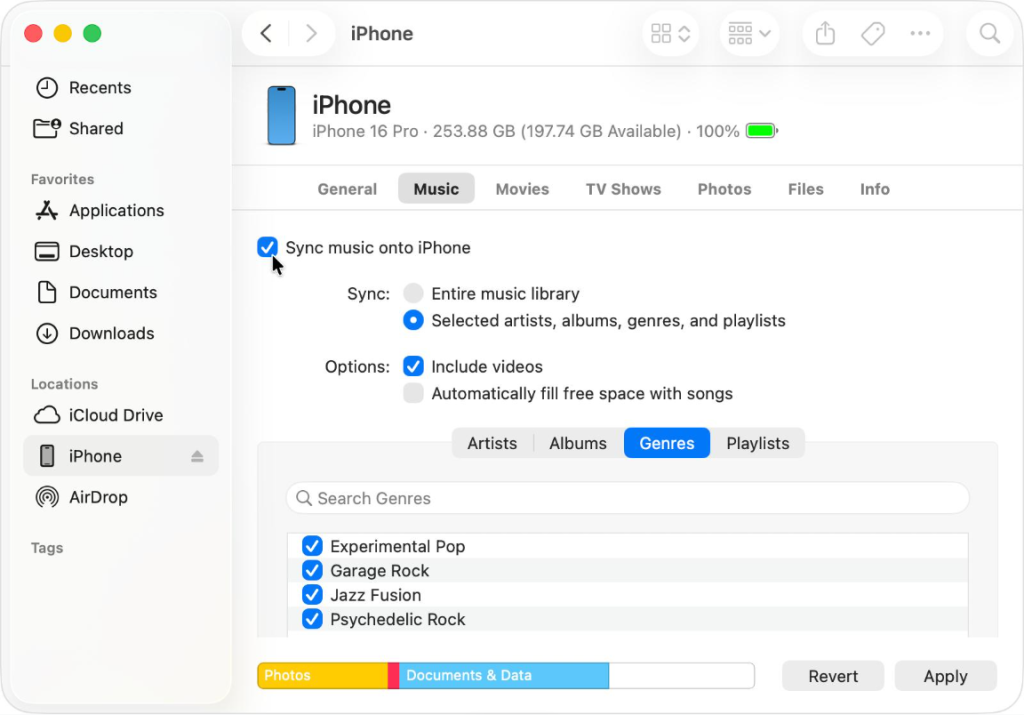
Once the sync is complete, the music should be available in the Music app on your iPhone. If you only have a few files and want to transfer them to an app that supports file sharing, Finder can also transfer individual files directly through the Files section.
Best for: users who already have music files on a Windows PC or Mac and want to move them to an iPhone.
Method 4:Get YouTube Music on iPhone Using an Online Converter
You can also use Safari to access a browser-based converter that saves audio from a YouTube or YouTube Music link. This is the method many users mean when they search for a way to download music from YouTube on iPhone without installing desktop software.
The general process is:
Step 1. Copy the link of the YouTube content you want to save.
Step 2. Open a browser-based converter in Safari.
Step 3. Paste the link into the converter.
Step 4. Choose an available audio format.
Step 5. Start the conversion.
Step 6. Save the resulting file to the Files app when prompted.
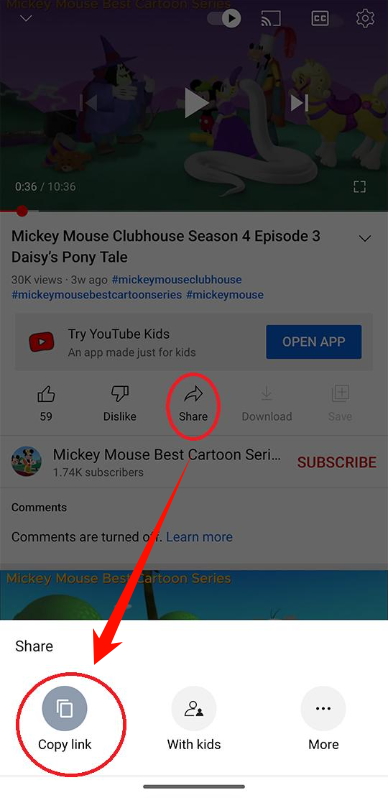
This approach can be convenient because it doesn’t require a computer or desktop application. However, online tools can vary significantly in terms of availability, conversion speed, output quality, advertising, and privacy practices. For that reason, an online converter is generally more suitable for occasional use than for maintaining a large local music collection.
Best for: users who want a quick, occasional way to save YouTube audio directly on an iPhone.
Method 5: Download YouTube Audio to Files with an iOS Shortcut
Another iPhone-only option is to use an iOS Shortcut that is designed to process supported YouTube URLs and save the resulting audio or file to the device.
A typical workflow looks like this:
Step 1. Install a compatible Shortcut from a source you trust.
Step 2. Open YouTube or YouTube Music and copy the link to the song or video.
Step 3. Run the Shortcut and provide the copied URL when prompted.
Step 4. Follow the Shortcut’s instructions to process the link.
Step 5. Save the resulting file to Files on your iPhone.
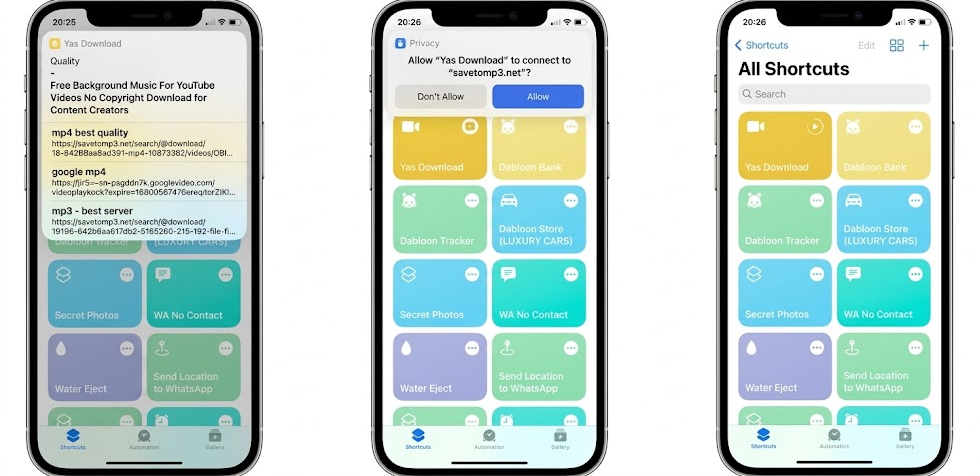
This option has several limitations. Shortcuts can stop working when websites change their structure or access rules. Their behavior can also vary depending on the shortcut used and the content being processed.
Best for: users who prefer an iPhone-only workflow and are comfortable using third-party Shortcuts.
Where Are Downloaded YouTube Music Files Stored on iPhone?
Where your downloaded music appears depends on which method you use.
YouTube Music Premium Downloads
Music downloaded through YouTube Music Premium is managed inside the YouTube Music app. You can access it from the app’s Downloads section.
Music Converted with MusicFre
MusicFre saves converted files to the output folder selected in its preferences. This means the files initially remain on your Windows PC or Mac.
Synced Music
Music transferred through Apple’s syncing tools can appear in the Music app on your iPhone. The exact location and management options depend on how the music was transferred.
Safari or Shortcut Downloads
Files downloaded through Safari or an iOS Shortcut are usually saved in the Files app. You can open supported audio files in Files or send them to a local music player.
Frequently Asked Questions
1Can I download music from YouTube to iPhone without Premium?
Yes, but not through YouTube Music’s built-in offline download feature. You can instead save supported YouTube audio as a local file and then transfer it to your iPhone.
2What audio format is best for iPhone?
M4A/AAC is a great choice for Apple Music and everyday iPhone listening. MP3 is better if you also want to play the files on other devices. WAV and FLAC offer larger files and are mainly useful for special listening or editing needs.
3Is it better to download YouTube Music or save it as an audio file?
It depends on your needs. YouTube Music downloads are more convenient for offline listening within the app, while local audio files give you more flexibility to organize, transfer, and play your music with compatible apps.
Final Thoughts
There are several methods to download YouTube Music to iPhone, but they serve different purposes.
For simple offline listening, YouTube Music Premium is the easiest option. If you want to save YouTube songs as local audio files, a desktop converter such as MusicFre can handle the conversion before you transfer the files to your iPhone. If you already have music files, Apple’s built-in syncing tools can take care of the final transfer.
Choose the method that best fits your listening needs, make sure you have enough storage on your iPhone, and use any local audio files responsibly.