English
 中文 (台灣)
 日本語
 한국어
 Italiano
 Français
 Português
 Español


Best Ways to Rip Music from YouTube to MP3 (2026 Guide)
- Category:YouTube Music Tips
- Xiny
- 2026-10-09
Want to rip music from YouTube to MP3 for offline listening, audio editing, or easier file management? The best method depends on the type of content, how many tracks you need, and the audio format you want.
You can use an online converter for occasional downloads, desktop software to handle multiple tracks, or an audio editor to extract sound from a video file you already have. Each option works a little differently, so it’s worth choosing one that fits your needs.
In this guide, you’ll learn how to rip music from YouTube to MP3, compare common methods, and choose the right audio settings. Before choosing a method, make sure you have permission to download and use the content.
What Does It Mean to Rip Music from YouTube?
Ripping music from YouTube means extracting the audio track from a video and saving it as a separate audio file. MP3 is a popular output format because it offers a good balance between sound quality, file size, and device compatibility.
People may use different phrases to describe this process, including “rip songs from YouTube,” “extract audio from YouTube,” “convert YouTube to MP3,” or “rip music off YouTube.” The basic idea is the same, though the specific wording may vary.
Depending on the tool you use, you may be able to save audio as WAV, FLAC, AAC, M4A, or AIFF. Each format is designed for a different purpose:
- MP3 is useful for everyday listening and portable devices.
- WAV is commonly used for editing and production.
- FLAC preserves audio in a lossless format while taking up less space than WAV.
- M4A and AAC offer efficient compression and broad device support.
- AIFF is often used in Apple-based audio production workflows.
It’s also worth noting that YouTube and YouTube Music are different services. YouTube hosts music videos, live performances, interviews, and other video content, while YouTube Music focuses on music streaming, with features for playback and offline listening.
How to Rip Music from YouTube to MP3
There are several ways to extract audio from YouTube. The three most common options are online converters, desktop software, and tools that work with a video file already stored on your computer.
Method 1:Use an Online YouTube-to-MP3 Converter
An online YouTube-to-MP3 converter is usually a convenient option for a single file. You do not need to install a desktop application, and the conversion process typically takes only a few steps.
The general process looks like this:
Step 1. Copy the link to the video or audio content you are allowed to use.
Step 2. Open a reputable online YouTube-to-MP3 converter.
Step 3. Paste the link into the conversion field.
Step 4. Select MP3 as the output format.
Step 5. Start the conversion and save the resulting file.
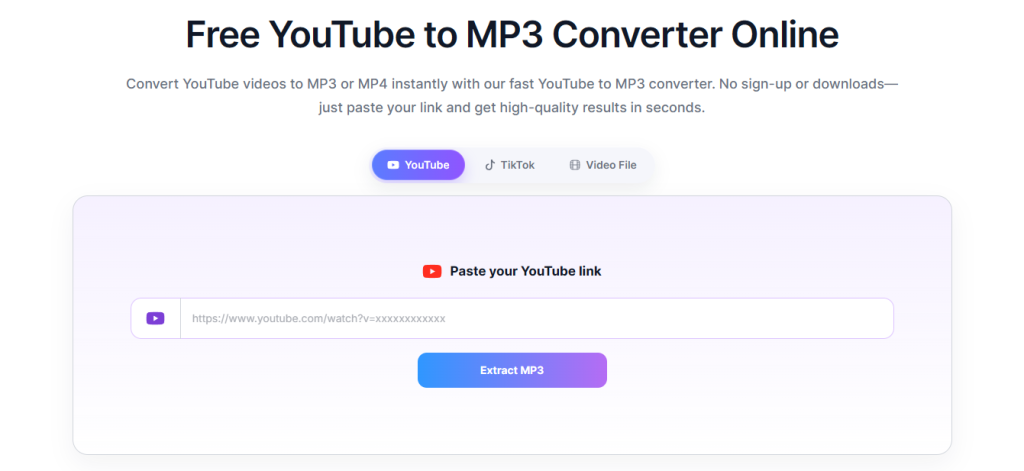
This method is best suited to occasional conversions when you do not need advanced settings or batch processing. However, online converters may contain intrusive ads and pop-ups, offer limited audio quality, or provide incomplete metadata. Avoid sites that ask you to install unknown software or provide your YouTube or Google account password.
Method 2: Use Desktop Software to Convert YouTube Music
Desktop software offers a more consistent workflow for regular music conversion, with support for batch processing, metadata preservation, and flexible output settings.
For YouTube Music users, MusicFre provides a dedicated desktop solution for Windows and Mac. It supports converting songs, playlists, albums, podcasts, and music videos into local audio files in formats such as MP3, WAV, FLAC, AAC, and M4A. With batch conversion and customizable output settings, it’s a practical choice for managing music downloads and preparing audio files for offline playback.
How to convert YouTube Music with MusicFre:
Step 1. Visit the official MusicFre website and download the version for your computer.






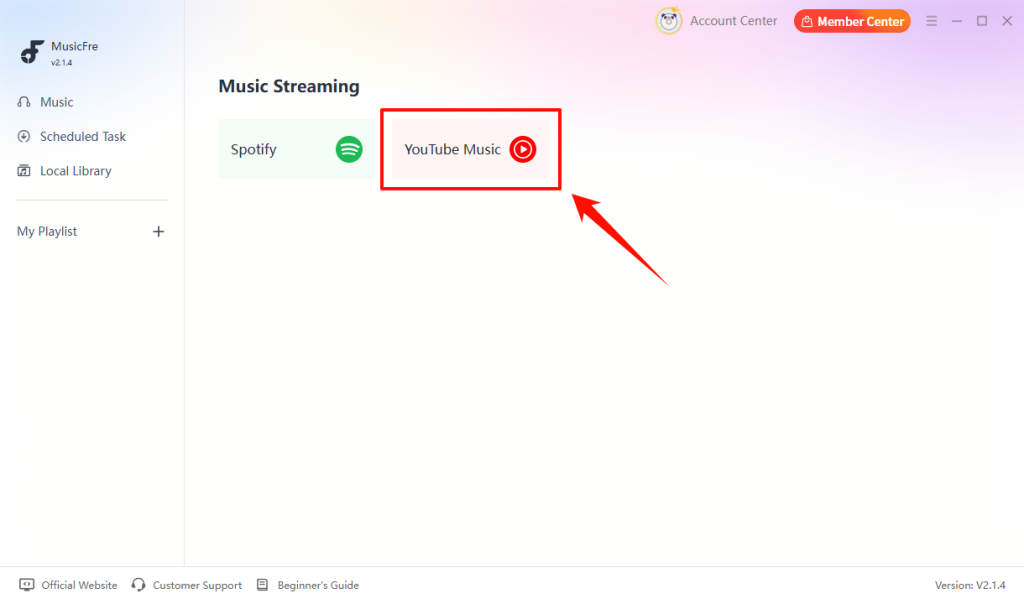
Step 2. Launch MusicFre and choose YouTube Music from the music service interface.
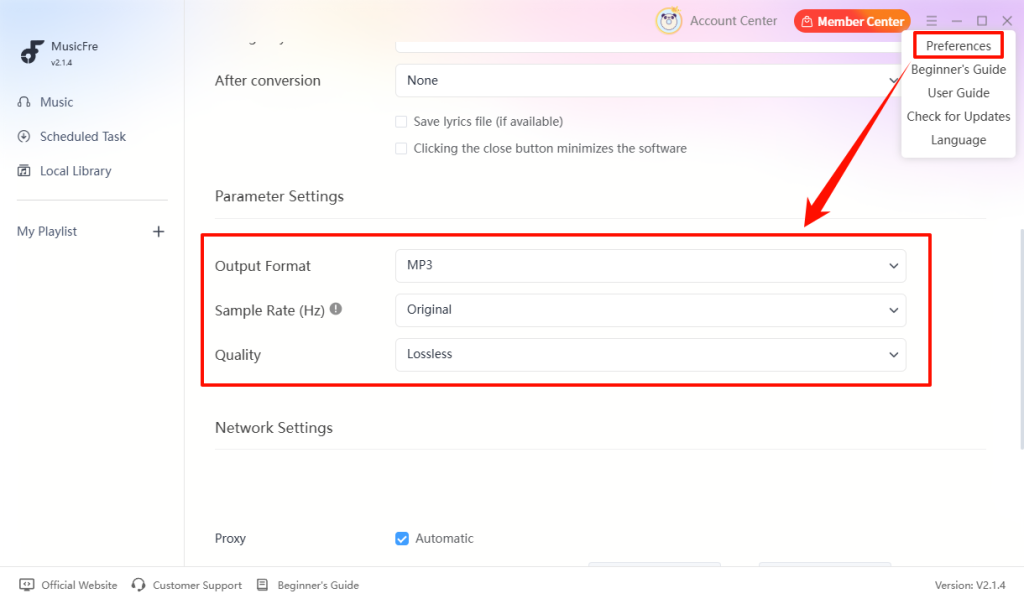
Step 3. Go to Preferences > Parameter Settings and select MP3 as the output format. Adjust the audio quality and output folder if needed.
Step 4. Search for your favorite tracks, albums, or playlists, then click the + button to add them to the conversion queue.
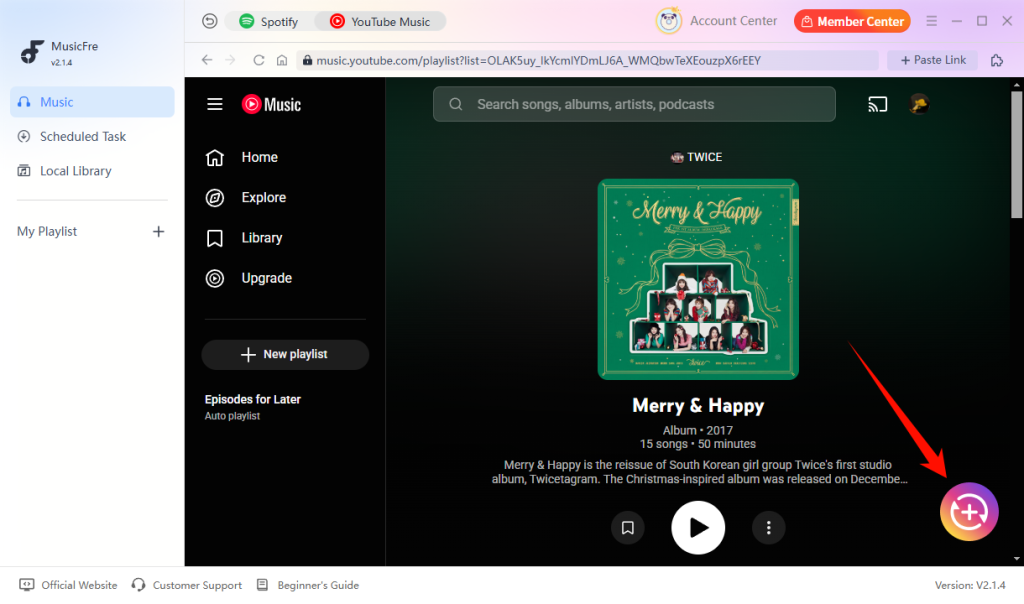
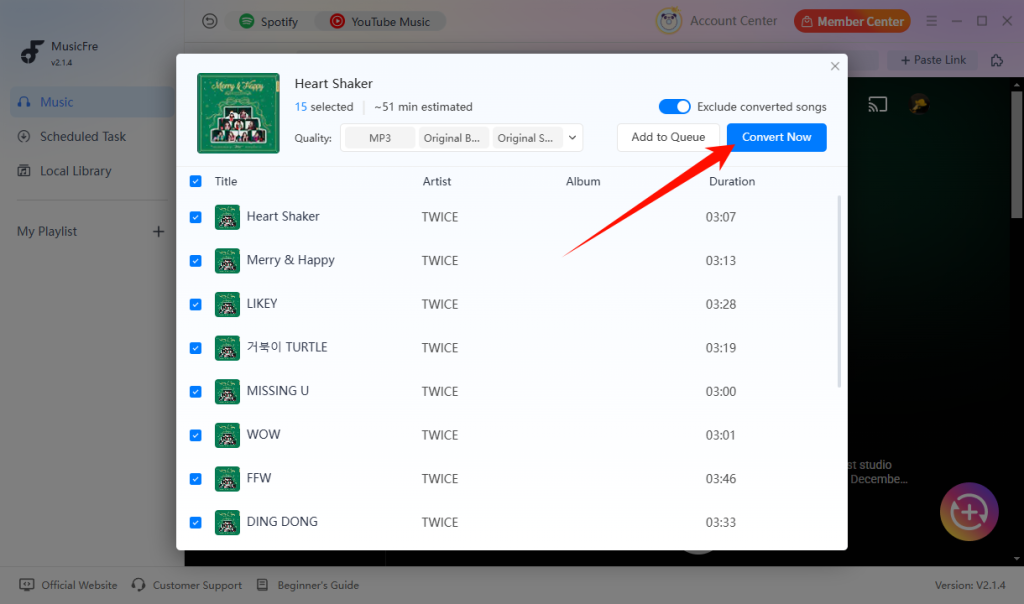
Step 5. Review your selected tracks and click Convert Now to start the conversion.
Step 6. When the process is complete, open the output folder to play or organize your files.
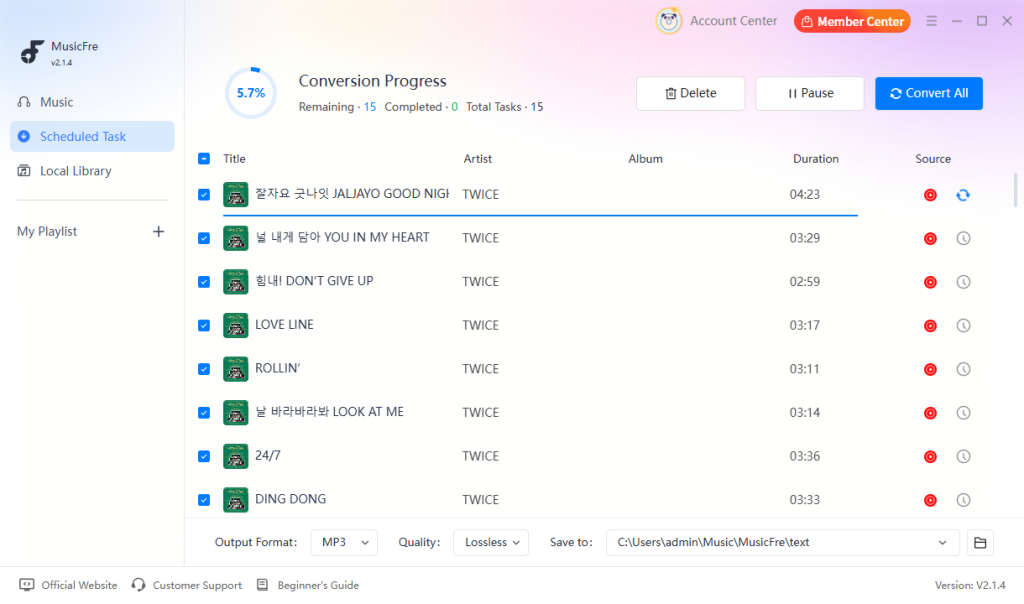
With MusicFre, you can save your favorite YouTube Music tracks as local audio files and manage your collection beyond the streaming app.
Method 3: Extract Audio from a Video You Already Have
If you already have a video file that you own or are authorized to use, you can extract its audio with a media converter or video editor. This is different from downloading or ripping a video directly from YouTube.
The basic process is usually straightforward:
Step 1. Open a media converter or video editor that supports audio export.
Step 2. Import the video containing the music you want to get.
Step 3. Choose an audio export option and select MP3 as the output format.
Step 4. Adjust the available audio settings to suit your intended use.
Step 5. Start the export and wait for the MP3 file to be saved.
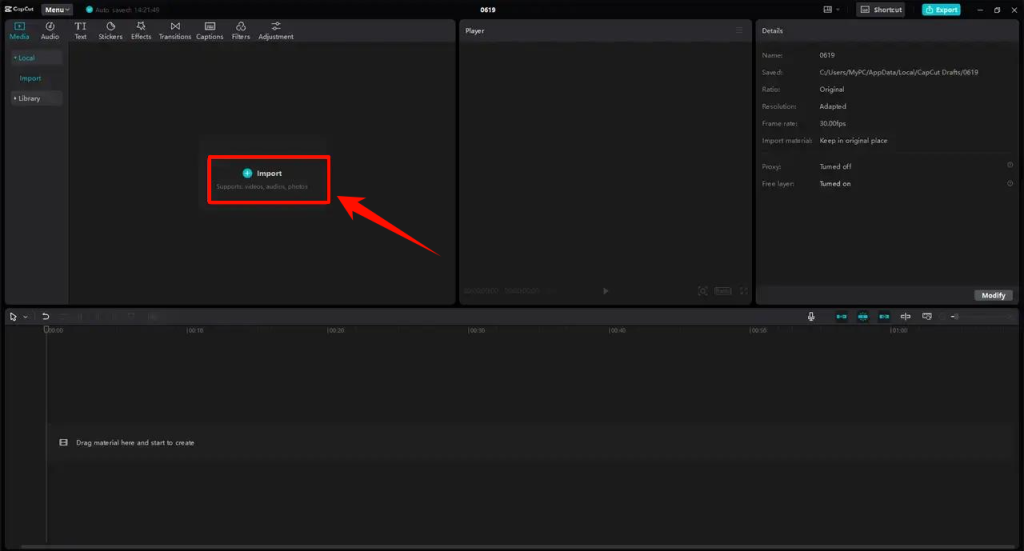
This method gives you more control over the audio extracted from a local video. Depending on your software, you may also be able to trim unwanted sections, adjust the volume, and make other edits.
The main limitation is that the quality depends on the original video file. If the video already contains compressed or low-quality audio, exporting it as a 320 kbps MP3 will not restore detail that was lost earlier.
Which Is the Best Way to Rip Music off YouTube?
The best way to rip music from YouTube depends on how often you need to convert audio and how much control you want.
| Method | Best for | Main advantage | Main limitation |
| Online converter | One-off conversions | Quick and does not require installation | Ads, pop-ups, and limited settings |
| Desktop software | Playlists and regular use | Batch processing and more output control | Requires installation |
| Local video extraction | Videos already saved on your computer | Works without a video URL | Depends on the quality of the source file |
If you only need to convert a single audio file occasionally, an online converter may be enough. For regular downloads from YouTube Music, MusicFre offers a more convenient desktop solution. If you already have a video file saved on your device, extracting the audio locally is often the most direct option.
How to Choose the Right MP3 Audio Quality
When you rip music from YouTube to MP3, the output settings affect the resulting file size and encoding quality. However, choosing a higher bitrate does not automatically produce better sound.
What Does MP3 Bitrate Mean?
Bitrate describes how much data is used to represent audio per second. For MP3 files, common settings include 128 kbps, 192 kbps, and 320 kbps.
| MP3 Bitrate | Characteristics | Suitable For |
| 128 kbps | Smaller files, with more compression | When storage space is a priority |
| 192 kbps | Balanced sound quality and file size | Everyday listening |
| 320 kbps | Higher audio quality, larger file size | When you prefer a higher-bitrate MP3 output |
These descriptions are general guidelines rather than guarantees of audible quality. The encoder, source recording, and listening equipment also matter.
Does 320 kbps Always Sound Better?
No. A 320 kbps MP3 can retain more audio information than a lower-bitrate MP3 encoded from the same suitable source, but the result still depends on the original audio.
If the source is already compressed or has limited quality, encoding it again at 320 kbps cannot restore missing detail. A larger file does not necessarily mean better sound.
FAQs About Ripping Songs from YouTube
1Is it legal to rip music off YouTube?
It depends on the content, your location, and how you use the audio. Downloading copyrighted music without permission may violate copyright law or YouTube’s terms of service. To stay on the safe side, use music you own, have permission to download, or that is available under a suitable license.
2Can I rip an entire YouTube playlist to MP3 at once?
Yes, some desktop tools support batch conversion, allowing you to process multiple tracks without converting them one by one. MusicFre supports batch conversion for YouTube Music playlists, making it easier to save multiple tracks as MP3 files in one workflow.
3Can I play the converted MP3 on another device?
In most cases, MP3 files can be transferred to compatible phones, tablets, computers, car stereos, and portable music players. The transfer method depends on the device and its operating system.
Final Thoughts
The right way to rip music from YouTube depends on your situation. Online converters can work for occasional use, while desktop software is more convenient for regular YouTube Music conversions and larger collections. If you already have the video file, extracting its audio locally gives you another practical option.
Before saving any audio, check that you have permission to use the content. Then choose an output format and quality setting that match how you plan to listen to or manage the file.