English
 中文 (台灣)
 日本語
 한국어
 Italiano
 Français
 Português
 Español


How to Download YouTube Music to Android (2026 Updated)
- Category:YouTube Music Tips
- Xiny
- 2026-11-05
There are several ways to download YouTube Music to Android, but the results can be quite different. YouTube Music Premium lets you save songs for offline listening within the app, while a desktop music converter allows you to save music as regular audio files that can be transferred to your Android phone and played with other music players.
In this guide, you’ll learn how to download YouTube Music on Android using the official app or MusicFre. We’ll also show you how to transfer music files via USB or Quick Share, save them to an SD card, organize your music library, and play your songs with compatible Android music players.
What Are Your Options for Saving YouTube Music on Android?
Before choosing a download method, it’s important to understand the difference between offline downloads in the YouTube Music app and regular audio files stored on your Android device.
YouTube Music App Downloads
With YouTube Music Premium, you can download songs, albums, and playlists in the app and listen to them without an internet connection. However, the downloaded tracks stay in YouTube Music. You won’t be able to move them to another music player or copy them to a USB drive like regular MP3 files. You also need to go online at least once every 30 days to keep your downloads available for offline listening.
Local Audio Files
If you prefer to have more control over your music, you can use regular audio files such as MP3, FLAC, or WAV. Once transferred to your Android phone, these files can be stored in your device’s storage and played with other compatible music players.
Here’s a quick comparison:
| Feature | YouTube Music App Downloads | Local Audio Files |
| Premium required | Yes, for music downloads | Depends on the method and content |
| Offline playback | Within YouTube Music | With compatible music players |
| MP3 or FLAC files | No | Yes |
| Transfer to another device | Not as ordinary audio files | Yes |
| SD card storage | Managed by app settings | Can be moved if supported |
| Use with other music players | No direct access as regular files | Yes |
If you simply want to listen offline within YouTube Music, the official app is usually the most convenient choice. But if you want to build a local music library or play songs through different Android music apps, saving regular audio files is more suitable.
2 Ways to Download YouTube Music to Android
Method 1.Download Music with YouTube Music Premium
The official YouTube Music app provides a built-in download feature for Premium members. It’s a straightforward way to save your favorite songs and playlists for offline listening without installing additional software.
Here’s how to download music on Android:
Step 1. Open the YouTube Music app on your Android phone.
Step 2. Sign in with your YouTube Music Premium account.
Step 3. Search for the song, album, or playlist you want to save.
Step 4. Open the three-dot menu next to a song or the download option on an album or playlist page.
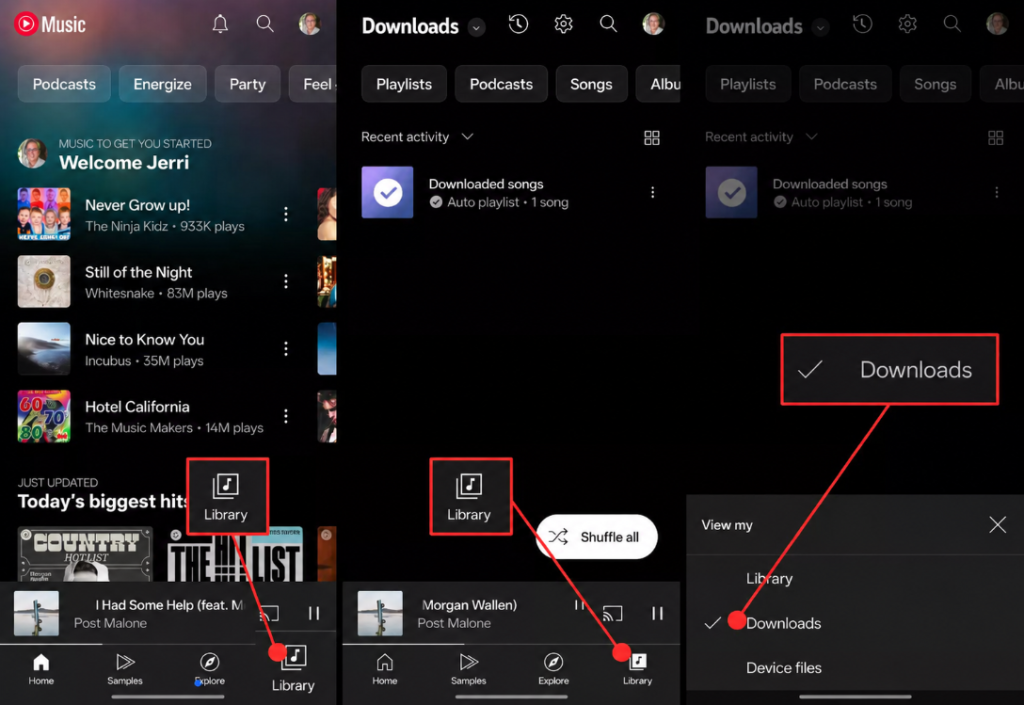
Step 5. Tap Download. Once the download is complete, go to Library > Downloads to find your saved music.
Turn On Smart Downloads to Save Music Automatically
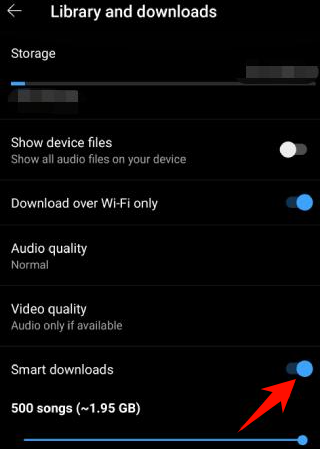
If you don’t want to manually download songs every time, you can enable Smart Downloads. This feature automatically saves recommended music based on your listening history, helping you keep a selection of tracks available for offline playback.
To enable it:
Step 1. Open YouTube Music and tap your profile picture.
Step 2. Select Downloads and open Settings.
Step 3. Find Smart Downloads and turn it on.
Method 2.Convert YouTube Music to Audio Files with MusicFre
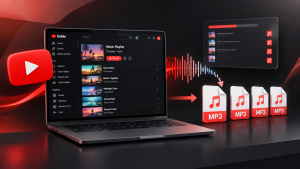
If you want to save YouTube Music as regular audio files instead of app-only offline downloads, a desktop music converter like MusicFre offers another option. It works on Windows and Mac, allowing you to convert YouTube Music songs, albums, and playlists into MP3, FLAC, WAV, and other formats. You can then transfer the files to your Android phone and play them with your preferred music player.
Why Choose MusicFre?
MusicFre provides several useful features for building a local music collection:
- Multiple Output Formats: Convert music into MP3, FLAC, WAV, AAC, M4A, AIFF, and other supported formats.
- Custom Audio Settings: Choose your preferred bitrate, audio quality, and sample rate.
- Batch Conversion: Add multiple songs, albums, or playlists to the conversion queue and process them together.
- ID3 Tag Preservation: Keep available track information, including song titles, artists, album details, and cover art.
To save YouTube Music as local audio files with MusicFre, follow these steps:
Step 1. Download and install MusicFre on your Windows PC or Mac from the official website.






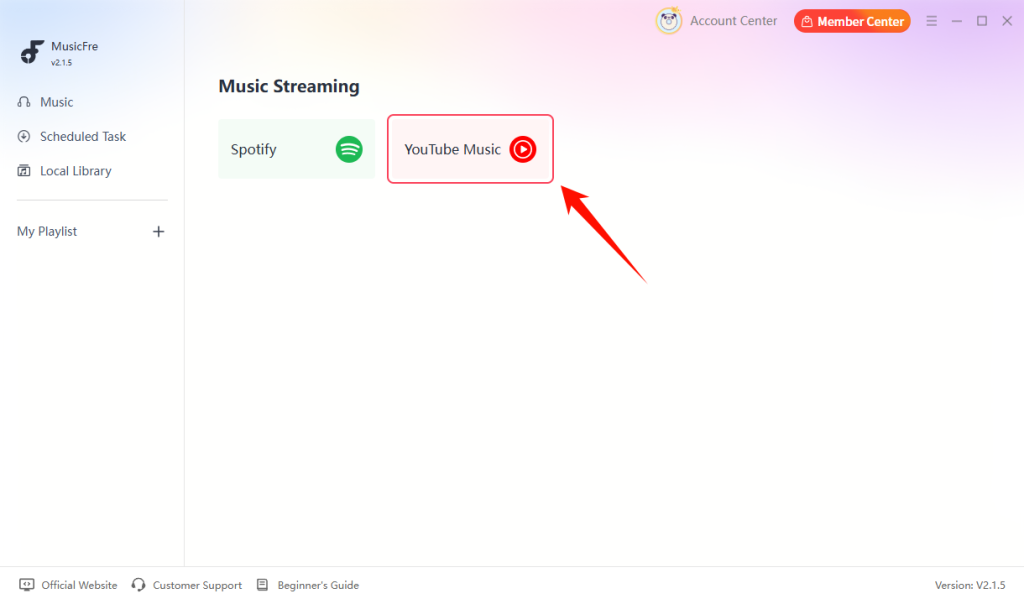
Step 2. Launch MusicFre and select YouTube Music from the main interface.
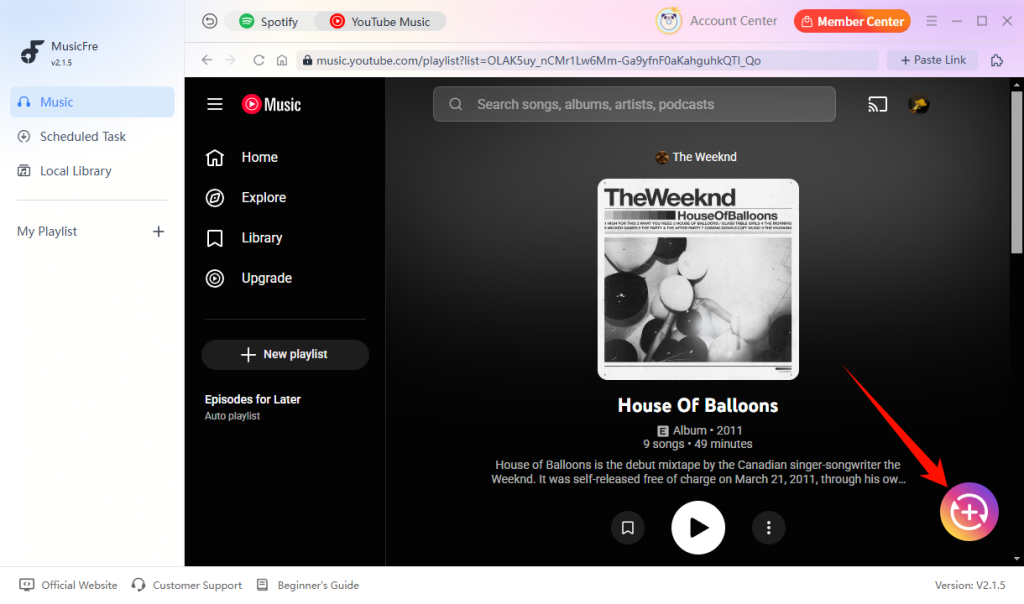
Step 3. Find the songs, albums, or playlists you want and click the + button to add them to the conversion list.
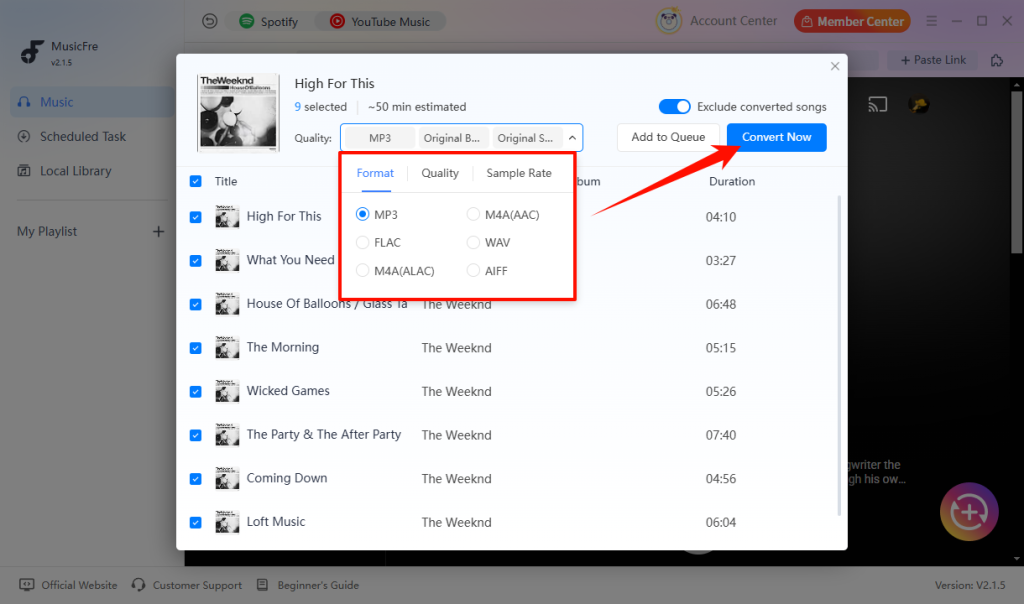
Step 4. Choose MP3, FLAC, or another output format, adjust the audio quality and sample rate, then click Convert Now.
Step 5. Wait for the conversion to finish, then click Open Folder to locate the converted files.
How to Transfer Converted Music to Android
After converting YouTube Music into local audio files, you can move them to your Android phone using a USB cable or Quick Share. Just choose the method that works best for your devices.
Option 1:Transfer Converted Music to Android via USB
A USB cable is a straightforward way to transfer multiple audio files from your computer to Android storage.
Step 1. Connect your Android phone to the computer with a USB cable.
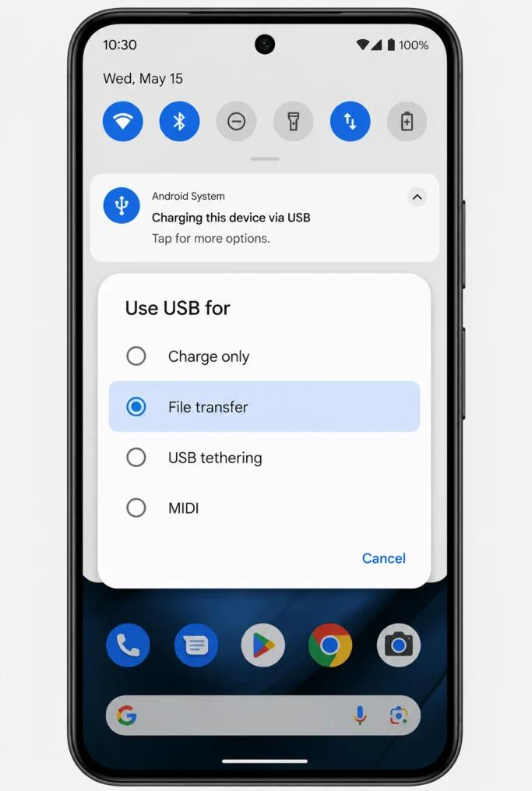
Step 2. Unlock your phone and tap the USB connection notification.
Step 3. Select File Transfer from the available USB options.
Step 4. Open File Explorer on Windows and locate your Android device.
Step 5. Open the phone’s internal storage and create or select a folder named Music.
Step 6. Copy the converted MP3, FLAC, or other compatible audio files into that folder.
Step 7. Wait for the transfer to finish before disconnecting your phone.
Option 2:Transfer Music Wirelessly to Android with Quick Share
If you prefer not to use a USB cable, Quick Share lets you send music files wirelessly from a compatible Windows computer to an Android phone.
Step 1. Install and open Quick Share for Windows on your computer.
Step 2. Make sure Wi-Fi and Bluetooth are enabled on both devices.
Step 3. Set your Android phone’s Quick Share visibility so your computer can find it.
Step 4. Open Quick Share on Windows and select the converted audio files.
Step 5. Choose your Android phone from the available devices.
Step 6. Click Share and accept the transfer request on your phone if prompted.
Step 7. Wait for the files to arrive.
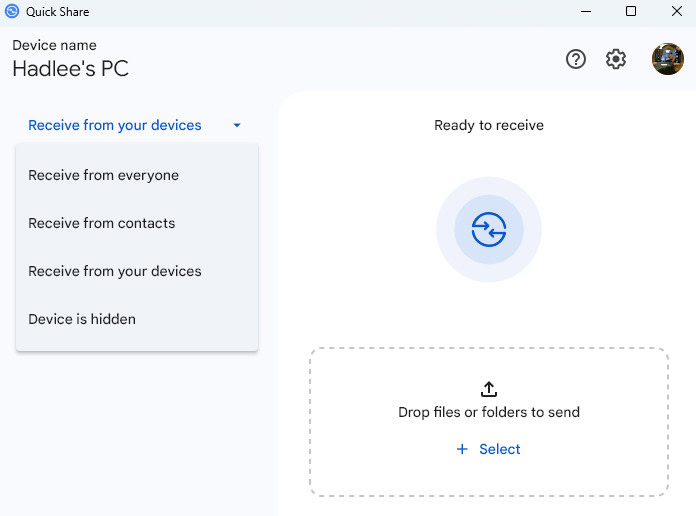
Files received through Quick Share are generally saved in the Downloads folder. You can find them in your Android file manager and move them to the Music folder to keep your tracks organized.
This wireless option is convenient when you only need to transfer a few songs or don’t have a USB cable nearby. For larger music collections, a USB connection may be more practical.
How to Manage Your Music Files on Android
Once you’ve downloaded or transferred music to your Android phone, it’s worth organizing your files so you can easily find and play your favorite tracks whenever you want.
Where Are Music Files Stored on Android?
The location of your music files depends on how you downloaded or transferred them. Here are some common locations:
| Music Source | Possible File Location |
| YouTube Music app downloads | Managed within the YouTube Music app |
| USB transfer | Internal Storage > Music |
| Quick Share | Downloads > Quick Share |
How to Move Music to an Android SD Card
If your Android phone supports a removable microSD card, you can move local music files to it to free up internal storage.
Here’s the general process:
Step 1. Insert a compatible microSD card into your Android phone.
Step 2. Open the Files or My Files app.
Step 3. Navigate to the folder containing your music files.
Step 4. Select the songs or folders you want to move.
Step 5. Tap Move or Copy.
Step 6. Choose the SD card as the destination.
Step 7. Open the destination folder and check that the files are available.
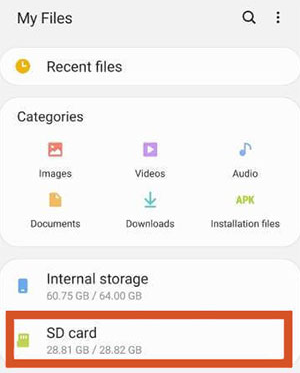
Note: Not all Android phones support removable SD cards. Some devices also restrict how apps access external storage, so the available options may differ.
How to Play Saved YouTube Songs with Android Music Players
After saving music to your phone, you can use a compatible local music player instead of opening YouTube Music every time. For example, Poweramp and AIMP are two popular options for playing local audio files on Android.
To play your transferred songs:
Step 1. Install or open a compatible music player.
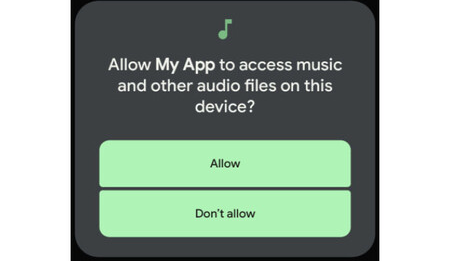
Step 2. Allow the app to access your audio files when requested.
Step 3. Select the folder containing your transferred music.
Step 4. Refresh or scan the music library if the new tracks don’t appear.
Step 5. Select a song to start playback.
FAQs About Downloading YouTube Music to Android
1Can I keep YouTube Music downloads after Premium expires?
No. Once your YouTube Music Premium subscription expires, you can no longer access your downloaded songs for offline playback within the app. However, regular audio files saved to your Android phone remain available and can still be played with compatible music players.
2What is the best audio format for listening to music on Android?
MP3 is a good choice for everyday listening because it offers broad compatibility and relatively small file sizes. If you prefer lossless audio and have enough storage space, FLAC is another option. WAV is more suitable for audio editing or specific playback needs.
3Why are my transferred music files not showing up on Android?
This may happen if your music player hasn’t scanned the folder containing your files or doesn’t have permission to access them. Check the file location, refresh your music library, and make sure your player supports the audio format. Restarting the app may also help.
Final Thoughts
Downloading YouTube Music to Android depends on how you want to listen to your music. YouTube Music Premium is a convenient choice for offline playback within the app, while saving music as local audio files gives you more flexibility to transfer, organize, and play your tracks with different music players.
If you prefer having your own local music library, MusicFre lets you convert YouTube Music into regular audio files that you can transfer to your Android phone and play with other music players. Choose the method that best fits your listening habits and enjoy your favorite music wherever you go.