中文 (台灣)
  日本語
日本語  한국어
한국어  Italiano
  Français
  Português
  Español

How to Listen to YouTube Music Offline (With or Without Premium)
- Category:YouTube Music Tips
- Xiny
- 2026-08-24
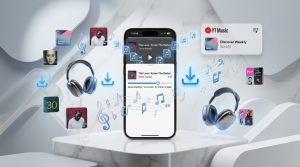
Want to listen to YouTube Music when you are on a flight, commuting through a low-signal area, or trying to save mobile data? You have two main options: use YouTube Music’s official offline downloads or prepare local audio files for playback on your own devices.
The right choice depends on what you need. Official downloads are convenient if you already use YouTube Music Premium and mainly listen in the app. Local files can be more flexible when you want to play saved music on a computer, car stereo, MP3 player, or another music app.
This guide explains how YouTube Music offline listening works, what you can do without Premium, and how the two approaches differ.
Can You Listen to YouTube Music Offline?
Yes, YouTube Music supports offline listening. With an active YouTube Music Premium or YouTube Premium subscription, you can download supported songs, albums, and playlists in the YouTube Music app and play them without an internet connection.
However, YouTube Music’s official downloads are not the same as regular MP3 files. They are stored within the app and tied to your account, so you can use them for offline playback in YouTube Music but not as standalone audio files. Availability may also vary by device, location, app version, and subscription plan.
If your goal is simply to listen without Wi-Fi or mobile data, the official method may be enough. If you need playable audio files for other devices, saving music as local files may be a better option.
How Does Offline Listening Work on YouTube Music
With a YouTube Music Premium subscription, you can download songs, albums, playlists, and other available content for offline playback. Once downloaded, the content can be accessed from the app without an active internet connection. However, offline access is not permanent. YouTube says your device needs to reconnect to the internet at least once every 30 days to maintain music downloads.
There are a few important things to understand before using offline playback:
● Premium requirement: Official downloads usually require an eligible Premium subscription.
● In-app storage: Downloaded music is generally stored in the YouTube Music app rather than as audio files.
● Internet reconnection: You may need to reconnect to the internet occasionally to verify your subscription and download availability.
● Content availability: Some songs or other content may not be available for offline playback depending on licensing, location, or other restrictions.
Official offline playback is a convenient option if you mainly listen within the YouTube Music app. However, it may not be the best fit if you want to transfer music to a USB drive, play it on a car stereo, or manage your tracks in another media library.
How to Use YouTube Music for Offline Listening with Premium
If you already have YouTube Music Premium, the official method is straightforward.
Step 1. Launch the YouTube Music app and sign in with your Premium account.
Step 2. Find the song, album, or playlist you want to make available offline.
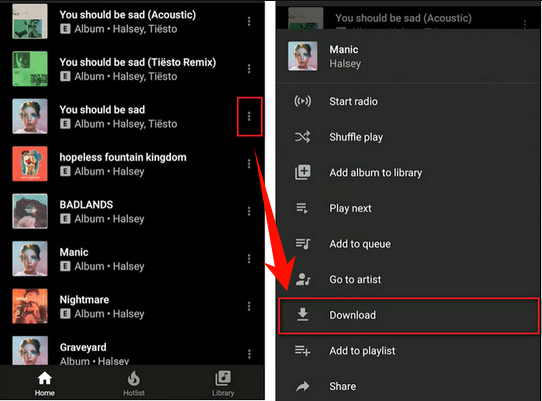
Step 3. Tap the three-dot menu next to a song, or open an album or playlist and select Download.
Step 4. Wait for the download to finish, then open your Library or Downloads section to find it later.
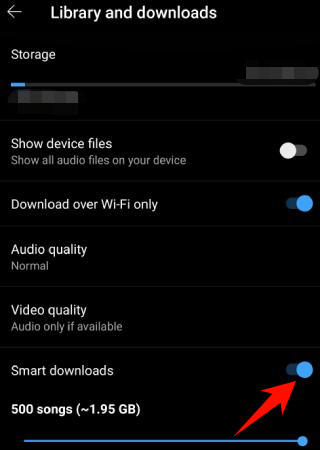
Tip: YouTube Music also provides Smart Downloads for automatically downloading music based on your listening history. Before enabling it, check your storage settings and download quality. Automatic downloads are convenient, but they can use a meaningful amount of space if your device has limited storage.
Can You Use YouTube Music Offline Without Premium?
For standard music downloads inside the official YouTube Music app, Premium is generally required. A free account can stream music while connected to the internet, but it does not normally include the same official offline music-download feature.
If you’re a free user or simply want more flexibility than in-app offline playback, you can consider a different approach: saving compatible music as local audio files. A desktop music converter can provide a separate workflow for creating local files that can be managed and played outside the YouTube Music app.
Both options can help you listen to music without an internet connection, but they offer different levels of flexibility and control.
YouTube Music Offline Downloads vs. Local Audio Files
The main difference is where and how you can use the downloaded content. YouTube Music’s official downloads are designed for playback within the app, while local audio files can be managed and played outside YouTube Music.
| Feature | Official YouTube Music Downloads | Local Audio Files |
| Offline Playback | Yes | Yes |
| Premium | Required | Depends on the method |
| Storage | Stored inside the app | Saved in a chosen folder |
| File organization | Managed by the app | Managed by you |
| Other players | Usually unavailable | Available |
| USB transfer | Not usually possible | Possible with compatible files |
| Best for | Listening in the YouTube Music app | Playing music on more devices |
Neither approach is universally better. If you have Premium and simply want to listen offline, the official YouTube Music option is convenient. If you want more flexibility in managing and playing your music, keeping it as local audio files may be a better choice.
How to Save YouTube Music as Local Files with MusicFre
For users who want more than app-based offline playback, MusicFre provides a desktop workflow for saving YouTube Music as local audio files. It supports Windows and Mac, with output formats including MP3, WAV, FLAC, AAC, and M4A, as well as customizable bitrate and sample rate settings. Metadata such as track title, artist, album, and cover artwork can also be preserved for easier library management.
Here is the basic workflow:
Step 1. Install and open MusicFre on your Windows or Mac computer.






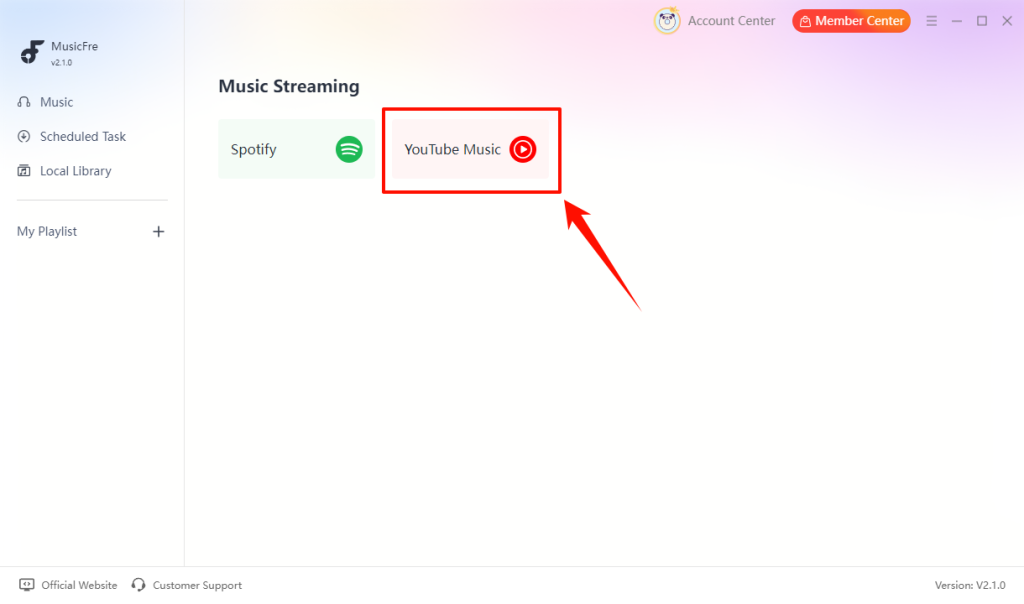
Step 2. Select the YouTube Music tab in the main interface and sign in to your account.
Step 3. Search for the song, album, or playlist you want to save for local playback.
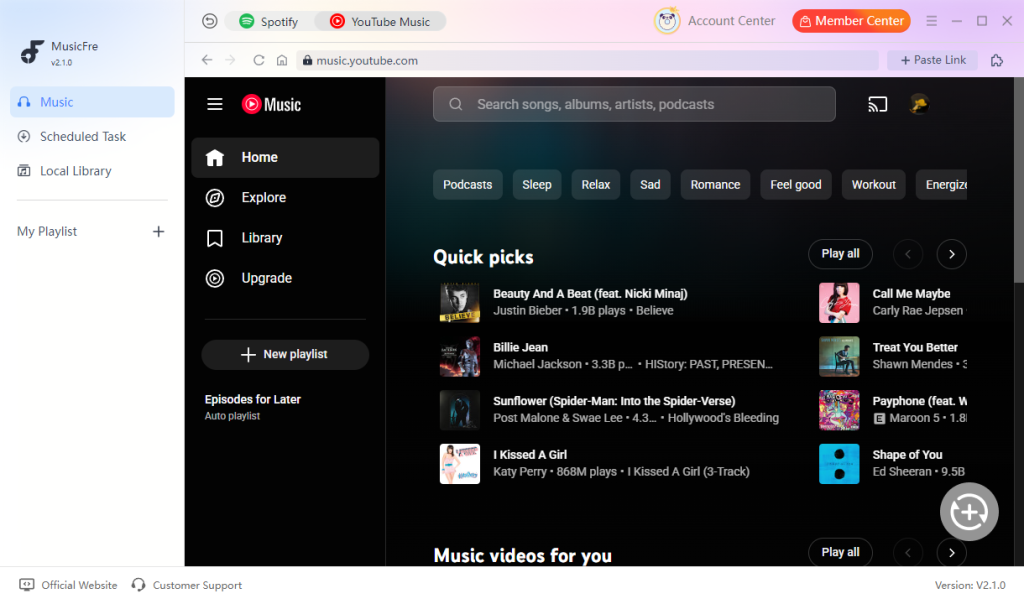
Step 4. Select the content and click the Add button to start analyzing.
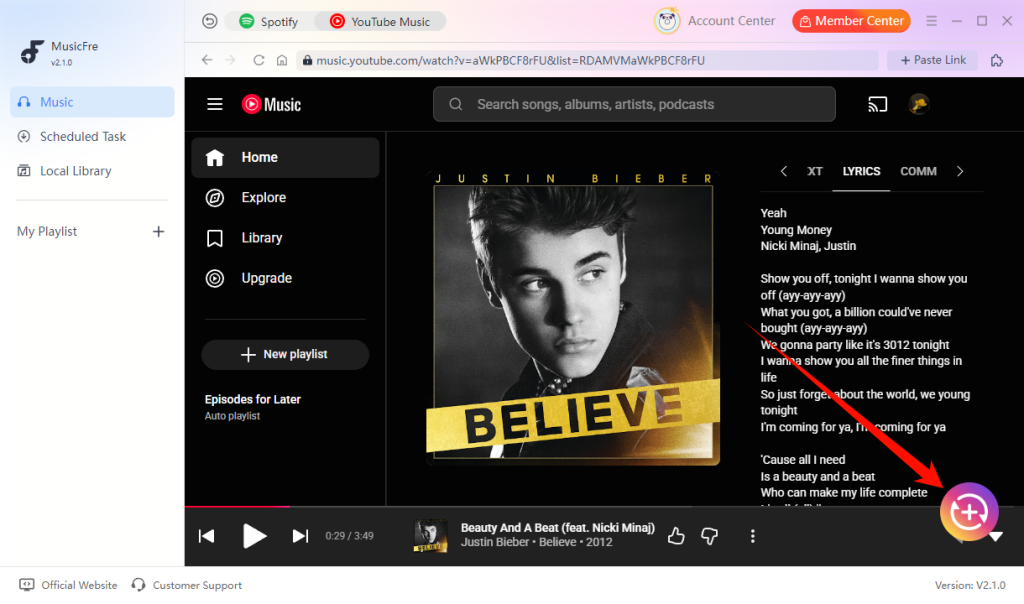
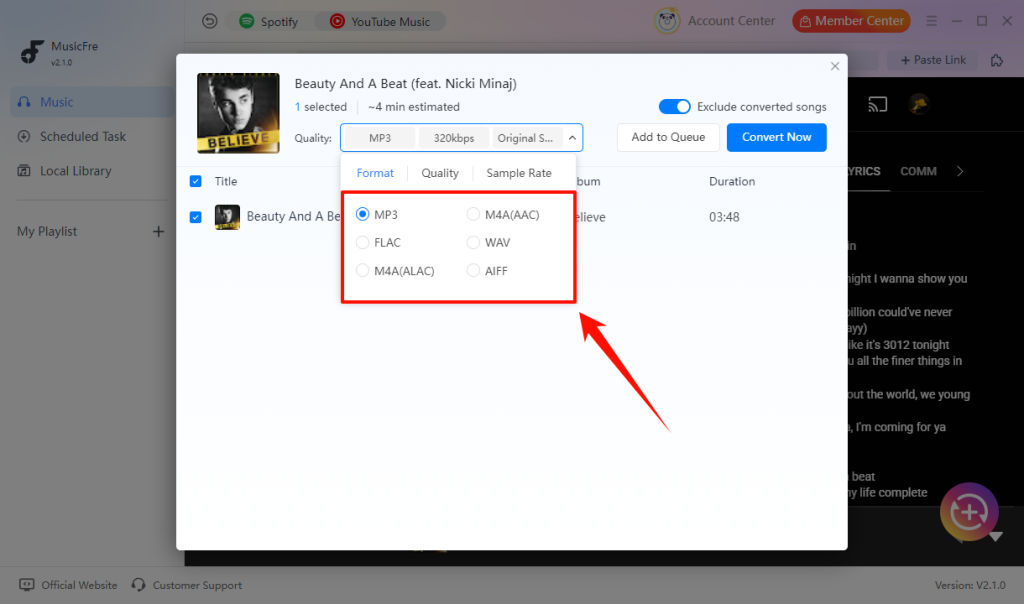
Step 5. Set the format that fits your intended use. For example:
- MP3: Widely compatible and convenient for everyday playback.
- FLAC: Suitable when you want a lossless audio format.
- WAV: Useful for editing and production workflows.
- M4A/AAC: a practical choice for Apple devices and music libraries.
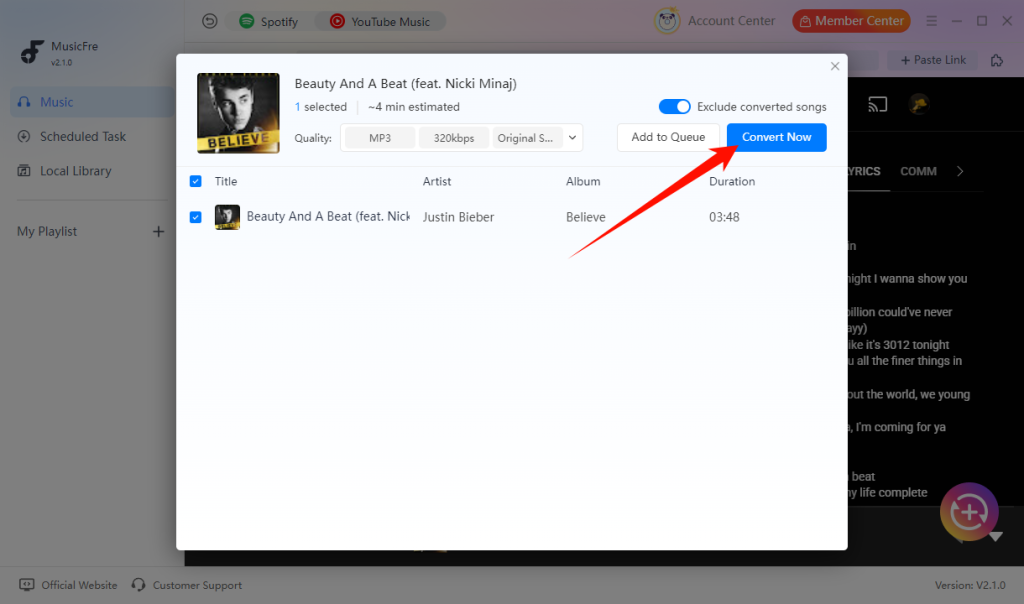
Step 6. Click Convert Now to begin. Once the process finishes, MusicFre saves the converted files to your selected output folder, where you can access or play them locally.
How to Play Saved YouTube Music Offline on Different Devices
Once you have compatible local audio files, you can play music without internet on many devices.
Android phones and tablets
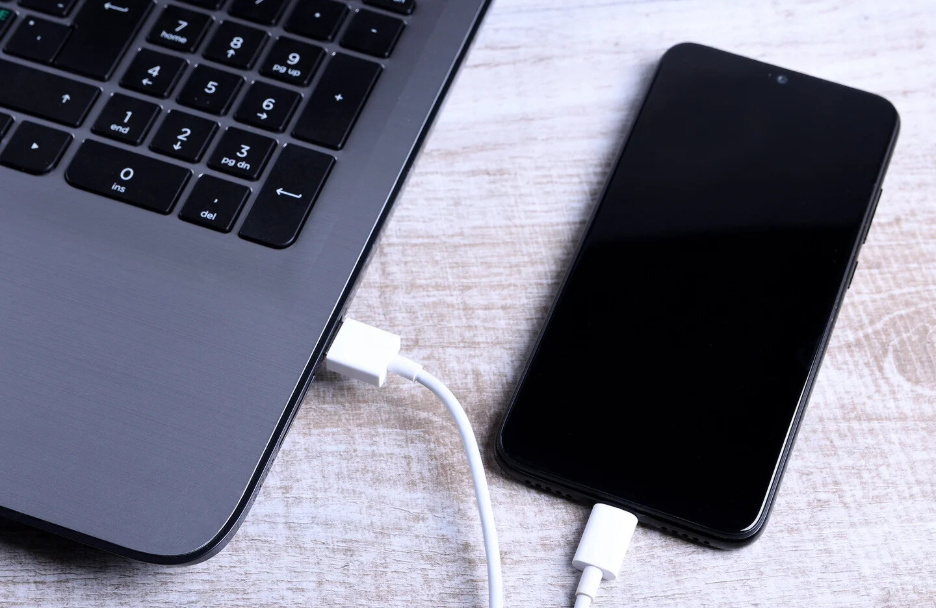
Transfer your music files to the device’s Music folder using a USB cable, cloud storage, or another supported method. Then open a local music player such as VLC, Musicolet, or your device’s default music app. MP3 is generally the easiest format for Android compatibility.
iPhone and iPad
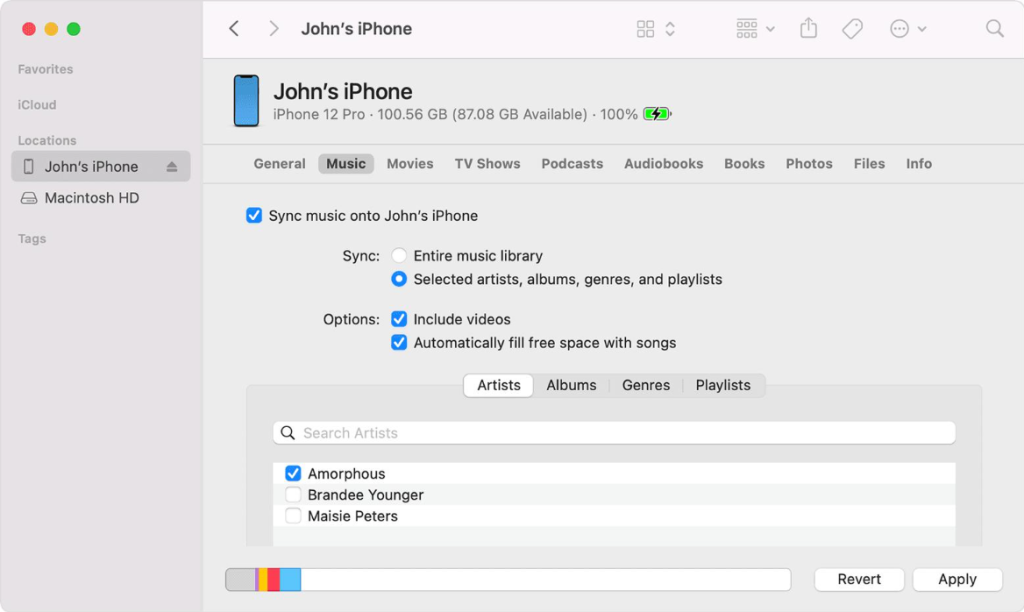
For local music playback on an iPhone or iPad, you can sync compatible files through Finder on Mac or iTunes on Windows. M4A and MP3 are commonly convenient choices for Apple devices.
Windows and Mac
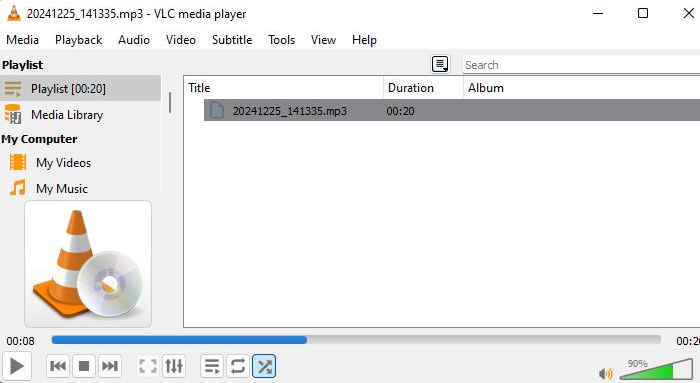
Before conversion, MusicFre allows you to choose an output folder and audio format, making it easy to save the files where you want them. Once the conversion is complete, open that folder on your computer and play the files with VLC, Windows Media Player, Apple Music, or another preferred media player.
FAQs About YouTube Music Offline
1Does YouTube Music use mobile data when playing offline?
Fully downloaded music should not use mobile data. However, data may be used if a track was not downloaded completely or the app reconnects to refresh your account status.
2What happens if I cancel YouTube Music Premium?
Downloads stored in the YouTube Music app will no longer be available after your Premium subscription ends. Official downloads are tied to your account and subscription.
3Does download quality affect offline listening?
Yes. Higher download quality can improve sound clarity, but it also uses more storage space and may take longer to download.
4Why did my YouTube Music downloads disappear?
Downloads may disappear if your subscription expires, the app needs to reconnect, or the content is no longer available.
Final Thoughts
You can listen to YouTube Music offline in two different ways. If you already have Premium and mainly use the YouTube Music app, official downloads are the easiest option. If you need music that can play on a wider range of devices, local audio files offer more flexibility.
Choose the method that best suits your listening needs. Download music before you lose internet access, make sure you have enough storage space, and always respect the rights and rules that apply to the music you save.