中文 (台灣)
  日本語
日本語  한국어
한국어  Italiano
  Français
  Português
  Español

5 Proven Ways to Remove DRM from Spotify Songs [2026]
- Category:Spotify Music Tips
- Xiny
- 2026-08-07
Spotify offers millions of songs and allows Premium users to download music for offline listening. However, these downloads are protected by Spotify DRM, which means they can only be played inside the Spotify app and cannot be used as regular audio files. That is why many users search for ways to remove DRM from Spotify songs.
Before exploring Spotify DRM removal options, it is important to understand what Spotify DRM is and why it affects the way downloaded songs can be used.
What Is Spotify DRM?
DRM stands for Digital Rights Management. It is a technology used by digital platforms to protect copyrighted content from unauthorized copying and distribution. Spotify uses DRM protection to encrypt downloaded music files. When you download songs through Spotify Premium, the files are stored inside the Spotify app instead of being saved as normal audio files.
This means you cannot:
- Find Spotify downloads as regular MP3, FLAC, or WAV files in a local folder
- Transfer downloaded tracks directly to a USB drive, SD card, or MP3 player
- Open Spotify offline downloads with another media player outside the Spotify app
- Keep downloaded songs available after your Premium subscription or offline access expires
This is why some users look for Spotify DRM removal options when they need authorized music files in standard formats for local playback, device compatibility, or personal library management.
Can You Remove DRM from Spotify Songs?
Spotify does not provide an official option to download DRM-free music files. However, it is technically possible to remove DRM from Spotify songs and save authorized content as standard local audio files using third-party Spotify DRM removal software.
Still, third-party tools should be used responsibly. Whether you are allowed to save or process specific content depends on your rights, local copyright rules, and Spotify’s applicable terms. The next section explains the legal and safety considerations you should understand before choosing a Spotify DRM removal method.
Is Spotify DRM Removal Legal and Safe?
The legality of Spotify DRM removal depends on the laws in your country or region, your rights to the content, and how you plan to use the resulting files. Spotify’s applicable terms may also place restrictions on how its content, downloads, and services can be accessed or used.
In general, you should consider the following:
- Your rights to the content: Only process music, podcasts, or other audio that you own, have permission to use, or are otherwise legally allowed to save.
- Your intended use: Personal use is different from uploading, distributing, selling, or using files for commercial purposes. Do not share converted files without the necessary permission.
- Local copyright rules: Laws related to DRM and copyrighted content vary by location. Check the rules that apply in your country or region before proceeding.
- Spotify’s terms: Review Spotify’s current terms and policies to understand the limits that may apply to downloaded or converted content.
Safety is also important when choosing a tool. Download software only from its official website, avoid services that request unnecessary personal information, and be cautious of websites with excessive ads. You should also keep your Spotify account information private. Do not provide your password to untrusted websites or services, and review any permissions requested before using a third-party tool.
How to Remove DRM from Spotify Songs?
With the legal and safety considerations in mind, you can now choose a Spotify DRM removal based on your needs, technical experience, and the type of content you want to process.
The five methods below differ in convenience, output control, stability, and supported features. Review the comparison first, then choose the option that best fits your workflow.
| Method | Main Advantage | Main Limitation | Best For |
| MusicFre | Batch processing, format options, and local file management | Requires desktop software installation | Users who want an easy and reliable solution |
| Browser Extensions | Quick access without installing desktop software | Limited compatibility and unstable performance | Users who prefer a browser-based workflow |
| Online Spotify Converters | Easy to use and no software installation required | Quality, privacy, and stability may vary | Occasional small tasks |
| Audio Recorder | Simple setup and works with most streaming services | Requires real-time playback and may reduce efficiency | Recording one or a few tracks |
| Open-Source Tools | Free and provides more customization options | Requires technical knowledge and configuration | Advanced users |
Method 1.Remove Spotify DRM with MusicFre
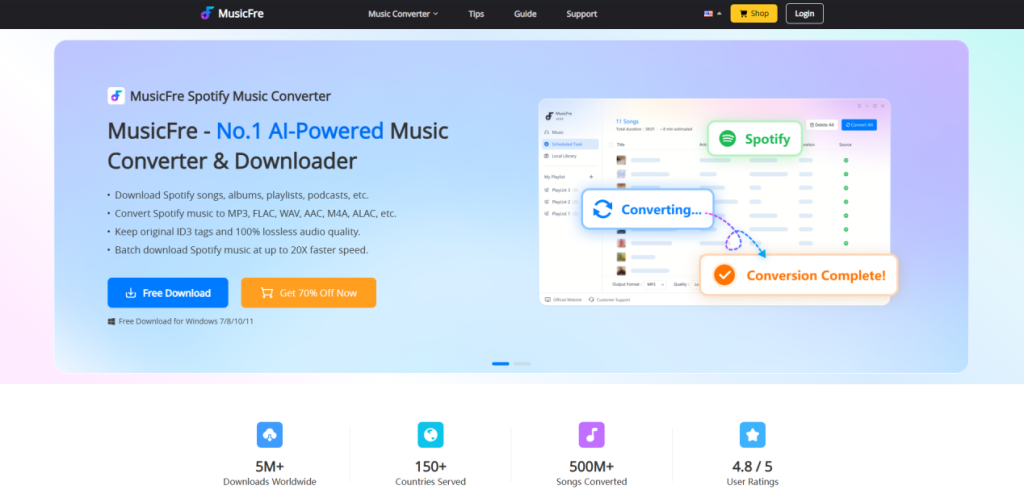
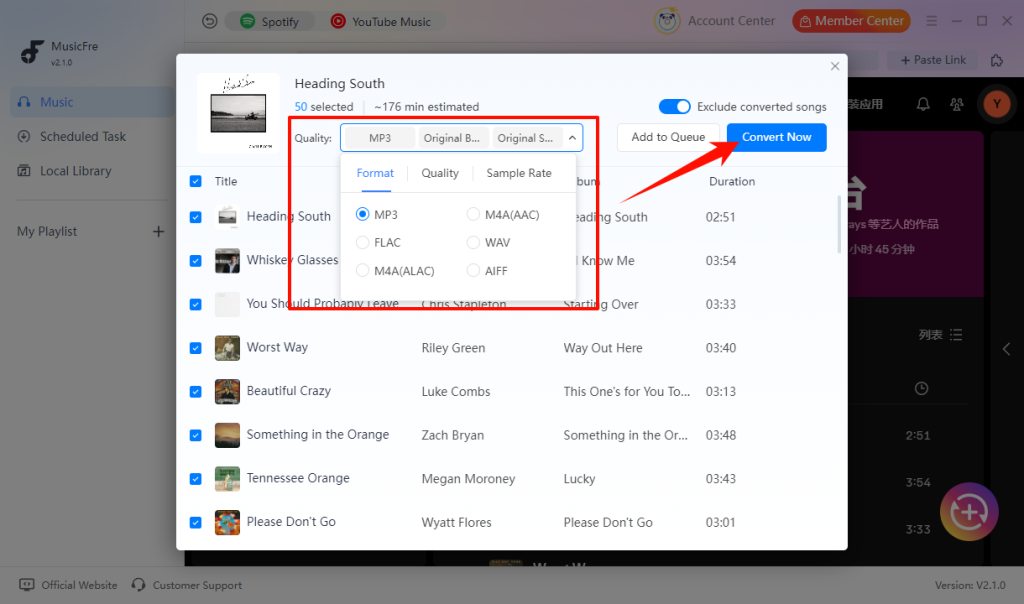
MusicFre is a desktop Spotify DRM removal software for Windows and Mac users. It supports songs, albums, playlists, and podcasts, allowing you to save authorized Spotify content in common formats such as MP3, FLAC, WAV, AAC, M4A, and ALAC. It is a suitable choice if you want to process multiple tracks at once, select an output folder, and retain music information such as song titles, artists, albums, and cover art.






Follow these steps to remove DRM from Spotify songs:
Step 1. Download MusicFre from the official website and install it on your computer.
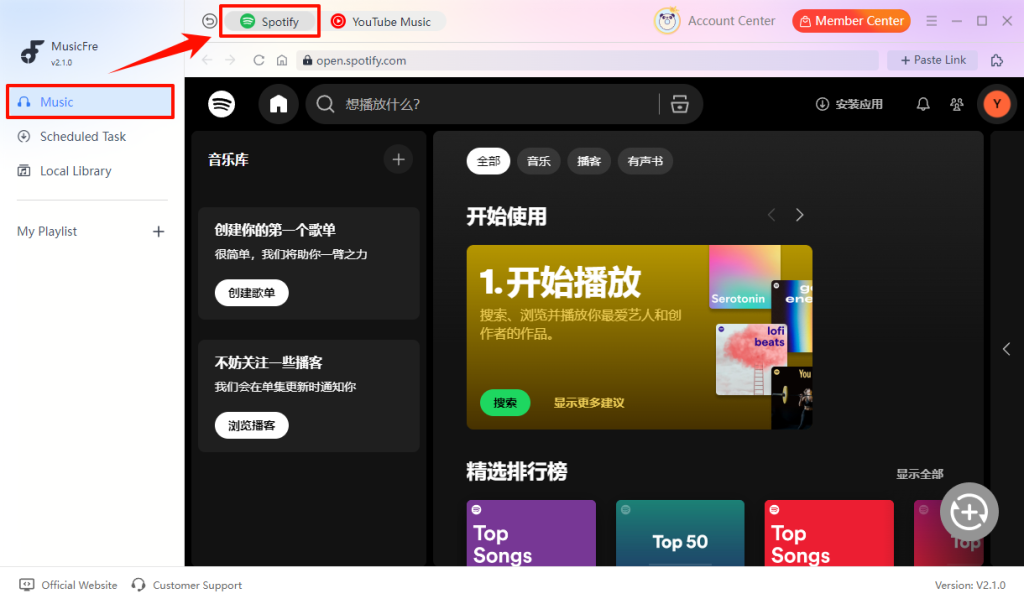
Step 2. Open MusicFre, select “Music” in the left panel, and then click “Spotify” section.
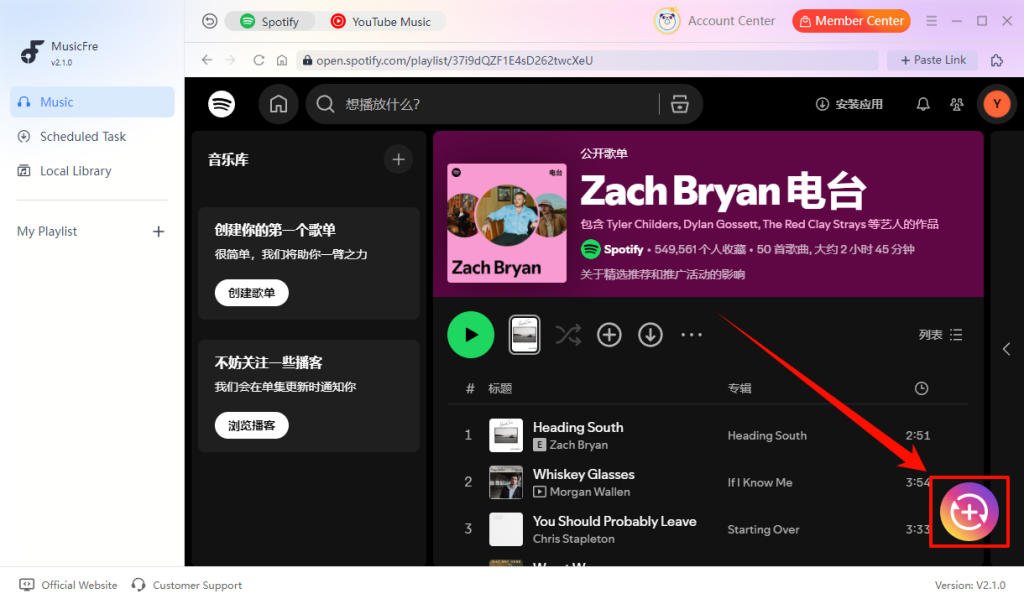
Step 3. Find the songs, album, playlist, or podcast you want to process, then click the “+” button to add the content to the conversion list.
Step 4. Select the output format, then click the “Convert Now” to begin. After the process is complete, open the output folder to play and organize the local files.
Method 2.Use a Browser Extension
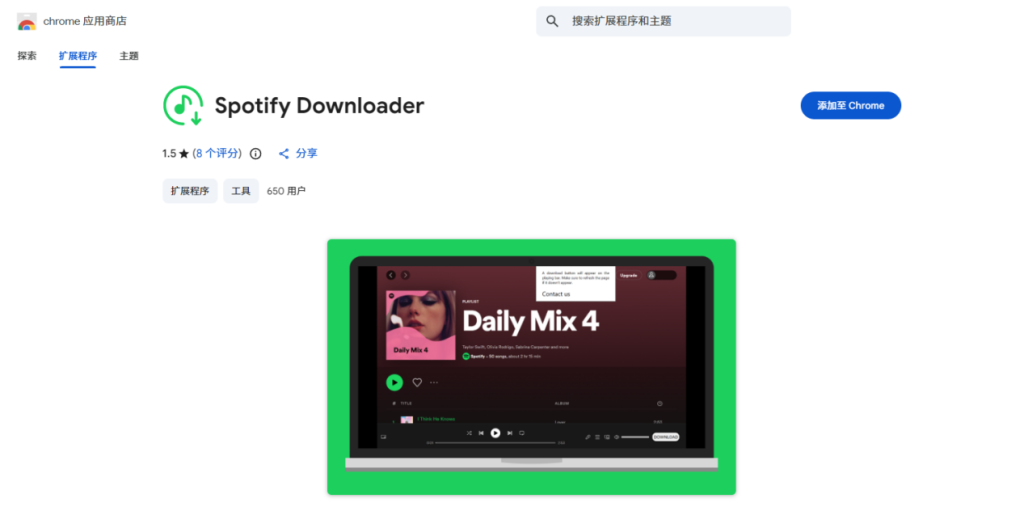
Browser extensions offer a simple way to handle selected Spotify content directly in your browser. However, their availability and performance often depend on third-party developers and browser updates. Support for playlists, output formats, and other features may change over time, making browser extensions less reliable for large music collections or ongoing file management.
The basic steps for using a browser extension are listed below:
Step 1. Install a browser extension from an official extension store.
Step 2. Log in to Spotify through your browser and open the music you want to save.
Step 3. Launch the extension and follow its on-screen instructions.
Step 4. Select an available output option and save the file to your computer.
Method 3.Explore an Online Spotify Converter
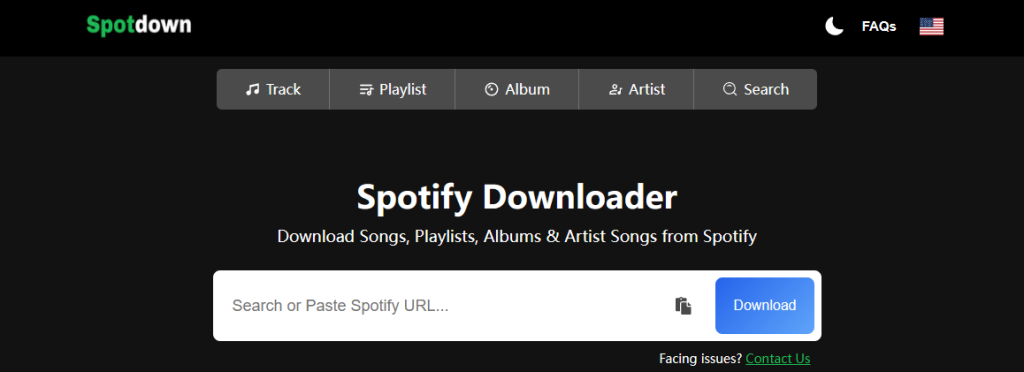
Online Spotify Converters work through a website, so there is no software or browser extension to install. In most cases, you simply paste a Spotify link into the site and follow its available options. These tools can be useful for occasional tasks, but online services often have limits on output formats, playlist length, batch processing, or daily usage. Before using one, review the website’s privacy policy and make sure it is reputable.
The general process is usually as follows:
Step 1. Copy the link to the Spotify song, album, or playlist.
Step 2. Open an online Spotify converter in your browser.
Step 3. Paste the link and select the available output options.
Step 4. Wait for the conversion process and save the generated audio file.
Method 4.Record Spotify Music with an Audio Recorder
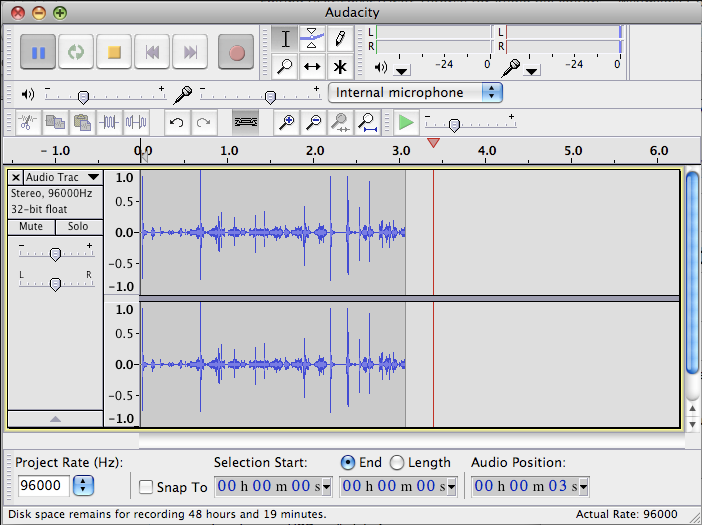
Audio recording is another common way to save Spotify music. Instead of converting Spotify files directly, recording software captures the audio while the song is playing. The main drawback is that recording can be time-consuming. It may not be the best option for processing large playlists or complete albums.
If you choose an audio recorder, the typical process looks like this:
Step 1. Download and install a reliable audio recorder on your computer.
Step 2. Select the system audio source and choose your preferred output format.
Step 3. Start recording, then play the selected content in Spotify.
Step 4. Stop the recording when playback ends and save the audio file.
Method 5.Try an Open-Source Tool
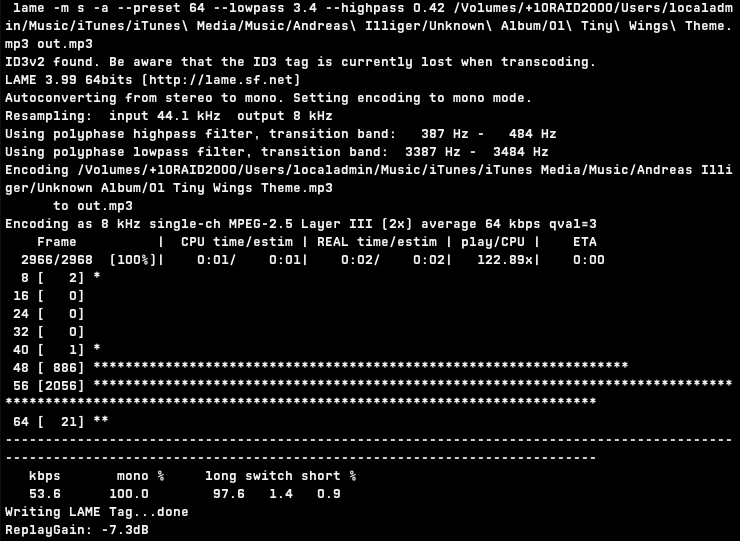
Open-source tools may appeal to advanced users who are comfortable with technical setup and command-line workflows. They can provide more flexibility and customization compared with regular software. However, setting up these tools can be complicated for beginners.
Using open-source tools usually requires a few technical steps:
Step 1. Download the open-source tool and install the required components.
Step 2. Follow the documentation to complete setup and configuration.
Step 3. Enter the required commands to process the Spotify tracks.
Step 4. Export the processed audio files to your preferred location.
FAQs About Spotify DRM Removal
1Can I remove DRM from Spotify songs on a free account?
Spotify Free does not provide offline downloads. Some third-party tools may work with Spotify Free content, but support and account requirements vary by tool.
2Does Spotify DRM removal reduce audio quality?
It depends on the method you use. A reliable Spotify DRM removal tool can keep high-quality output. Keep in mind that converting a track to a lossless format cannot improve the quality of the original source.
3Does Spotify DRM removal work on iPhone or Android?
Most Spotify DRM removal tools are designed for Windows or Mac. You can transfer the DRM-free files to your iPhone or Android device after conversion.
4Can I play Spotify songs on MP3 players after removing DRM?
Yes, as long as the saved file format is supported by the player. MP3 is usually the most compatible option.
Conclusion
Spotify DRM protects downloaded music and limits how Spotify offline files can be used outside the app. For users who want more flexibility, removing DRM from Spotify songs can help save music in common formats and improve compatibility across different devices.
The right method depends on how you plan to use the files. Browser extensions and online tools may be suitable for simple tasks, while audio recorders and open-source tools may require more time or technical knowledge. If you want to process playlists or albums, select an output format, and keep local files organized, MusicFre provides a more straightforward desktop workflow.
Whichever option you choose, make sure you have the right to process the content and use the resulting files responsibly.