English
 中文 (台灣)
 日本語
 한국어
 Italiano
 Français
 Português
 Español


How to Mix Songs on Spotify: Steps, Tips & Fixes (2026)
- Category:Spotify Music Tips
- Xiny
- 2026-10-09
Want to make your Spotify playlists flow more like a DJ set? You can do more than simply put songs in the right order. Spotify’s Mixed Playlists feature lets Premium users add customizable transitions between tracks, while BPM and song key information can help you build a smoother sequence.
But “mixing songs” can mean different things. You might simply want two tracks to fade into each other, create a playlist with automatic transitions, or have more control over tempo, key, and song structure.
This guide walks you through mixing songs on Spotify, with practical tips for smoother transitions and better results. It also explores what you can do when Spotify’s built-in tools do not provide enough flexibility for your mixing needs.
What Does Mixing Songs on Spotify Actually Mean?
“Mixing songs on Spotify” can mean different things depending on what you want to achieve. Spotify offers built-in transition features, while more advanced mixing and mashup work may require dedicated software. The main approaches are compared below:
| Mixing Method | What It Does | Best For | Control Level |
| Spotify Mixed Playlists | Adds automatic or customized transitions between songs in a playlist | Creating customized playlist transitions | Moderate |
| Crossfade | Fades out one song while fading in the next | Casual listening and playlists | Basic |
| Automix | Creates beat-matched transitions on select Spotify playlists | Quickly creating a continuous mix | Automatic |
| DJ mixing | Uses DJ tools to control timing, tempo, EQ, loops, and other elements | DJ sets and more precise music mixing | Advanced |
| Mashup | Combines elements from multiple songs, such as vocals and instrumentals, into a new arrangement | Creative edits and multi-song mixes | Advanced |
If you simply want to mix songs on Spotify and create smoother transitions, Spotify’s Mixed Playlists are usually the easiest place to start. If you want to manually blend tracks, adjust their structure, or create a true mashup, you’ll need a more advanced music mixing or audio editing tool.
How to Mix Songs on Spotify Using the Official Mix Feature
Spotify currently describes Mixed Playlists as a Premium feature. On desktop or mobile, you can open a playlist you created and select Mix to apply automatic transitions between tracks.
The exact position of the controls may vary slightly between the mobile and desktop apps. Follow the steps for the device you use.
On Mobile: iPhone and Android
Step 1. Open the Spotify app and go to Your Library. Choose a playlist you created, or create a new one and add the songs you want to mix.
Step 2. Tap Mix at the top of the playlist. Spotify will automatically add transitions between the tracks and display information such as BPM and Song Key.
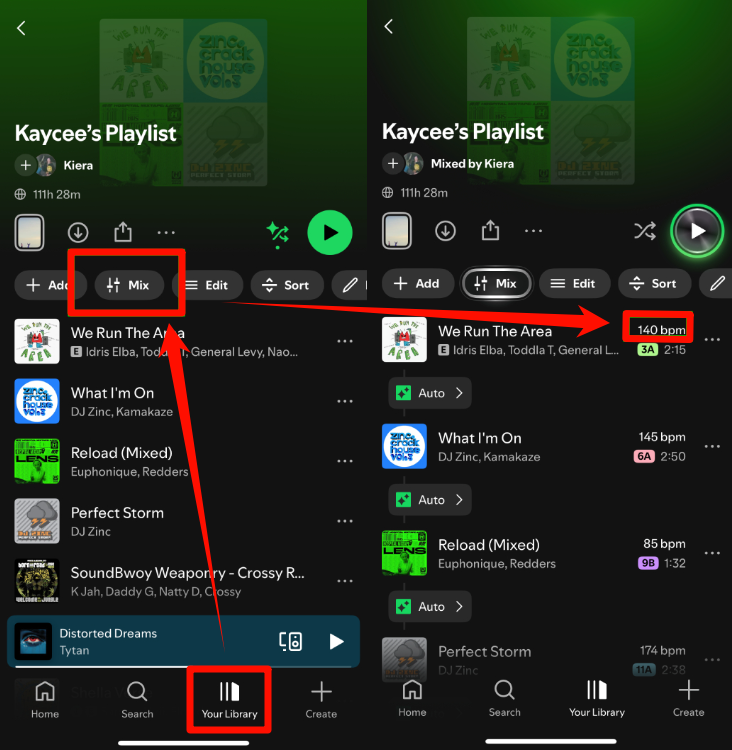
Step 3. Tap the transition row between two songs to open the editor. Listen to the automatic transition first to decide whether it needs adjustment.
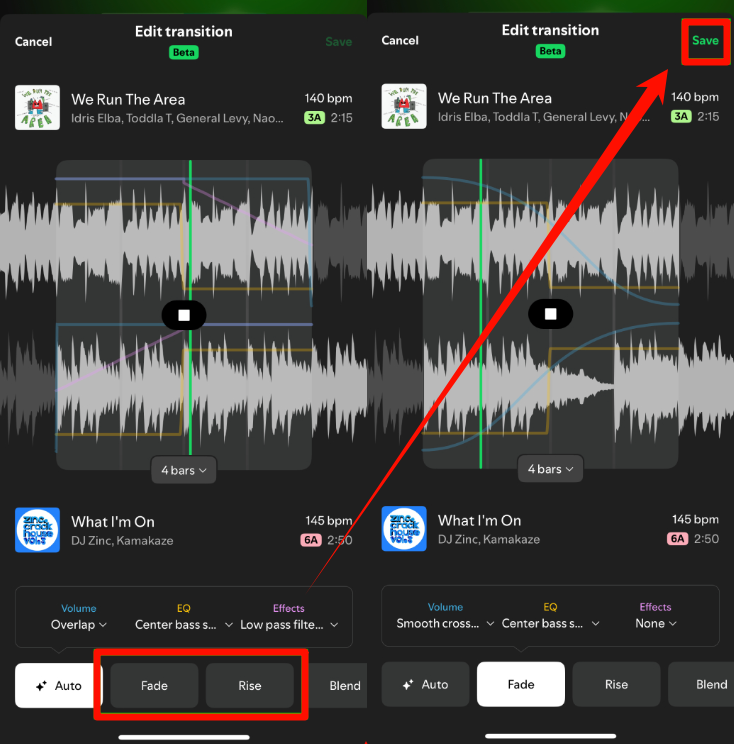
Step 4. Adjust the available Volume, EQ, and Effects controls. Volume changes how the tracks fade in and out, EQ helps balance their frequencies, and filter effects shape the sound during the overlap.
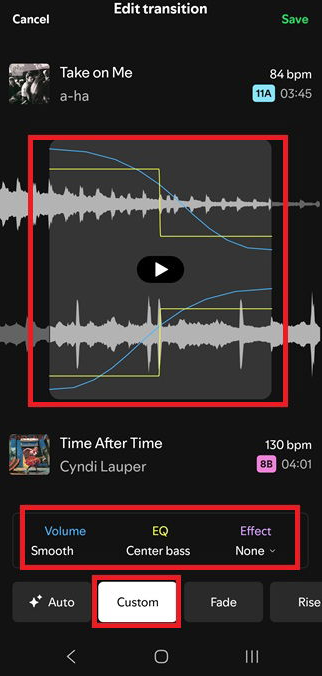
Step 5. Preview the transition and tap Save to apply your adjustments. Repeat the process for any other transitions you want to fine-tune.
On Desktop: Windows and Mac
Step 1. Launch the Spotify desktop app and open a playlist you created from Your Library.
Step 2. Click Mix in the playlist controls to apply automatic transitions between tracks.
Step 3. Play the playlist and listen to how each song moves into the next. You can also check the BPM and Song Key of each track when deciding which transitions need adjustment.
Step 4. Click a transition between two tracks to open the editing options. Adjust the Volume, EQ, or Effects to create the transition you want.
Step 5. Click Save to apply your changes. You can customize individual transitions throughout the playlist without changing the rest of the mix.
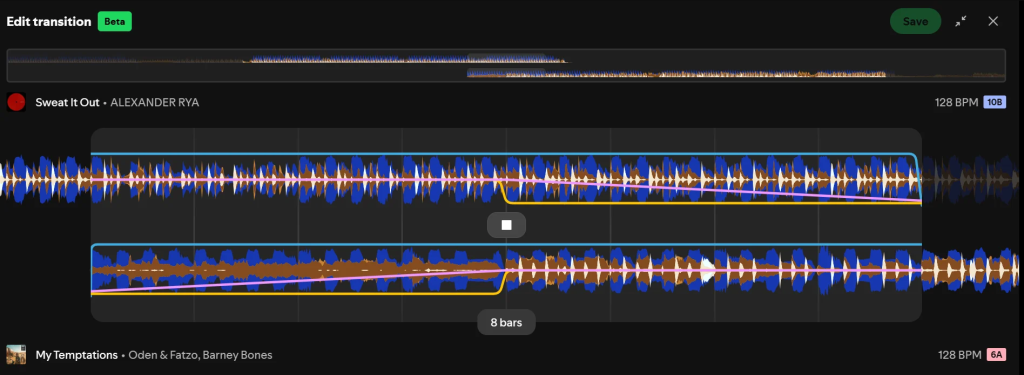
If you want to go beyond playlist transitions and edit individual audio files, the next section explains how to prepare tracks for an audio editor.
How to Prepare Spotify Music for Further Mixing and Editing
Spotify’s built-in Mix feature is useful for creating transitions within a playlist. However, it is not designed for more advanced mixing and editing. If you want more control over individual tracks, create a mashup, or work with Spotify music in compatible DJ or audio editing software, you’ll need the tracks in a supported local audio format first. MusicFre can help you prepare Spotify tracks for these workflows by converting them to widely supported audio formats such as MP3, FLAC, and WAV.






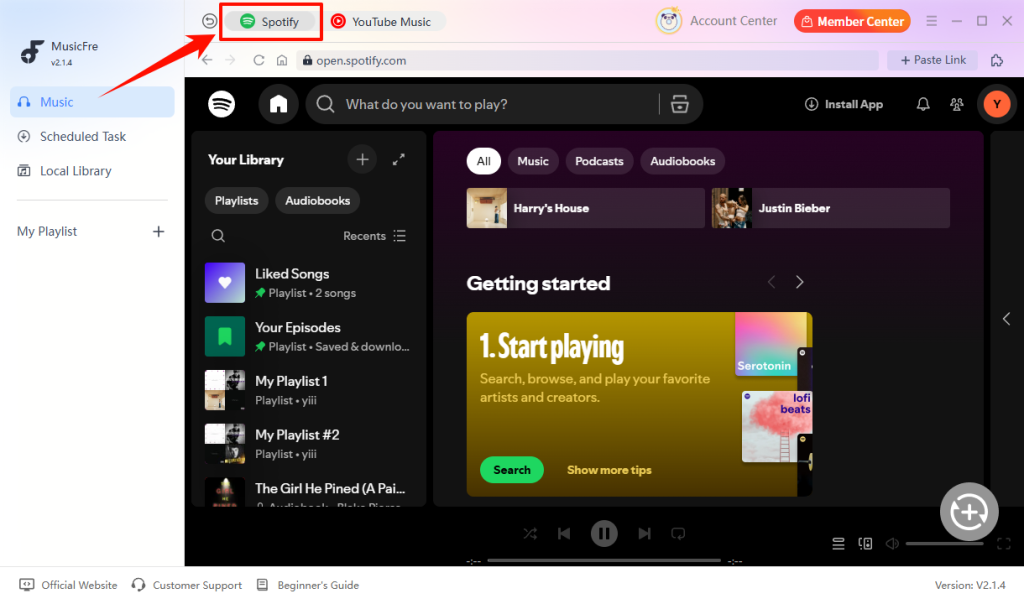
Step 1. Launch MusicFre on your computer and select the Spotify module. Sign in to your Spotify account through the built-in player to access your music library.
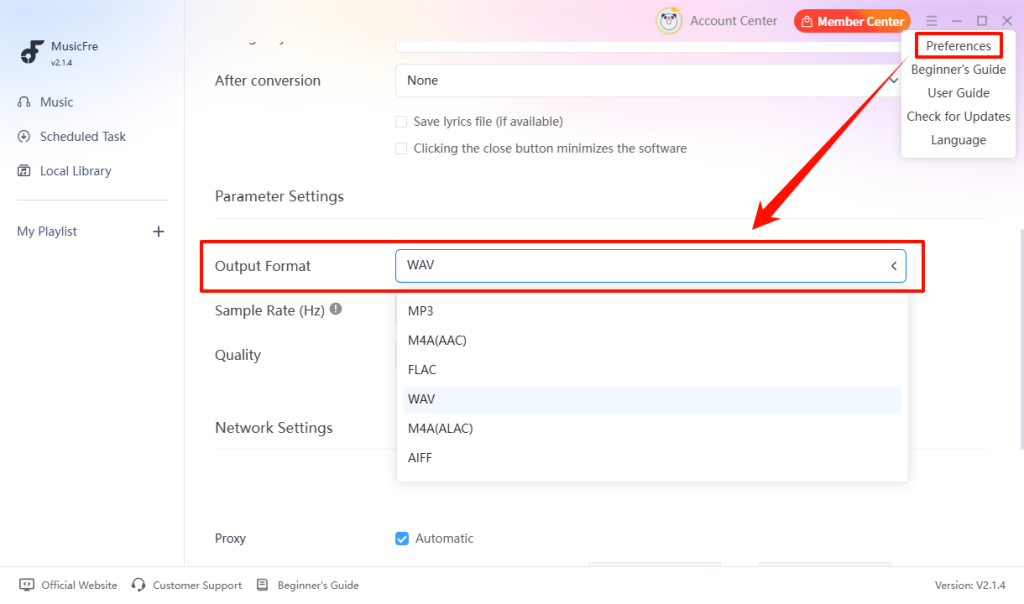
Step 2. Click the three-line menu icon in the upper-right corner of MusicFre, then select Preferences to choose an output format and destination folder. For DJ mixing or audio editing, WAV or FLAC can be useful when you want to work with lossless audio.
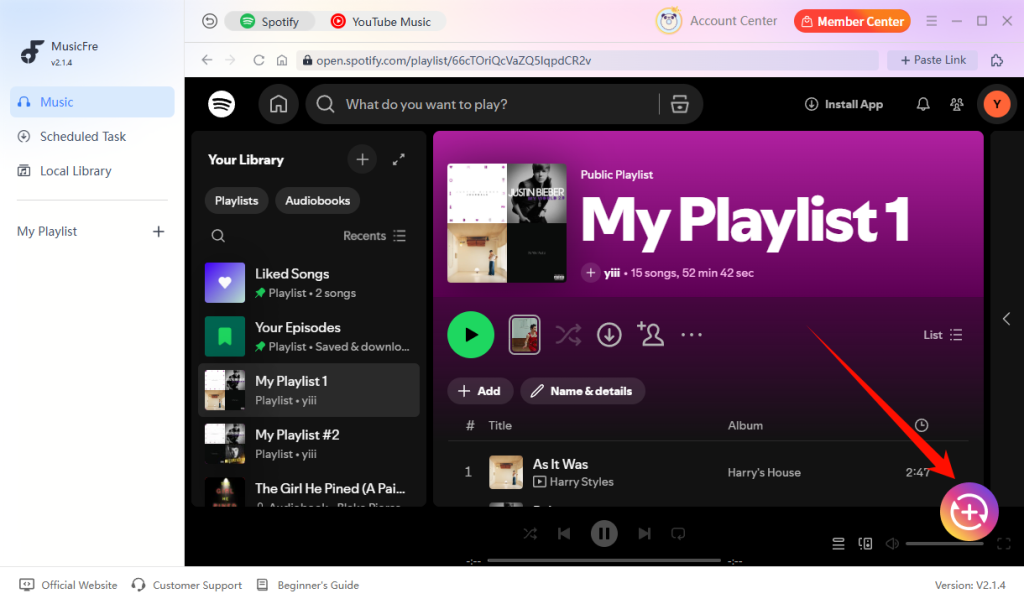
Step 3. Browse your playlists or search for the songs you want to use, then click the + button to add them to the conversion queue.
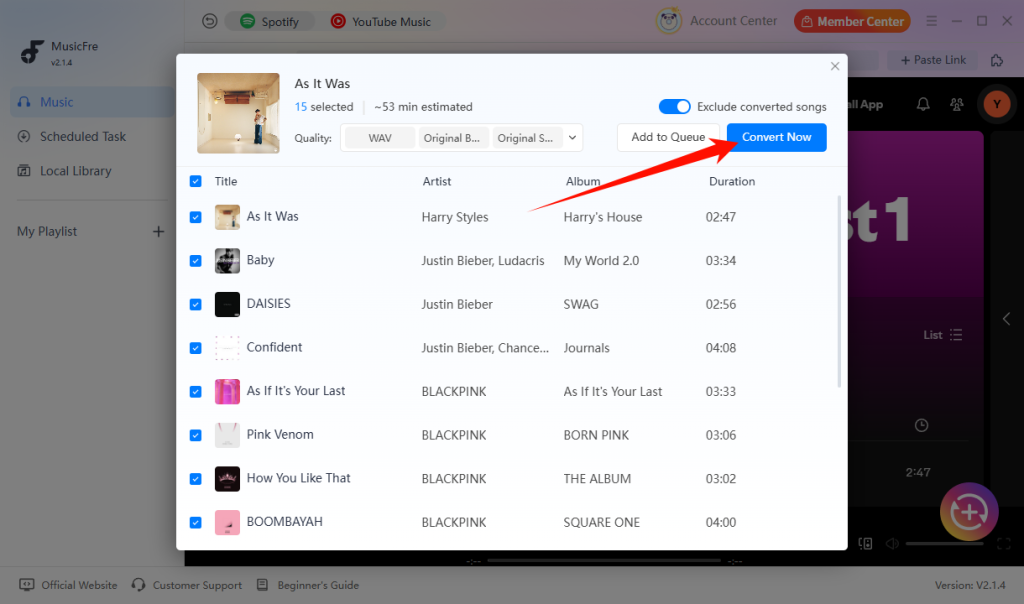
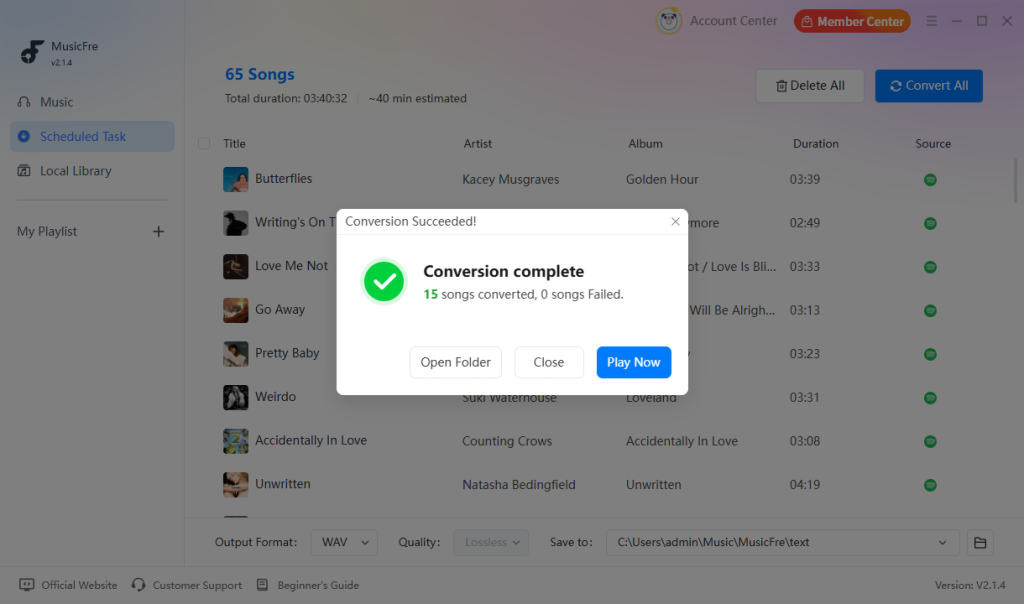
Step 4. Click Convert Now to start processing the tracks. Once conversion is complete, open the output folder to find your local audio files.
Step 5. Open your preferred DJ software or audio editor and import the converted tracks. From there, you can work with the audio for tasks such as beat matching, EQ adjustments, transitions, or mashups.
Note: Use converted music in accordance with applicable copyright laws, platform terms, and the rights of the content owner.
Tips for Smoother Transitions Between Spotify Songs
Whether you’re using Spotify Mix or an audio editor, a few small adjustments can help your tracks flow more naturally.
1.Choose Songs with Compatible Tempo and Key
Start with songs that have similar BPM and compatible musical keys. For example, a track labeled 8A is a reasonable starting match for 8A, 7A, 9A, or 8B in Camelot notation. These combinations can help, but always listen to the result—the vocals, rhythm, and arrangement also affect the blend.
2.Avoid Overlapping Busy Vocal Sections
Two prominent vocals playing at once can make a transition sound crowded. Try blending an instrumental outro into the next song’s intro. If both tracks have vocals near the transition, shorten the overlap so the lyrics do not compete.
3.Adjust the Transition Length
Longer blends often suit steady dance tracks with spacious instrumental sections. Shorter transitions can work better for vocal-heavy songs or abrupt openings. Use each song’s structure as your guide rather than applying the same transition length throughout the playlist.
4.Balance the Bass and Energy
When two strong basslines overlap, use EQ to reduce the outgoing track’s low frequencies as the next one takes over. Also listen for sudden changes in energy: moving from a loud chorus straight into a quiet intro may interrupt the flow. Adjust the transition point or track order if needed.
5.Listen Beyond the Overlap
Preview from before the transition until the next song is fully underway. Check for volume jumps, competing vocals, and uneven beats. Change one setting at a time so you can hear whether it improves the result.
Spotify Mix Not Working? Common Issues and Fixes
If Spotify Mix is missing or your transitions aren’t playing as expected, check your account, playlist, and playback setup before changing the mix settings.
The Mix Button Is Missing
Make sure you have an active Spotify Premium account and are opening a playlist you created or a collaborative playlist you can edit. Update the mobile or desktop app, then restart it and check the playlist controls again.
Transitions Disappear When You Play Through a Speaker
Check how your speaker is connected. Spotify supports mixed playlist transitions over Bluetooth, but playlists play without those transitions through Spotify Connect. If your mix sounds correct through headphones but changes on a speaker, the connection method may explain the difference.
A Friend Hears the Playlist Without Your Transitions
Premium listeners can hear a shared playlist’s mixed transitions, while free accounts hear a regular playlist. Also confirm that Mix is still enabled: turning it off on a playlist you created disables its transitions for all listeners.
FAQs About Mixing Songs on Spotify
1Can I mix songs on Spotify without Premium?
Spotify’s Mixed Playlists feature is currently available to Premium users. Free users can still listen to playlists with transitions, but they can’t create or customize Mixed Playlists. With Premium, you can apply automatic transitions and fine-tune individual transitions between tracks.
2Is Spotify Mix the same as DJ mixing?
Not exactly. Spotify Mix is designed for creating smoother transitions within a playlist, while DJ mixing gives you more control over tempo, EQ, loops, effects, and track timing. Spotify Mix works well for playlist-based mixing, but it is not a replacement for dedicated DJ software.
3Can I use Spotify directly in a music mixer?
It depends on whether your music mixer supports Spotify integration. Compatible apps such as rekordbox, Serato, and djay let eligible Spotify Premium users access tracks directly without converting them first.
Final Takeaway
Learning how to mix songs on Spotify starts with choosing the right tools for your goal. For smoother playlist transitions, try Spotify’s Mix feature, then refine the timing, EQ, and track order where needed.
For projects that require local audio files, MusicFre can help prepare tracks in formats such as MP3, WAV, or FLAC before you import them into a compatible editor. Start with a few songs, listen closely to each transition, and adjust until the mix flows naturally.