中文 (台灣)
  日本語
日本語  한국어
한국어  Italiano
  Français
  Português
  Español

[2026] How to Convert Spotify to M4A: Windows, Mac & Online
- Category:Spotify Music Tips
- Xiny
- 2026-08-07
Spotify makes it easy to stream millions of songs, but its offline downloads are only available within the Spotify app and cannot be transferred to other players or devices.
If you want more flexibility, converting Spotify songs to M4A can be a useful option. M4A offers a good balance between audio quality and file size. Before deciding whether M4A is the right format for you, it helps to understand how it compares with MP3.
What Is an M4A File? M4A vs. MP3: Key Differences
M4A is an audio file format commonly used by Apple devices and many modern media players. It usually contains AAC audio, which provides good sound quality with a smaller file size compared with some traditional formats.
Unlike MP3, M4A can offer better audio efficiency while maintaining a similar file size. This makes it a popular choice for users who want high-quality audio without using too much storage space.
Here is a quick comparison between M4A and MP3:
| Feature | M4A | MP3 |
| Audio quality | Often delivers higher quality at a similar bitrate | Good quality, but may require a higher bitrate to achieve a similar listening experience |
| File size | Smaller for similar quality | Usually larger for similar quality |
| Compatibility | Works well with Apple devices and many modern players | Supported almost everywhere |
| Metadata support | Can store song titles, artists, albums, track numbers, and cover art | Can also store common metadata, including ID3 tags and album artwork |
| Best for | Apple users and listeners who want smaller files with good quality | Users who need the widest compatibility, especially with older devices |
Why Convert Spotify Music to M4A?
Converting Spotify music to M4A can be useful when you want a consistent music library, more flexible offline listening, or smaller audio files. Here are three reasons why M4A may be a practical format for your music collection.
1.Build an M4A-Compatible Music Library
If you already use M4A files in your media library, keeping the same format can make your collection easier to manage. A consistent format can also simplify playback in compatible media apps and desktop libraries.
2.Convert Spotify Songs for Offline Listening
Spotify downloads are available for offline playback only within the Spotify app. When you are authorized to do so, converting music to M4A lets you listen offline in compatible local players.
3.Save Spotify Music in Less Space with M4A
Compared with MP3 files at a similar listening quality, M4A files are often smaller. This can help you save more Spotify music on your phone, tablet, or computer without using as much storage space.
Musicfre: An Easy Spotify to M4A Converter for Windows & Mac
Musicfre is a desktop Spotify to M4A converter for users who want a more structured workflow on Windows or Mac. A desktop solution can be especially useful when you need to manage multiple tracks, review output settings, organize folders, or work with playlists.
- – Convert Spotify songs, albums, and playlists to M4A
- – Keep available song information, including title, artist, album, and cover art
- – Customize output quality based on your listening needs
- – Convert multiple tracks at the same time
How to Convert Spotify Songs to M4A with Musicfre?
Step 1. Download the version of Musicfre that matches your Windows PC or Mac.






Step 2. Launch the program after installation, then select “Spotify” on the main screen.
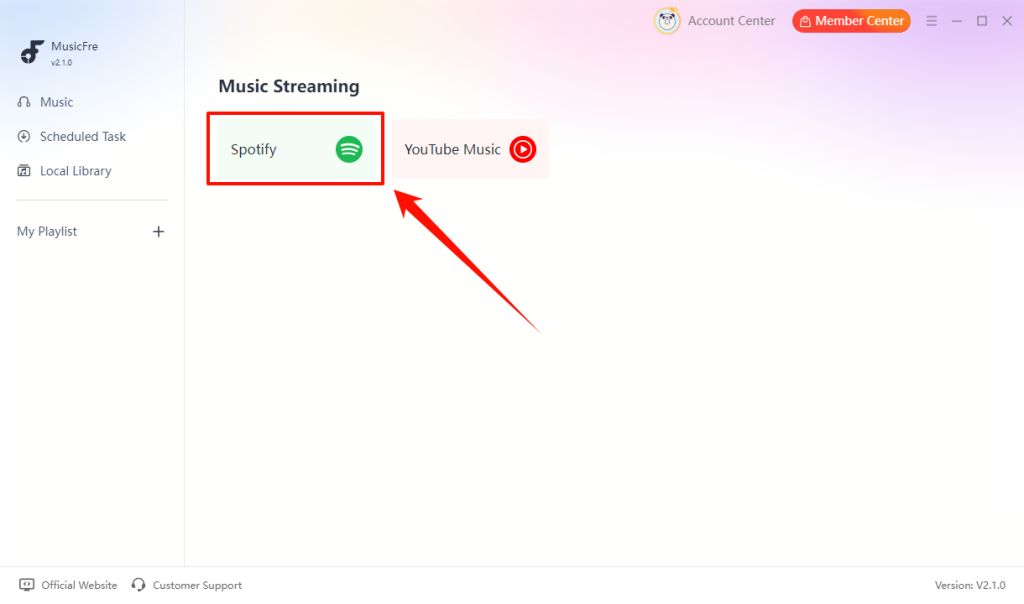
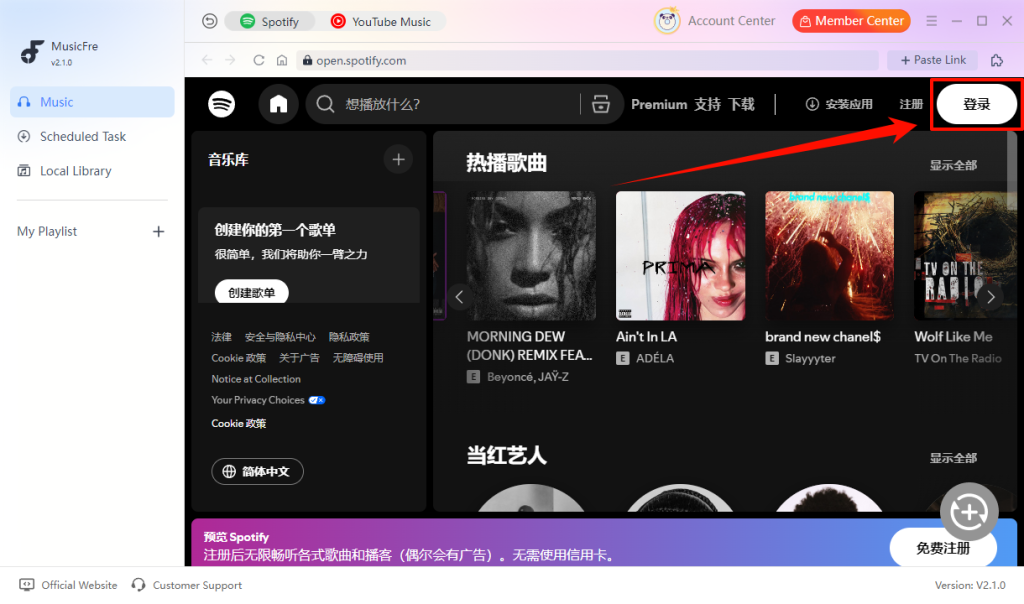
Step 3. Log in to your Spotify account in the Spotify workspace.
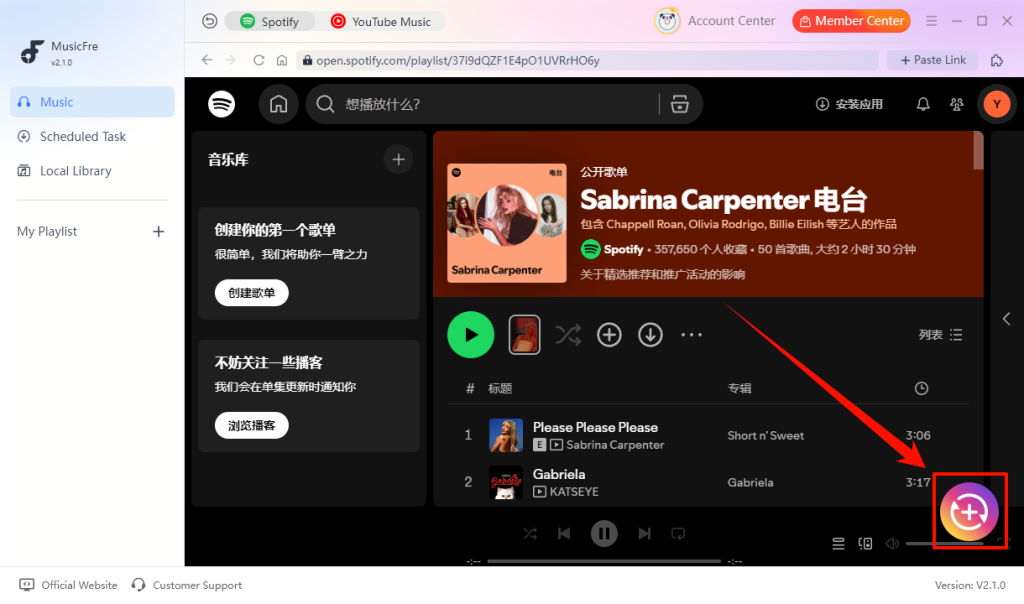
Step 4. Search for the song, album, or playlist you want to convert, then click the “+” button.
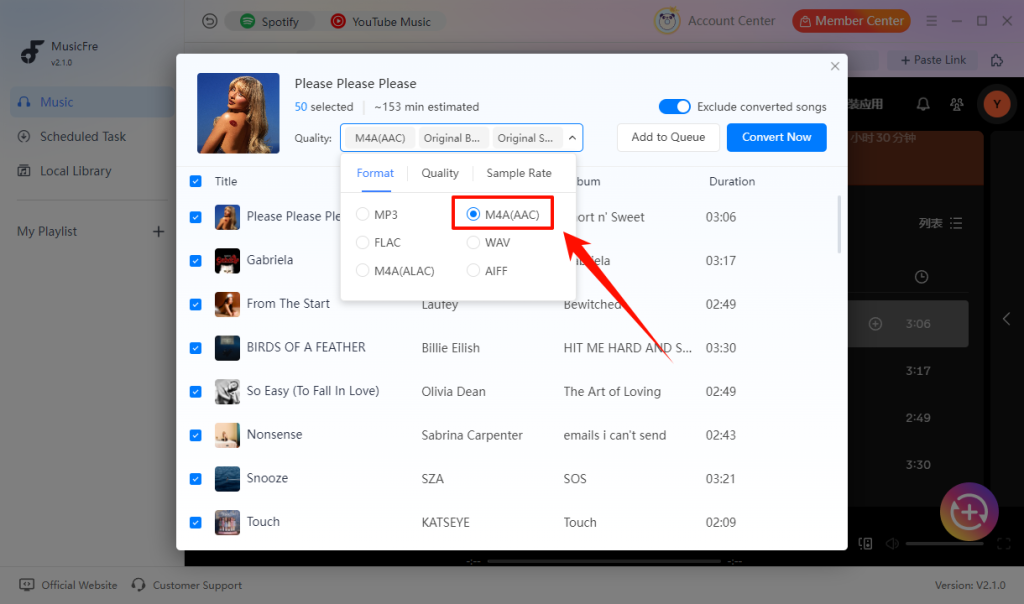
Step 5. Select “M4A(AAC)” as the output format. You can also adjust the quality and sample rate if needed.
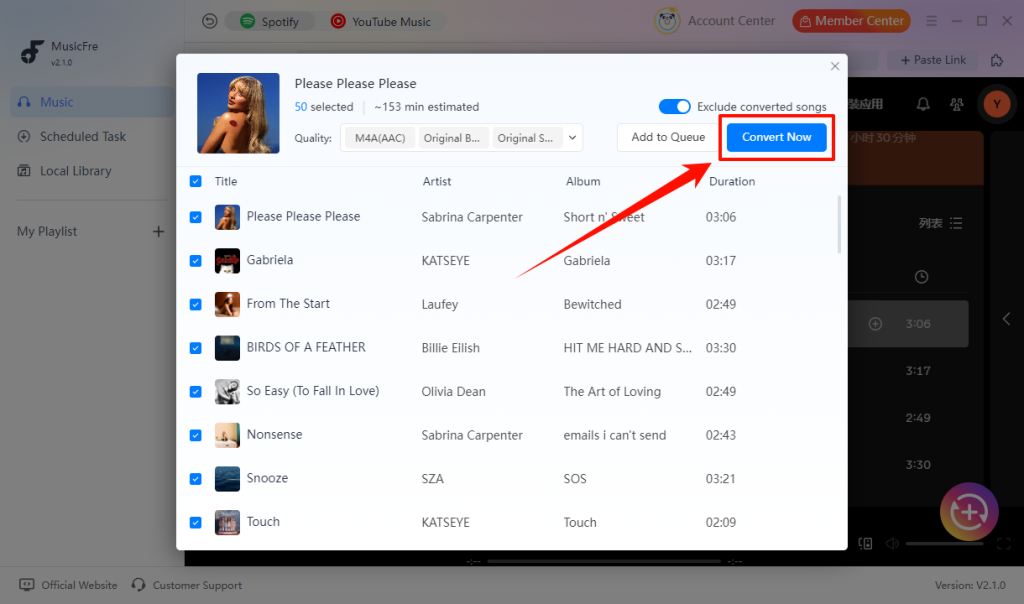
Step 6. Click the “Convert Now” button to start the process.
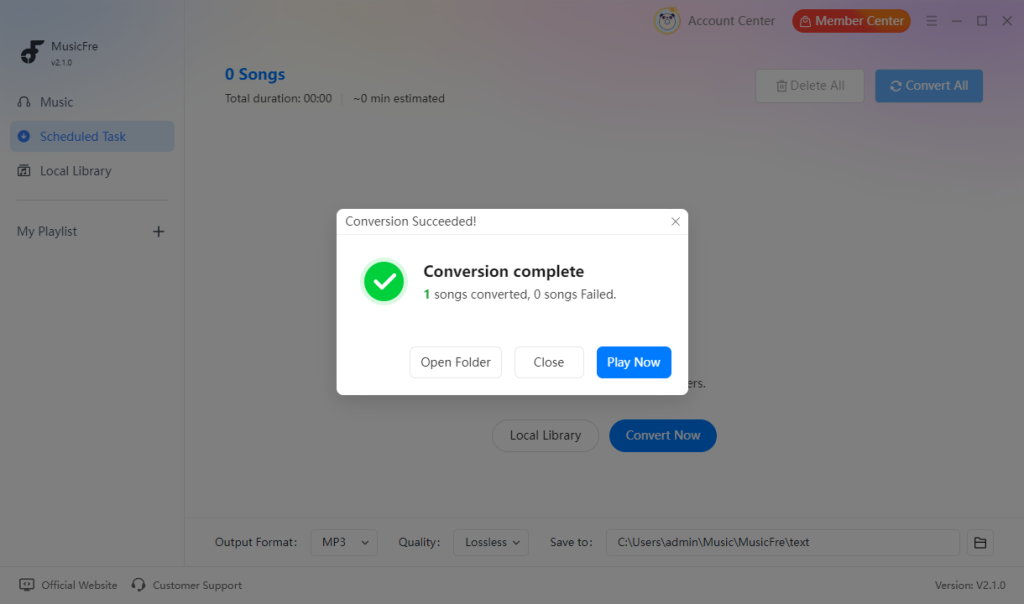
Step 7. When the conversion is complete, click “Open Folder” to access your M4A files or “Play Now” to listen to them right away.
Spotify to M4A Online: When an Online Converter Is Suitable
A Spotify to M4A online converter can be convenient when you only need a simple, occasional solution and do not want to install desktop software. However, available formats, file limits, and playlist support may vary by service.
- – Select M4A as the output format if supported
- – Convert individual Spotify songs directly in a web browser
- – Use the service on different devices, including Windows, Mac, and mobile browsers
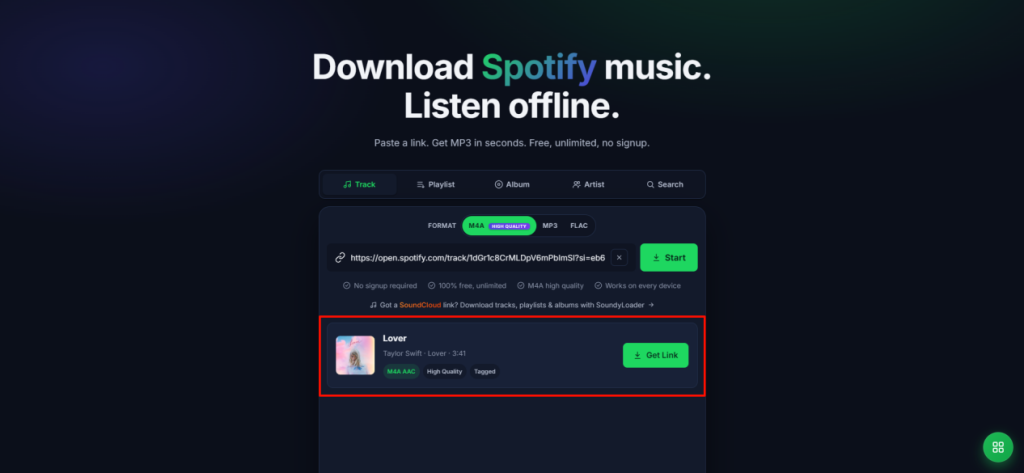
How to Convert Spotify Music to M4A Online?
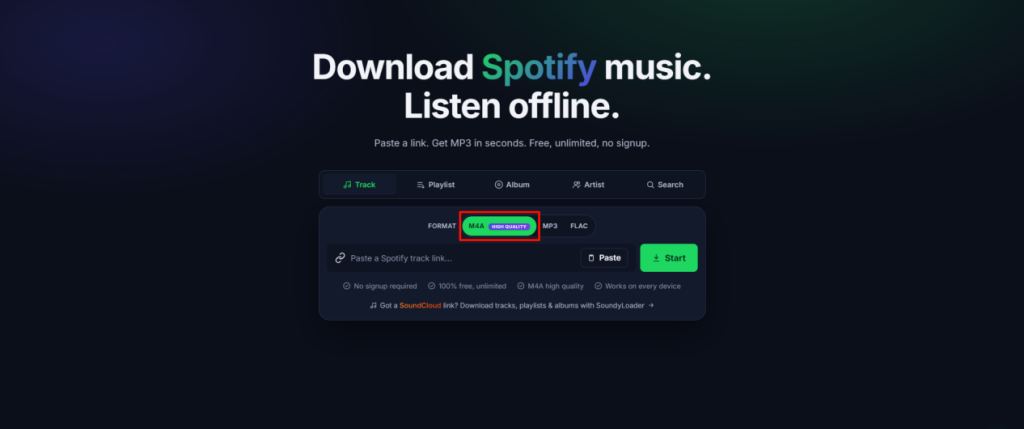
Step 1. Select an online audio converter that clearly lists M4A as an available output format.
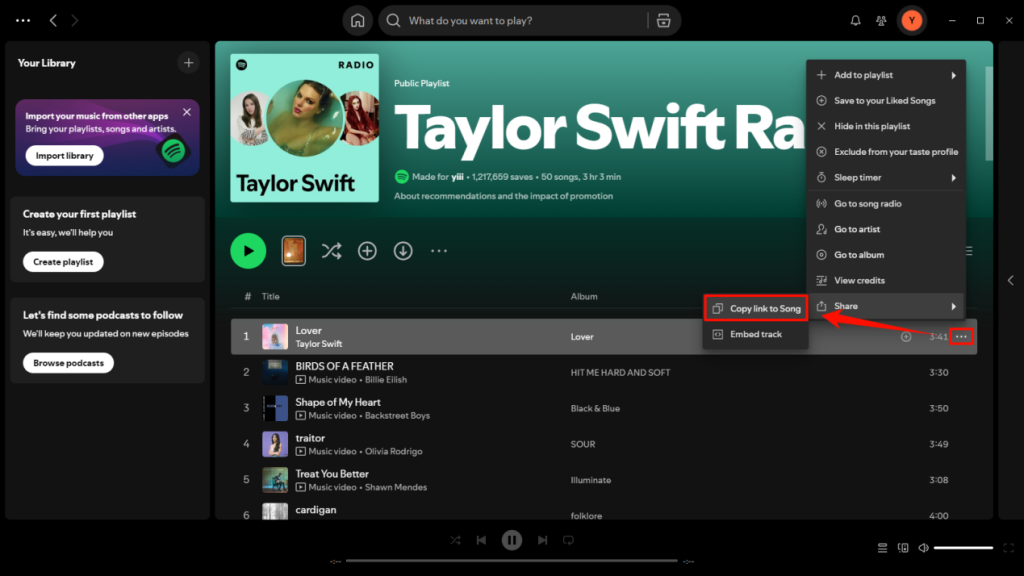
Step 2. Open Spotify and copy the link for the track, album, or playlist you want to use.
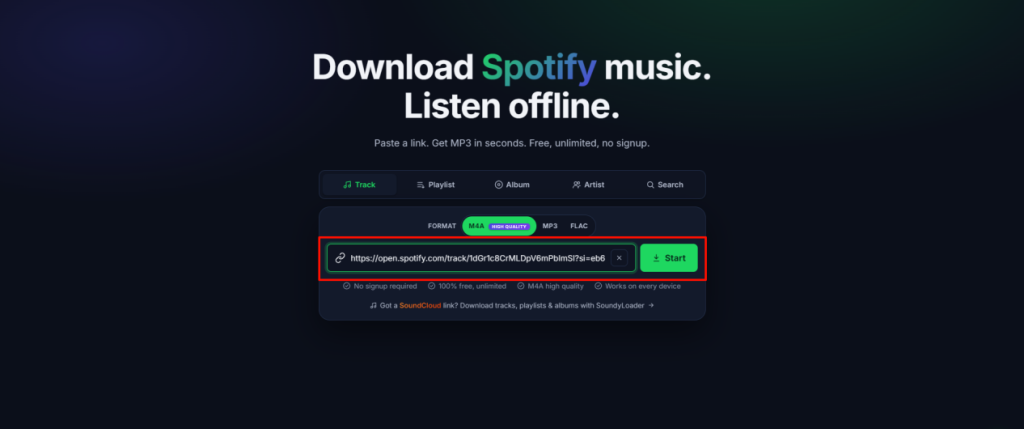
Step 3. Paste the Spotify link into the online converter’s input box. When the available output formats appear, select “M4A” and follow the on-screen instructions.
Step 4. After the file is ready, download it to your device and open it in a compatible player.
Desktop vs. Online Spotify to M4A Converter
Both desktop and online tools can help you convert Spotify music to m4a, but they are designed for different needs. A desktop converter is usually better for regular use and file management, while an online tool may be enough for occasional tasks.
| Feature | Desktop Converter | Online Tool |
| Installation | Requires software on Windows or Mac | No installation needed |
| Processing speed | Usually faster and more stable for multiple tracks | Depends on website and internet connection |
| Batch conversion | Supports converting multiple songs in one task | Often limited or unavailable, depending on the service |
| Output settings | Usually provides more control over format, quality, and output folders | Often offers fewer settings |
| Metadata management | Easier to review song information and organize files | Depends on the specific online tool |
| Best for | Regular conversions, playlists, and file organization | Occasional use and simple tasks |
Choose the option that best matches how often you convert and how much control you need over the final files. If you prefer a desktop workflow, Musicfre is a practical choice for managing multiple tracks and output settings on Windows and Mac.
FAQs About Spotify to M4A
1Is M4A better than MP3 for Spotify music?
M4A is a good choice for smaller files and Apple devices, while MP3 is better for wider compatibility across different players and devices.
2Should I Choose M4A(AAC) or M4A(ALAC)?
For most users, M4A(AAC) is the more practical choice because it offers good sound quality with smaller file sizes. M4A(ALAC) provides lossless audio quality but creates much larger files.
3Is it legal to convert Spotify music to M4A?
This depends on Spotify’s terms, your local laws, and your rights to the content. Only convert music you are authorized to use.
4Why Won’t an M4A File Play on My Device?
Your player may not support the file’s audio encoding. Try another modern media player or check device compatibility.
Final Thoughts
M4A offers an efficient way to keep music sounding good without taking up unnecessary space. Musicfre is well suited to Windows and Mac users who prefer to handle their music in a desktop app, while an online tool can work for a quick conversion when its supported features meet your needs.