中文 (台灣)
  日本語
日本語  한국어
한국어  Italiano
  Français
  Português
  Español

How to Download Spotify Cover Art in High Quality (Songs, Albums & Playlists)
- Category:Spotify Music Tips
- Xiny
- 2026-08-15
- Need a cover quickly: Take a screenshot. It is the easiest option for personal use, but the image quality depends on your screen.
- Want the cover shown on Spotify: Use the Spotify Web Player. It can provide a cleaner image than a screenshot, especially on desktop.
- Need image URLs or album details: Try a metadata method. It is more technical, but useful for accessing structured item information.
- Looking for official or detailed artwork: Check an official artist, label, or music database source. These sources may offer higher-quality images or more release information.
- Want a fast link-based option: An online cover downloader can work with a public Spotify URL, although image quality and reliability can vary.
- Saving music for a local library: Choose MusicFre that preserves embedded cover art and metadata, so your audio files display the correct artwork in compatible music players.
Spotify makes it easy to discover and organize music, but it does not provide a built-in button to download cover art as a separate image file. Whether you want to save artwork from a song, album, or playlist, the image quality you get can vary based on the method and source you use.
This guide covers practical ways to download Spotify cover art in high quality, from screenshots and Spotify Web Player extraction to official artwork sources. It also explains how to keep cover art embedded in local music files with MusicFre.
Quick Comparison of Spotify Cover Art Download Methods
There is no single best way to download Spotify cover art. The right option depends on what you want to save, the device you are using, and the image quality you need.
Use the table below to compare the most practical ways to save Spotify artwork from songs, albums, and playlists.
| Method | Best for | What You Get | Quality | Device | Difficulty |
| Screenshot | Quick personal use | Screen-quality image | Low to medium | Windows, Mac, iPhone, Android | Easy |
| Spotify Web Player | Saving the displayed cover | Image from the Spotify page | Medium to high | Windows, Mac | Medium |
| Metadata method | Technical users | Image URLs and item data | Medium to high | Windows, Mac | Hard |
| Official or database source | Detailed artwork information | Official album cover images | High | Any device | Easy |
| Online cover downloader | Quick URL-based saving | Downloadable image files | Varies | Windows, Mac, iPhone, Android | Easy |
| Embedded artwork | Local music files with cover art | Audio files with embedded cover art and metadata | Original | Windows, Mac | Easy |
Method 1: Take a Screenshot of Spotify Cover Art
Taking a screenshot is the fastest way to save Spotify cover art from a song, album, or playlist. It works on both desktop and mobile devices, and you do not need to install any additional software.
This method is best when you only need the image for personal use, such as saving an album cover to your photo library, using it as a temporary wallpaper, or keeping a visual record of a playlist. However, screenshots usually reduce image quality and may capture parts of the Spotify artwork.
Steps to save Spotify cover art with a screenshot:
1. Open Spotify and find the song, album, or playlist you want.
2. Open the cover image in Spotify to make it larger.
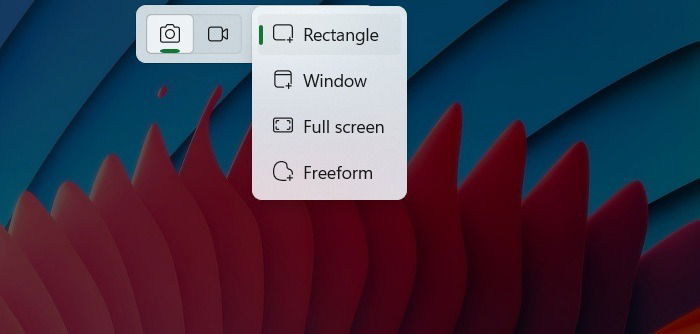
3. Use a screenshot tool to capture the artwork.
- Windows: Press Win + Shift + S to open the Snipping Tool.
- Mac: Press Command + Shift + 4 to capture an area.
- Mobile: Use your device’s screenshot shortcut.
4. Crop the image if needed and save it as a picture file.
Method 2: Save the Cover Image from Spotify Web Player
If you are using a Windows PC or Mac, Spotify Web Player can be a better option than a screenshot. Instead of capturing the entire screen, you can locate the image that is displayed on the Spotify page and save it as a separate file.
This method is useful when you want to download Spotify cover art with cleaner edges and without interface elements such as playback controls, buttons, or text.
Here’s how to extract and save the cover image:
1. Open the Spotify Web Player in your browser.
2. Go to the song, album, or playlist page that contains the artwork you want.
3. Right-click on the page and select Inspect.
4. Find the image URL in the page source or image element.
5. Open the image URL in a new browser tab.
6. Right-click the image and choose Save image as.
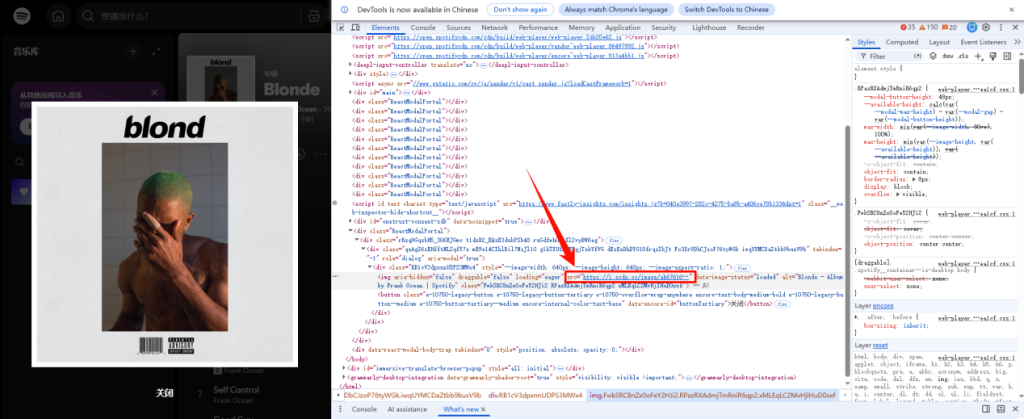
Note: The saved file may be JPG, WebP, or another image format, depending on the resource that Spotify loads. If needed, you can convert the image later.
Method 3: Use a Metadata Method to Find Image URLs
A metadata method is designed for users who need more than a cover image. In addition to artwork URLs, it can help identify the artist, album, playlist title, release information, and other item details connected to a Spotify link.
This method is more technical than taking a screenshot or using the Spotify Web Player. If you only need one cover image, this approach may not be entirely suitable.
The general process is:
1. Copy the public Spotify URL for the song, album, or playlist.
2. Paste the link into an authorized Spotify metadata or embedding tool.
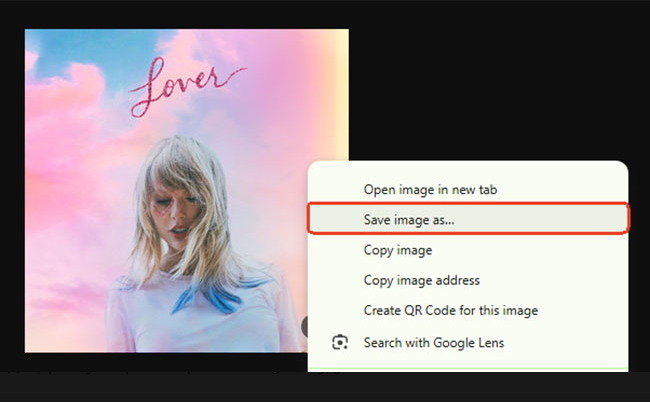
3. Find the artwork image URL in the returned item details.
4. Open the image URL in a browser and save the file.
Method 4: Search Official Artist, Label, or Retailer Pages
Sometimes the easiest way to get album artwork is to find it from official sources. Artists, record labels, and online music stores often publish official album covers. This method works well for popular releases but may not work for every Spotify track.
The basic steps are listed below:
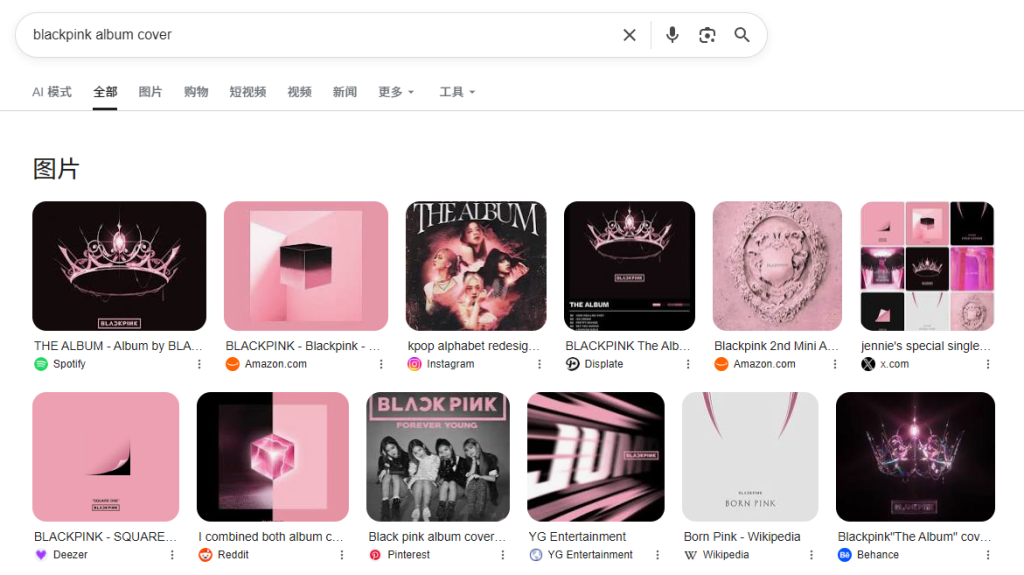
1. Copy the song or album name from Spotify.
2. Search the title together with keywords like:
- “album cover”
- “official artwork”
- “cover image”
3. Add details such as the release year, edition, or label name if need more accurate results.
4. Visit official artist websites, record label pages, or trusted music platforms.
5. Find the matching album artwork and save it to your device.
Method 5: Use an Online Spotify Cover Downloader
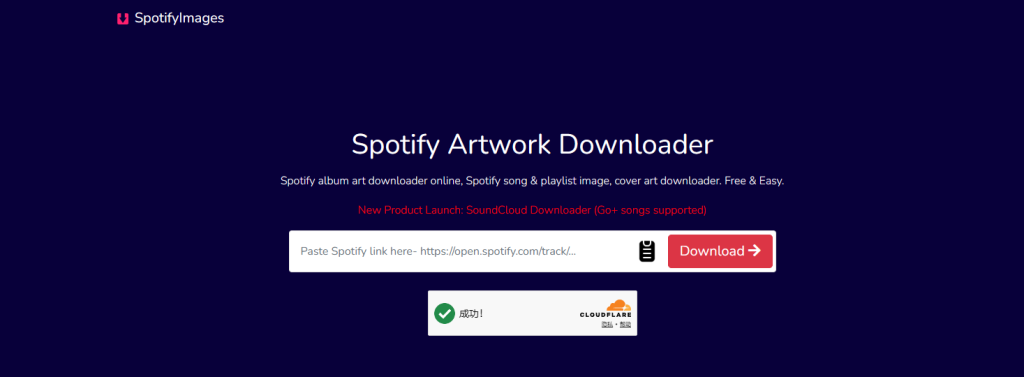
Online Spotify cover download tools allow users to extract artwork by entering a Spotify link. This is one of the fastest ways to get a Spotify album cover or playlist image. These tools are convenient, but image quality and reliability can vary depending on the service.
Most of these tools follow a similar process:
1. Copy the Spotify URL for the song, album, or playlist.
2. Open a Spotify cover art downloader in your browser.
3. Paste the URL into the tool.
4. Click the download button and save the cover image.
Method 6: Save Spotify Music with Embedded Cover Art Using MusicFre
If you are building a local music library, you do not always need to save album covers as separate image files. Instead, the artwork can stay embedded in audio files and appear automatically in compatible music players.
With MusicFre, you can easily keep this information when converting Spotify music to local files. It preserves important metadata, including album artwork, artist information, and track details, helping you build a more complete and organized music library.
Follow these steps to preserve album artwork and metadata:
1. Download and install MusicFre from the official website.






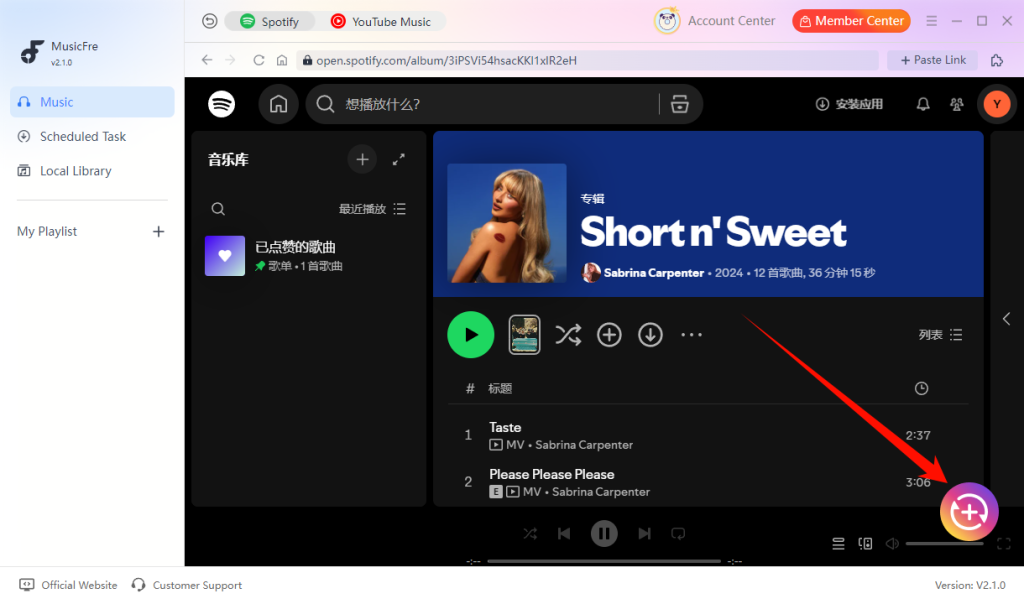
2. Click the “+” button to add the Spotify songs, albums, or playlists you want to save.
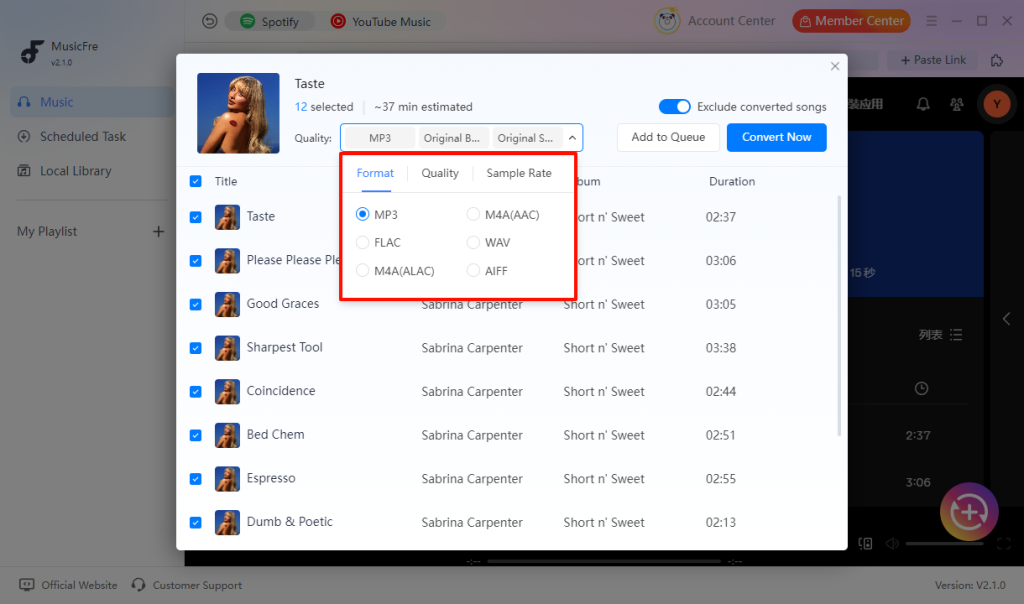
3. Choose your preferred output format and adjust other settings if needed.
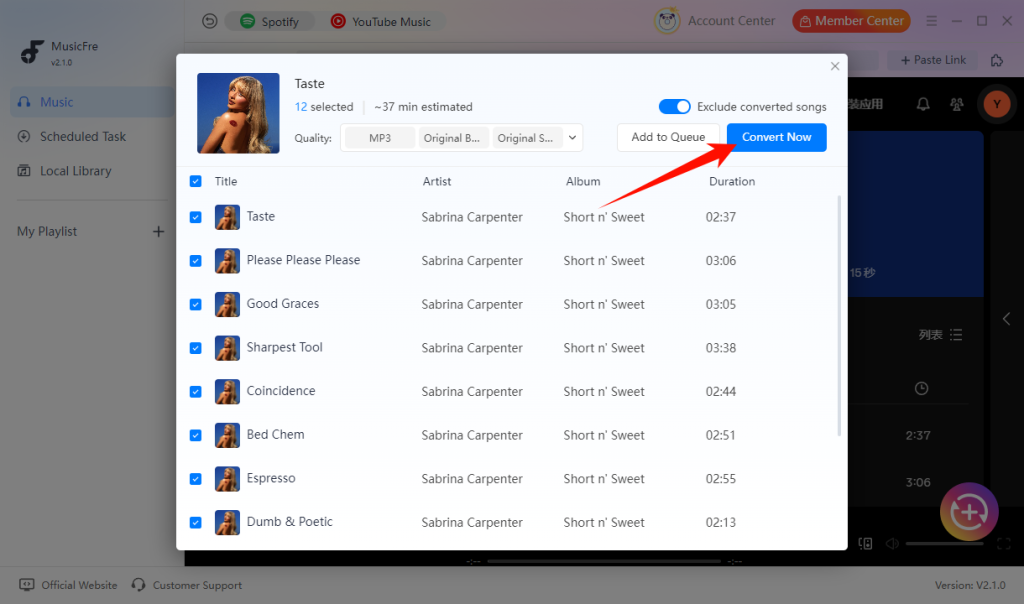
4. Click “Convert Now” to start the conversion process.
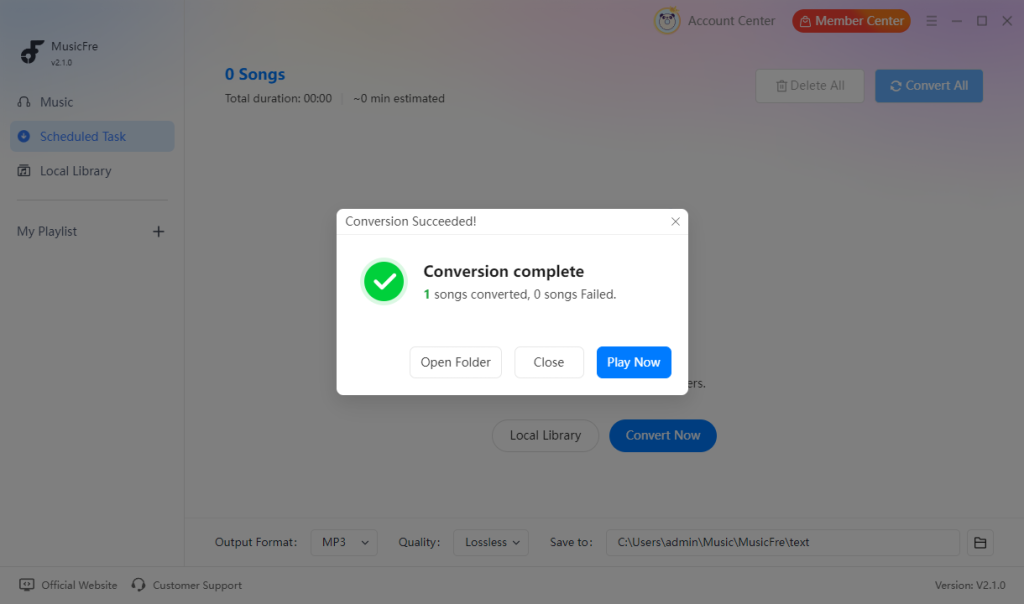
5. Once finished, open the output folder and check the converted files with embedded cover art.
Extra Tip: Choose the Right Format for Spotify Cover Art
After you download Spotify cover art, you may notice that the image is saved in different formats, such as JPG, PNG, or WebP. The best format depends on how you plan to use the image. The table below compares these options to help you make the right choice.
| Format | Best For | Advantages | Limitations |
| JPG | Saving and sharing album covers | Small file size, widely supported, good image quality | Uses compression and may lose some details |
| PNG | Editing or high-quality artwork | Better image quality and keeps sharp details | Larger file size than JPG |
| WebP | Web use and online storage | Smaller size with good quality | Not supported by some older apps |
| Embedded artwork | Local music libraries | Keeps cover art inside audio files with metadata | Not available as a separate image file |
FAQs About Spotify Cover Art Download
1Do I need Spotify Premium to download cover art?
No. You can save artwork from public Spotify songs, albums, and playlists without a Premium subscription.
2Why does my downloaded cover art look blurry?
This usually happens when you use a screenshot or a low-quality image source. Try accessing the original artwork file or a higher-quality source instead.
3Can I download cover art directly from Spotify?
No. Spotify does not offer a standard download button for cover images. You need to use alternative methods to save the artwork.
4Why is the image different from the cover shown on Spotify?
The artwork may vary because different releases, editions, or sources can use different images. Check the artist, album title, and release version before saving the image.
Final Words
Downloading Spotify cover art can be done in different ways depending on your needs. Screenshots are quick and simple, while other methods can provide higher-quality images or preserve artwork with local music files.
Choose the method that works best for you and enjoy a more organized music library with the right cover art.