中文 (台灣)
  日本語
日本語  한국어
한국어  Italiano
  Français
  Português
  Español

5 Easy Ways to Download Spotify Podcasts to MP3 [2026 Guide]
- Category:Spotify Music Tips
- Xiny
- 2026-08-18
Spotify is one of the most popular places to discover podcasts, from daily news and interviews to educational shows and long-form discussions. However, listening offline in the Spotify app is not always enough when you want to keep an episode as a local file, play it on another device, or organize it in your own podcast library.
This guide shows five practical ways to save Spotify podcasts as MP3 files, including MusicFre, public RSS feeds, online tools, audio recorders, and mobile playback. Whether you need to save a single episode or prepare multiple supported podcasts for offline listening, you can choose the method that best fits your device and needs.
Can You Download Spotify Podcasts Directly as MP3 Files?
The short answer is no. Spotify does not provide a direct option to download podcasts as MP3 files.
When you download a podcast episode through the Spotify app, the content is stored as an encrypted offline file that can only be accessed within Spotify. Even Spotify Premium users cannot export these downloaded podcasts as MP3 files or transfer them to other devices.
If you want to save Spotify podcasts as local MP3 files for offline playback, backup, or use on other devices, you will need to use a third-party tool. The following sections will explore the available options and show you how to use each method.
Quick Comparison: 5 Ways to Save Spotify Podcasts as MP3
To save you time, here is a quick overview of five effective ways to convert Spotify podcasts to MP3 files:
| Method | Audio Quality | Batch Support | Best For | Ease of Use |
| MusicFre Converter | Customizable MP3 quality, up to 320 kbps | Yes | Users who need high-quality conversion and multiple podcast downloads | ★★★★★ |
| RSS Feed Extraction | Depends on the original podcast source | No | Users looking for a free method without installing software | ★★★☆☆ |
| Online Downloader | Varies by tool and source quality | Limited | Quick downloads without installing programs | ★★★★☆ |
| Audio Recorder | Depends on recording settings and the source audio | No | A personal-use fallback when no direct file source is available | ★★☆☆☆ |
| Mobile Solutions | Preserves the quality of the transferred MP3 file | Limited | Users who mainly listen on smartphones | ★★★★☆ |
Method 1: Download Spotify Podcasts to MP3 with MusicFre
For users who frequently save Spotify podcasts or want a reliable way to convert Spotify content, using dedicated conversion software is usually the easiest option.
MusicFre allows users to convert Spotify podcasts into commonly used audio formats, including MP3, FLAC, AAC, and more. Unlike some online tools that may limit episode length, reduce audio quality, or require complicated steps, MusicFre provides a more stable way to process long podcast episodes with batch download support while preserving original ID3 tags.
Follow these simple steps to get Spotify podcasts as MP3:
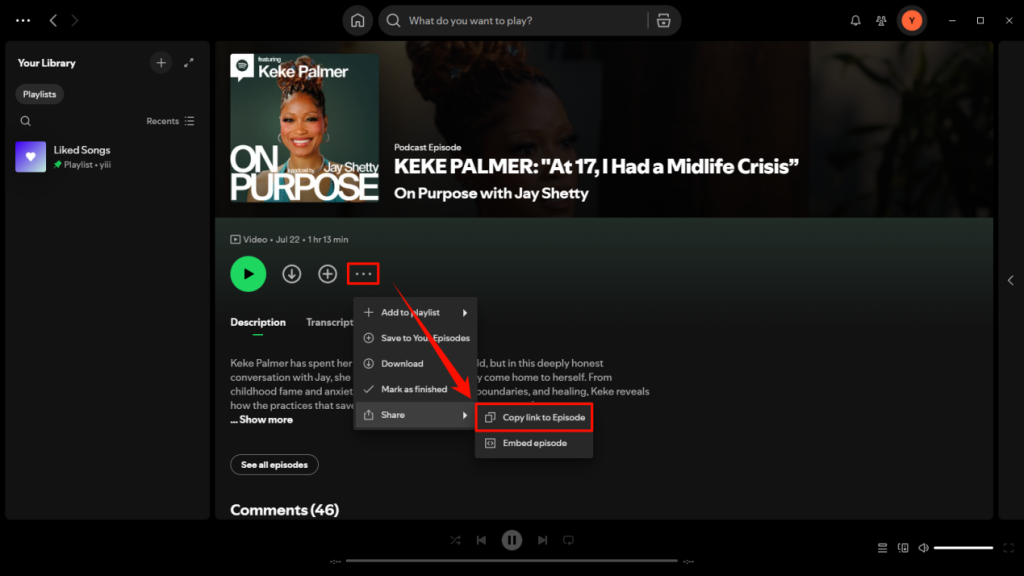
Step 1. Open Spotify and navigate to the podcast episode you want to save. Click the three-dot menu next to the episode, then choose “Share” > “Copy link to Episode”.
Step 2. Go to the official MusicFre website, download the version for your Windows PC or Mac, and complete the installation.






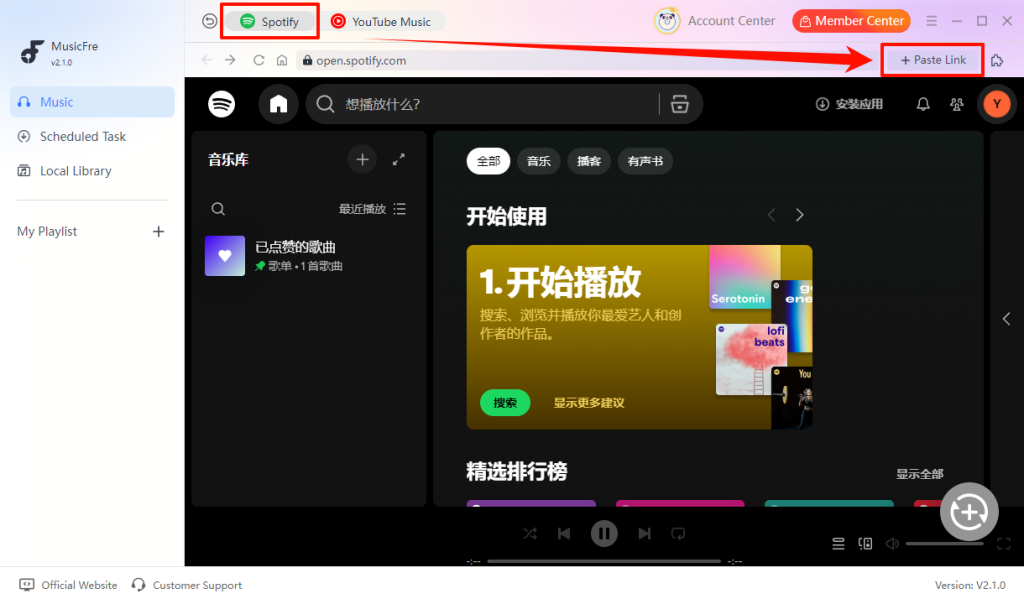
Step 3. Launch MusicFre and choose “Spotify” from the main interface. Click “Paste Link” in the upper-right corner of the window.
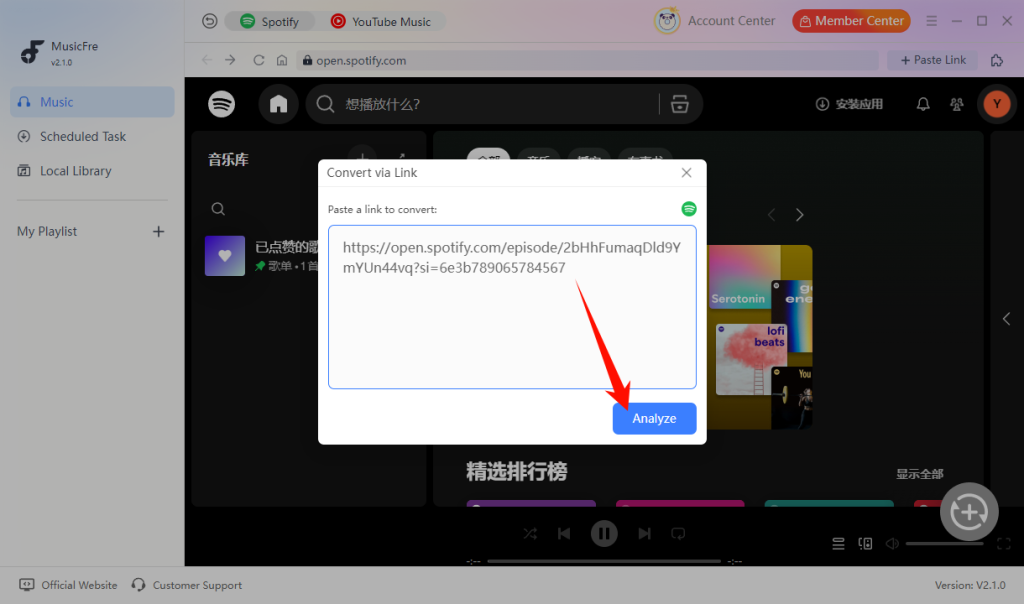
Step 4. Paste the copied link into the input box, then click the “Analyze” button. MusicFre will retrieve the podcast episode information and display it in the conversion list.
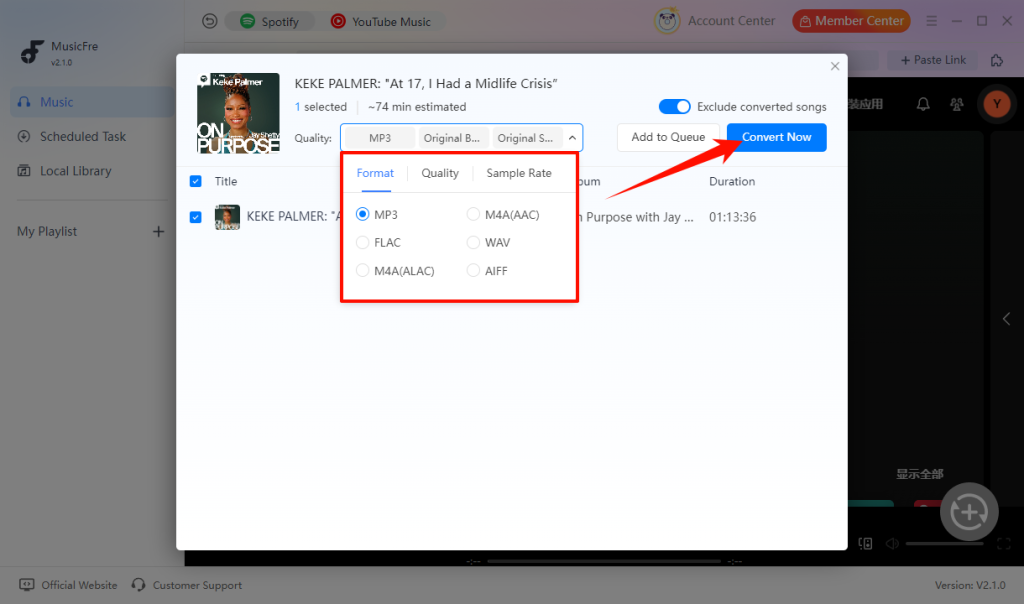
Step 5. Choose “MP3” as the target format and adjust the audio quality or sample rate if needed. Then click “Convert Now” to start the conversion.
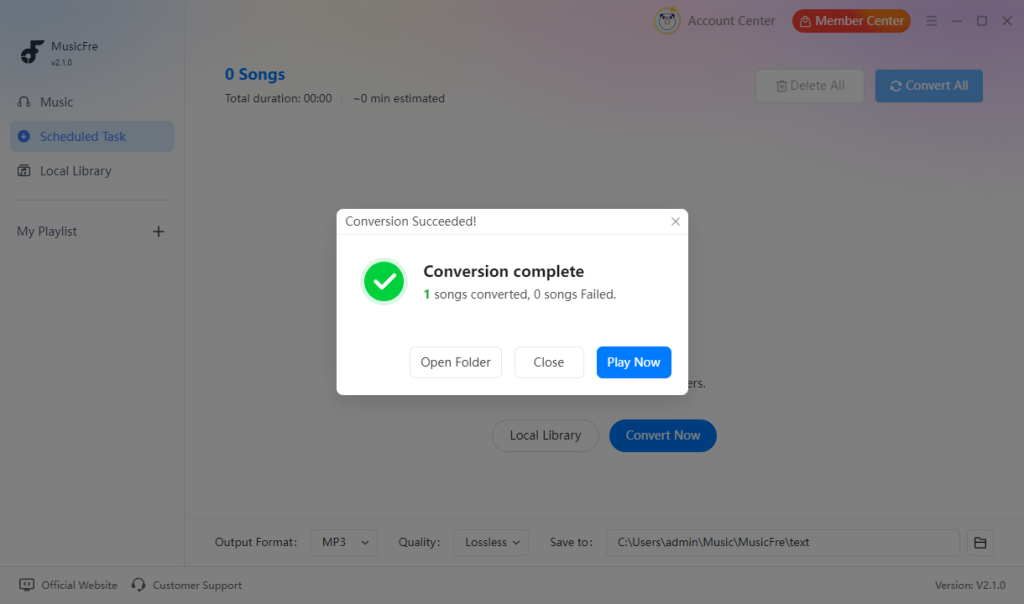
Step 6. When the “Conversion complete” message appears, click “Open Folder” to locate the saved MP3 file, or click “Play Now” to listen to it directly in MusicFre.
Method 2:Get Public Podcast Episodes from an Official RSS Feed
Many podcasts listed on Spotify are also distributed through a public RSS feed. An RSS feed is the standard publishing source that podcast apps use to receive new episodes, show information, artwork, and audio files.
When a publisher makes its episode files public through an RSS feed, downloading the original episode file is often the most direct way to save it.
Here’s how to access podcast episodes through RSS feeds:
Step 1. Open Spotify and copy the exact title of the podcast episode you want to save.
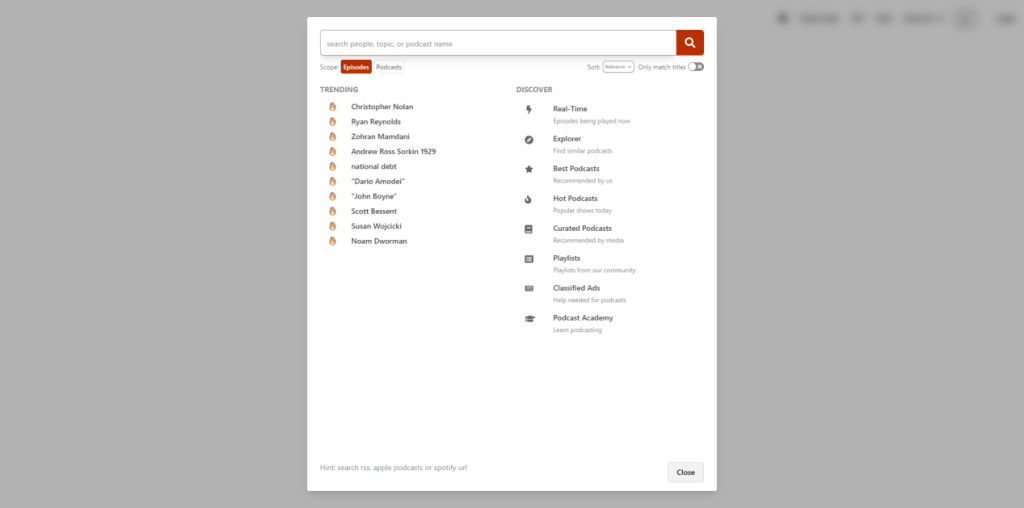
Step 2. Head to an open podcast database like Listen Notes or Rephonic.
Step 3. Search for the podcast name and locate the RSS Feed button.
Step 4. Open the RSS feed URL and press Ctrl + F on Windows or Command + F on Mac.
Step 5. Paste the episode title and locate the audio URL ending in .mp3.
Step 6. Download the audio file from the browser and save it to your preferred folder.
Note: Not every podcast has a public RSS feed. Spotify-exclusive, private, or access-restricted shows may not provide a downloadable audio file.
Method 3:Download Spotify Podcasts to MP3 Online
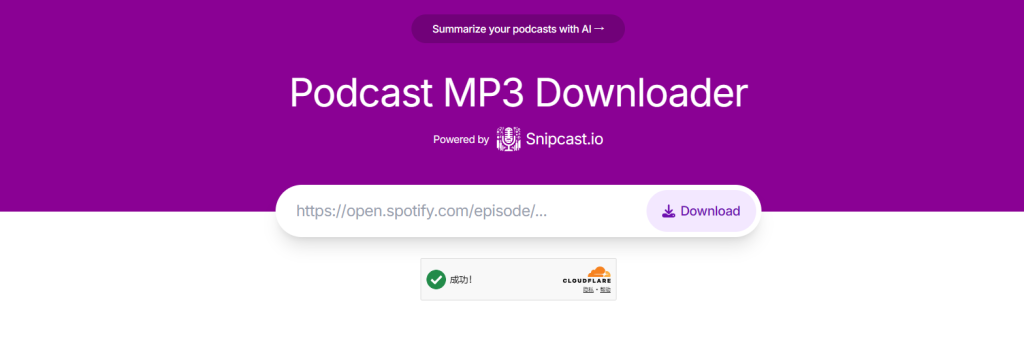
Another popular option is using an online Spotify podcast downloader. These web-based tools usually work by allowing users to paste a Spotify podcast URL and download an available audio file directly from a browser.
Online tools may be suitable for a single public episode, but they are usually less reliable for batch downloads, file organization, and detailed output settings.
The general process usually looks like this:
Step 1. Copy the link to the Spotify podcast episode you want to get.
Step 2. Open an online podcast converter that supports public Spotify episode links.
Step 3. Paste the link and choose MP3 as the output format.
Step 4. Click the download button and wait for the conversion process to complete.
Step 5. Save the converted file to your computer and play it to make sure it works properly.
Method 4:Record Spotify Podcasts as MP3 with an Audio Recorder
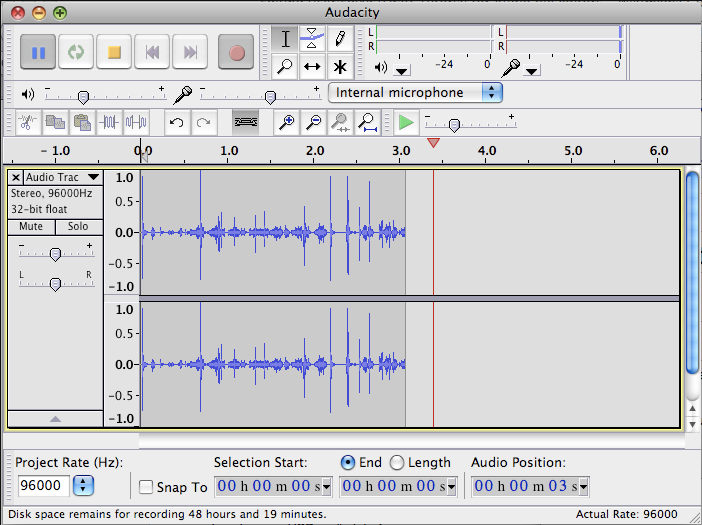
Audio recording is a fallback method rather than the first choice. A recorder captures the sound playing through your computer and saves it as an audio file. This may be useful for a personal workflow when you have permission to record the content and no public downloadable source is available.
The basic steps are listed below:
Step 1. Install a desktop audio recording program that supports system sound recording.
Step 2. Open Spotify and start playing the podcast episode you want to save.
Step 3. Begin recording while the episode is playing.
Step 4. After recording finishes, export the captured audio as an MP3 file.
Note: Audio recording usually happens in real time and may not preserve episode titles, cover art, or other metadata. Only record content that you are authorized to save.
Method 5:Play Spotify Podcast MP3 Files on Android and iPhone
If your main goal is listening on a phone, you may not need to convert a podcast directly on the device. A more reliable approach is to create or download the permitted MP3 file on your computer, then transfer it to your mobile device.
On Android:
Step 1. Connect your Android phone to your computer with a USB cable.
Step 2. Copy the MP3 file to the Music or Podcasts folder on your phone.
Step 3. Open a local audio player and select the saved file to play it offline.
On iPhone:
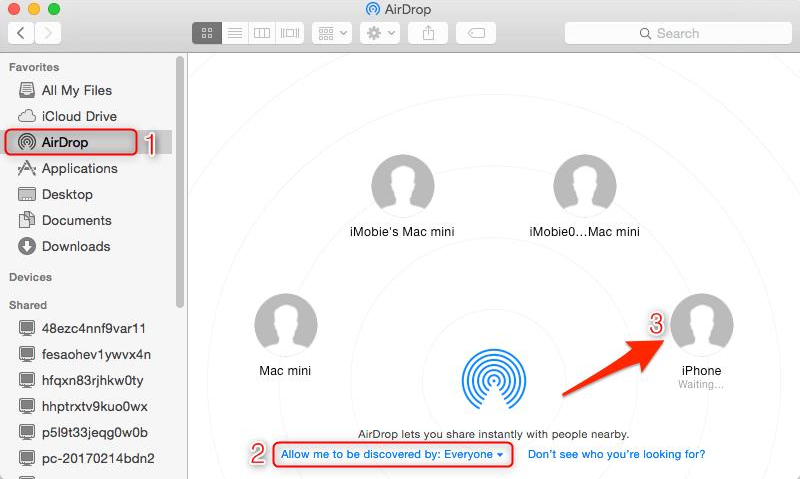
Step 1. Transfer the MP3 file to your iPhone using AirDrop, iCloud Drive, Finder, or iTunes.
Step 2. Open the file in the Files app or sync it to the Music app.
Step 3. Play the saved podcast episode offline on your iPhone.
Advanced Tips: What MP3 Quality Should You Choose for Spotify Podcasts?
Podcast audio is different from a music album. Most podcasts are primarily spoken word, so choosing a higher bitrate does not always create a noticeable improvement.
For podcasts, the best MP3 setting depends on your priorities, such as audio clarity, file size, and storage space. The following settings can help you choose the right balance:
| MP3 Setting | Best For | Result |
| 128 kbps | Everyday podcast listening | Clear voice quality with smaller file sizes. The best choice for most spoken-word podcasts. |
| 192 kbps | Users who want better audio quality | Provides a clearer listening experience while keeping file sizes reasonable. |
| 256 kbps | Podcasts with music, interviews, or richer audio | Offers higher detail and improved sound quality for mixed content. |
| 320kbps | Maximum quality preference | Highest MP3 quality, but the larger files are often unnecessary for most podcasts. |
For most Spotify podcast listeners, 128 kbps or 192 kbps MP3 is usually enough. If an episode includes music, sound effects, or multiple audio elements, choosing a higher bitrate may provide a better experience.
FAQs About Spotify Podcast to MP3
1Is it legal to download Spotify podcasts as MP3?
Only download podcasts you own, are authorized to use, or that the publisher makes publicly available. Do not use downloaded files commercially without permission.
2Can I download an entire Spotify podcast series at once?
Yes. A tool like MusicFre can help save multiple podcast episodes at once with batch conversion support.
3Why can’t I convert some Spotify podcast links?
Some episodes may not be available due to region restrictions, private access, or unsupported content. Make sure the podcast link is public and accessible before converting.
4Can I convert Spotify video podcasts to MP3?
Yes. If the podcast audio track is available, MusicFre can help extract and save the audio as an MP3 file for offline listening.
Bottom Line
Spotify’s built-in offline downloads are useful for listening in the app, but they do not provide standalone MP3 files. If a podcast publisher offers a public RSS feed, downloading the original episode file is often the simplest option. Online tools and audio recorders can also help in certain situations.
For users who want a more organized desktop workflow, MusicFre provides an easy way to convert Spotify podcast episodes to MP3, adjust output settings, and save multiple episodes in a batch. Once converted, you can transfer the files to your Android phone, iPhone, or other devices for offline listening.