中文 (台灣)
  日本語
日本語  한국어
한국어  Italiano
  Français
  Português
  Español

How to Add Spotify Music to Video for YouTube, TikTok & More
- Category:Spotify Music Tips
- Xiny
- 2026-08-21
Music can change the pace, mood, and overall quality of a video in seconds. Whether you are making a YouTube vlog, TikTok clip, Instagram Reel, or personal project, the right background track can make your content feel more engaging.
As one of the most popular platforms for discovering music, Spotify has become a go-to source for creators who want to add their favorite songs to videos. However, Spotify music is not usually available as a normal audio file that you can drag directly into a video editor.
To use Spotify music in video editing, you first need an editor-compatible local audio file, then import it into your preferred editing app. This guide explains how to add Spotify music to a video step by step. Let’s dive in.
Can You Add Spotify Music to a Video Directly?
The short answer is no. Spotify Premium allows users to download songs for offline listening, but these downloads are protected files that only work within the Spotify app. They are not standard audio formats like MP3, WAV, or FLAC, which means video editors cannot directly access or import them. To use Spotify songs in your video projects, you need to convert them into an editor-compatible audio file first.
However, converting a song into a usable audio file is only the technical part of the process. It does not automatically give you the right to use that music in published videos. Always make sure you have the necessary permissions or licenses before using copyrighted songs in your content.
How to Add Spotify Music to Video?
Once you have an editor-compatible audio file, adding music to your video is straightforward. The process is similar across most editing tools. Let’s go through each step.
Step 1.Convert Spotify Music to a Video-Editor-Compatible Audio File
Before you can use Spotify music in a video editor, you need a local file in a format the editor accepts. MusicFre can help you prepare Spotify tracks as local audio files in formats such as MP3, WAV, FLAC, AAC, and M4A.
When choosing an audio format, consider how you plan to use the music.
| Format | Best for | Advantages |
| MP3 | CapCut, InShot, social videos, everyday editing | Small file size and broad compatibility |
| WAV | Premiere Pro, Final Cut Pro, detailed audio editing | Uncompressed audio that works well in professional workflows |
| M4A / AAC | Apple devices and lightweight projects | Good quality with efficient file sizes |
| FLAC | Archiving or high-quality audio storage | Excellent quality, but not every video editor supports it equally well |
For video editing, MP3 and WAV are two of the most common audio formats. MP3 is a practical choice for most creators because it offers good audio quality with a smaller file size, while WAV is better suited for projects that require professional editing or detailed audio processing.
The general process for converting Spotify music with MusicFre is:
1. Go to the official MusicFre website and download the version for your Windows PC or Mac.






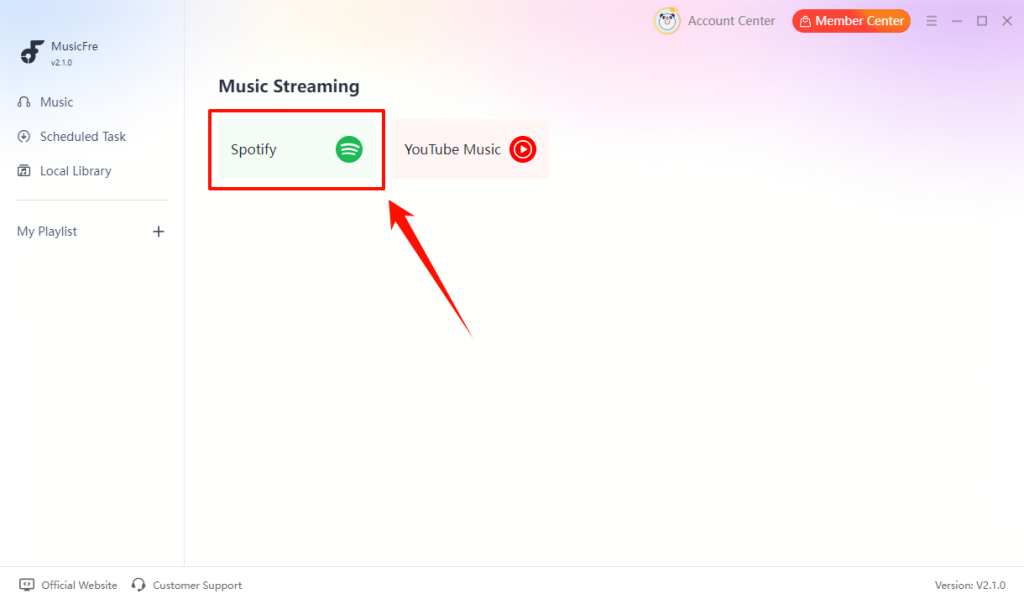
2. Launch MusicFre and select Spotify from the main interface.
3. Search for the song, album, playlist, or podcast you want to prepare for video editing.
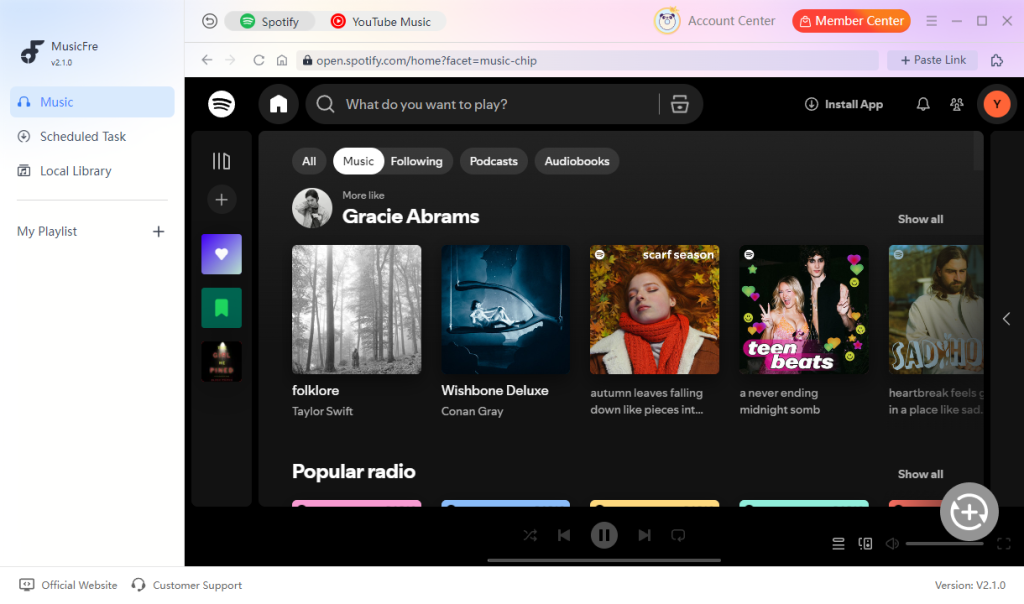
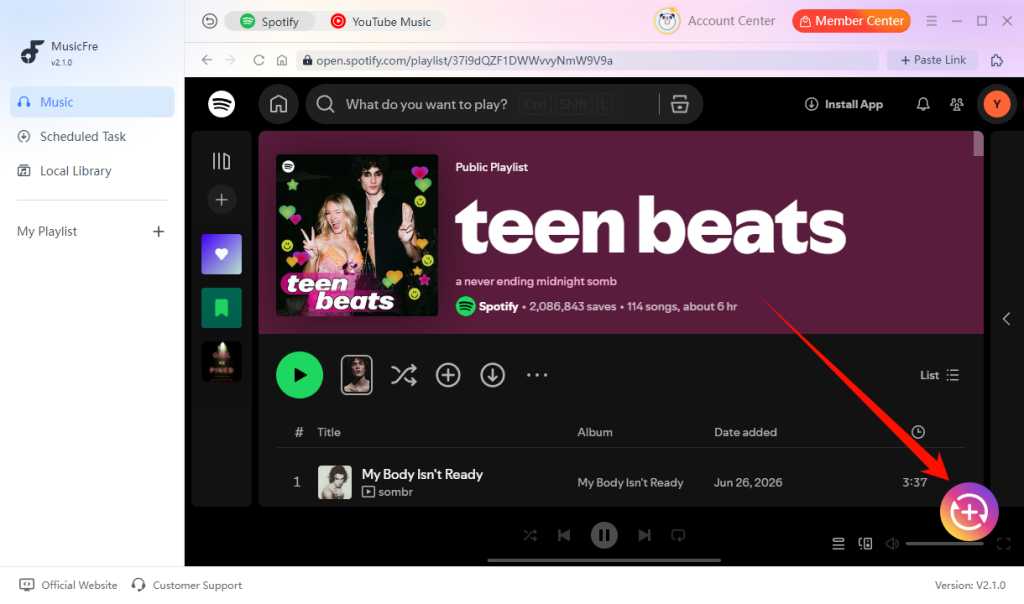
4. Click on the + button, and MusicFre will analyze the selected music.
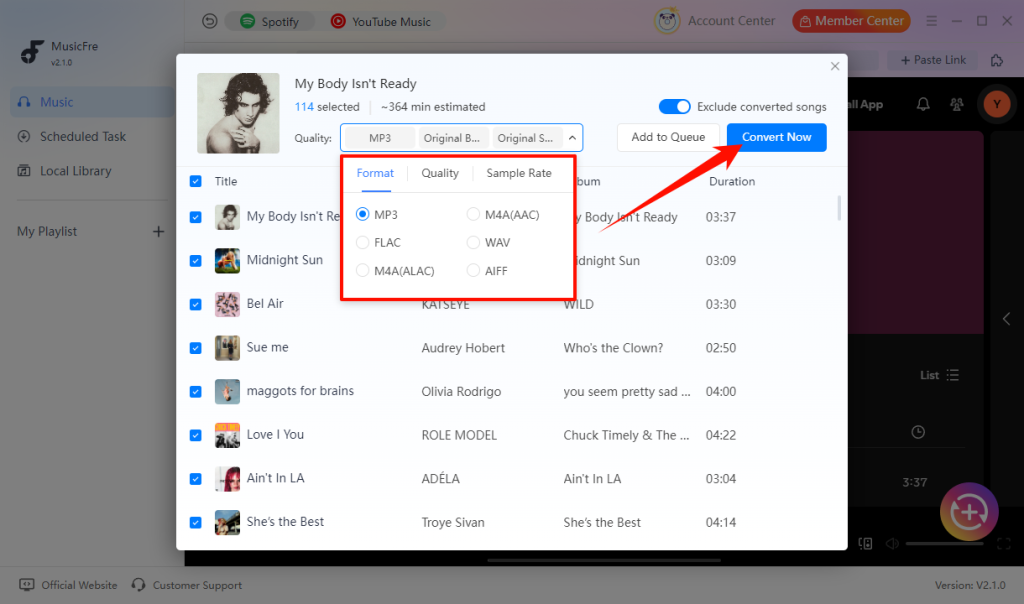
5. Choose a format that works with your video editor, then click Convert Now to begin.
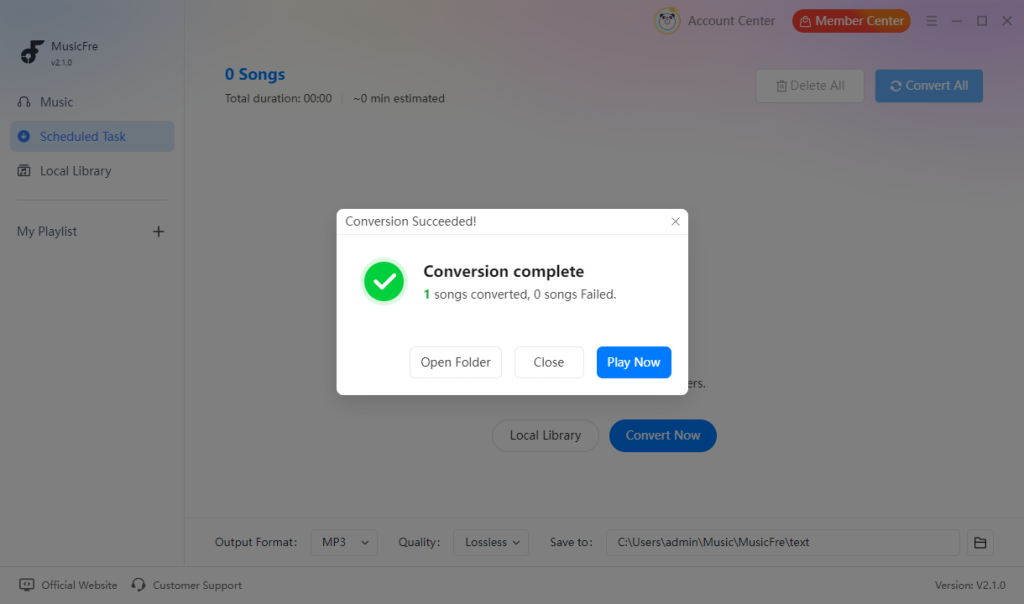
6. Once the conversion is complete, open the output folder to locate the converted audio files.
Step 2Import the Converted Music Into a Video Editor
Once you have converted Spotify music into a compatible audio file, you can add it to your video editing project. While different editors have slightly different interfaces, the overall workflow is usually similar. Popular video editing tools such as CapCut, iMovie, Adobe Premiere Pro, and Final Cut Pro all support importing local audio files. Below, we’ll use CapCut as an example to demonstrate the basic steps.
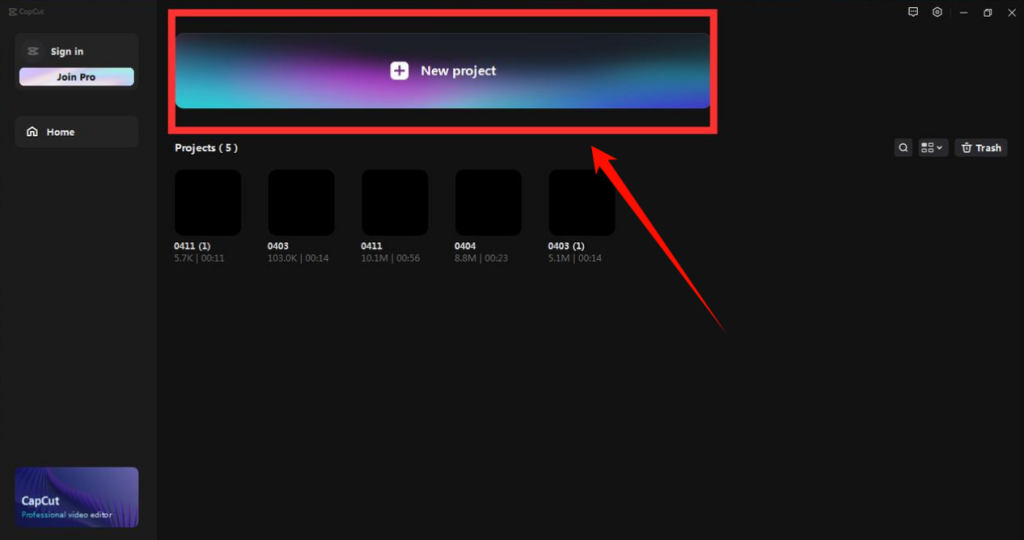
1. Open CapCut and create a new project.
2. Upload your video clips.
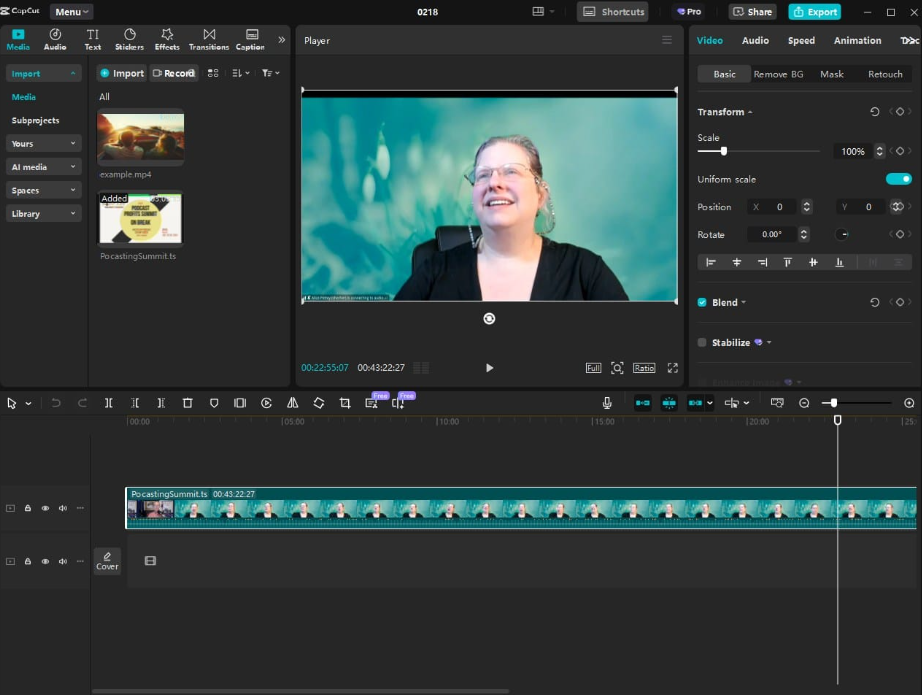
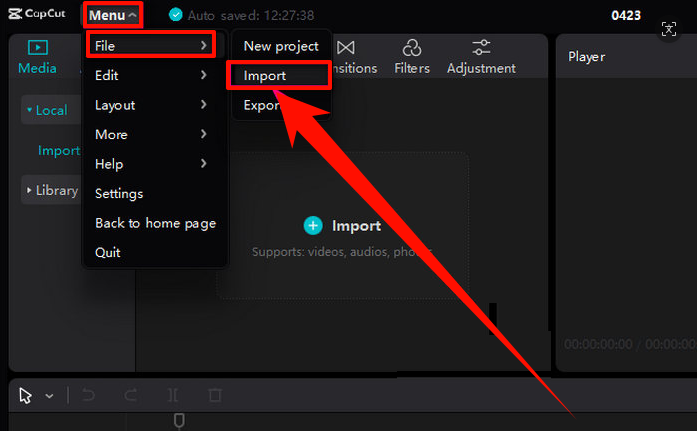
3. Select Audio and choose Import.
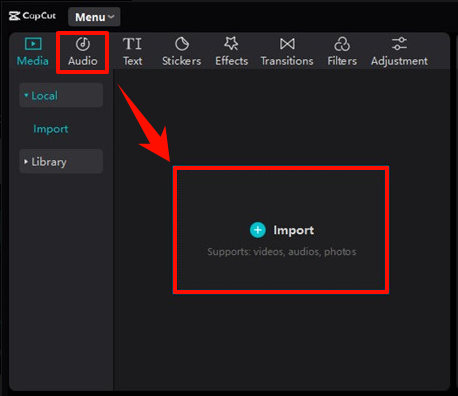
4. Add the converted Spotify music file.
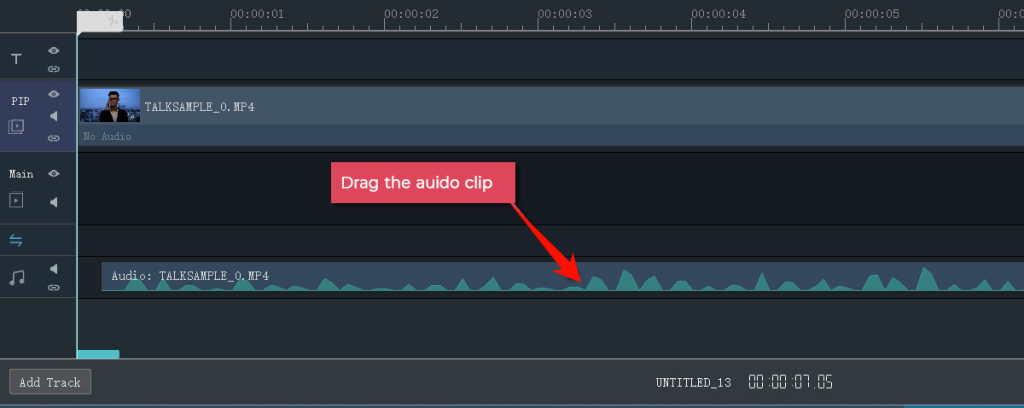
5. Drag the music file onto an audio track.
Step 3.Edit, Sync, and Export Your Video
After importing Spotify music into your video editor, the next step is to adjust the audio so it fits your video content. Proper editing can help the background music match your scenes, improve the overall viewing experience, and make your final video sound more professional.
1. Sync the Spotify music with your video scenes and transitions.
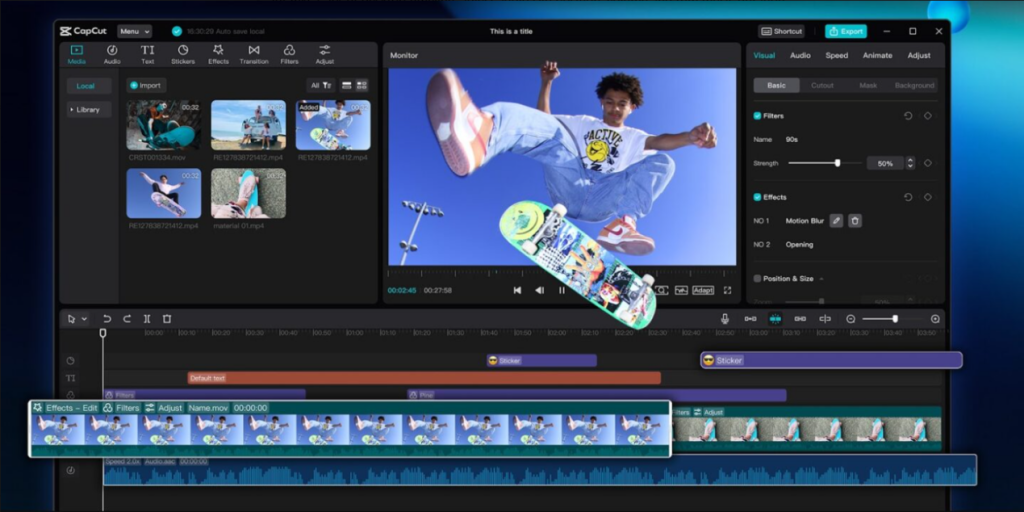
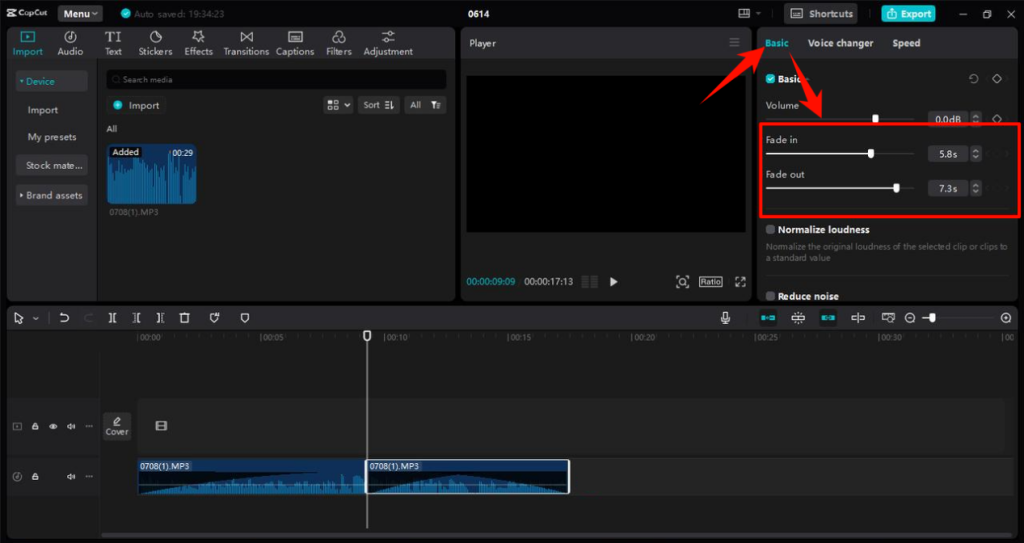
2. Adjust the music volume, duration, and add fade-in or fade-out effects as needed.
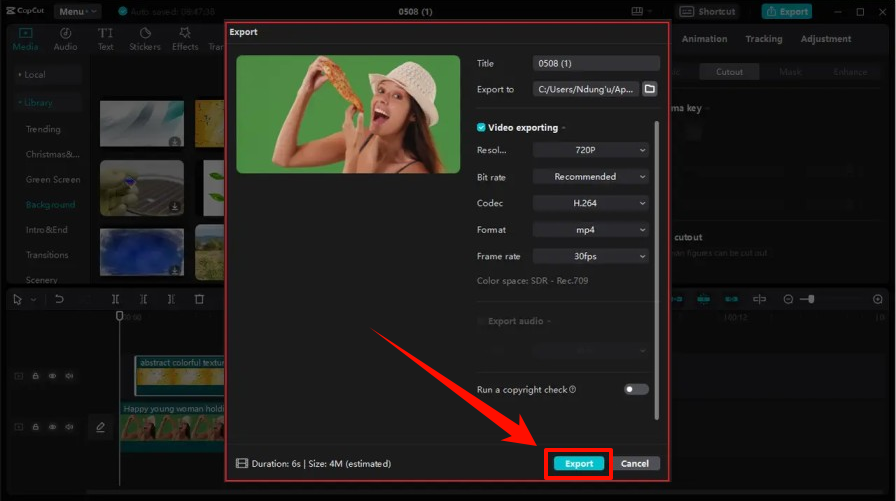
3. Preview your video and export the final edited project.
Can You Use Spotify Music in YouTube, TikTok, or Instagram Videos?
Not automatically. Technically, you can add Spotify music to a video after converting it into a compatible audio format. However, being able to access or edit a song does not mean you have the right to use it in public content.
Spotify Premium only allows offline listening within the Spotify app. It does not grant a license to use songs in YouTube videos, TikToks, Instagram Reels, advertisements, or other publicly shared content.
- YouTube: Copyrighted music may trigger a Content ID claim, which can affect monetization, visibility, or availability.
- TikTok and Instagram: Their in-app music libraries may permit certain tracks on their own platforms, but this does not automatically cover videos edited elsewhere or reposted to other platforms.
- Personal vs. commercial use: A private video is different from a public, monetized, sponsored, or client project. Commercial projects usually require clear permission or an appropriate music license.
Using only a few seconds of a song, lowering its volume, or adding voiceover does not automatically make it safe to use. If you plan to publish or monetize your video, use music you own, have permission to use, or that is licensed for your intended platform and purpose.
FAQs About Adding Spotify Music to Video
1How do I transfer converted Spotify music to my phone?
Transfer the audio file with AirDrop, a USB cable, iCloud Drive, Google Drive, or another cloud service. Download it to your phone before importing it into CapCut or another editor.
2Why can’t I find the music file in my video editor?
Check that the conversion is complete and the file is saved locally. On mobile, make sure the editor has permission to access your files or media library.
3How do I make the music end smoothly?
Trim the audio to fit the video length and add a short fade-out. Try to end the track at a natural pause rather than in the middle of a lyric.
4Can I keep the original sound from my video?
Yes. Add the music as a separate audio track, then lower its volume during dialogue or important original sounds.
Conclusion
Adding Spotify music to a video involves more than simply choosing a song and placing it on a timeline. The right workflow helps you prepare your audio files, create a smoother editing experience, and match the music with the style and purpose of your content.
Before sharing your video publicly, always consider the rights and permissions for the music you include. Choosing properly licensed audio ensures that your content can be published and helps avoid unnecessary copyright issues.