中文 (台灣)
  日本語
日本語  한국어
한국어  Italiano
  Français
  Português
  Español

How to Download Spotify Audiobooks to MP3 (Step-by-Step)
- Category:Spotify Music Tips
- Xiny
- 2026-08-24
Spotify is not only a music and podcast platform, but it also offers a growing selection of audiobooks. Depending on your region, Spotify plan, and the title you choose, you may be able to listen to audiobooks through your included listening time, purchase individual books, or access free titles.
While Spotify Premium allows offline listening, these downloads are only available inside the Spotify app and cannot be accessed as regular audio files.
If you want to save Spotify audiobooks as MP3 files for personal use, this guide will show you how to find and listen to audiobooks on Spotify and explain how to save audiobook content as local audio files.
How to Find and Listen to Audiobooks on Spotify
Spotify audiobooks are available directly inside the Spotify app, but they may not be as easy to find as music or podcasts. Before listening and saving, you first need to find a title that is available through your Spotify account.
Follow the steps below to discover Spotify audiobooks and learn how to start listening.
Step 1. Open Spotify and Search for Audiobooks
Launch the Spotify app on your phone or desktop and use the search bar to find audiobooks.
You can search for:
- A specific audiobook title
- An author’s name
- A narrator
- A genre or topic
You can also try searching terms like:
- audiobooks
- audiobook collection
- fiction audiobooks
Spotify will display available audiobook results based on your region and account availability.
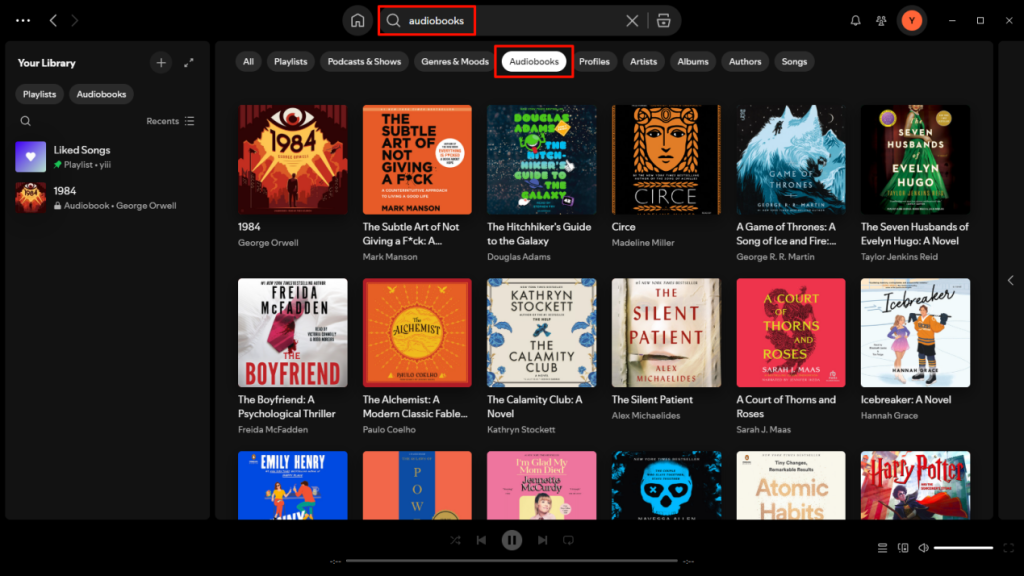
Step 2.Browse Spotify Audiobook Categories
Depending on your location and Spotify app version, audiobooks may appear through dedicated audiobook sections or search results. When selecting an audiobook, you can view details such as:
- Book title
- Author information
- Narrator details
- Chapters
- Listening options
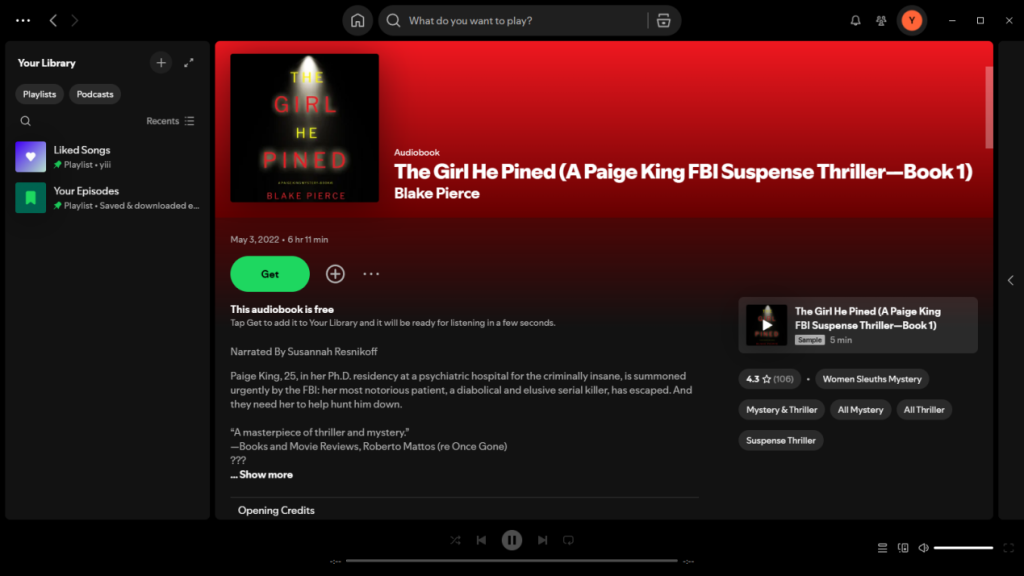
Step 3.Check Whether the Audiobook Is Available
Before you start listening, check the access option shown on the audiobook page. Spotify may show:
- Play: the audiobook is available to you.
- Get: a free title that needs to be added to your library.
- Buy: a title that requires a separate purchase.
- Preview: a short sample is available before full access.
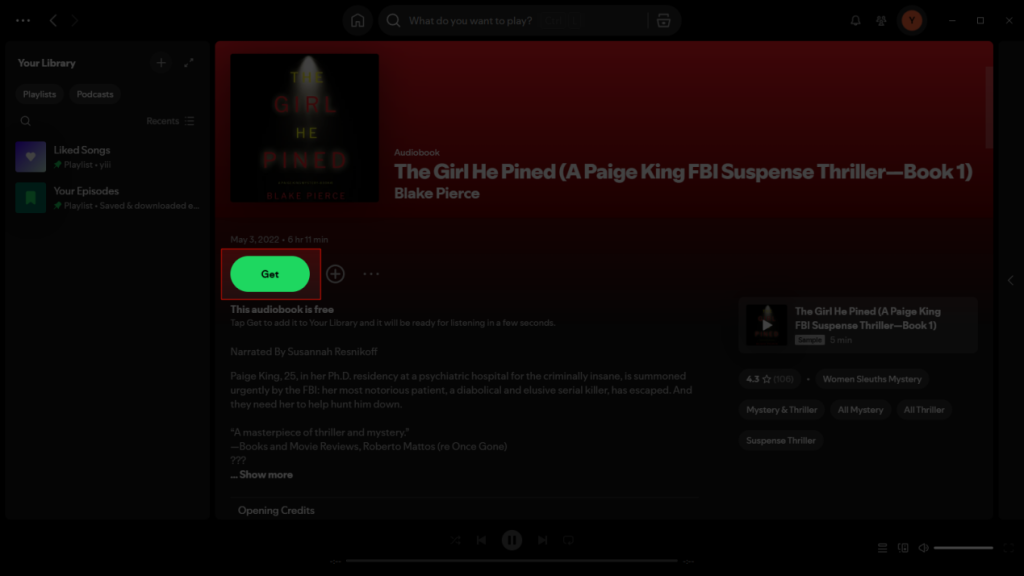
Step 4.Add the Audiobook to Your Library and Start Listening
Once available, add the audiobook to Your Library so you can find it again easily. Open the title, choose a chapter, and select Play to begin listening.
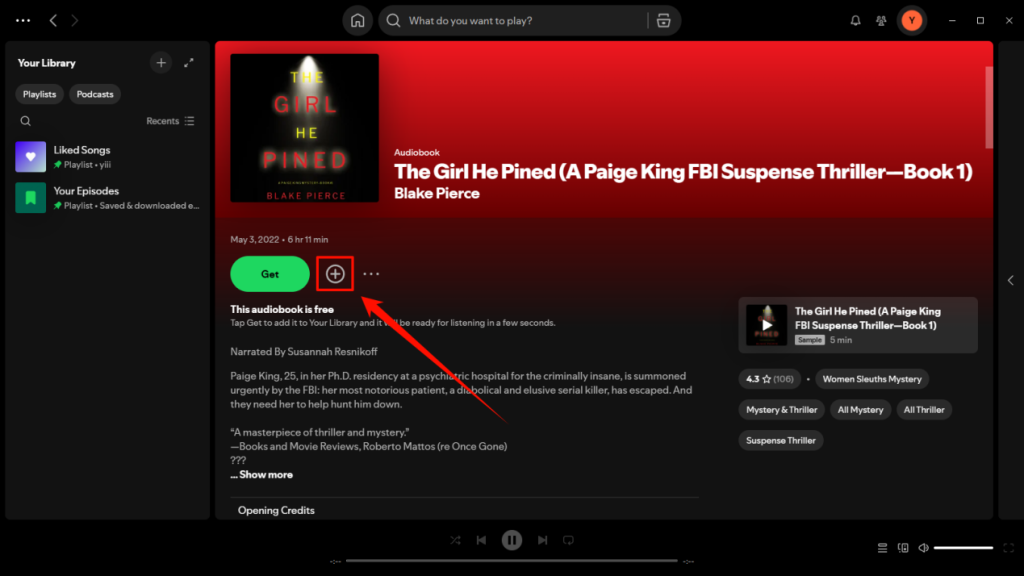
Step 5.Download the Audiobook for Offline Listening (Optional)
If the audiobook is available for your account, Spotify Premium users may see a Download button on the audiobook page. Click it to save the title for offline listening in the Spotify app.
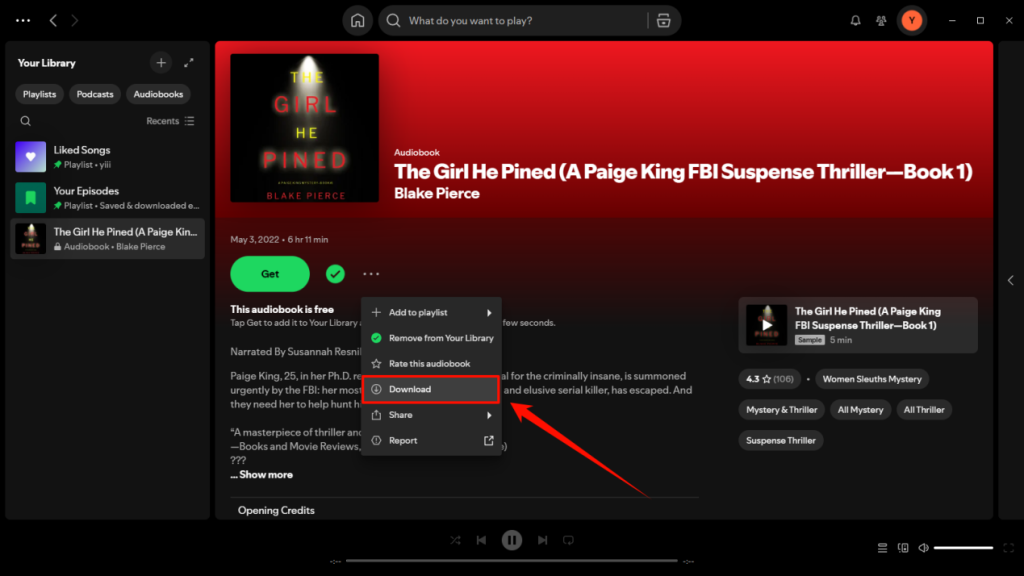
However, Spotify offline downloads are not regular audio files. They:
- Stay inside the Spotify app
- Cannot be exported as MP3 files
- Cannot be transferred freely to other devices
This limitation is the main reason many listeners look for ways to download Spotify audiobooks to MP3 and create local audiobook files.
Why Save Spotify Audiobooks as MP3 Files
Spotify’s built-in downloads offer a convenient listening experience, but some users need more control over their audiobook files. Converting accessible Spotify audiobook audio to MP3 can be useful for several reasons:
1.Listen to Spotify Audiobooks on More Devices
MP3 is a widely supported audio format. After saving an audiobook as an MP3 file, you can play it with compatible devices and media players, such as computers, phones, MP3 players, and car audio systems.
2.Create a Personal Audiobook Library
Spotify audiobooks are organized inside the app, but local MP3 files can be arranged in folders based on your own preferences. For example, you can sort files by author, book title, series, or chapter.
3.Listen Offline Without Opening Spotify
Spotify’s official offline downloads are useful, but they require playback through Spotify. A local MP3 file can be played with a compatible audio player without opening the Spotify app.
How to Download Spotify Audiobooks to MP3
Since Spotify audiobooks are designed to be played within the Spotify app, one common way to create a personal MP3 copy is to use an audio recording tool. These programs can capture the audiobook playback and save the recording as an MP3 file.
A recording tool can help you:
- Save audiobook chapters as separate audio files
- Choose MP3 as the output format
- Adjust recording quality and file settings
- Organize your audiobook collection locally
Follow these steps to record Spotify audiobooks and save them as MP3:
Step 1.Install an Audio Recorder
Download and install a reliable audio recording program on your computer. Open the software and prepare the recording settings.
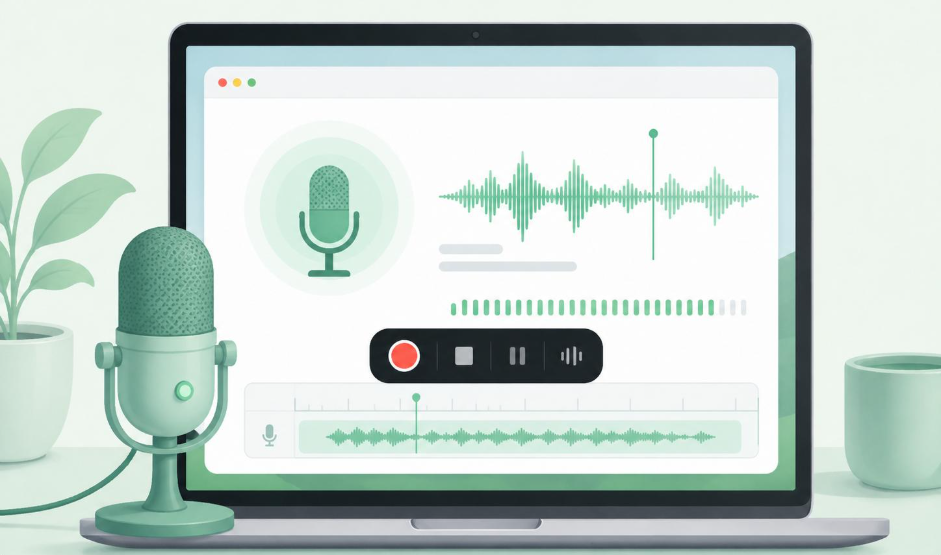
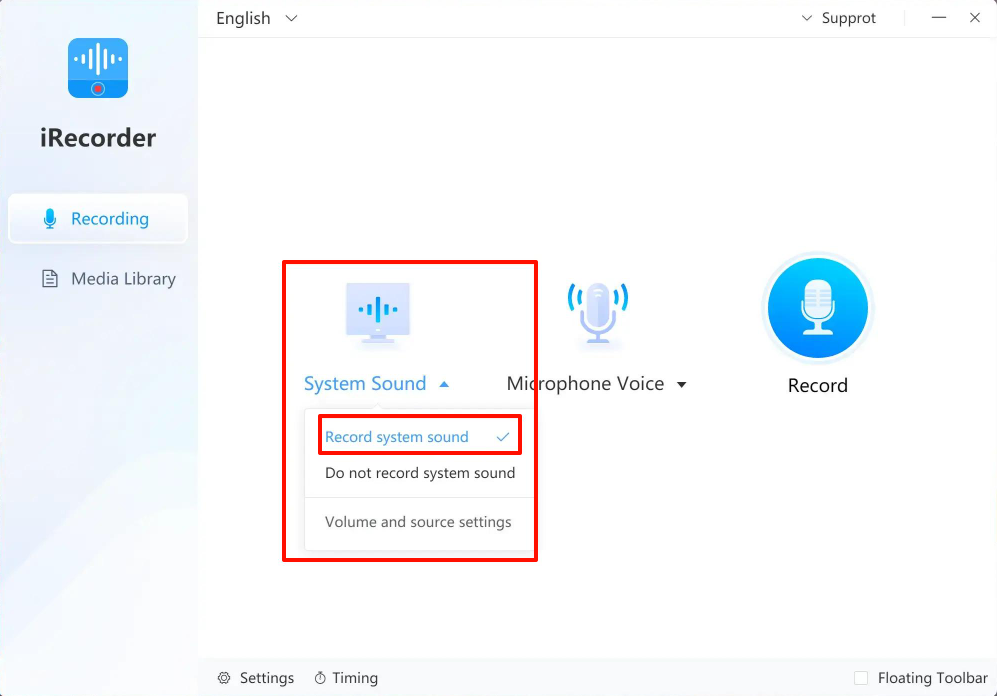
Step 2. Set the Recording Source
Choose the system audio option to capture the sound played from Spotify. Make sure the correct audio input and output devices are selected.
Step 3. Play the Spotify Audiobook
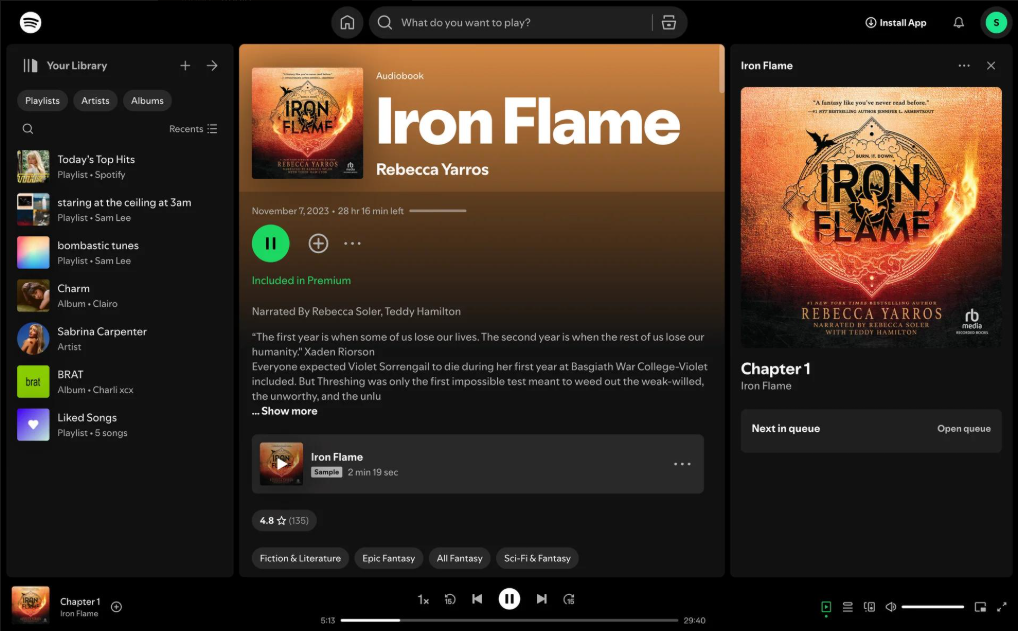
Open Spotify and start playing the audiobook chapter you want to save. Begin recording before playback starts.
Step 4.Export the Recording as MP3
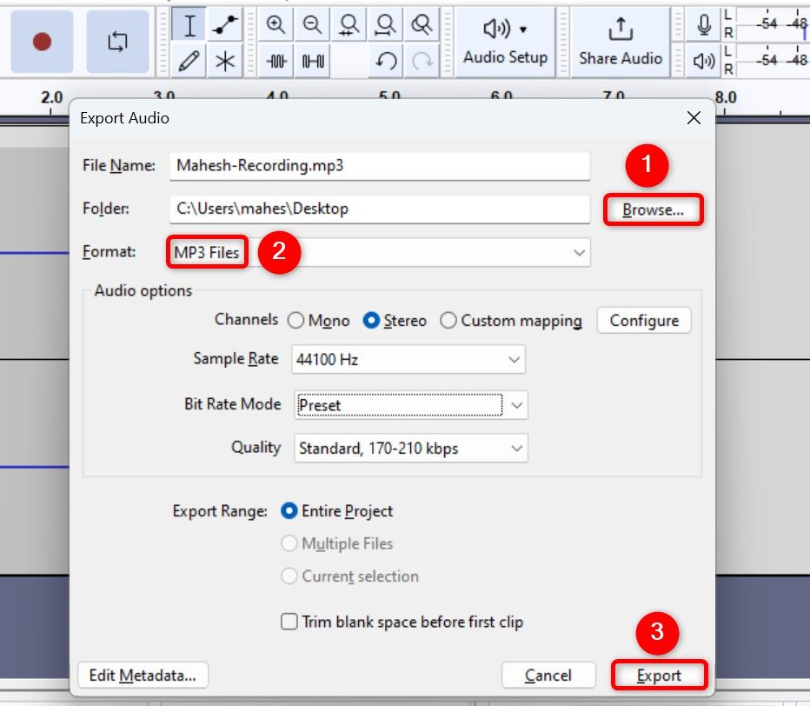
After the chapter finishes, stop the recording and export the file in MP3 format.
Troubleshooting Spotify Audiobook Download Issues
1.The audiobook does not appear in Spotify
Try searching with the exact audiobook title, author name, or narrator. If the title still does not appear, it may be unavailable in your current region or not included with your account access.
2.Some chapters are missing
Missing chapters may happen when an audiobook has limited access, requires a separate purchase, or is not fully available through your account. Before recording or saving an audiobook, make sure you can access all chapters and play the complete title in the Spotify app.
3.The exported MP3 cannot be played on other devices
Test the file on your computer first. If it plays there but not on the target device, check the transfer progress, folder location, file permissions, and player compatibility. Transfer one chapter manually before moving the full audiobook.
FAQs About Spotify Audiobook to MP3
1Do I need Spotify Premium to access audiobooks?
Not always. Some audiobooks may be free, require a separate purchase, or be available through eligible Premium audiobook listening time. Access depends on the title, region, and your Spotify account.
2Can I transfer Spotify audiobook MP3 files to another device?
Yes. Once you have a local MP3 file, you can move it to compatible devices such as computers, phones, tablets, or MP3 players for playback.
3Can I edit Spotify audiobook MP3 files after saving them?
Yes. Standard MP3 files can be renamed, trimmed, split, or organized with compatible audio editing software.
4What MP3 quality should I choose for audiobooks?
For most audiobooks, 128 kbps MP3 is enough for clear speech and smaller file sizes. If you prefer higher quality, 192 kbps MP3 offers a good balance between sound quality and storage space.
Final Words
If you want more flexibility in managing your audiobook collection, recording audiobook playback and saving the recordings as local MP3 files can make it easier to organize and play content across different devices.
If you want to save Spotify songs, albums, or playlists as local audio files, MusicFre provides a simple way to convert supported Spotify music content into MP3 and other popular formats.
Whichever method you choose, make sure you have the necessary rights to use and save the audio content, and manage your local audio files in a way that works best for your needs.