中文 (台灣)
  日本語
日本語  한국어
한국어  Italiano
  Français
  Português
  Español

How to Remove Duplicates From a Spotify Playlist (2026 Guide)
- Category:Spotify Music Tips
- Xiny
- 2026-08-26
Seeing the same song more than once in a Spotify playlist can make a carefully organized collection feel messy, especially when the playlist contains hundreds of tracks. Fortunately, you can remove duplicate songs without rebuilding the playlist from scratch.
For a small playlist, manually checking and removing repeated tracks is usually the simplest approach. If you have a large playlist with many duplicates, a Spotify playlist deduplication tool can save time.
Before deleting anything, it is important to determine whether two tracks are actually duplicates. Different releases, remastered versions, live recordings, and remixes may look similar but can still be separate tracks.
What Counts as a Duplicate Song on Spotify?
A duplicate song generally refers to the same track appearing more than once in the same Spotify playlist. However, similar-looking tracks are not always duplicates. Spotify may offer multiple versions of the same song, including remastered releases, live recordings, acoustic versions, radio edits, and remixes. Before removing a track, take a moment to check the title, artist, album, duration, and version label.
Why Do Duplicate Songs Appear in Spotify Playlists?
Spotify playlist duplicates can appear for several reasons:
- You added the same track more than once, either accidentally or intentionally.
- You imported or merged songs from another playlist or music service.
- Multiple contributors added the same track to a collaborative playlist.
- Spotify lists the same song as separate releases, such as an original version, remaster, live recording, deluxe edition, remix, or acoustic version.
The first three situations often create true duplicates. The last one may involve different versions of the same song, so it requires a little more judgment.
How to Find Duplicate Songs in a Spotify Playlist
For a small or medium playlist, the easiest way to find duplicate tracks is to sort by Title or Artist. This brings similar entries closer together so you can compare them quickly.
On a large playlist, sorting or scanning tracks on a desktop is generally easier because you can see more information at once.
When comparing possible duplicates, check the track title, artist, album, duration, and version label. Pay attention to labels such as “Live,” “Remastered,” “Acoustic,” or “Radio Edit,” as these may indicate different versions of the same song.
Are These Really Duplicate Songs?
Use this quick guide before deleting anything:
| Situation | Is it a true duplicate? | Best action |
| Same title, artist, album, and duration | Usually yes | Remove the extra copy |
| Original and remastered version | Not always | Keep your preferred version |
| Studio and live version | Usually no | Keep both if you enjoy both listening experiences |
| Original and remix version | Usually no | Treat them as separate versions |
| Same song in different playlists | No | This is cross-playlist overlap, not a duplicate within one playlist |
How to Delete Duplicate Songs on Spotify
Once you have identified genuine duplicates, you can remove them manually or use a playlist deduplication tool for a larger collection.
Method 1:Remove Duplicate Songs Manually in Spotify
Manual removal is the best choice for short playlists or when you want full control over which version of a track stays. It is also the safest way to avoid deleting a live performance, remaster, or alternate release that you actually want to keep.
On Windows and Mac
Step 1. Open Spotify and select the playlist you want to clean.
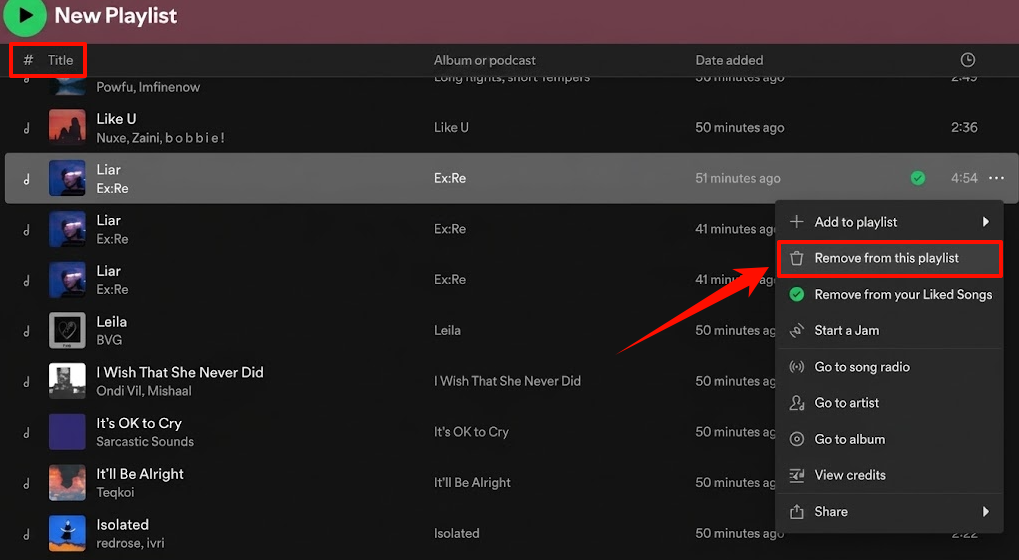
Step 2. Use the Sort option and choose Title. You can also sort by Artist if that helps you compare tracks.
Step 3. Look for repeated song titles, then compare their artist, album, duration, and version information.
Step 4. Right-click the extra track and choose Remove from this playlist.
Step 5. Refresh or reopen the playlist to make sure the changes have synced.
On iPhone and Android
Step 1. Open Spotify and go to Your Library.
Step 2. Select the playlist that contains duplicate songs.
Step 3. If the app shows a Sort option, sort by Title to make repeated tracks easier to spot.
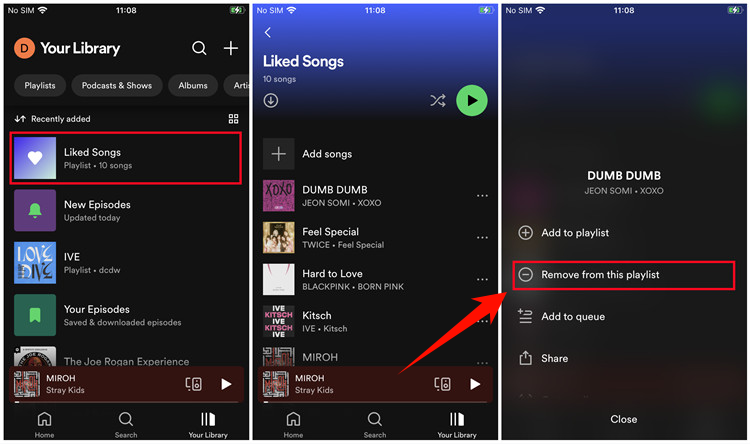
Step 4. Tap the three-dot menu next to the extra track.
Step 5. Choose Remove from this playlist.
Step 6. Repeat the process for the remaining duplicates.
On some app versions, sorting and multi-select options may look slightly different. If you cannot sort the playlist on mobile, use the desktop app for a faster review.
Removing a track from one playlist does not delete the song from Spotify, your Liked Songs, or any other playlists where it appears.
Method 2: Use a Spotify Playlist Deduplication Tool
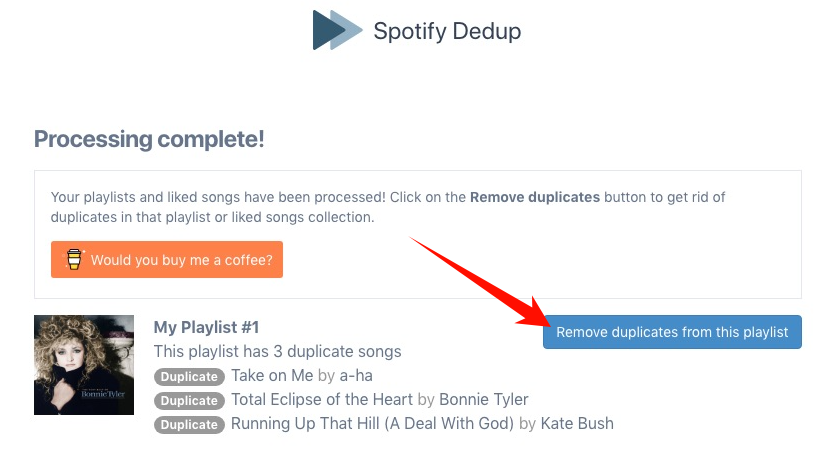
A Spotify playlist deduplication tool is especially useful for large playlists with hundreds or thousands of tracks, particularly if they contain many duplicates. It can make the process faster and more efficient than checking each track manually.
A reliable tool should let you scan the playlist, inspect the matches, and decide what to remove. Avoid services that immediately delete tracks without showing you the results first.
The typical bulk-cleanup process looks like this:
Step 1. Select the playlist you want to scan for duplicate tracks.
Step 2. Review the detected tracks before confirming any deletion.
Step 3. Keep the version you prefer in each group.
Step 4. Remove the duplicate tracks you no longer want.
Step 5. Check the playlist again to make sure the unwanted duplicates have been removed.
How to Back Up Your Playlist Before Removing Duplicates
If the playlist is important to you, consider making a backup before making major changes. This is particularly useful for playlists with hundreds or thousands of songs, where manually reconstructing the original list could take a long time.
A simple backup approach is to create a new private playlist, then copy all the tracks from the original playlist to it.
This is especially worth considering before using a third-party tool for bulk cleanup. If something is removed that you later decide you wanted to keep, you can use the backup playlist to restore it.
How to Prevent Duplicate Songs in Spotify Playlists
After you remove duplicate songs, a few simple habits can help keep your playlists cleaner.
1.Check Before Adding a Song
Before adding a track, quickly check whether it is already in the playlist. This is particularly useful when building a playlist from several albums or playlists.
2.Be Careful When Adding Entire Playlists
Adding many songs from another playlist can make it easier to overlook tracks that are already in your collection. Review the resulting playlist afterward if you are combining several sources.
3.Set Simple Rules for Collaborative Playlists
If other people can edit your playlist, duplicates can appear without you personally adding them. Agreeing on simple rules for adding music can help prevent unnecessary duplicates.
4.Check Your Playlists Regularly
Check long playlists every few months by organizing tracks by artist, title, or recently added. A short review is much easier than waiting until the playlist contains thousands of tracks and needs a full cleanup.
Bonus: Keep Your Spotify Music Collection Organized
After you remove duplicates from your Spotify playlist, you may want to keep an organized offline copy of the cleaned collection. This is especially useful if you want to listen on different devices, build a local music library, or keep your playlist structure organized outside the Spotify app.
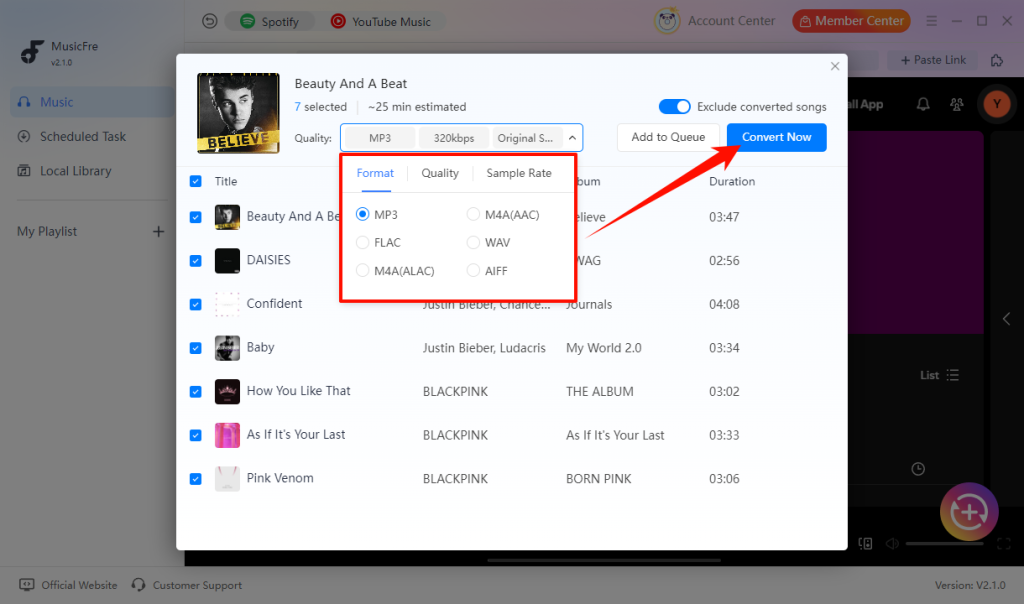
MusicFre can help you export Spotify playlists in batches and save them in formats such as MP3, FLAC, WAV, AAC, and M4A. It also preserves music information such as song titles, artists, album artwork, and ID3 metadata, making it easier to sort and organize your local music collection.
To keep your Spotify music collection organized with MusicFre, follow these steps:
Step 1. Download and install MusicFre on your Windows PC or Mac, then open the Spotify music interface in the app.






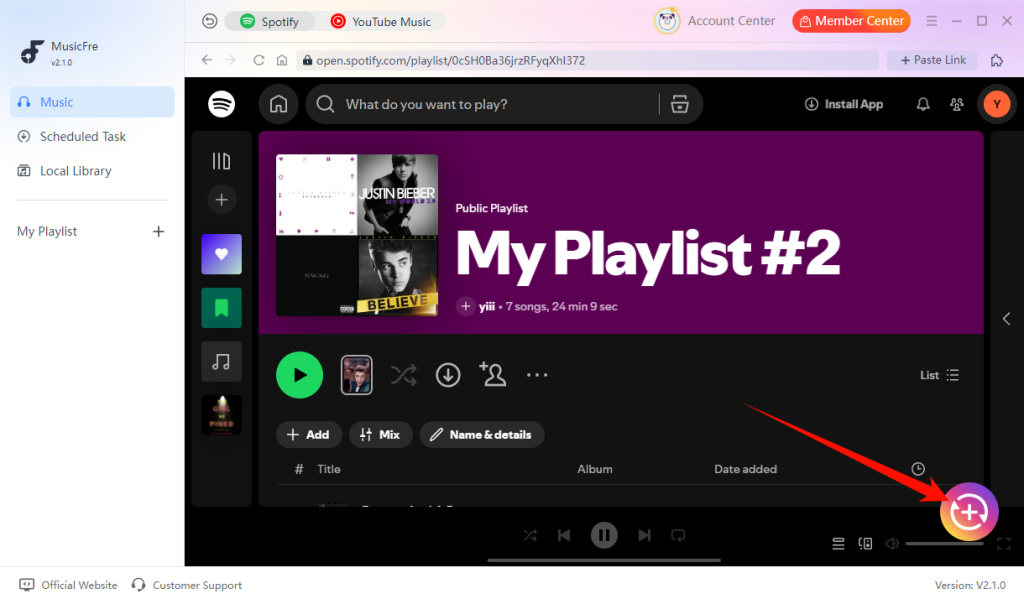
Step 2. Open the cleaned Spotify playlist you want to save, then click the “+” button to let MusicFre analyze the tracks.
Step 3. Choose your preferred output format, then click Convert Now to start the conversion.
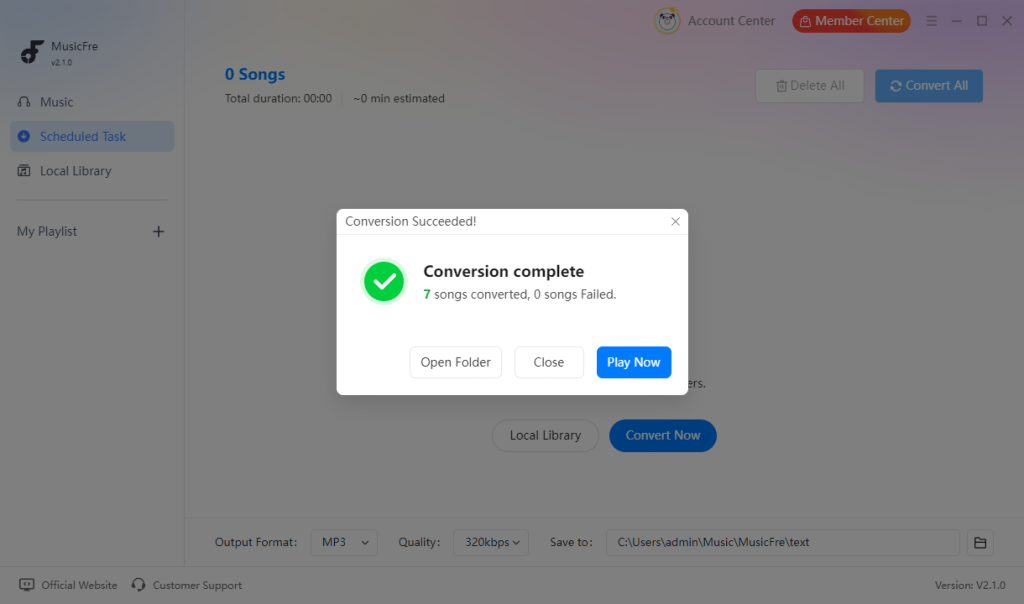
Step 4. When the process is complete, click Open Folder to manage the converted tracks in your local music library.
FAQs About Spotify Playlist Duplicates
1Can I undo a mistake after removing a song?
You can add the song back to the playlist manually. A backup playlist can also help restore tracks you removed by mistake.
2Why does a duplicate song still appear after I remove it?
Check that you removed the correct track and wait for Spotify to sync. You may also be seeing a different version of the same song.
3Will removing duplicates change my playlist order?
No. Removing a track only closes the gap where it appeared. The remaining songs keep their existing order.
4Can Liked Songs contain duplicates?
No. The same track cannot be added to Liked Songs more than once. If you see what looks like a duplicate, it may be a different version or release of the same song.
Final Words
Removing duplicate songs can make a Spotify playlist cleaner and easier to manage. For smaller playlists, manual removal gives you more control, while a deduplication tool can save time when dealing with a large collection. Before deleting anything, always check that the tracks are truly duplicates rather than different versions. A quick backup can also give you peace of mind if you need to restore a song later.