English
 中文 (台灣)
 日本語
 한국어
 Italiano
 Français
 Português
 Español


How to Share Liked Songs on Spotify [Desktop & Mobile]
- Category:Spotify Music Tips
- Xiny
- 2026-11-05
Have you ever wanted to share your favorite Spotify songs with a friend, only to find that there’s no regular Share button for your Liked Songs? That’s because Spotify treats Liked Songs differently from regular playlists, keeping them in a personal collection that can’t be shared directly with others.
Fortunately, there are a few ways around this limitation. Whether you want to share your entire collection or send a single favorite track, this guide walks you through how to share liked songs on Spotify. You’ll also discover an alternative way to save your Spotify favorites for offline listening.
Can You Share Liked Songs Directly on Spotify?
No. Spotify doesn’t currently allow you to share your entire Liked Songs collection through a single link. Unlike regular playlists, Liked Songs is a personal collection of tracks saved to your Spotify account, so it doesn’t have the same sharing options.
However, you still have two ways to share your favorite tracks:
- Share your entire collection: Copy your liked tracks into a new Spotify playlist, then share the playlist link with friends.
- Share individual songs: Open a song from your Liked Songs collection and use Spotify’s built-in sharing options.
Both methods are available to Spotify Free and Premium users. Let’s take a closer look at how each one works.
How to Share All Your Spotify Liked Songs on Desktop
If you have a large collection of saved tracks, Spotify’s desktop app is one of the most convenient ways to share them all at once. You can select multiple songs, add them to a new playlist, and generate a shareable link.
Here’s how to share your Spotify Liked Songs on Windows or Mac.
Step 1. Open Spotify and go to Your Library > Liked Songs to find your saved tracks.
Step 2. Click a track, then press Ctrl + A on Windows or Command + A on Mac to select all songs.
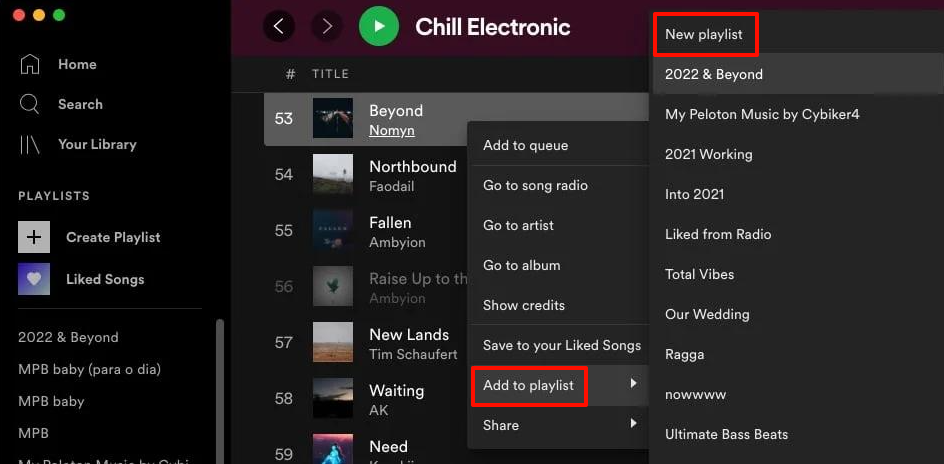
Step 3. Right-click the selected tracks and choose Add to playlist > New playlist to create a shareable playlist.
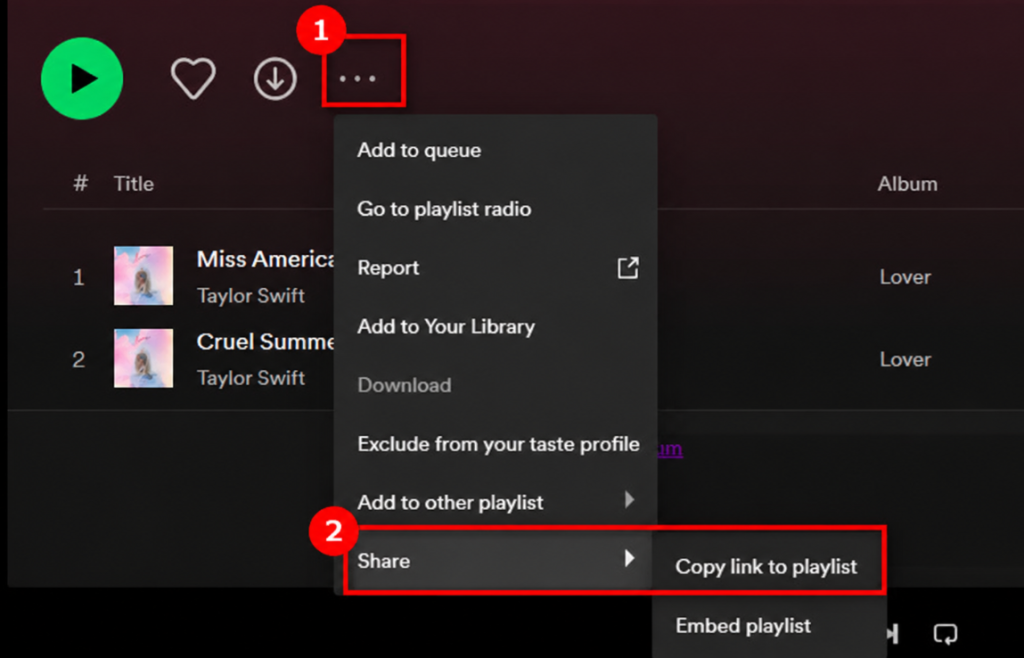
Step 4. Open the new playlist, click the three-dot menu, and select Share > Copy link to playlist.
Step 5. Paste the link into a message, email, or social app to share your favorite tracks with friends.
Tip: If you frequently add new tracks to Liked Songs, remember that your new playlist is a separate collection. Songs you like later won’t automatically appear in it. We’ll explain how to handle this below.
How to Share Your Liked Songs on Mobile (iPhone & Android)
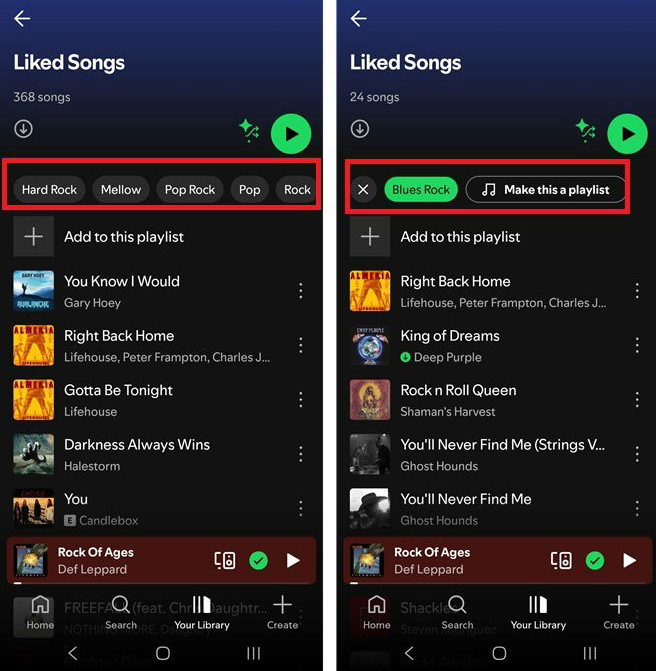
Don’t have access to a computer? You can still create a shareable playlist from your Spotify favorites using the mobile app. Spotify’s Make this a playlist feature lets you create a playlist from your Liked Songs collection, including tracks shown under a selected filter.
Follow these steps on iPhone or Android:
Step 1. Open Spotify, tap Your Library, and select Liked Songs.
Step 2. Choose a filter at the top, then tap Make this a playlist to create a new playlist from your liked songs.
Step 3. Open the newly created playlist and tap the three-dot menu.
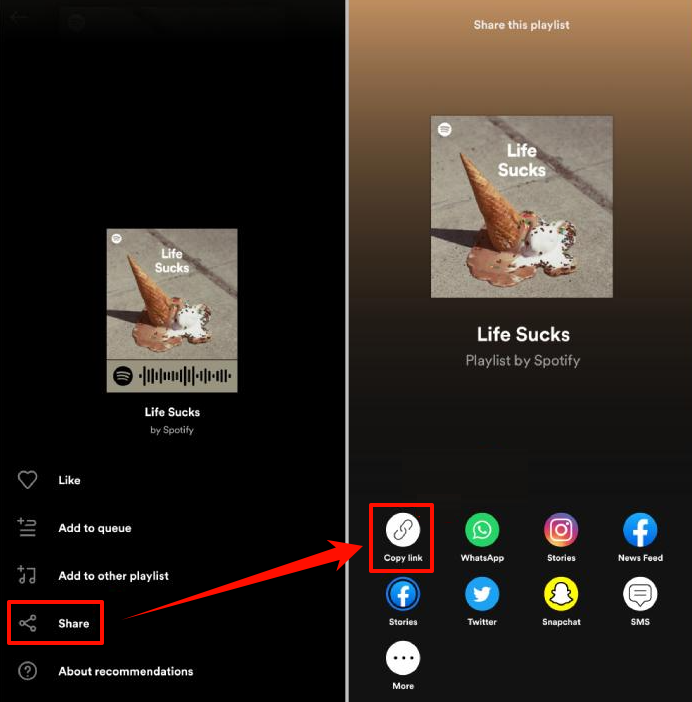
Step 4. Select Share, then choose Copy link or a supported sharing app to send it to friends.
Note: The Make this a playlist feature may vary depending on your Spotify app version, account, or available filters. If you don’t see it, update Spotify and check again.
How to Share Individual Liked Songs on Spotify
Sometimes, you just want to share a favorite Spotify song rather than your entire collection. Maybe you’ve discovered a great track and want to send it to a friend.
Sharing an individual liked song is much simpler than sharing your full Liked Songs collection.
Method 1: Share a Song Using a Spotify Link
You can share almost any song available on Spotify by sending a direct link.
Step 1. Open Your Library > Liked Songs and find the track you want to share.
Step 2. Click the three-dot menu next to the song and select Share.
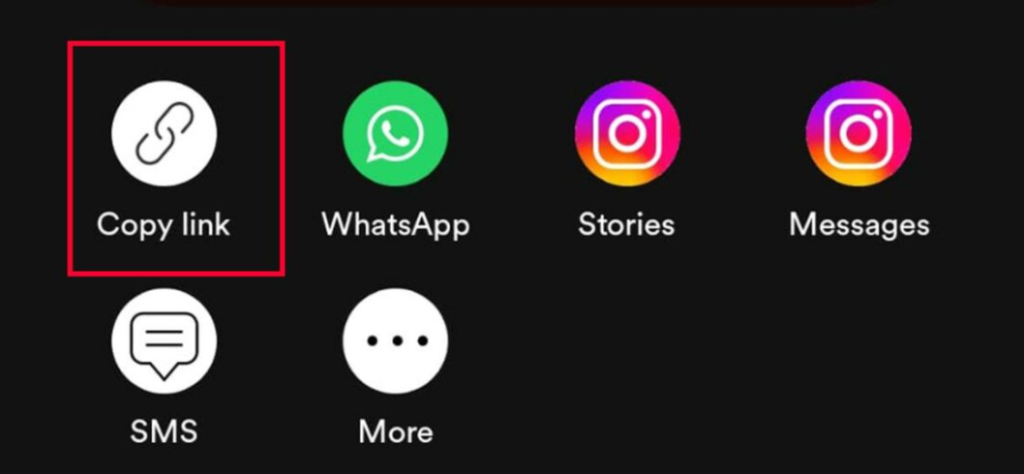
Step 3. Choose Copy Song Link to get a shareable URL, or select an available app like WhatsApp, Instagram, or Messenger to send the song directly.
Step 4. Send the link or choose a recipient to complete the sharing process.
Method 2:Use Spotify Codes to Share Songs
Spotify Codes provide a convenient way to share music without copying or sending links.
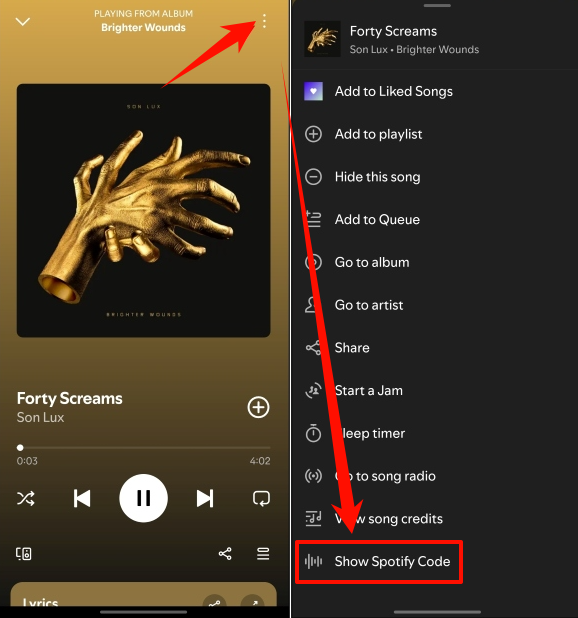
Step 1. Open the song in Spotify and tap the three-dot menu to find its Spotify Code.
Step 2. Show the code to someone nearby or save it as an image.
Step 3. Ask the recipient to open Spotify’s Search tab, tap the camera icon, and scan the code to access the track.
Can You Keep Your Shared Spotify Playlist Automatically Updated?
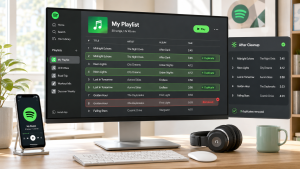
One important limitation of turning Liked Songs into a regular playlist is that the two collections don’t stay synchronized automatically.
For example, if you copy 200 liked tracks into a playlist today and save five more songs tomorrow, those new tracks won’t automatically appear in your shared playlist.
If you want to keep your shared playlist up to date, there are two approaches you can try.
Option 1: Update the Playlist Manually
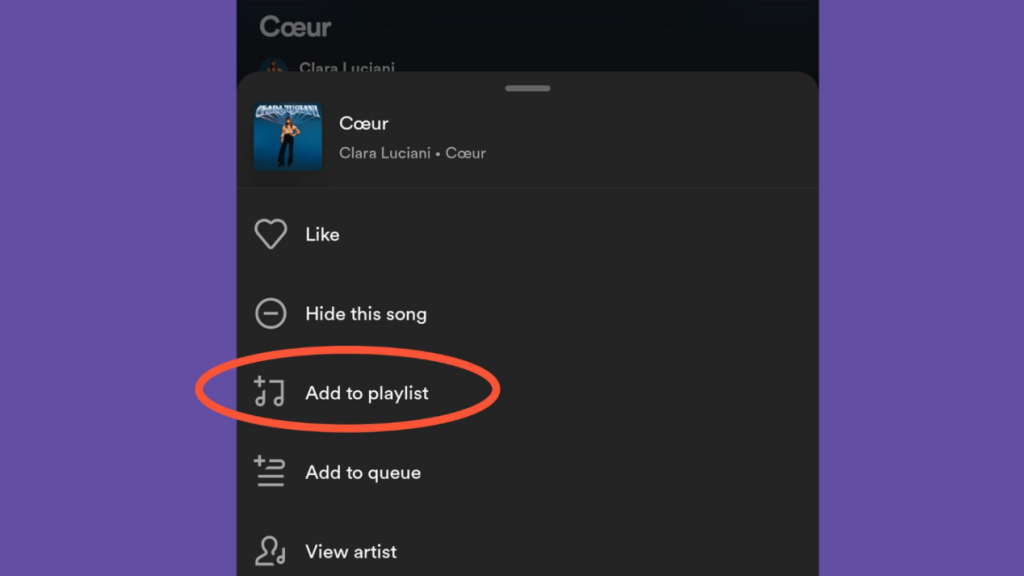
Whenever you add new tracks to your Liked Songs, open the track’s menu and select Add to playlist to add them to your shared playlist. You can also remove tracks you no longer want to include.
This method is free and gives you full control over your playlist, but you’ll need to keep it updated yourself. It works well if you only add a few new favorites occasionally.
Option 2:Use a Third-Party Playlist Sync Tool
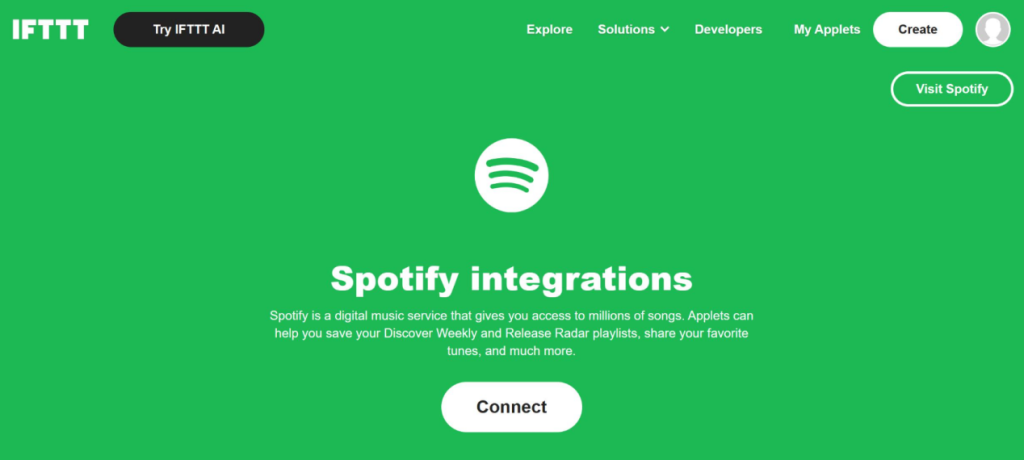
If you frequently add new songs, third-party tools like IFTTT may help automate Spotify playlist updates. However, available features vary, and not all tools support syncing Liked Songs or removing tracks you’ve unliked. Check the tool’s permissions and pricing before connecting your Spotify account.
Pro Tip: Save Your Favorite Spotify Songs for Offline Listening
Sharing a Spotify playlist is a great way to introduce friends to your favorite music. However, a Spotify playlist link doesn’t give you actual audio files. If you want to keep your favorite tracks on your computer or play them on other devices without relying on the Spotify app, saving them in a common audio format may be a better option.
That’s where MusicFre comes in. This desktop music converter lets you convert Spotify songs, albums, and playlists into local audio files in formats such as MP3, FLAC, and WAV. It supports batch conversion at 20X speed, keeps ID3 tags and cover art intact, and allows you to customize audio quality and sample rate.
Whether you want to build a local music library or enjoy your favorite tracks offline, MusicFre offers a convenient solution. Here’s how to get started:
Step 1. Download and install MusicFre on your computer, then launch the program.






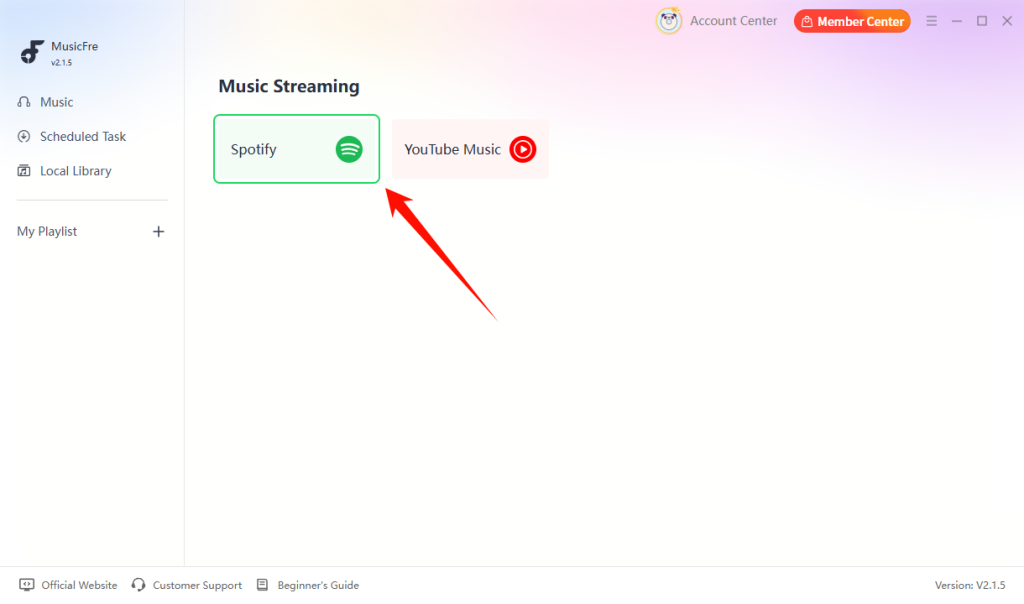
Step 2. Select Spotify from the main interface and sign in to your account.
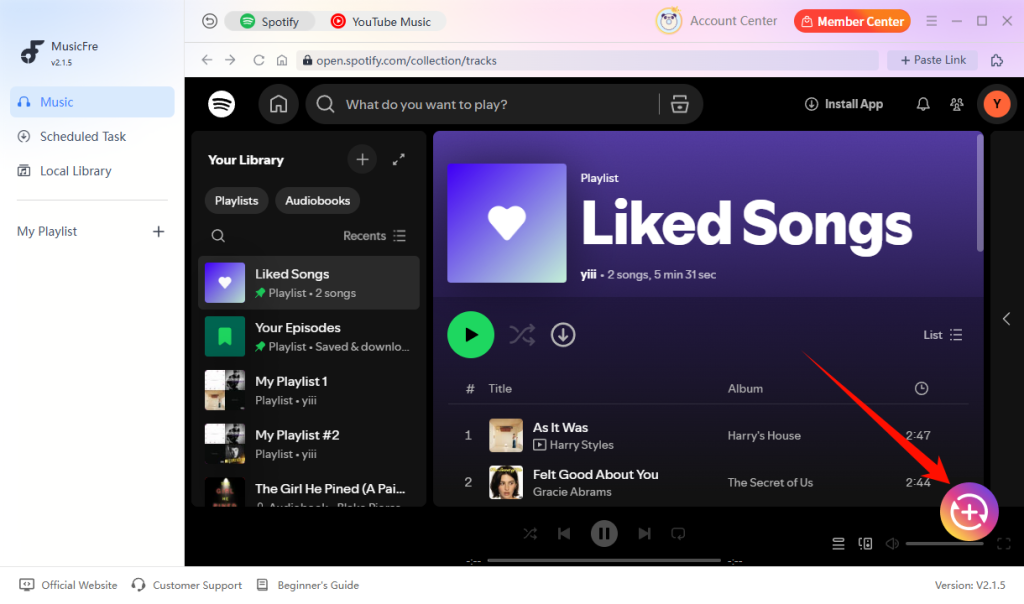
Step 3. Open your Liked Songs collection and add the tracks you want to convert.
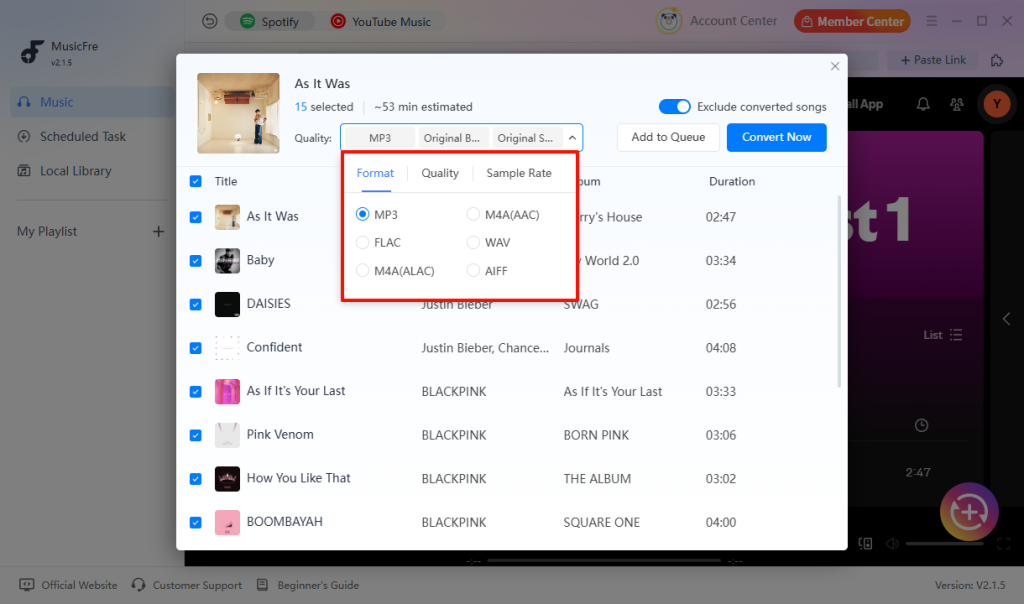
Step 4. Choose an output format, such as MP3, FLAC, or WAV. You can also adjust the audio quality and sample rate.
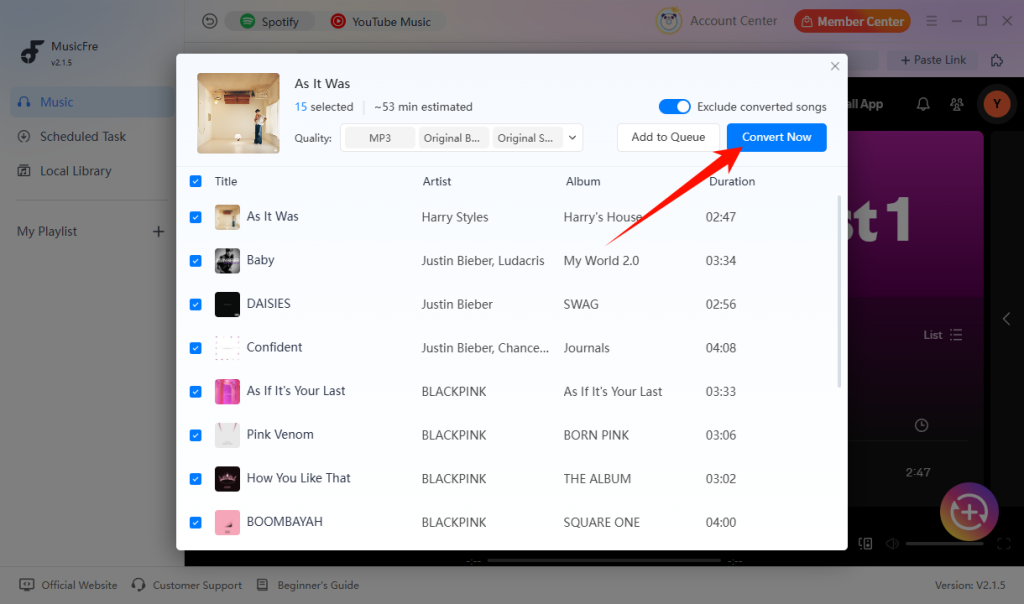
Step 5. Click Convert Now to start the conversion. Once complete, open the output folder to find your saved audio files.
FAQs About Sharing Liked Songs on Spotify
1Can I make my Spotify Liked Songs public?
No. Liked Songs are private by default and can’t be made public directly. You can copy your favorite tracks into a regular playlist and set it to public instead.
2Why are some songs unavailable in a shared Spotify playlist?
A song may be unavailable because of regional restrictions, licensing changes, removal from Spotify, or local-file settings. Try searching for another version of the same track.
3Can my friends add songs to my shared Spotify playlist?
Yes. Enable Collaborative Playlist and invite friends using the invitation link. They can then add, remove, and reorder tracks.
4What happens if I delete the shared playlist?
The playlist will be removed from your library, but other users may still have their own saved copies. Deleting it doesn’t necessarily remove those copies.
Conclusion
Sharing your Spotify Liked Songs doesn’t have to be complicated. Whether you want to send your entire collection or just a few favorite tracks, you can create a shareable playlist on desktop or mobile, or send individual songs through Spotify links and Codes.
If you also want to keep your favorite music as local audio files for offline listening, MusicFre offers another option. You can convert Spotify songs and playlists into MP3, FLAC, WAV, and other formats, making it easier to enjoy your music on different devices.
Choose the method that works best for you and share your favorite music with friends!