中文 (台灣)
  日本語
日本語  한국어
한국어  Italiano
  Français
  Português
  Español

How to Rip Music off Spotify: What You Need to Know in 2026
- Category:Spotify Music Tips
- Xiny
- 2026-08-31
Spotify makes it easy to stream songs, albums, playlists, and podcasts, while Premium users can also download content for offline playback within the app. However, Spotify’s built-in downloads and local audio files are not the same thing. These downloads remain tied to the app, so you can not open them in a normal media player, transfer them to a USB drive, or manage them in your own music folders.
If you are looking for a way to rip music off Spotify and save it as MP3 or another common format, you may want to keep a local audio library, organize playlists by artist or album, or play music without relying on the Spotify app.
In this guide, you will learn what it means to rip music from Spotify, how Spotify offline downloads differ from local audio files, and how to save Spotify songs and playlists as MP3 with MusicFre.
What Does “Rip Music off Spotify” Actually Mean?
“Rip music off Spotify” is a common search phrase. In this context, ripping music off Spotify generally means saving Spotify tracks as local audio files for storage, playback, or use outside the Spotify app.
You may also see similar expressions such as download music from Spotify, extract audio from Spotify, and convert Spotify music to MP3. Although the wording may vary, the intended result is similar: a local audio file that can be played in a compatible media player and organized in a folder on your computer.
It is helpful to distinguish between “downloading” and “converting.” Spotify’s own download option is designed for offline listening in the Spotify app. By contrast, converting Spotify music to MP3 creates a standard audio file format for local playback and file management, subject to applicable rights, licenses, and platform terms.
Can You Still Rip Music from Spotify in 2026?
Yes, there are still tools designed to save Spotify music as local audio files. However, it is important to understand that Spotify’s built-in offline downloads and regular MP3 files serve different purposes.
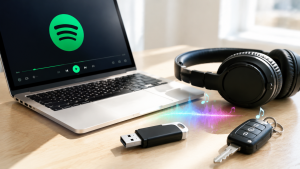
Spotify Premium is useful when you simply want to listen without an internet connection inside the Spotify app. If you want to manage music files in a local folder, choose a format for a specific device, or prepare a playlist for a compatible USB drive or media player, you need standard audio files instead.
Spotify Offline Downloads vs. Local Audio Files
| Feature | Spotify Offline Downloads | Local Audio Files |
| Device playback | Inside the Spotify app | Compatible media players and devices |
| File access | Managed by Spotify | Saved in a local output folder |
| Format choice | No standard MP3 or FLAC file selection | You can choose formats such as MP3, FLAC, WAV, AAC, or M4A |
| File organization | Managed inside the app | Can be organized by artist, album, playlist, or folder |
| USB transfer | Not supported | Supported on compatible devices |
| Best for | Offline listening in Spotify | Building and managing a personal local audio library |
A local file does not mean you own the copyright to the music. It simply gives you a different playback and organization format. You should not redistribute, sell, publicly perform, or commercially reuse converted files unless you have permission from the relevant rights holders.
Best Spotify Ripper for Songs and Playlists: Why Choose MusicFre?
If you only need to listen to music offline within Spotify, the official app may be enough. But if you want to use Spotify content as regular audio files for local playback, file management, or use on compatible devices, you’ll need a different approach.
MusicFre provides a desktop-based way to do this. Instead of handling one track at a time with a browser-based tool, you can add Spotify songs, albums, playlists, or podcasts, choose an output format, and process multiple tracks in one workflow.
Here is why MusicFre is a practical Spotify ripper for songs and playlists:
| MusicFre feature | Why it is useful |
| Supports songs, albums, playlists, and podcasts | You can handle different Spotify content types in one desktop workflow |
| Exports to MP3, FLAC, WAV, AAC, M4A, and ALAC | You can choose a format based on your device, storage space, and listening needs |
| Batch conversion | Useful when you want to save an album or convert a Spotify playlist to MP3 |
| Metadata preservation | Helps keep song titles, artists, albums, track numbers, and cover art organized |
| Windows and Mac support | Allows you to create and manage local audio files on the main desktop platforms |
For many users, MP3 is the easiest starting point because it has broad compatibility with phones, computers, USB drives, car stereos, and portable players. If you need a more detailed explanation of bitrate and MP3 quality, see our guide to converting Spotify music to 320kbps MP3.
How to Rip Spotify Music and Playlists to MP3 with MusicFre
The following workflow is suitable when you want to save individual songs, albums, playlists, or podcasts as local audio files.
Step 1. Download and Install MusicFre
Visit the official MusicFre website and download the version for your Windows PC or Mac. Complete the installation, then open the program.





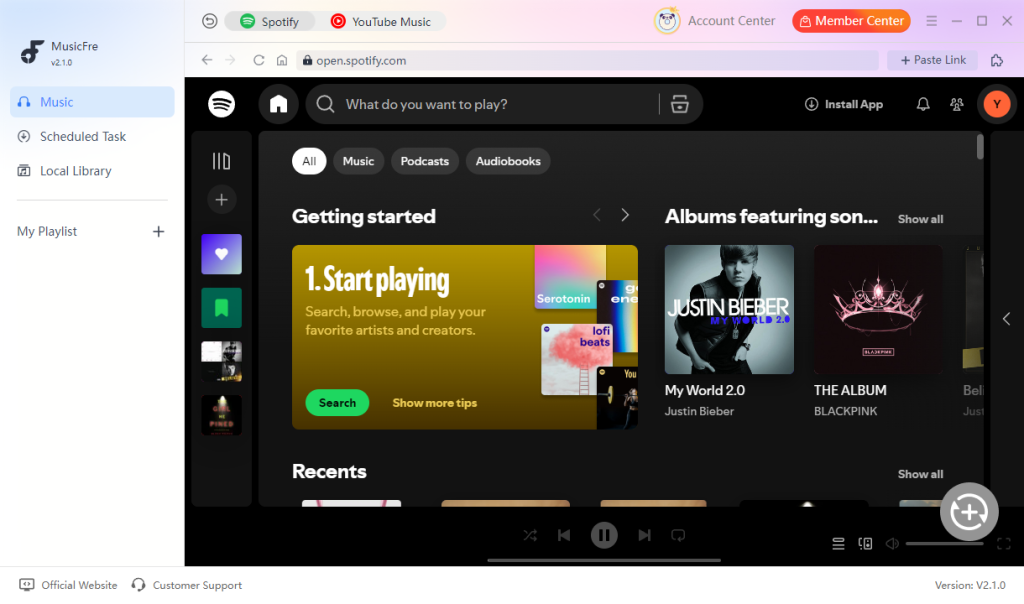
Step 2. Select the Spotify Music You Want to Save
Inside MusicFre, open the Spotify section. You can then sign in to your Spotify account and browse the music you want to save.
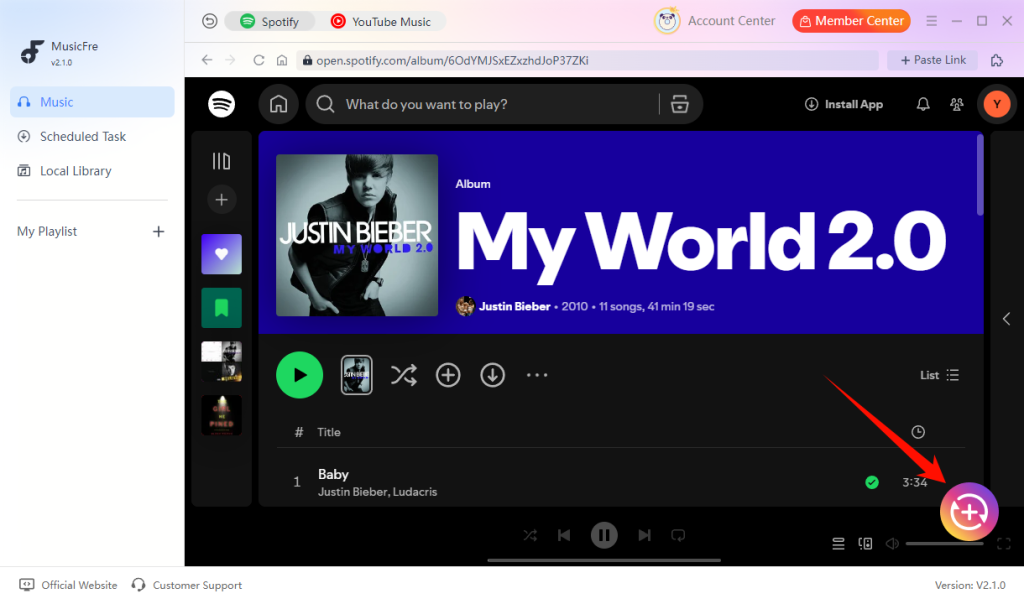
Step 3. Add Spotify Songs, Albums, or Playlists
Choose the song, album, or playlist you want to get, then use the add button to place it in the conversion list.
Step 4. Choose MP3 as the Output Format
In the output settings, select MP3 for broad compatibility. You can also adjust the bitrate and sample rate to suit your needs.
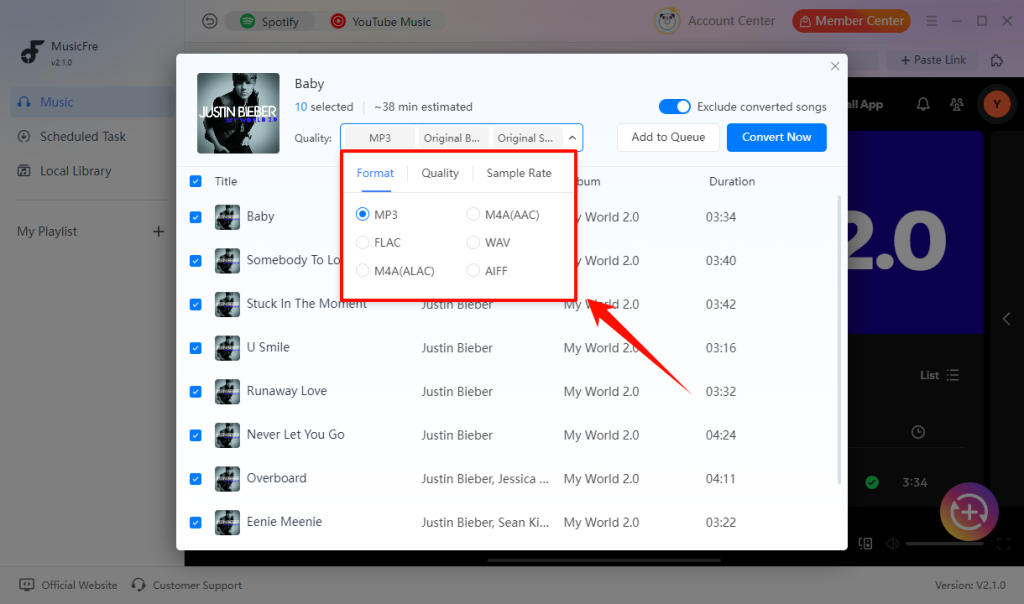
Step 5. Convert Spotify Music to MP3
Once your tracks and output settings are ready, click Convert Now to start the conversion.
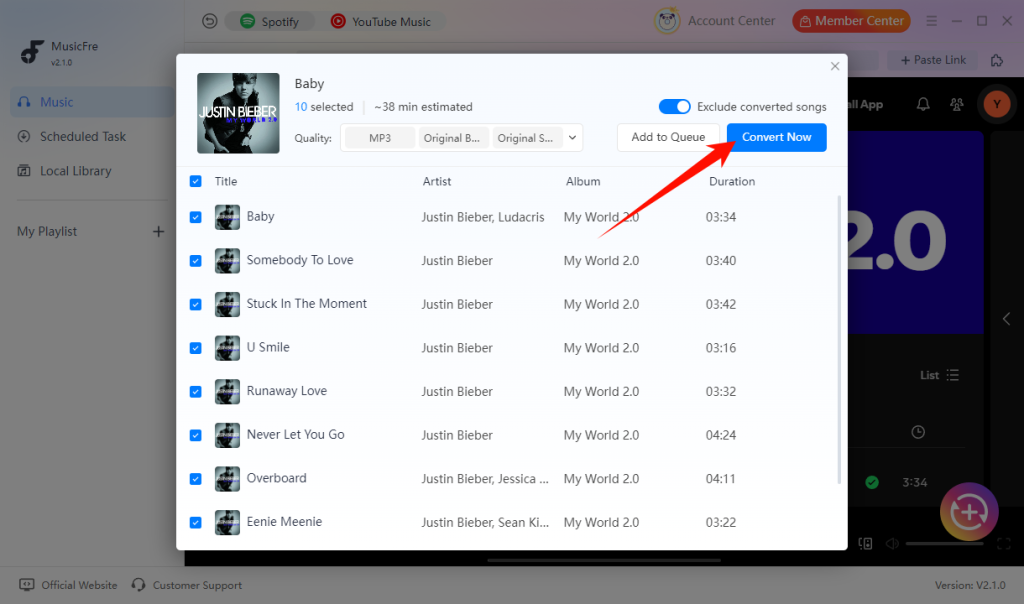
Step 6. Access Your MP3 Files
After the task is complete, open the output folder to review the files. If you saved an entire playlist, check the filenames, metadata, and folder structure before transferring the files to keep your local music library organized.
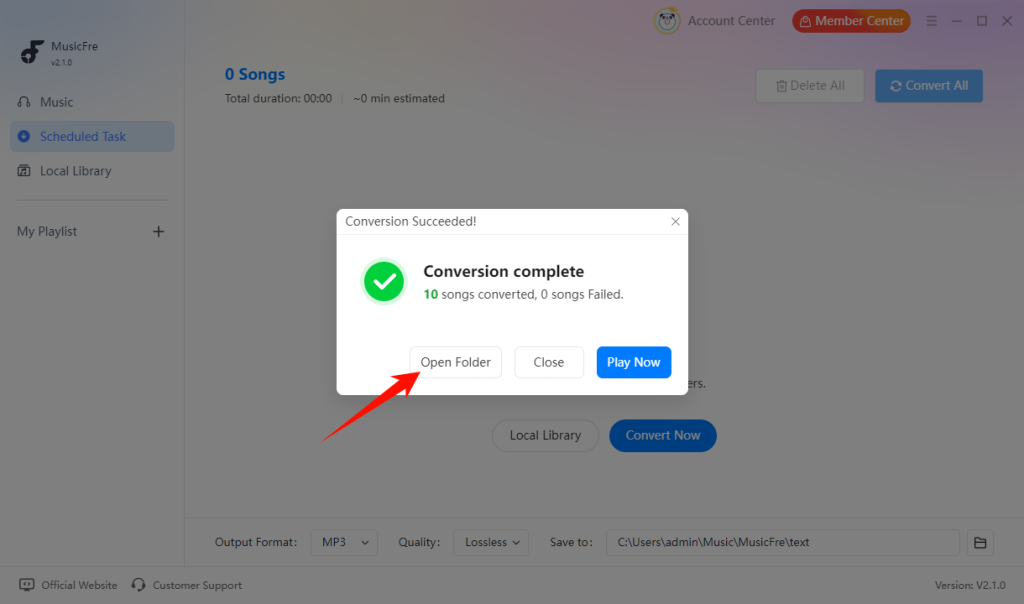
FAQs About Ripping Spotify Music
1Is It Legal to Rip Music from Spotify?
The answer depends on what content you are saving, how you use it, your location, and the terms that apply to the service.
Do not share, sell, redistribute, publicly perform, or use converted music commercially unless you have the appropriate rights or permission. This guide is intended for personal offline listening and local file management only. For questions involving a specific use case, review the applicable copyright rules in your region and Spotify’s current terms.
2Can I Rip Spotify Music Without Premium?
Spotify Free lets you stream music with certain limitations, while Spotify Premium includes Spotify’s built-in offline listening feature. However, Premium offline downloads remain available only inside the Spotify app.
If you want to save Spotify content as local audio files, a third-party tool may offer a different approach. Its availability, requirements, and features vary, but using such a tool does not replace Spotify Premium or change Spotify’s terms.
3Does Ripping Music from Spotify Reduce Audio Quality?
It depends on the source audio, the conversion method, and the output settings you choose. Keep in mind that selecting a higher bitrate or a lossless format cannot restore audio detail that was not present in the original stream. It may increase file size, but it does not guarantee a noticeable improvement in sound quality.
Final Thoughts
Spotify’s built-in download feature is a convenient choice when you only want offline listening inside the app. But if you want ordinary local audio files that you can organize outside Spotify, a dedicated Spotify converter provides a different workflow.
MusicFre is built for users who want to rip music off Spotify, save Spotify songs as MP3 files, convert full playlists in batches, and keep useful track information in their local music collection. Choose the format that fits your listening setup, keep your files organized, and make sure your use respects the rights and permissions that apply to the content.