中文 (台灣)
  日本語
日本語  한국어
한국어  Italiano
  Français
  Português
  Español

How to Download Spotify Music to MP3 320kbps (Online & PC)
- Category:Spotify Music Tips
- Xiny
- 2026-08-21
Looking for a way to convert Spotify songs to 320kbps MP3? A high-bitrate MP3 can offer a good balance between audio quality, file size, and device compatibility, making it a popular choice for offline listening on phones, computers, USB drives, and car stereos.
In this guide, you will learn what 320kbps MP3 means, whether Spotify supports direct MP3 downloads, and how to convert Spotify music to MP3 at 320kbps using desktop converters or online tools. We will also show you how to check whether your downloaded MP3 files actually match the expected bitrate.
What Is 320kbps MP3 and Why It Matters for Spotify Music?
A 320kbps MP3 is an MP3 file encoded at a bitrate of 320 kilobits per second. Bitrate describes how much audio data is used each second. Generally, a higher bitrate preserves more audio information, resulting in better sound quality but larger file sizes. For most listeners, 320kbps is the highest commonly used MP3 setting.
128kbps vs 160kbps vs 256kbps vs 320kbps MP3 Comparison
| Bitrate | Audio Quality | File Size | Suitable For |
| 128kbps | Basic quality with noticeable compression | Smallest | Podcasts, audiobooks, and saving storage space |
| 160kbps | Better than 128kbps with slightly improved clarity and detail | Small | Casual music listening and smaller file sizes |
| 256kbps | High-quality balance between sound quality and storage usage | Medium | Everyday listening and personal music libraries |
| 320kbps | Highest standard MP3 bitrate with the most audio detail preserved | Largest | High-quality music and better listening experience |
The difference between 160kbps, 256kbps, and 320kbps is not equally noticeable in every situation. On phone speakers or in a noisy environment, many people may hear little difference. With good headphones and a quiet listening environment, higher-bitrate MP3 files can deliver clearer vocals, richer bass, and more detailed sound.
Why Choose 320kbps MP3 for Spotify Music?
A 320kbps MP3 can be useful when you want a high-quality local audio file that works across different devices. MP3 remains one of the most widely supported formats, working with most media players, smartphones, USB drives, car systems, and portable devices.
Compared with lower bitrate MP3 files, a 320kbps option may be preferable when you want to:
- Keep higher-quality audio for offline listening
- Build a local music library that works across multiple devices
- Enjoy better sound quality with compatible audio equipment
- Use files in a personal workflow where you have the necessary rights or permission
However, bitrate is only one factor that affects audio quality. Converting a file to 320kbps does not automatically improve a low-quality source. The final sound quality depends on both the output settings and the original audio quality.
Can You Download Spotify Music as 320kbps MP3?
Spotify does not provide direct MP3 downloads. While Spotify Premium users can download music for offline listening, these downloads are stored as protected files that only work within the Spotify app. They are not regular MP3 files that can be transferred, edited, or played on other media players.
As a result, users who search for terms like “Spotify to MP3 320kbps” or “Spotify 320kbps download” are usually looking for more flexible ways to manage and play their music files.
Before choosing a method, keep these distinctions in mind:
● Spotify offline downloads: Play inside the Spotify app and are tied to the app experience.
● MP3 files: Standard audio files that can be played on many devices and media players.
● 320kbps output: A high-bitrate MP3 setting, but not a guarantee that the original source contains more detail than the source audio provides.
● Authorized use: Always make sure you have the rights or permission required to save, convert, edit, or reuse the audio.
How to Download Spotify Music to MP3 at 320kbps?
There are two common approaches for saving Spotify songs as MP3 files. The better option depends on whether you need speed, batch processing, metadata control, or just a quick one-time task.
| Feature | Desktop Spotify Converter | Online Spotify Downloader |
| 320kbps Output | Supports 320kbps MP3 output with adjustable quality settings | Quality may vary and may not always reach the claimed bitrate |
| Batch Processing | Can process multiple tracks or playlists in one task | Often limited to individual tracks |
| Conversion Speed | Faster and more stable for large collections | Depends on website performance |
| File Management | Allows users to choose the output folder | Files usually go to the browser’s default download folder |
| Metadata | Preserves ID3 tags, including title, artist, album, and artwork | Metadata may be incomplete or inconsistent |
| Suitable for | Playlists, batch conversion, and local music libraries | Quick, occasional conversions |
Method 1:Save Spotify Music as 320kbps MP3 with MusicFre
As a desktop Spotify converter, MusicFre provides a flexible solution for saving Spotify music as local audio files. It supports various output formats, including MP3, FLAC, WAV, AAC, and M4A, while allowing users to export music in high-quality 320kbps MP3.
Follow the steps below to complete the conversion process:
Step 1. Download and install MusicFre on your Windows PC or Mac from the official website.





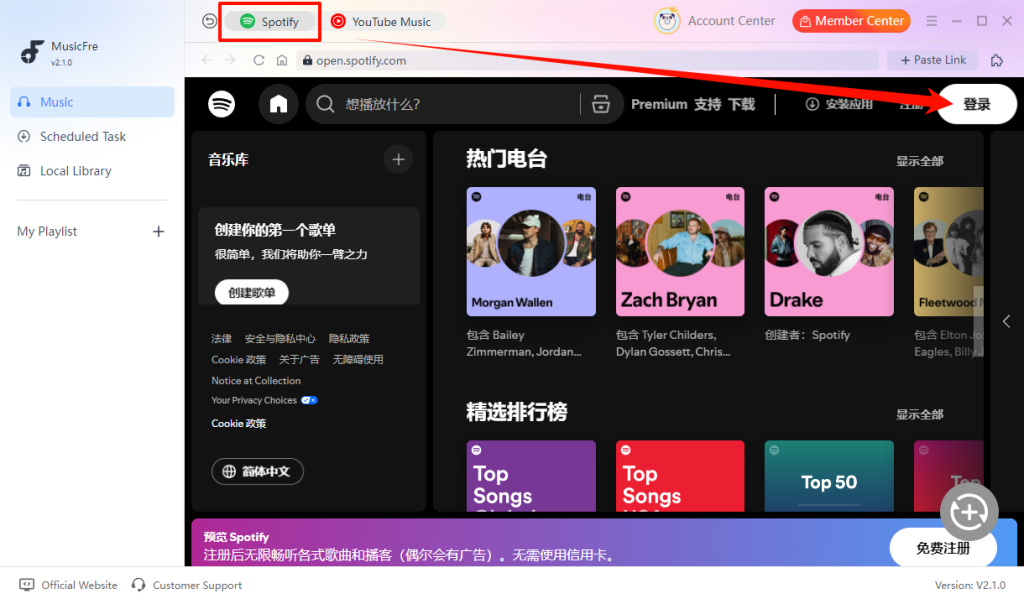
Step 2. Launch MusicFre, open the Spotify interface, and sign in to your account.
Step 3. Select the songs, albums, or playlists you want to get.
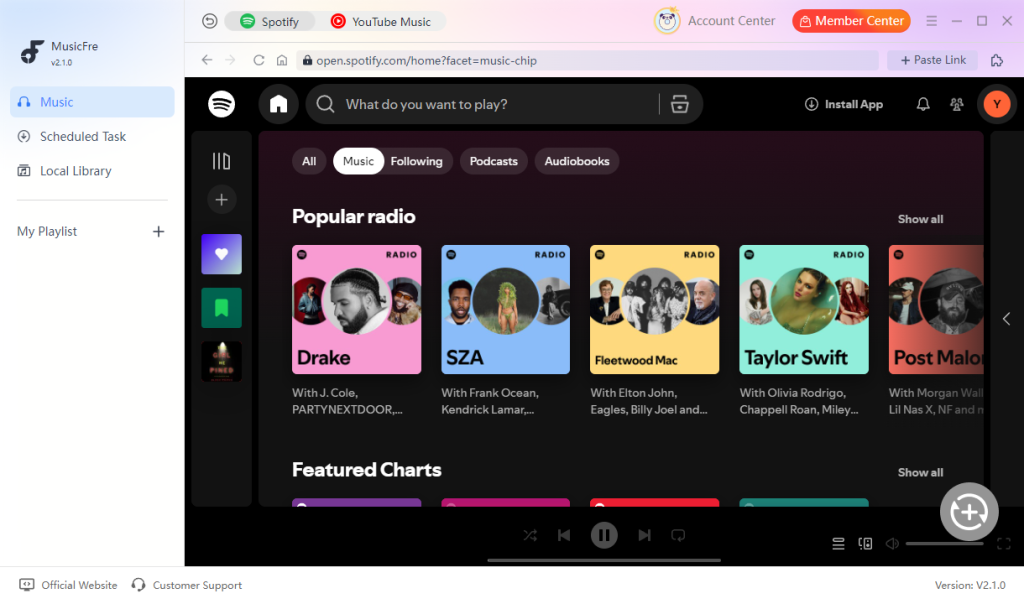
Step 4. Click the “+” button to analyze and add the tracks to the conversion list.
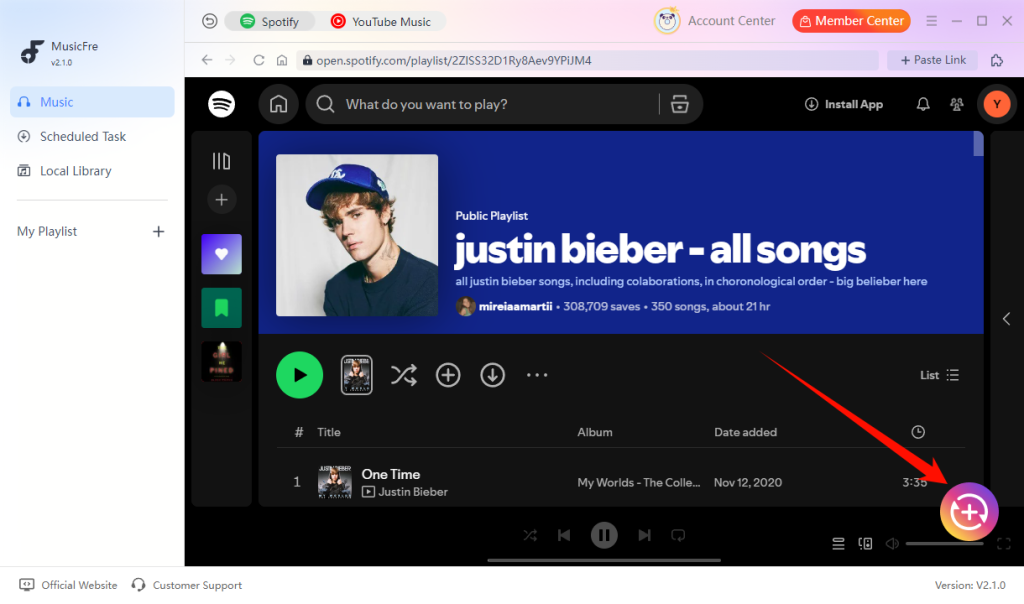
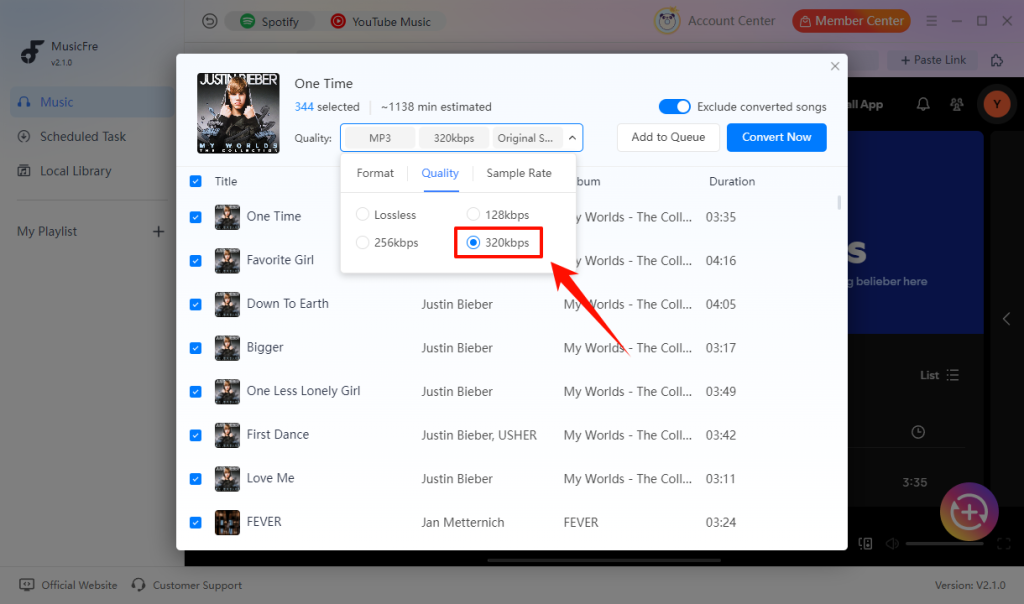
Step 5. Select MP3 as the output format and set the audio quality to 320kbps.
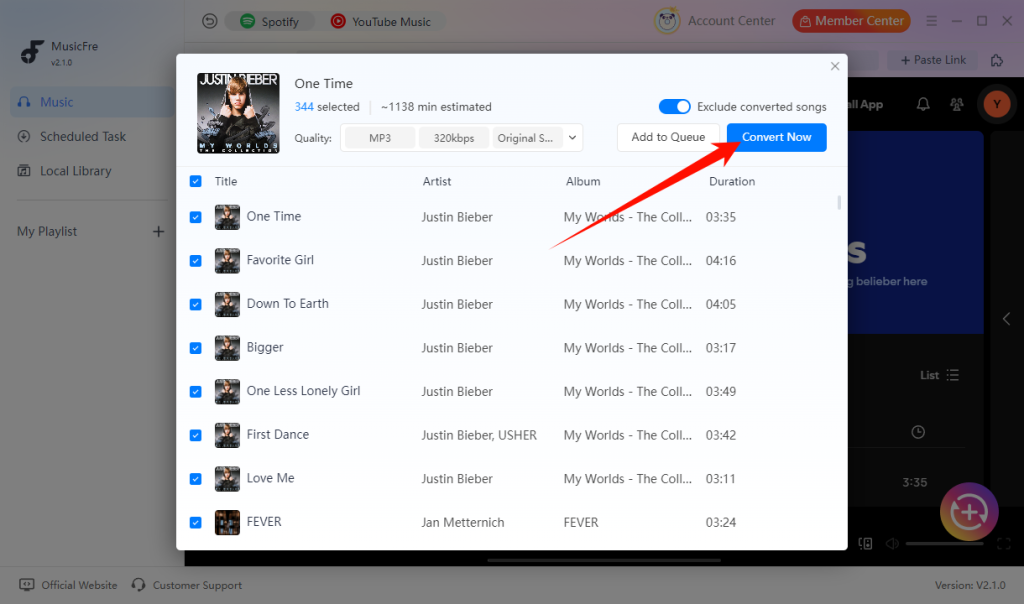
Step 6. Click “Convert Now” and open the output folder once the conversion is complete.
Method 2:Use an Online Spotify to MP3 320kbps Downloader
An online Spotify to MP3 320kbps downloader can be useful when you do not want to install software and only need to handle an occasional track. However, online tools often come with limitations, such as fewer output options, lower stability, and potential restrictions on file quality or download speed.
The general process usually looks like this:
Step 1. Open Spotify and copy the link to the track, album, or playlist you want.
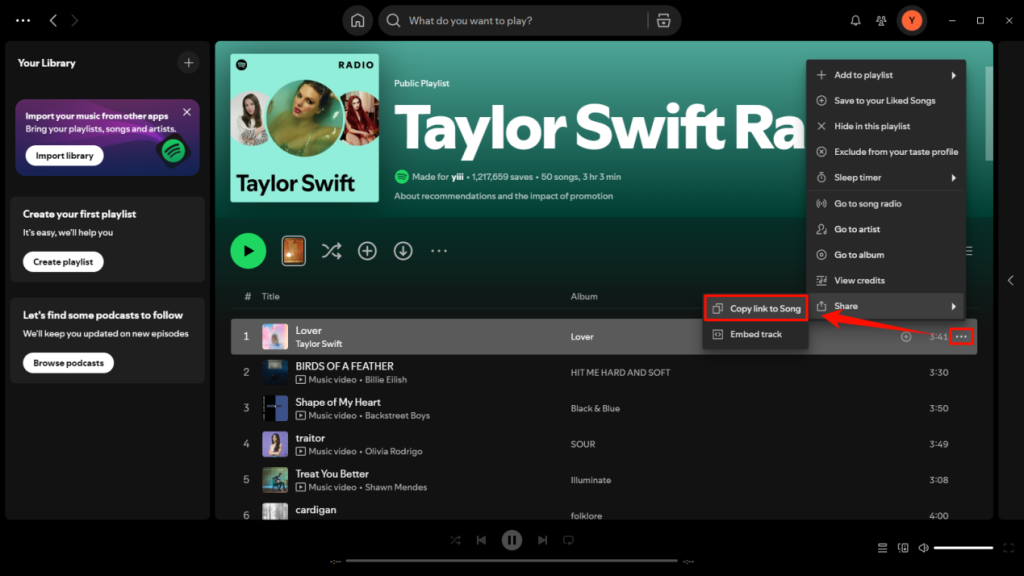
Step 2. Visit an online Spotify MP3 converter in your browser and paste the link into its search box.
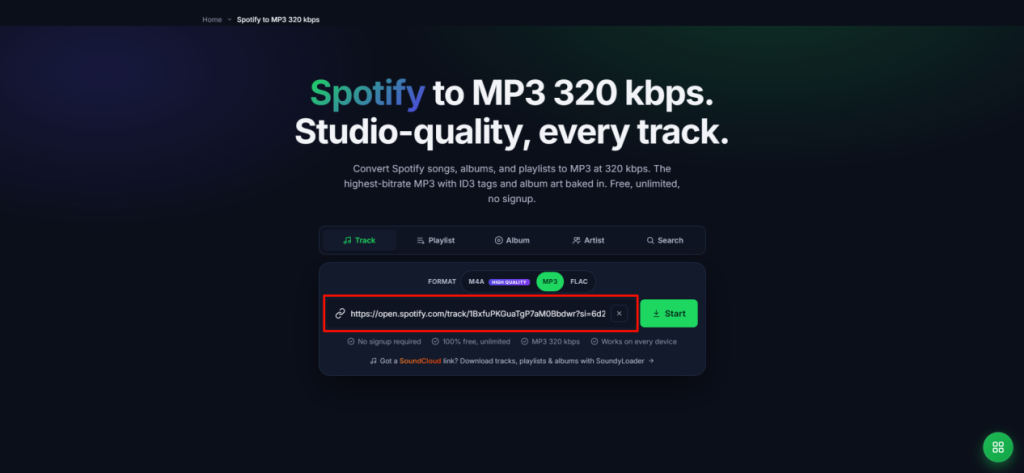
Step 3. Choose MP3 and 320kbps if available, then click the Start button.
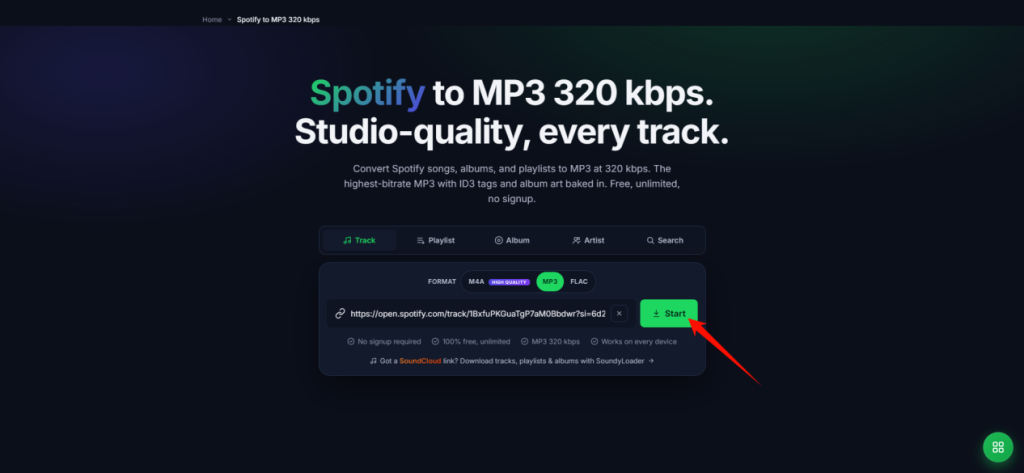
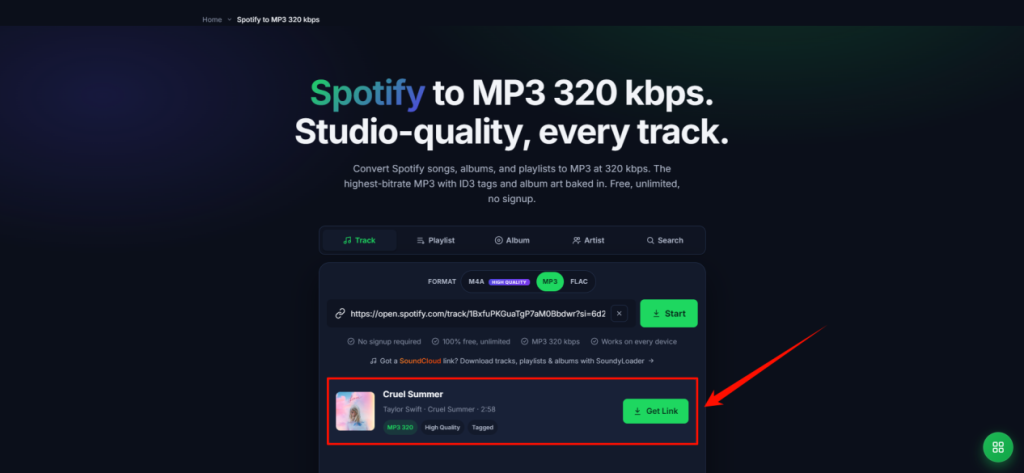
Step 4. Wait for the conversion to complete, then download the MP3 file.
How to Check Whether Your Downloaded MP3 Is Really 320kbps?
A file name or download button that says “320kbps” does not always guarantee the actual output quality. After conversion, you can verify the MP3 file’s bitrate using built-in system tools or media players.
On Windows:
1. Right-click the MP3 file and select Properties.
2. Open the Details tab.
3. Check the Audio bitrate information.
On Mac:
1. Select the MP3 file in Finder.
2. Right-click and choose Get Info.
3. Check the file details for audio information.
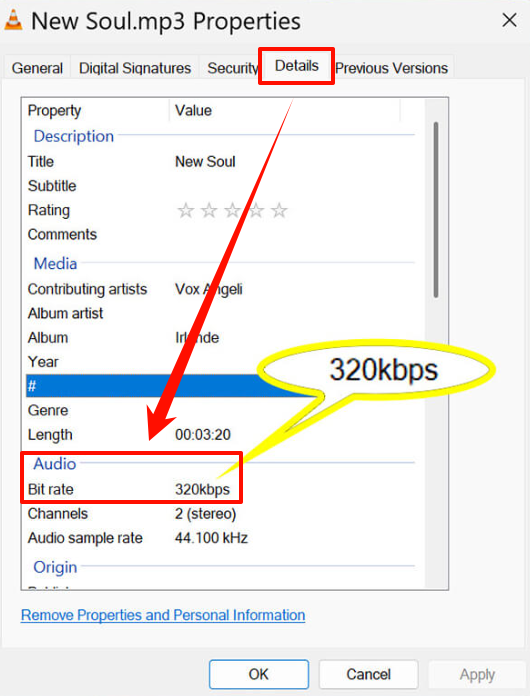
You can also use media players or audio analysis tools that display detailed file metadata, including bitrate, sample rate, and codec information.
Keep in mind that a 320kbps label does not always mean better sound quality. If the original audio source has already been compressed, increasing the bitrate during conversion will not restore lost details. A true 320kbps MP3 mainly helps preserve the available audio quality during encoding.
FAQs About Spotify to MP3 320kbps
1Is MP3 320kbps better than FLAC?
FLAC preserves more audio data, while 320kbps MP3 offers better compatibility and smaller file sizes. The better choice depends on whether you prioritize audio preservation or convenience.
2How much space does a 320kbps MP3 file take?
A 320kbps MP3 file usually takes around 7–12 MB for a typical 3–5 minute song, depending on the track length.
Q3: Why does a 320kbps MP3 file sound poor?
3Why does a 320kbps MP3 file sound poor?
The original source may have been low quality. Increasing the output bitrate cannot restore lost audio detail.
4Will a 320kbps MP3 sound noticeably better than 256kbps?
The difference is often subtle, but it may be more noticeable with good headphones and quiet listening conditions.
Final Takeaway: Is 320kbps MP3 Worth It for Spotify Music?
Choosing 320kbps MP3 depends on how you plan to use your music files. If you mainly listen through Spotify and do not need local files, the built-in Spotify feature may already be enough. However, for users who want more control over their music collection, a 320kbps MP3 file offers a convenient way to organize and play audio across different devices.
Choose a method based on how you listen and manage your music. A desktop converter such as MusicFre is a better fit for playlists, batch tasks, and organized local files, while an online tool may be enough for occasional use. Before saving any file, review the available output settings and make sure your use complies with the rights and permissions that apply to the content.