English
 中文 (台灣)
 日本語
 한국어
 Italiano
 Français
 Português
 Español


How to Download SoundCloud to WAV: 4 Methods Compared
- Category:SoundCloud Music Tips
- Xiny
- 2026-11-12
WAV is a popular audio format for music production, sound editing, and other tasks that require uncompressed audio files. However, getting a WAV version of a SoundCloud track is not always as simple as downloading a song. The platform only allows downloads when creators enable the feature, and the available file format depends on the original upload. If you want to save SoundCloud music as WAV, you may need to explore other options.
In this guide, we’ll walk you through four ways to download SoundCloud music to WAV, from official downloads to desktop software, online converters, and audio recording. We will also compare these methods, explain how WAV conversion affects audio quality, and show you how to verify the format of your downloaded files.
Can You Download WAV Files Directly from SoundCloud?
Sometimes. SoundCloud creators can enable downloads for individual tracks, allowing listeners to download the files directly from the track page.
However, SoundCloud provides the file uploaded by the creator rather than letting listeners choose an output format. If the original upload is WAV, you can download it in that format. If it is MP3 or another format, the official download will retain that format instead of converting it to WAV.
Therefore, official downloads are a straightforward option when the creator makes the original WAV file available. If no download option is provided, you should only explore alternative methods when you have the necessary rights or permission to save the audio.
Does Converting SoundCloud to WAV Improve Audio Quality?
No. Converting a SoundCloud track to WAV does not automatically make it sound better.
WAV typically stores uncompressed PCM audio, preserving the audio data available at the time of conversion without introducing another lossy compression stage. However, this does not mean that converting a compressed source into WAV will restore the audio information lost during its original compression.
For example, converting a 320kbps MP3 file to WAV will create a larger file, but it will not contain more audio detail than the original MP3. The same applies to converting a low-quality source to a higher sample rate or bit depth.
Here are a few common misconceptions:
- WAV always sounds better than MP3: Not necessarily. Audio quality depends more on the source than the file extension.
- A higher bitrate guarantees better sound: Increasing the output bitrate cannot recover audio details lost during compression.
- Converting to 24-bit or 96kHz creates studio-quality audio: Higher technical settings do not automatically improve the original recording.
- A WAV extension means the audio is lossless: WAV is a container format, and the actual encoding and source quality still matter.
Why Save SoundCloud Audio as WAV?
WAV is particularly useful when you plan to work with audio beyond everyday listening. It can be a good choice for:
For casual listening on phones, computers, or portable players, MP3 is often sufficient and takes up less storage space. WAV is a more suitable option when you need greater flexibility for editing, mixing, or other audio production tasks.
4 Ways to Download WAV from SoundCloud
There are several ways to get WAV files from SoundCloud, but each comes with different requirements and limitations.
Method 1:Download Original WAV Files from SoundCloud (When Available)
If a creator has enabled downloads, using SoundCloud’s official feature is the simplest way to obtain the original audio file. You do not need a third-party SoundCloud WAV downloader or any additional software.
- No additional software or online converter required.
- Provides the creator’s original downloadable file.
- Preserves the uploaded format rather than introducing another conversion step.

- Only works when the creator enables downloads.
- The output format depends on the original upload.
- Does not provide a built-in option to export complete playlists.

Follow these steps:
Step 1. Open SoundCloud and sign in to your account.
Step 2. Search for the track you want to save and open its track page.
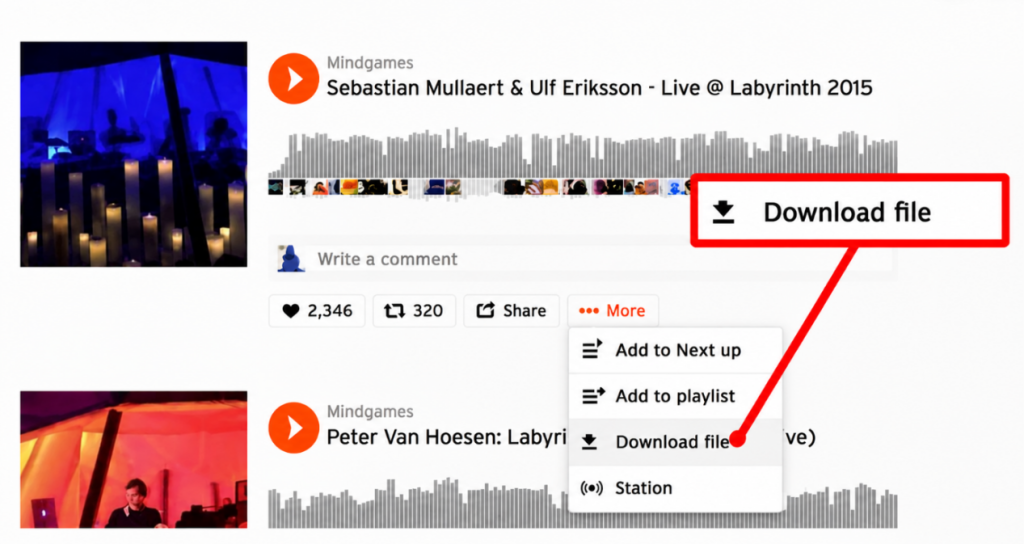
Step 3. Check whether a Download file button appears beneath the waveform.
Step 4. Click the button to download the creator-provided file.
Step 5. Open the downloaded file and check its format.
Method 2:Convert SoundCloud Music to WAV with MusicFre
When official downloads are unavailable, or you need more control over output formats, a desktop converter can offer a more flexible solution.
MusicFre allows you to browse SoundCloud music, add individual tracks or entire playlists, and save them in WAV or other supported audio formats. Rather than processing songs one by one, you can add multiple tracks to the conversion list and convert them in batches.
- Supports individual tracks, albums, and complete playlists.
- Fast batch conversion for handling multiple songs at once.
- Wide range of output formats, including WAV, FLAC, MP3, and more.
- Flexible audio settings to suit different audio needs.
- Keeps track details and cover art organized in the output files.
- Requires installing desktop software.
Here’s how to do it with MusicFre:
Step 1. Visit the official MusicFre website, download the desktop application, and install it on your computer.






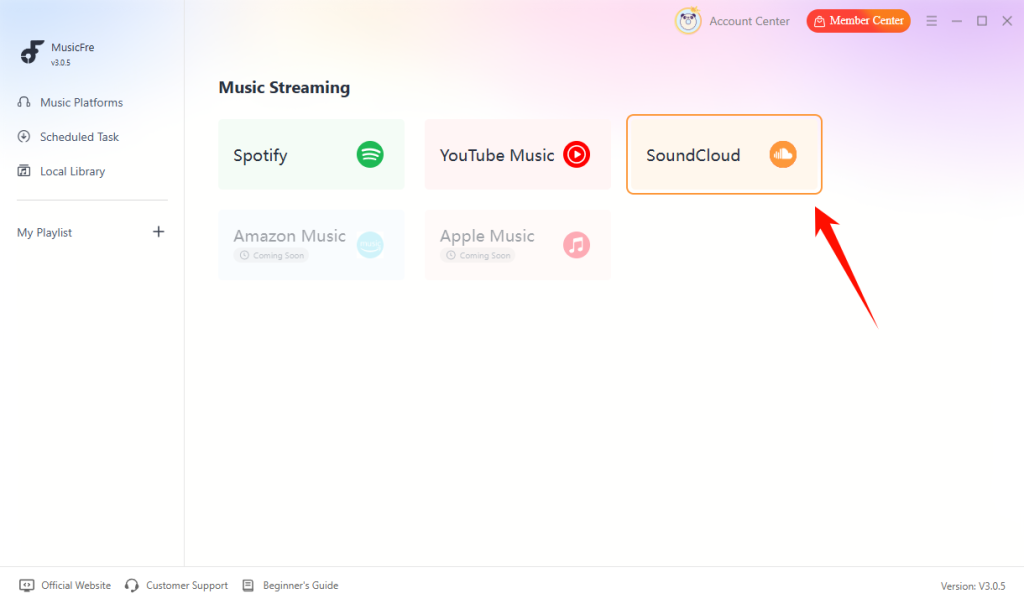
Step 2. Launch MusicFre and select SoundCloud from the Music Streaming screen.
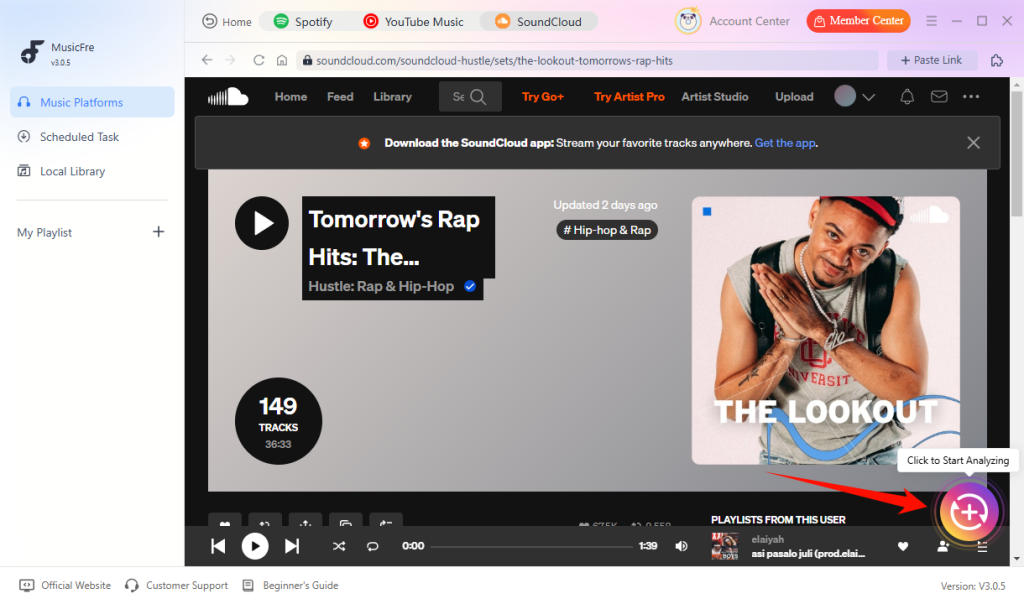
Step 3. Find the SoundCloud track, album, or playlist you want, then click the + button to add it to the conversion list.
Step 4. Select WAV as the output format, then click Convert Now to start the conversion.
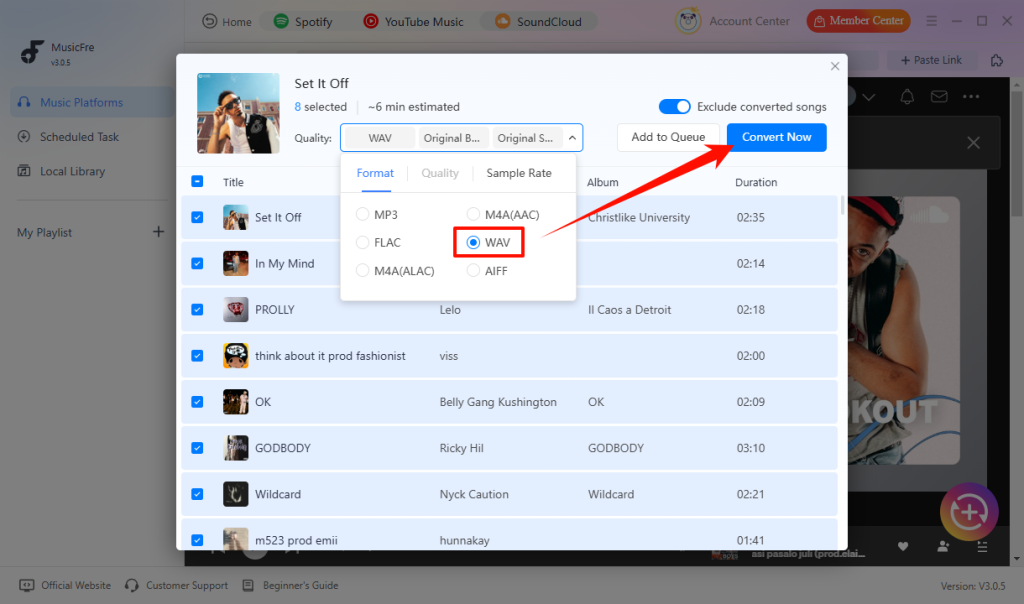
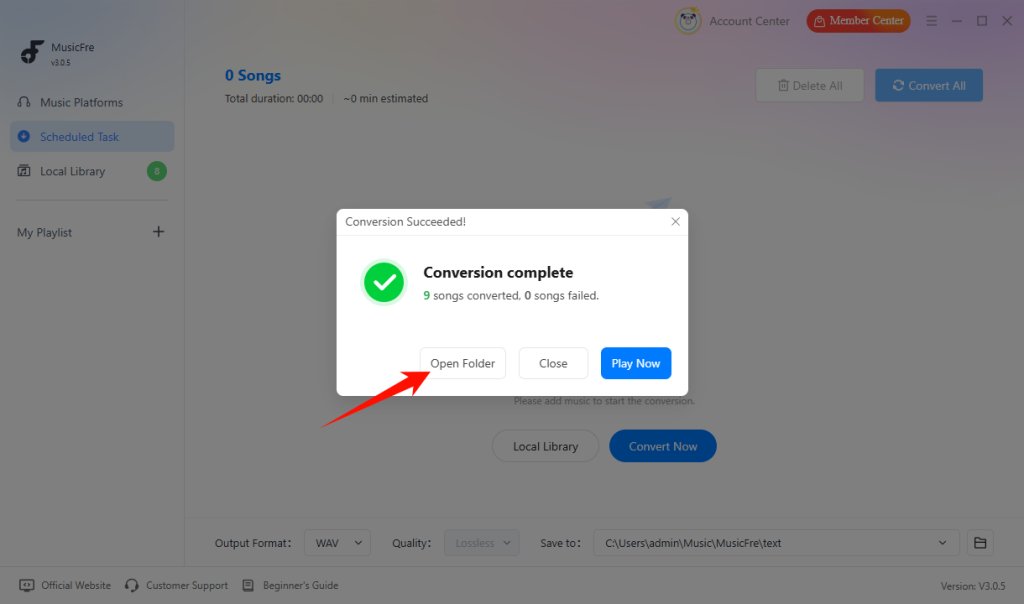
Step 5. When the conversion is complete, click Open Folder to access your downloaded WAV files.
Method 3: Use an Online SoundCloud to WAV Downloader
Online tools offer another way to save SoundCloud songs as WAV without installing a desktop application. Most work through a browser and require you to submit a track URL for processing.
- No desktop installation required.
- Can be accessed through a web browser.
- Suitable for occasional conversions.
- Playlist and batch support vary.
- Output formats and quality settings may be limited.
- Ads and redirects can affect the experience.
- Reliability and privacy practices differ between services.
A typical workflow is:
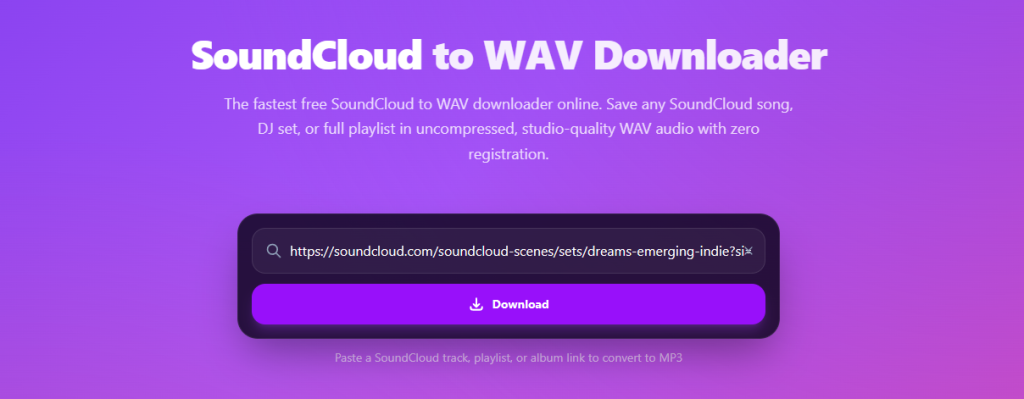
Step 1. Copy the URL of the SoundCloud track you want to download.
Step 2. Open a reputable online SoundCloud to WAV downloader.
Step 3. Paste the URL into the input box and start the analysis.
Step 4. Select WAV as the output format if available.
Step 5. Start the conversion and save the resulting file to your computer.
Method 4:Record SoundCloud Audio as WAV with Audacity
If a track does not have an official download option, recording its playback is another possible approach, provided you have the necessary permission.
Audacity is a free, open-source audio editor that lets you record audio and export it in WAV format. It works well for occasional recordings, but recording tracks one by one can be time-consuming when dealing with an entire playlist.
- Allows you to export audio as WAV.
- Provides basic editing and trimming features.
- Useful when you need to capture an authorized playback.
- Requires real-time recording.
- Background sounds and notifications may affect the result.
- Not practical for processing large playlists.
The general process looks like this:
Step 1. Download Audacity from its official website and open the application.
Step 2. Select Windows WASAPI and choose the appropriate loopback input to capture computer audio.
Step 3. Click the Record button in Audacity, then start playing the SoundCloud track you want to record.
Step 4. Once playback finishes, click Stop, review the recording, and trim any unwanted silence or gaps.
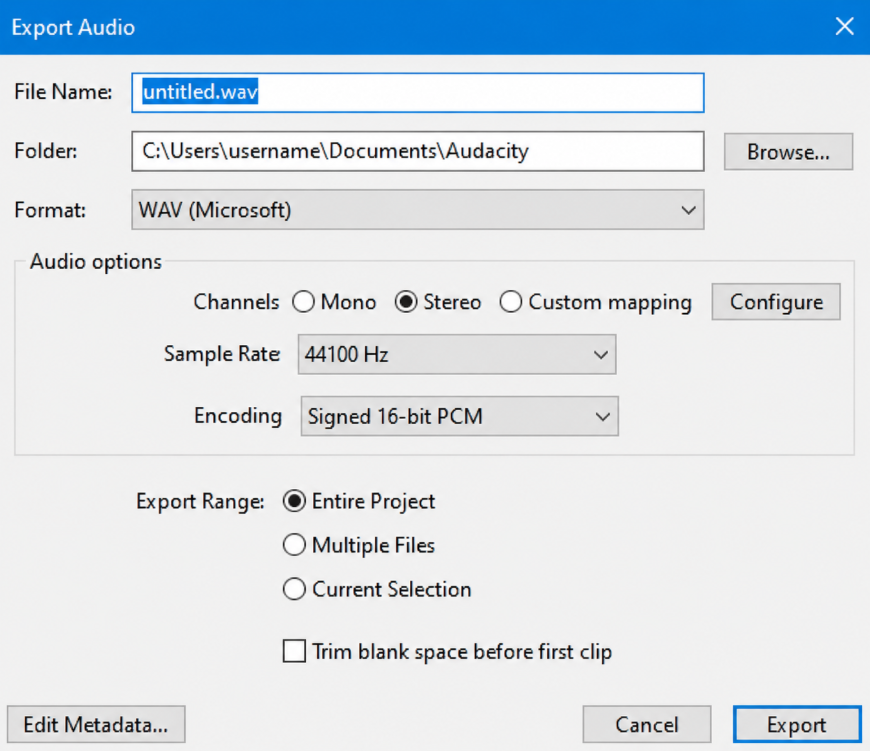
Step 5. Go to File > Export Audio, choose WAV as the output format, and export the recording.
Which SoundCloud to WAV Method Is Right for You?
Different methods work better for different downloading needs. If you only need one original file, the official download feature may be sufficient. If you regularly save playlists or want to manage multiple tracks, desktop software offers more control.
Here is a quick comparison of the four methods:
| Method | WAV Output | Batch Processing | Installation | Best For |
| Official SoundCloud Download | Depends on original file | No built-in playlist export | No | Original creator-provided files |
| MusicFre | Yes | Yes | Yes | Playlists and multiple tracks |
| Online Downloader | Depends on service | Varies | No | Occasional downloads |
| Audacity Recording | Yes | Manual | Yes | Recording and editing audio |
For users who regularly work with SoundCloud music, MusicFre provides a more organized workflow than recording tracks one by one or processing individual links through separate websites.
How to Verify a SoundCloud WAV File’s Format and Audio Quality
After downloading or converting a track, it is worth checking the resulting file rather than relying only on its extension.
A file ending in .wav is not automatically proof that it contains uncompressed PCM audio. You should also inspect its codec and other technical properties, especially if you plan to use it for editing or music production.
1.Check the File Extension
Start by checking the file name. WAV files typically use the .wav extension.
On Windows, open File Explorer and enable View > Show > File name extensions to see the complete file extension.
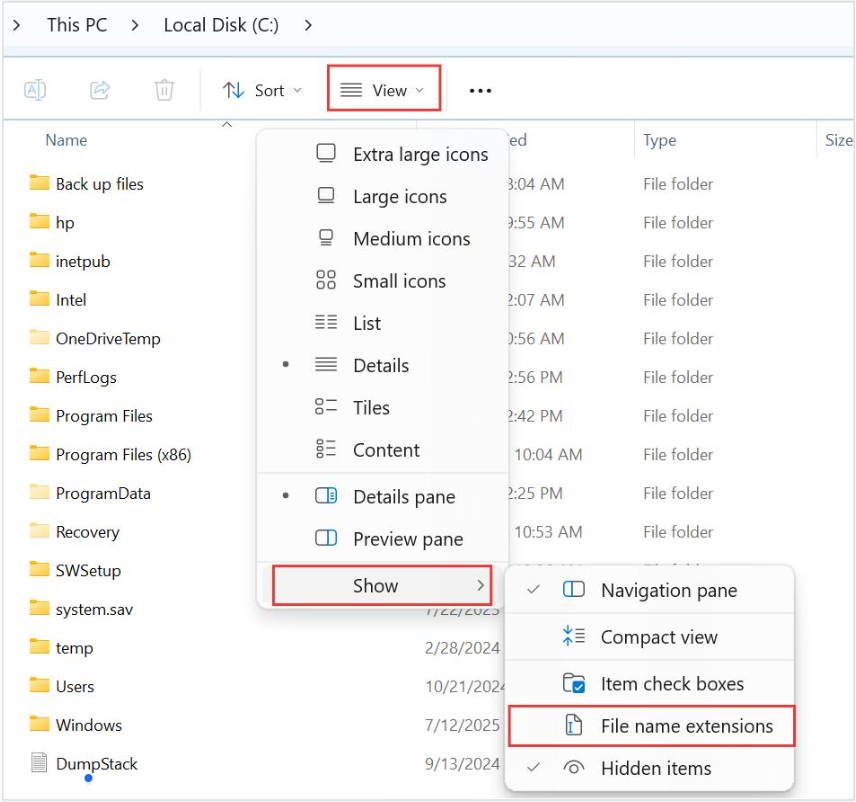
Keep in mind that renaming an MP3 file from .mp3 to .wav does not convert the audio. The file extension is only part of the file name and does not change the underlying encoding.
2.Check the Audio Codec
The audio codec describes how the sound data is stored.
A conventional uncompressed WAV file commonly uses PCM encoding. When inspecting a WAV file, look for:
- Container: WAV
- Audio codec: PCM
- Encoding: Uncompressed
- Channels: Mono or Stereo, depending on the source
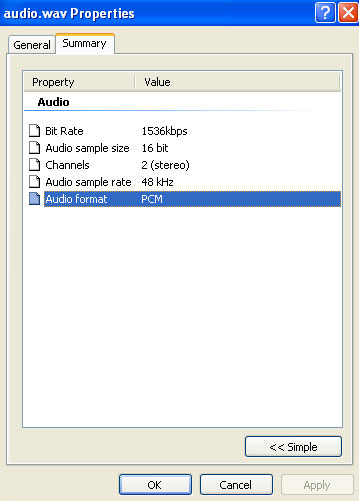
If your intended use requires uncompressed audio, checking the codec is more informative than simply checking the extension.
3.Check the Sample Rate and Bit Depth
Sample rate and bit depth are two additional properties worth understanding.
| Property | Meaning | Common Values |
| Sample Rate | Number of audio samples captured per second | 44.1 kHz, 48 kHz, 96 kHz |
| Bit Depth | Number of bits used to represent each sample | 16-bit, 24-bit, 32-bit float |
| Channels | Number of audio channels | Mono, Stereo |
For general music playback, 16-bit/44.1kHz PCM WAV is a common format. Higher settings may be useful for particular production workflows, but they do not automatically make a lower-quality source sound better.
4.Use MediaInfo to Inspect a WAV File
MediaInfo is a useful tool for checking the technical properties of audio and video files:
Step 1. Open MediaInfo and select the WAV file you want to inspect.
Step 2. Switch to a detailed view if necessary.
Step 3. Check the format, codec, sample rate, bit depth, channel count, and bitrate information.
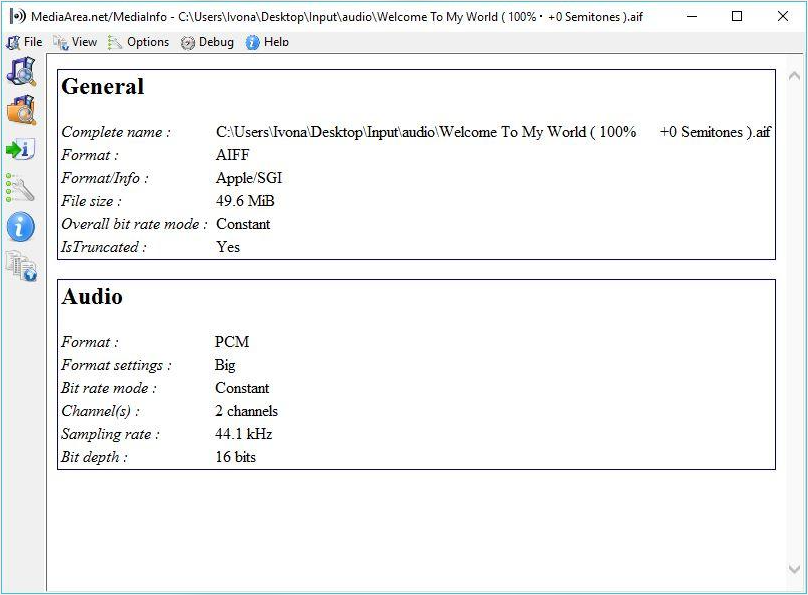
If the file reports WAV with PCM encoding, it is a conventional uncompressed PCM WAV file. You can also compare its properties with the original source when that information is available.
FAQs About SoundCloud to WAV
1Can I download SoundCloud WAV files on my phone?
Yes, but options may be limited. You can download WAV files on a computer and transfer them to your iPhone or Android device using a USB cable or cloud storage.
2What is the best way to get high-quality WAV files from SoundCloud?
If the creator provides an official WAV file, download it directly. For batch conversion or greater control over output settings, use a desktop converter such as MusicFre.
3Why are SoundCloud WAV files so large?
WAV files typically store uncompressed audio, which requires more storage space than compressed formats such as MP3. Their size depends on track duration, sample rate, bit depth, and the number of audio channels.
Conclusion
The best way to download SoundCloud to WAV depends on your needs. Use the official download option when available, or choose MusicFre for batch conversion and more output control. Online tools suit occasional downloads, while Audacity works well for authorized recordings.
Most importantly, the quality of your WAV file depends on the original audio source. Always check the track’s download permissions before saving it.