中文 (台灣)
  日本語
日本語  한국어
한국어  Italiano
  Français
  Português
  Español

How to Download Spotify Songs from a Link in 2026 (3 Easy Steps)
- Category:Spotify Music Tips
- Xiny
- 2026-08-07
Spotify links make it easy to share and open songs, albums, and playlists. However, saving music from a Spotify URL can be less straightforward. If you want to listen offline or manage music you are authorized to save on other devices, you need to choose a method that fits your goal. Before getting started, it is important to understand what a Spotify link can and cannot do.
Can You Download a Spotify Link Directly?
Not directly. A Spotify song link is a URL that points to content on Spotify, such as a song, album, or playlist. It helps Spotify identify and open that content, but it is not an audio file such as MP3, WAV, or FLAC.
Spotify also uses DRM protection to help prevent unauthorized copying and distribution of licensed music. Even Spotify Premium users can only download songs for offline playback inside the Spotify app. As a result, you cannot simply copy a Spotify link and download the song as a regular audio file to your device.
If you have the right to save music for use on other devices, a valid Spotify link is still a useful place to begin. The next three steps show you how to get started.
A 3-Step Spotify Link Download Guide
Whether you want to save a song, album, or playlist, the process begins with a valid Spotify URL. The following three steps explain how to copy the link, choose the option that fits your goal, and continue with a suitable desktop tool.
Step 1.Get a Valid Spotify Link
Before you begin, copy a valid Spotify URL for the song, album, or playlist you want to save.
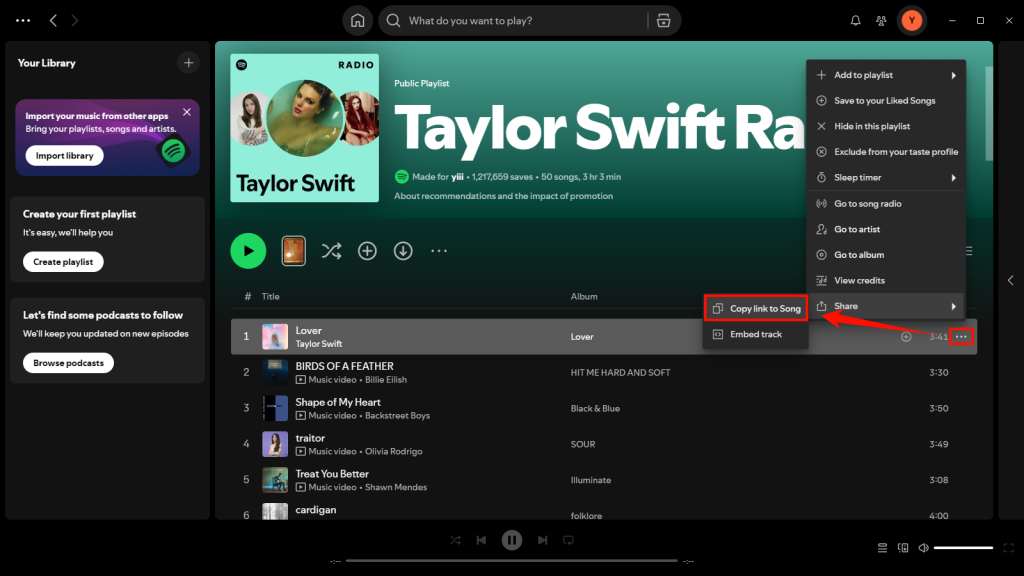
How to Get a Spotify Link on Desktop?
1. Open the Spotify desktop app or web player.
2. Find the song, album, or playlist you want to download.
3. Click the three-dot menu next to the content.
4. Select “Share”.
5. Click “Copy link to Song” or “Copy link to playlist”.
How to Get a Spotify Link on Mobile?
1. Open the Spotify app on your phone.
2. Go to the song, album, or playlist you want to save.
3. Tap the three-dot menu and choose “Share”.
4. Tap “Copy link”.
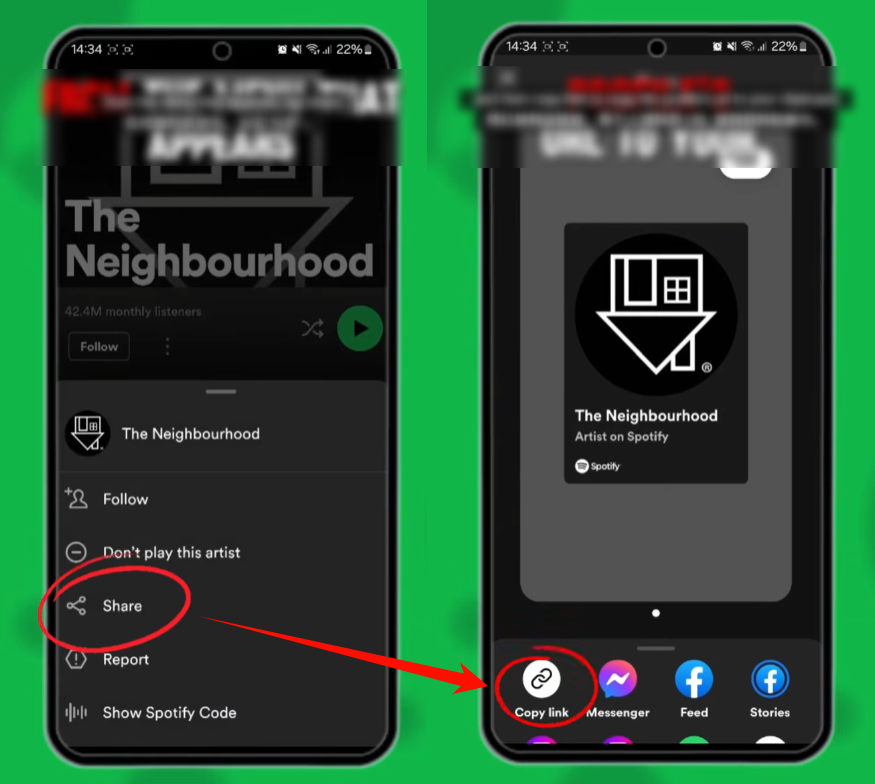
Step 2.Choose the Right Download Option for Your Goal
Once you have copied a valid Spotify URL, you should decide what type of download you need. This will help you choose an option that matches your goal.
| Your Goal | Recommended Option | What to Keep in Mind |
| Listen to music without an internet connection | Use Spotify’s available offline listening feature | Downloaded content is intended for playback within the Spotify app |
| Share music with someone | Send the Spotify song, album, or playlist link | The recipient needs access to Spotify to open the content |
| Save music for use on other devices | Use a desktop music tool with output format options | Only save music you own, have permission to use, or may lawfully download |
| Organize a personal music library | Use a desktop music tool with file-organization settings | Check the tool’s supported formats and features first |
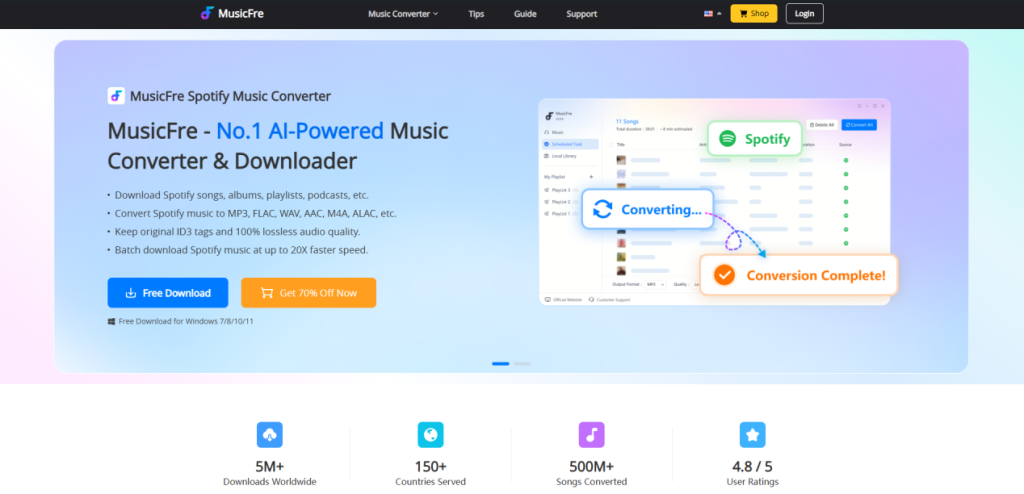
If your needs go beyond offline playback or sharing a link, a desktop workflow can give you more control over output formats and file organization. The next step shows how to use MusicFre with a Spotify URL.
Step 3.Use MusicFre to Download Spotify Songs from a Link
If you want to build a local music library that is easier to access and organize across your devices, MusicFre is a suitable desktop tool to consider.






Follow the steps below to get started:
1. Download and install MusicFre on your computer. After installation, launch the program and log in to your account.
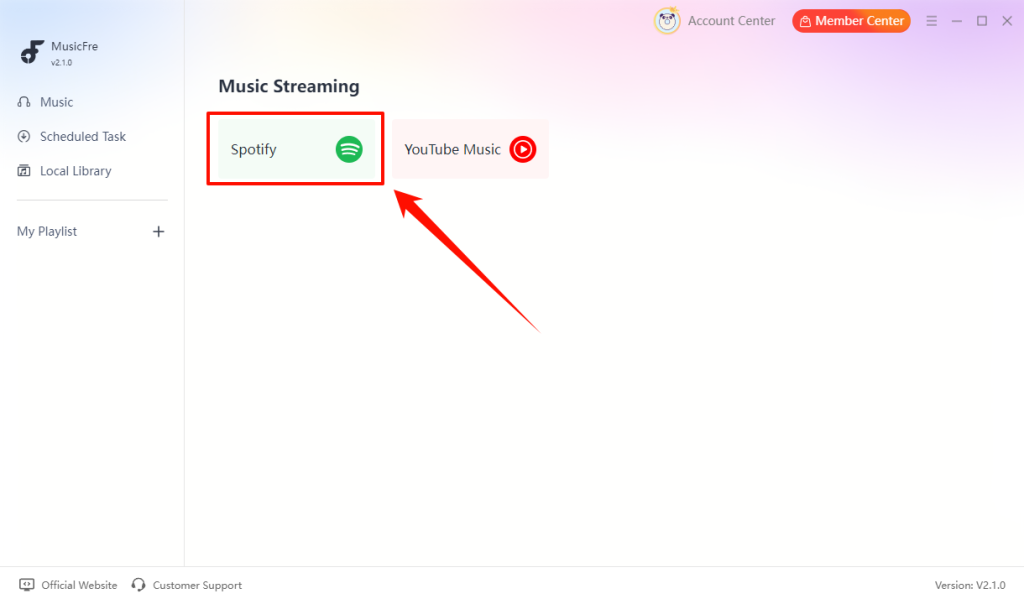
2. On the “Music Streaming” screen, click the “Spotify” card to enter the built-in Spotify workspace.
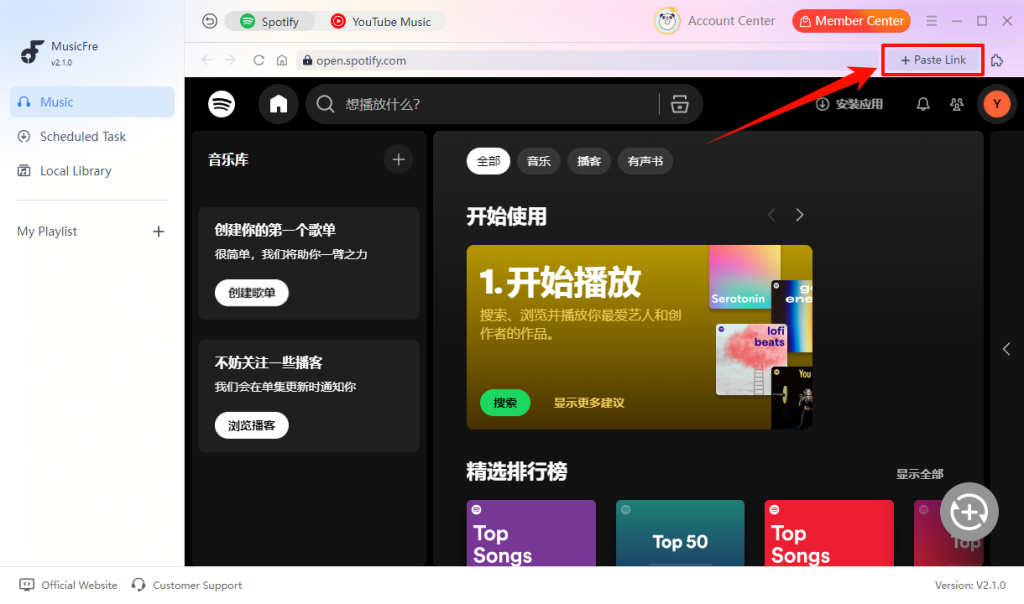
3. After the Spotify workspace opens, click “Paste Link” in the upper-right corner of the window.
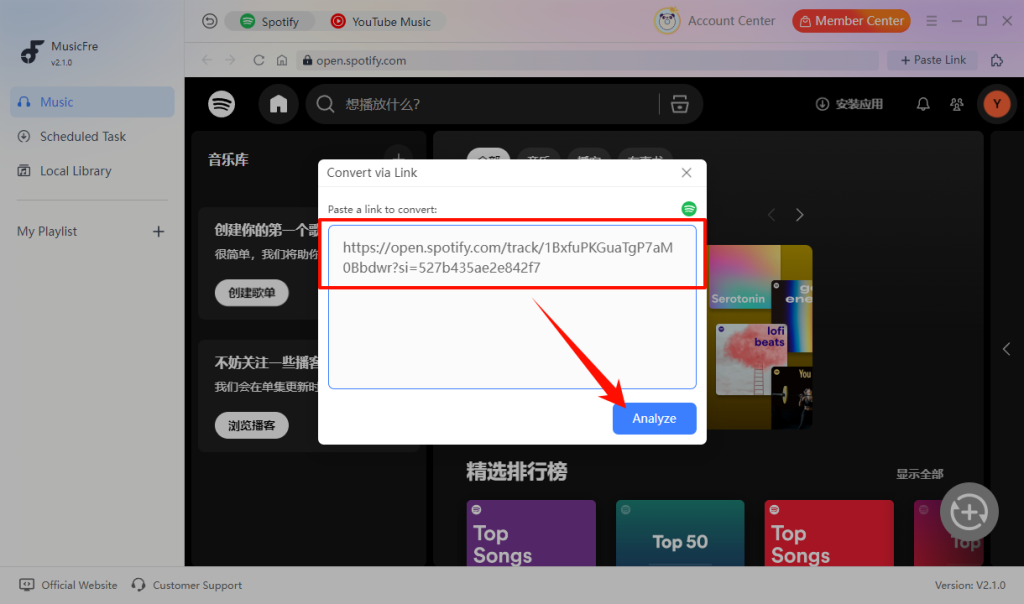
4. In the “Convert via Link” dialog, paste the Spotify song, album, or playlist URL into the input box. Once the link has been added, click “Analyze”.
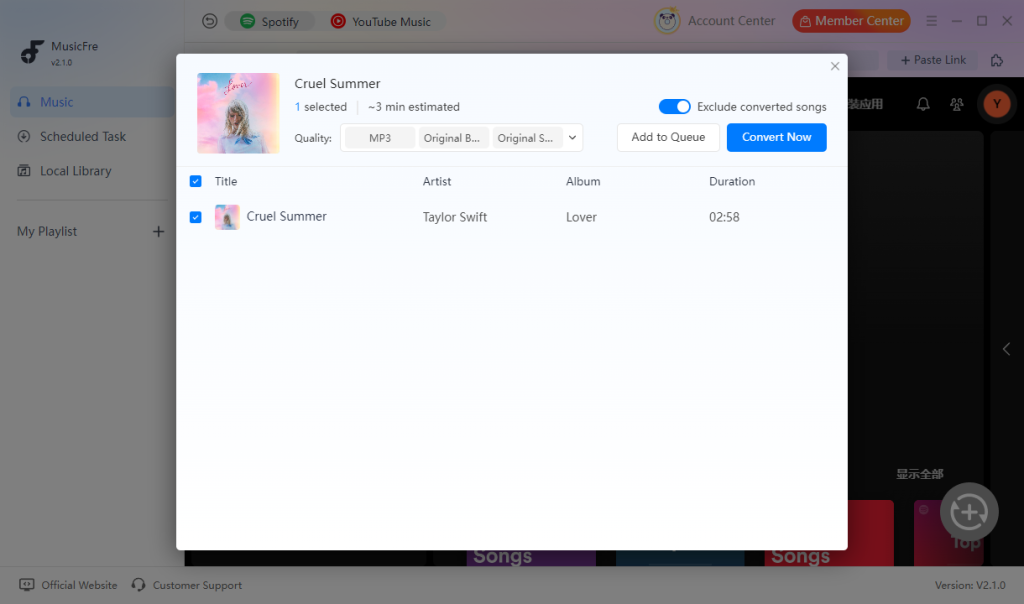
5. After the Spotify link is analyzed, MusicFre will display the detected songs. Check the title, artist, album, and duration to make sure you have selected the correct music.
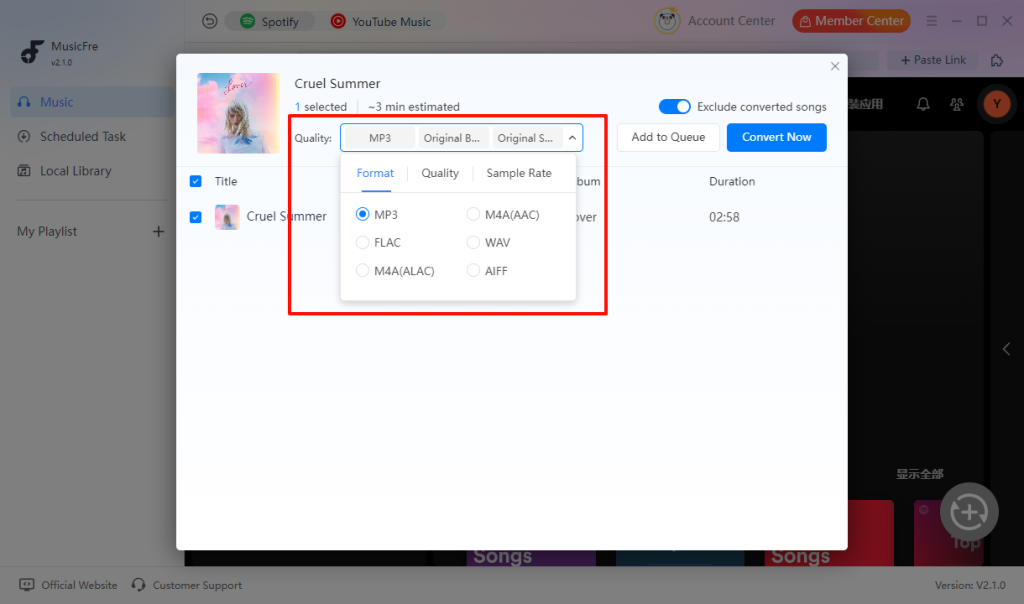
6. Next, click the drop-down arrow in the “Quality” section to open the output settings panel. MusicFre provides three tabs:
- Format: Choose from MP3, M4A (AAC), FLAC, WAV, M4A (ALAC), or AIFF.
- Quality: Select the available audio-quality setting that fits your needs.
- Sample Rate: Choose the available sample-rate option for your output files.
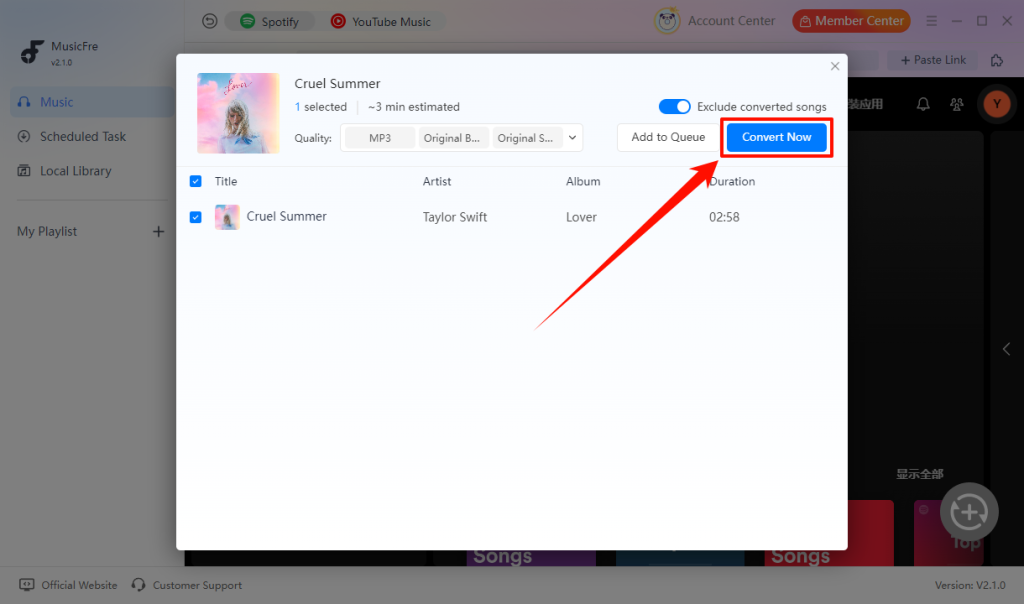
7. After reviewing the selected content and output settings, click the “Convert Now” button.
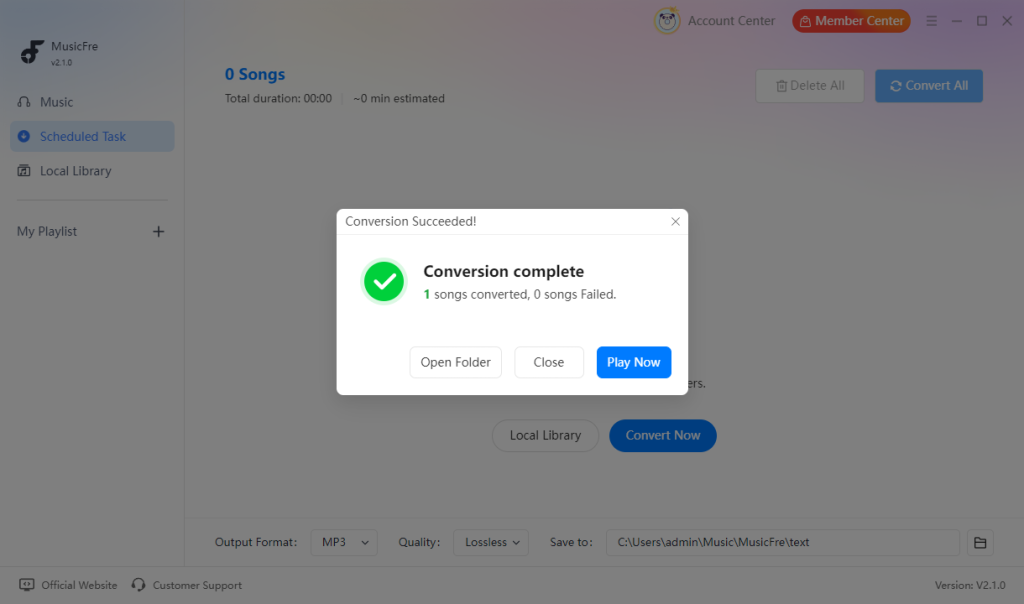
8. When the conversion is complete, MusicFre will show a “Conversion complete” notification. From this window, you can choose one of the following options:
- Click “Open Folder” to open the output location and view your saved files.
- Click “Play Now” to play the converted song immediately.
Common Problems When Downloading Spotify Songs from a Link
Most problems with a Spotify link download are caused by an incomplete URL, unavailable content, or incorrect output settings. The table below explains the most common issues and what you can check before trying again.
| Problem | Possible Reason | Solution |
| MusicFre cannot analyze the Spotify link | The URL is incomplete, copied incorrectly, or no longer valid | Copy the full Spotify URL again and make sure it opens correctly in Spotify before pasting it into MusicFre |
| The wrong song, album, or playlist appears | You copied a different Spotify link than intended | Check the displayed title, artist, album, and duration before clicking “Convert Now” |
| The Spotify link does not open | The content may be unavailable, private, removed, or region-restricted | Open the link in Spotify first to confirm that it is available in your account |
| The conversion does not start | Your internet connection, account status, or MusicFre version may need attention | Check your network connection, restart MusicFre, and make sure you are using the latest version |
| Some songs are missing from the results | The original Spotify content may have changed or some items may not be available | Review the analyzed list carefully and confirm that the original link still works in Spotify |
| The output file does not work well on your device | The selected format or quality setting may not be suitable | Choose a format that is compatible with your device, then try the task again |
FAQs About Spotify Link Download
1Can I convert a Spotify link to MP3?
Not directly. A Spotify link identifies a song, album, or playlist, but it is not an MP3 file. For music you are authorized to save, a tool like MusicFre can analyze the link and save the selected content in MP3 format.
2Is converting Spotify to MP3 legal?
It depends on the music, your location, and how you plan to use it. Downloading copyrighted music without permission may violate copyright law or Spotify’s terms of use.
3Does a Spotify song link expire?
A Spotify song link usually does not have a fixed expiration date. However, the link may stop working if the song is removed from Spotify, unavailable in your region, or replaced by a different release.
4What is the difference between a Spotify URL and a Spotify URI?
A Spotify URL is a web link that can open in a browser or the Spotify app. A Spotify URI is Spotify’s internal content identifier, which is mainly used for app integrations.
Final Thoughts
A Spotify link is best understood as a way to identify and open music, not as an audio file itself. Once you understand this distinction, it becomes easier to choose the option that matches your needs. If you are building a local library for music you are authorized to save, MusicFre offers a simple way to keep it organized.
Before saving any music, make sure you have the necessary rights or permission to use the content and follow applicable copyright laws and service terms.