中文 (台灣)
  日本語
日本語  한국어
한국어  Italiano
  Français
  Português
  Español

How to Set a Spotify Song as an Alarm on iPhone & Android (2026 Updated)
- Category:Spotify Music Tips
- Xiny
- 2026-08-21
Waking up to your favorite song can make mornings feel much better than hearing the same default alarm sound every day. Many Spotify users want to set a Spotify song as an alarm so they can start the day with their favorite music.
But can you directly use a Spotify track as your alarm sound? The answer depends on your device. Android users can connect Spotify with compatible clock apps and choose songs directly from Spotify. On iPhone, the built-in Clock app cannot access Spotify’s streaming catalog, so you will need either a Spotify-compatible alarm app or a local music file instead.
This post explains the most practical ways to use Spotify music as an alarm, including a reliable local-music option for iPhone and Android users.
Can You Set a Spotify Song as an Alarm?
Yes, but not directly through the Spotify app.
Spotify protects its songs with encryption, which means downloaded Spotify tracks cannot be used as regular alarm sounds outside the app. However, you can still make it work with different methods depending on your device and whether you want the alarm to play offline.
| Device | Recommended method | Offline Support | Best for |
| Android | Google Clock with Spotify integration | No | Users who want to quickly set a Spotify song as an alarm |
| iPhone | Use a Spotify-compatible alarm app | No | Users who want to use Spotify music on iOS |
| Android & iPhone | Local music files converted from Spotify songs | Yes | Users who need a reliable alarm without an internet connection |
Before using a new alarm method as your daily wake-up solution, set a test alarm for a few minutes later to make sure it works properly. This is especially important for methods that rely on Spotify playback, background app permissions, or an internet connection.
How to Use Spotify Music as an Alarm on Android?
Android is currently the easiest platform for users who want to use Spotify music as an alarm. With the Google Clock app, you can connect your Spotify account and choose your favorite songs directly when creating an alarm.
Keep in mind that the Spotify option may vary by device, Android version, and Clock app version.
Follow these steps to set a Spotify song as your alarm using Google Clock on Android:
Step 1. Install or update the Google Clock app from the Google Play Store if is available for your device.
Step 2. Open the Clock app and tap the Alarm tab at the bottom of the screen.
Step 3. Create a new alarm by tapping the + button, and tap the current alarm sound option.
Step 4. Look for the Spotify tab or Spotify option in the sound selection menu.
Step 5. Browse your recent music, choose the song you want to hear when your alarm goes off.
Step 6. After selecting your preferred track, return to the alarm screen and save the alarm settings.
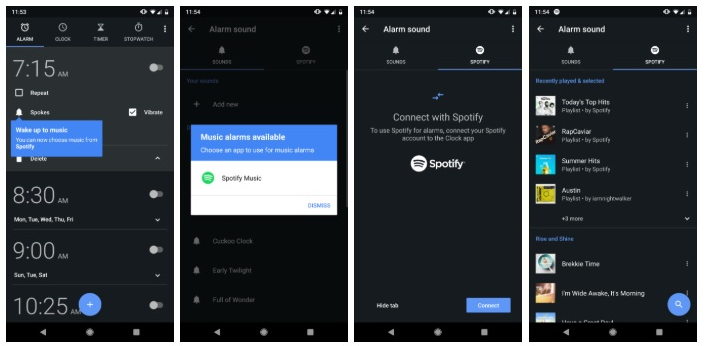
What If Spotify Does Not Appear in Google Clock?
If you cannot find Spotify in the alarm sound menu, try the following before switching methods:
- Update both Spotify and the Google Clock app
- Make sure you are signed in to Spotify
- Restart both Spotify and the Clock app
- Check whether your device uses Google Clock or another manufacturer’s Clock app
Some Android devices use their own clock applications, which may not support Spotify integration. In this case, you can use the local music method later in this guide.
How to Set Spotify Song as Alarm on iPhone?
The iPhone Clock app does not directly connect to Spotify. While Clock can play built-in tones and songs stored in your local Music library, it cannot browse or select music from Spotify’s streaming catalog.
If you want to wake up to Spotify music on iPhone without moving music files to your phone, a Spotify-compatible alarm app is the most direct option.
The exact steps vary by app, but the general process is similar:
Step 1. Install a reputable alarm app that clearly states it supports Spotify playback.
Step 2. Open the app and connect your Spotify account.
Step 3. Allow the permissions it requests for notifications, background activity, or alarms.
Step 4. Create a new alarm and set the time and repeat schedule.
Step 5. Search for a Spotify song, album, or playlist you want.
Step 6. Save the alarm and test it to make sure it works properly.
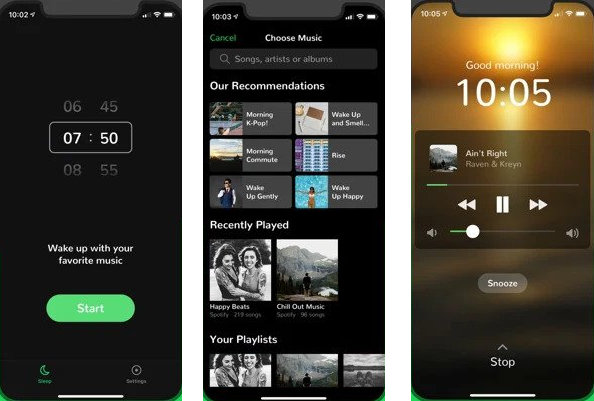
Before using this method for an important morning alarm, check the app’s requirements. Some Spotify-compatible alarm apps may require an active internet connection, a specific Spotify plan, or background permissions to remain enabled. If your phone enters a low-power state or the app loses access to Spotify, the alarm may not work reliably.
How to Use Local Spotify Music as an Alarm on Any Device?
If the methods above do not work for your device, a local music file is a practical alternative.
Unlike Spotify-based alarm features, local music files are not tied to a specific app or platform. Once a Spotify song is converted into a common audio format, you can use it as a custom alarm sound on both iPhone and Android devices.
This option works especially well for travel, unstable internet connections, and users who want a more dependable wake-up routine.
The general process is simple:
Step 1.Convert Spotify Music to a Local Audio File
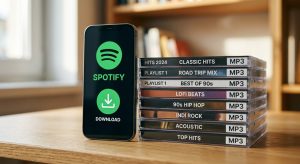
To use a Spotify song as a custom alarm sound, you first need to convert it into a common audio format that your phone can recognize. MusicFre can help you convert supported Spotify music to common local formats, including MP3, M4A, AAC, FLAC, and WAV. For setting alarms, MP3 is a widely compatible choice for Android users, while M4A or AAC formats are often better suited for iPhone users.
Here is how to prepare a local music file with MusicFre:
1. Download and install MusicFre on your Windows or Mac computer.





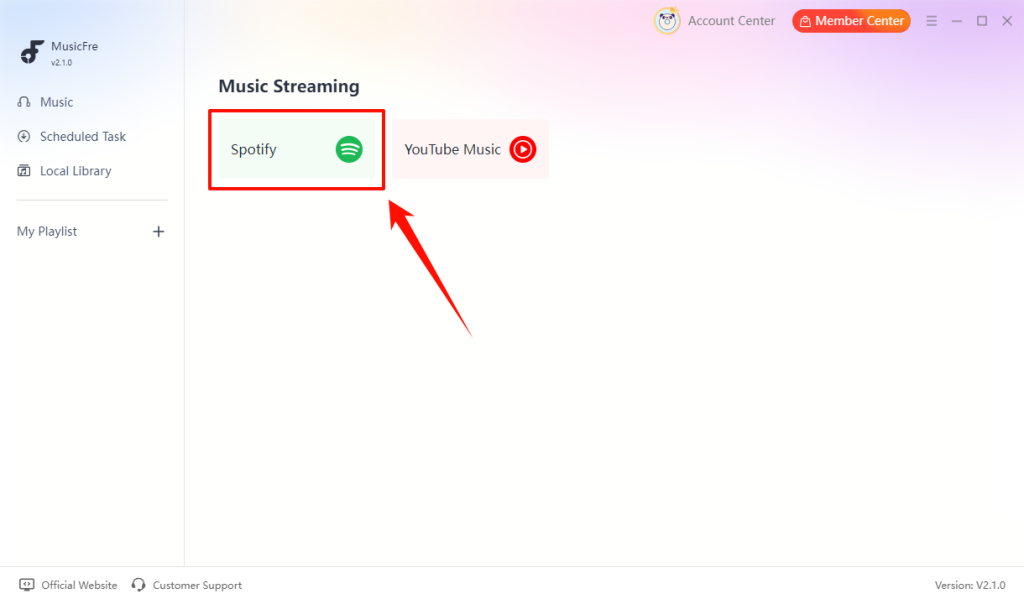
2. Open MusicFre and access the built-in Spotify music interface.
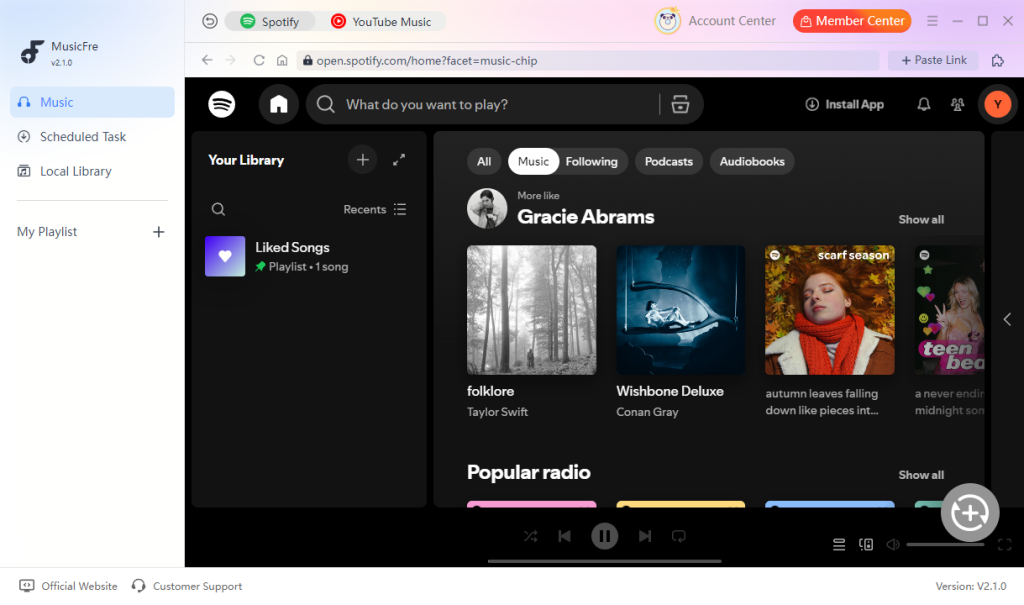
3. Find the song, album, or playlist you want to use as an alarm sound.
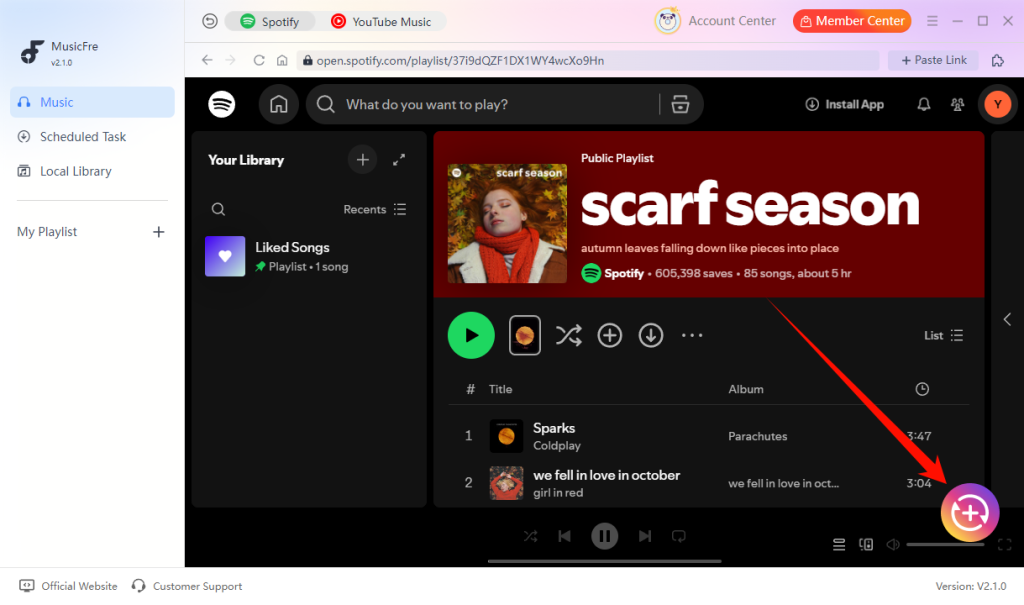
4. Click the + button to add the selected track to the conversion list.
5. Open the output settings and choose an audio format:
- Choose MP3 for broad compatibility with Android devices
- Choose M4A or AAC if you plan to add the song to an iPhone Music library
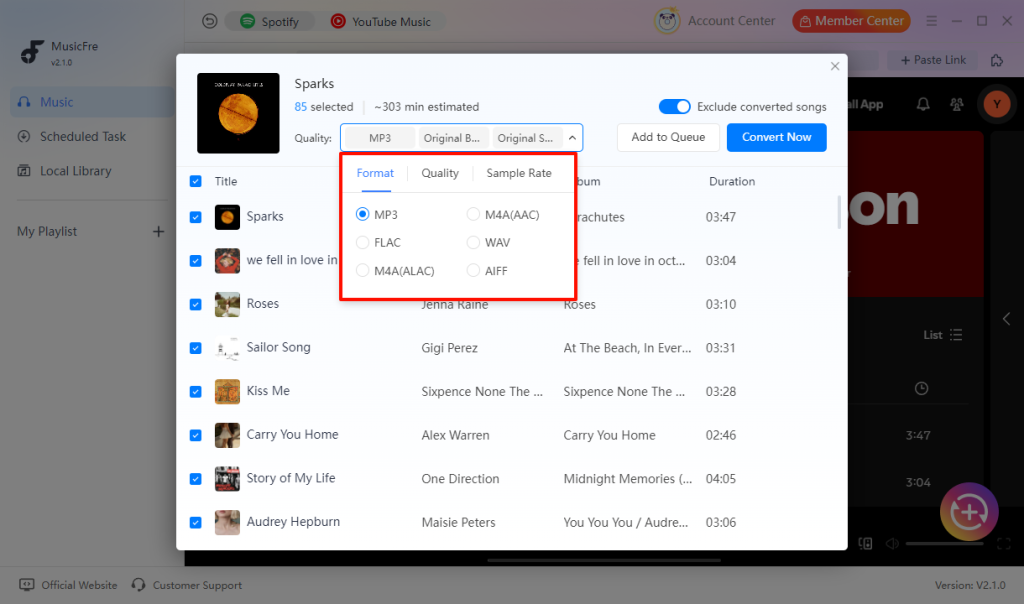
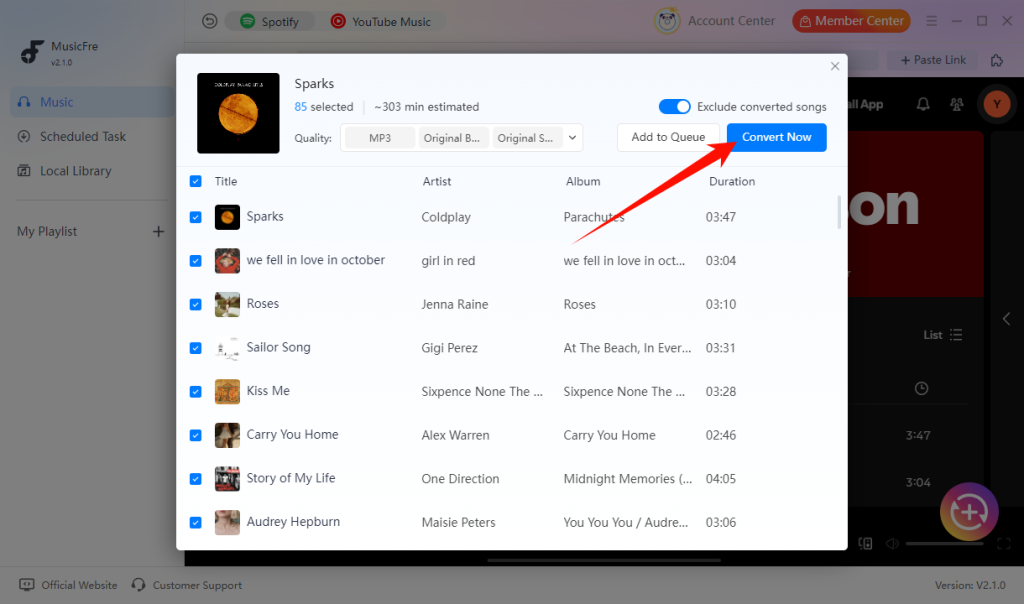
6. Click Convert Now and wait for the process to finish.
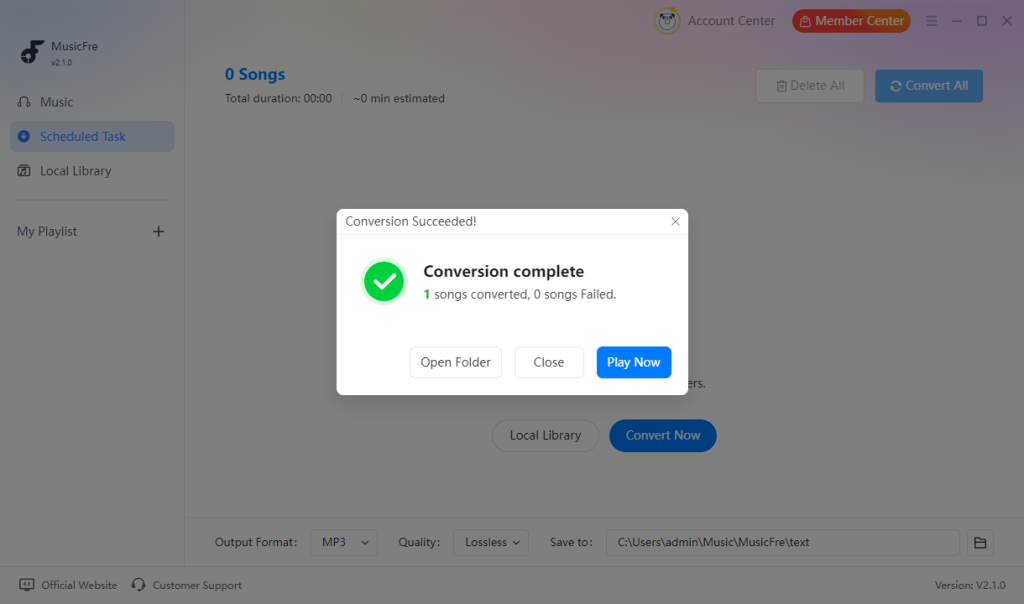
7. Open the output folder to find the converted local music file.
Note: Only convert or use music that you own or are authorized to use, and follow applicable copyright laws and platform terms.
Step 2. Use a Local Song as an Alarm on Phone
Once you have prepared a local audio file, transfer it to your phone and select it in the alarm settings. The exact steps are different on iPhone and Android, so follow the instructions for your device below.
Set a Local Song as an Alarm on Android
Most Android phones allow you to choose a local audio file as an alarm sound:
1. Transfer the converted music file to your Android phone using a USB cable, cloud storage, or another file-transfer method.
2. Open the Clock app and create a new alarm.
3. Tap the alarm sound option and choose the transferred music file as your alarm tone.
4. Save the alarm settings and check that the selected song appears as your alarm sound.
Set a Local Song as an Alarm on iPhone
On iPhone, the audio file must be added to the local Music library before it can appear in the Clock app:
1. Add the converted M4A, AAC, or MP3 file to your computer’s music library.
2. Connect your iPhone to your computer.
3. Sync the song to your iPhone using Finder on Mac or Apple Devices on Windows.
4. Open the Music app on your iPhone and confirm that the song appears and plays normally.
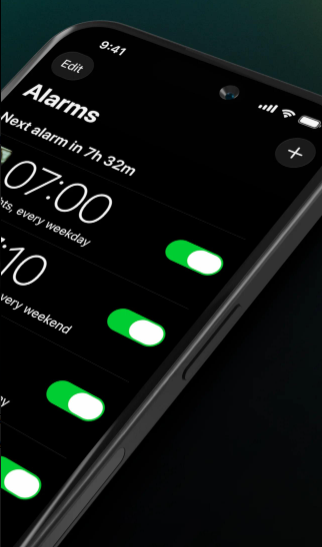
5. Open the Clock app, tap Alarm, and create a new alarm.
6. Tap Sound and select Pick a Song.
7. Select the local song from your Music library, then save the alarm settings.
Step 3.Test the Local Music Alarm
Before using your new alarm as your daily wake-up sound, always test it first. Create a test alarm for a few minutes later and check:
- Whether the correct song plays
- Whether the volume is loud enough
- Whether the audio file works without an internet connection
Frequently Asked Questions
1Do I need Spotify premium to use Spotify music as an alarm?
Not always. Google Clock and some alarm apps may work with Spotify Free, but features can vary. A local music alarm does not need Premium when it goes off.
2Why does my Spotify alarm stop working sometimes?
This can happen due to lost Spotify connections, app permission issues, battery restrictions, or internet problems. Updating apps or switching to a local alarm sound can improve reliability.
3Will a Spotify alarm work in Do Not Disturb mode?
Built-in Clock alarms usually work during Do Not Disturb. Third-party alarm apps may need notification and background permissions, so test the alarm first.
4Can I choose a specific part of a Spotify song for my alarm?
Usually not. Most Spotify alarm options start the song from the beginning. If you want a specific section, you may need to create a custom audio file and use it as your alarm sound.
Final Thoughts
Setting a Spotify song as an alarm is easy on Android devices that support Spotify in Google Clock. On iPhone, you can use a Spotify-compatible alarm app if you prefer streaming music directly.
However, if you want an alarm that works without relying on internet access, Spotify playback, or background app permissions, using a local music file is a more reliable choice. With MusicFre, you can prepare supported audio in a device-friendly format, add it to your phone, and use it as a custom alarm sound on iPhone or Android.
No matter which method you choose, always set a quick test alarm before using it for an important morning.