中文 (台灣)
  日本語
日本語  한국어
한국어  Italiano
  Français
  Português
  Español

How to Fix Spotify Keeps Logging Me Out in 2026 (10 Quick Fixes)
- Category:Spotify Music Tips
- Xiny
- 2026-08-26
Getting logged out of Spotify unexpectedly can interrupt your music, remove access to offline downloads, and make you worry that something is wrong with your account. If Spotify keeps logging you out, the cause may be related to your account security, browser settings, app data, network connection, or Spotify’s service status.
The good news is that most Spotify sign-out issues can be fixed without creating a new account or losing your playlists. This guide explains why Spotify keeps logging you out and walks you through quick solutions.
Why Does Spotify Keep Logging Me Out?
Spotify may log you out for several reasons. Before trying every possible fix, match the problem to the situation you are seeing.
1.Your Account May Have a Security Issue
If Spotify logged you out on all devices at once, your password may have changed, or someone else may have accessed the account. Unfamiliar playback activity, password-reset emails, or changed account details are signs to take seriously.
2.Spotify May Be Experiencing a Service Outage
A Spotify server or authentication issue can cause unexpected sign-outs for many users at the same time. If the problem started suddenly, check Spotify’s official support channels before changing settings on your device.
3.Your Browser Is Deleting Spotify Cookies
Spotify Web Player uses cookies to remember your login session. If your browser, privacy extension, or cleaning tool deletes those cookies, Spotify may ask you to sign in again whenever you reopen the browser.
4.You Are Using Incognito or Private Browsing Mode
Private browsing does not keep login data after the window is closed. If Spotify keeps signing you out only in Incognito or Private mode, switch to a normal browser window instead.
5.A VPN, Proxy, or Location Change Is Affecting Your Spotify Login
Spotify may request a new login when your IP address or location changes significantly. This can happen after enabling a VPN, using a proxy, traveling abroad, or switching to a different network.
6.The Spotify App Is Outdated or Has Cache Problems
An old app version or corrupted cache files can cause Spotify to lose its saved session. This is more likely when Spotify keeps logging you out on one phone or computer but works normally on other devices.
7.A Cleaning or Optimization Tool Is Removing Spotify Data
Some storage-cleaning, antivirus, or optimization apps remove temporary files automatically. If they delete Spotify’s saved app data, the app may forget your login information and sign you out repeatedly.
8.A Connected Third-Party App Is Causing a Conflict
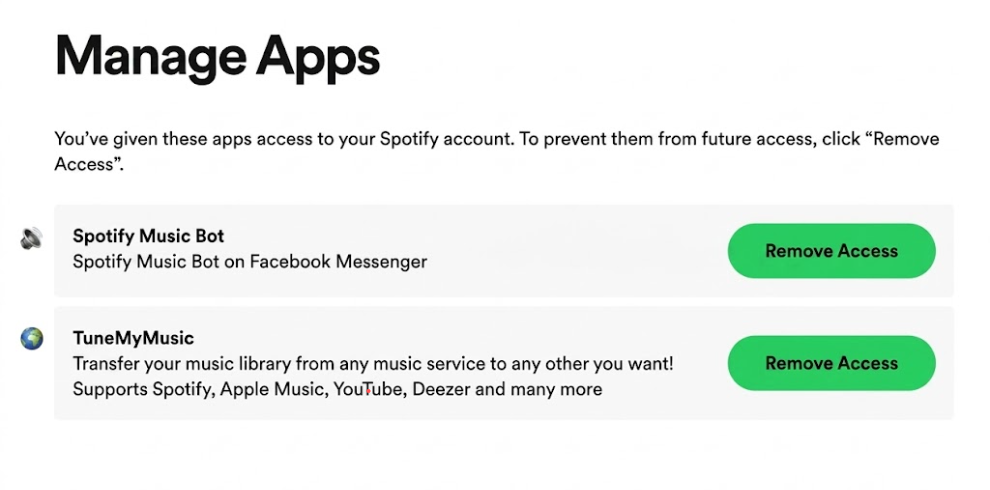
A recently connected playlist tool, smart-device service, or other third-party app can sometimes affect account access. Review your connected apps and remove access for services you no longer use or do not recognize.
9.Your Premium Plan or Payment Status Has Changed
A failed payment or Premium plan change may affect your account session. Check your Spotify plan and payment status if the logout issue started around your renewal date.
10.You Signed In With a Different Account or Login Method
Sometimes users think Spotify logged them out and deleted their playlists, but they are actually signed into a different account. This often happens when switching between email, Google, Apple, or Facebook login methods.
How to Fix Spotify Keeps Logging Me Out
Try the fixes below in order. Start with the quick checks first, then move on to account, browser, or app settings based on where the problem happens.
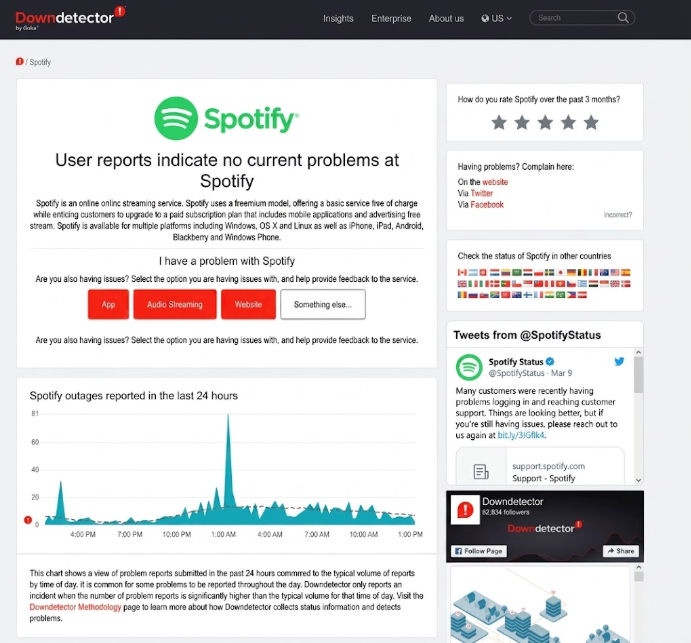
Fix 1:Check Spotify’s status
Before changing any settings, check whether Spotify is experiencing a temporary outage. If there are issues with its servers or login services, wait until the service is restored and try signing in again.
You can check Spotify’s official status updates or support channels to see if other users are reporting similar login problems.
Fix 2:Sign Out of All Devices and Reset Your Password
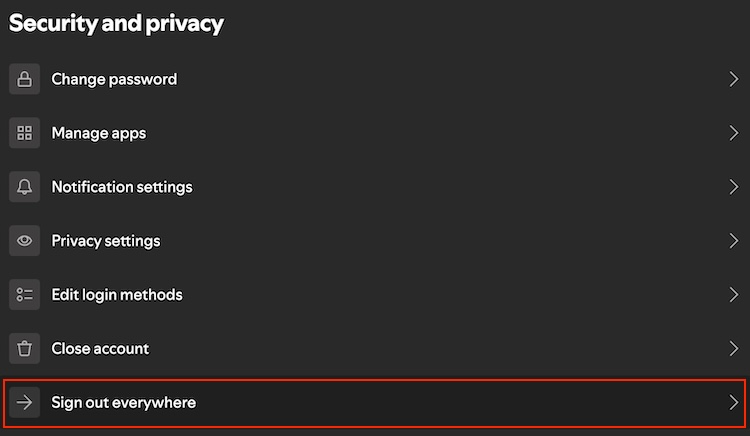
If Spotify logs you out everywhere at once or you notice unusual account activity, your account may have a security issue.
Go to your Spotify account settings, choose the option to sign out everywhere, and then create a new password. After that, sign in again on your main device and make sure your email address and account details are correct. This removes unknown sessions and helps protect your account.
Fix 3: Check Your Premium Plan and Payment Status
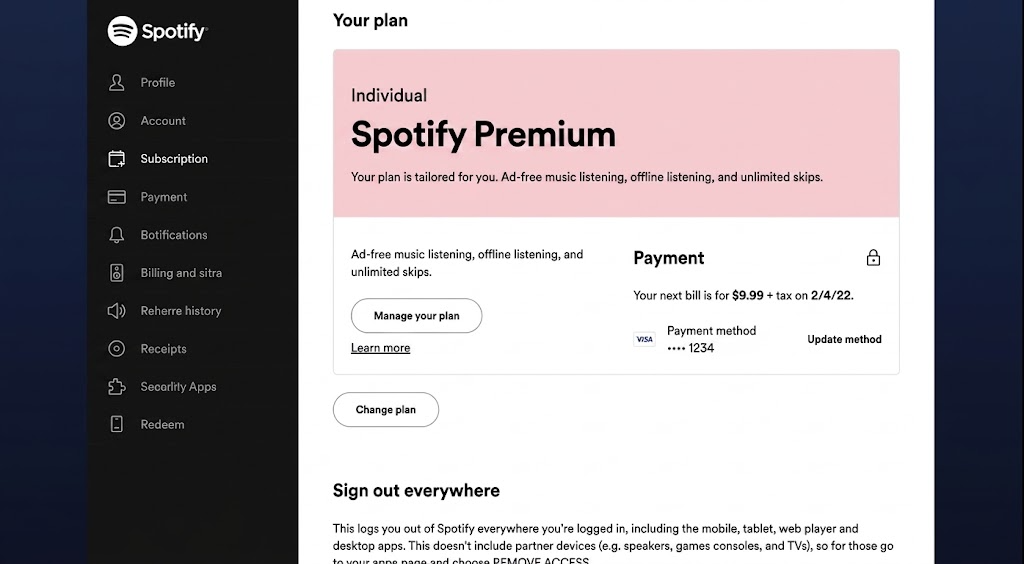
If the sign-out issue started around your renewal date, check whether your Premium payment was successful and whether your plan is still active.
Although payment issues do not always cause automatic logouts, account changes can sometimes affect your Spotify session.
Fix 4: Use a Normal Browser Window and Keep Spotify Cookies
If Spotify Web Player keeps signing you out, do not use Incognito or Private Browsing mode. These modes remove session data when you close the browser window.
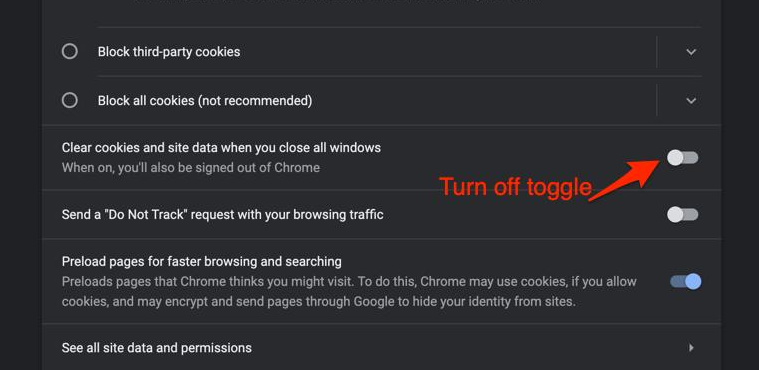
Open Spotify in a normal browser window and check your browser privacy settings. Make sure it is not set to clear cookies and site data every time you close it. Also, disable privacy extensions or cleaning tools temporarily to see if they are removing your login information.
Fix 5:Turn Off VPN or Proxy Services
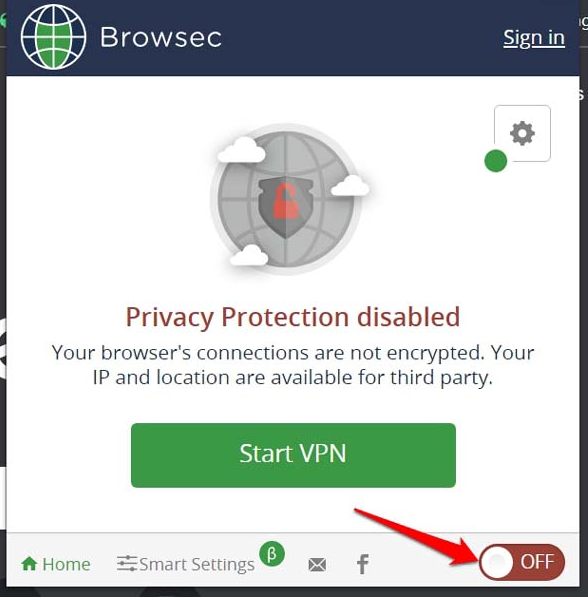
A VPN or proxy can change your IP address and location, which may trigger additional login checks. Try disabling your VPN or proxy temporarily and sign in again using your regular network connection.
You can also switch between Wi-Fi and mobile data to see whether one network is causing the issue.
Fix 6: Update Spotify and Clear Its Cache
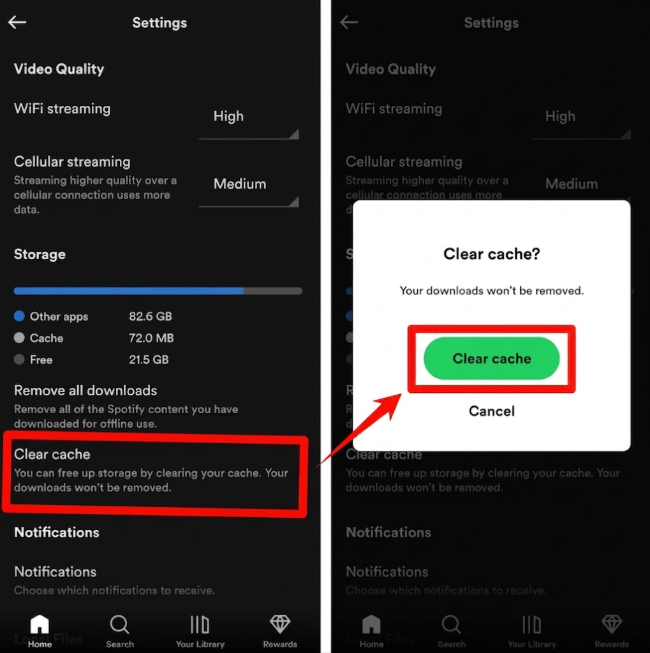
An outdated app or corrupted cache can cause Spotify to lose your saved login session. First, update Spotify to the latest version from your device’s app store. Then clear Spotify’s cache from the app settings.
If you decide to clear app data, note that you may need to download offline music again after signing in.
Fix 7:Stop Cleaning Tools From Removing Spotify Data
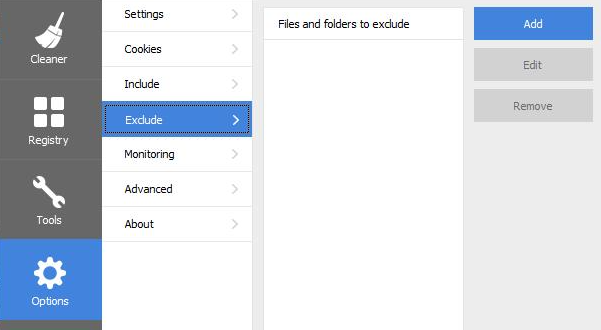
Storage cleaners, antivirus tools, and system optimizers may delete Spotify data automatically. Check whether you use a cleaning app such as a browser cleaner, PC optimizer, battery saver, or storage manager. Disable automatic cleaning for Spotify, or add Spotify to the tool’s exclusion list if available.
Fix 8: Remove Suspicious Third-Party App Access
Open your Spotify account settings and review the apps connected to your account. Remove access for services you no longer use or do not recognize.
This is useful if the problem began after connecting a playlist tool, smart device, social app, or another music-related service.
Fix 9:Sign In Using the Same Login Method as Before
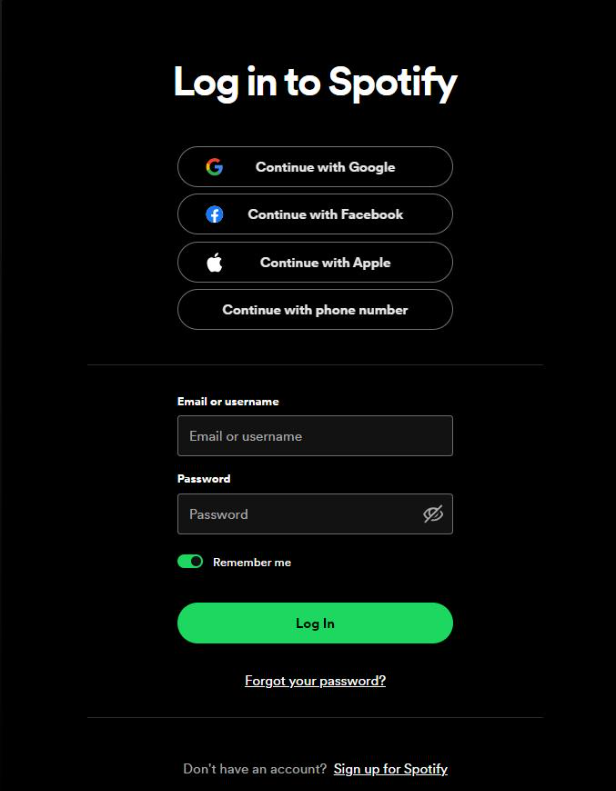
If Spotify looks empty after you sign in, you may be using a different account instead of your original one.
Try the login method you normally use, such as email, Google, Apple, or Facebook. Then check the account email address and username to confirm that you are back in the correct account.
Fix 10: Reinstall Spotify as a Last Resort
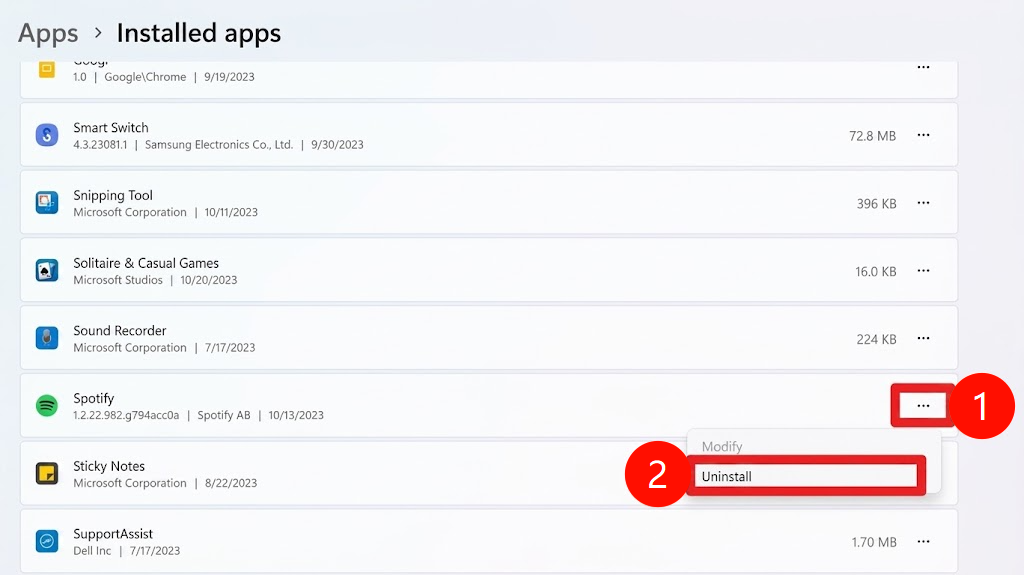
If Spotify still keeps logging you out after trying the fixes above, reinstall the app. Remove Spotify completely, restart your device, download the latest version from an official source, and sign in again with the correct account.
If the problem continues even after reinstalling, contact Spotify Support and provide details about your device, app version, login method, network, and the time when the issue started.
Alternative Solution: Keep Your Spotify Music Available Offline
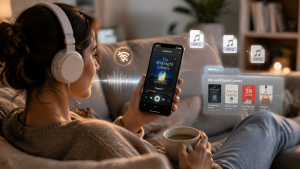
The fixes above can help prevent Spotify from logging you out. However, if you want to access your music without relying on the Spotify app, you can consider keeping music files locally. This allows you to play them with a compatible music player even when you’re not signed in to Spotify.
One option is MusicFre, which can convert Spotify songs, albums, and playlists to common audio formats such as MP3, WAV, and FLAC. It also supports batch conversion and preserves music metadata.
How to Use MusicFre for Offline Listening
Step 1. Download MusicFre from its official website and install it on your computer. Launch the program after installation.






Step 2. Open the built-in Spotify interface, sign in to your account, and choose the songs, albums, or playlists you want to add.
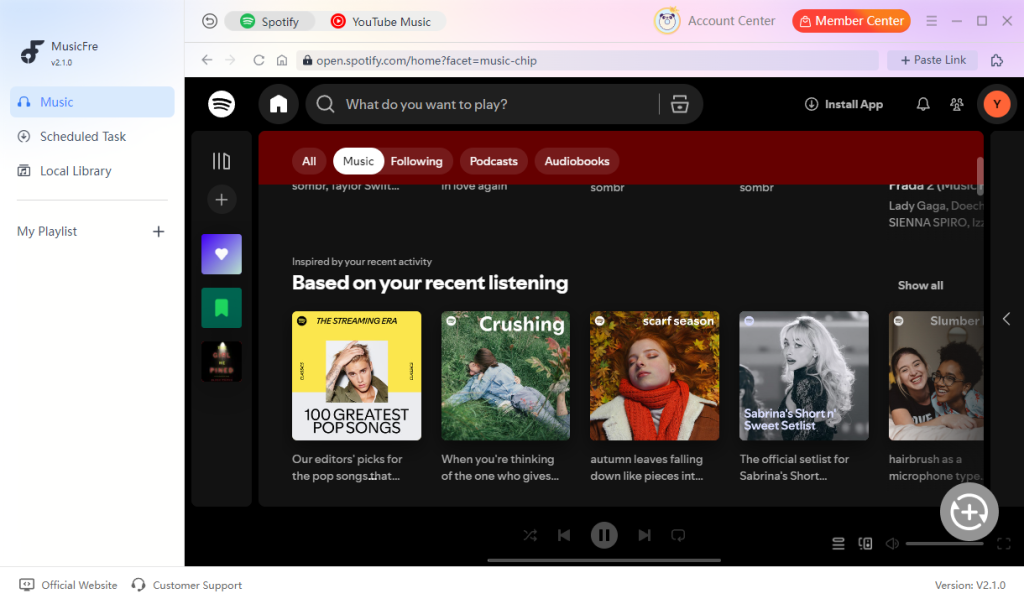
Step 3. Click the “+” button to add the selected content to the conversion list.
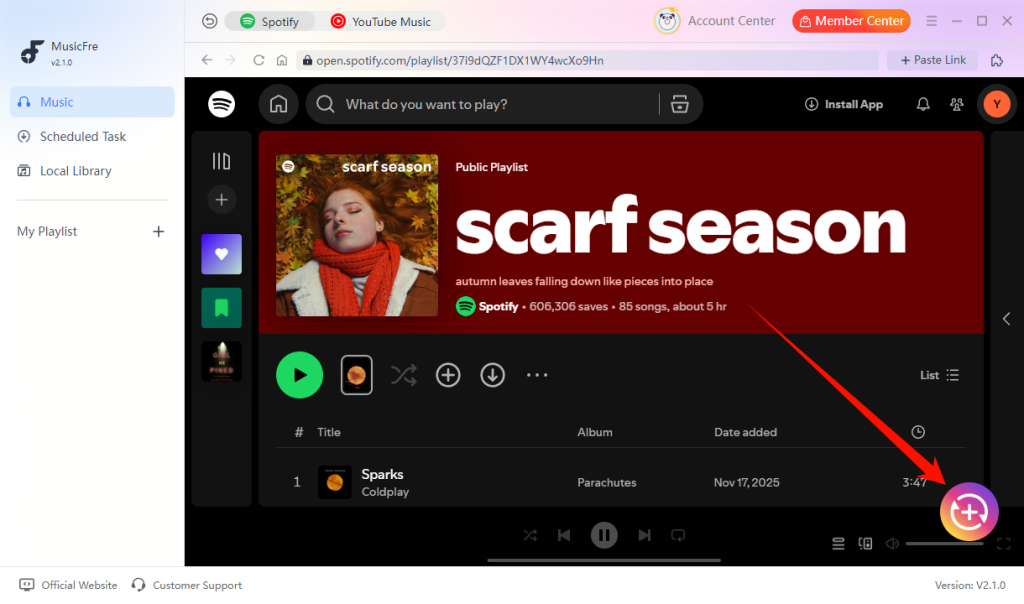
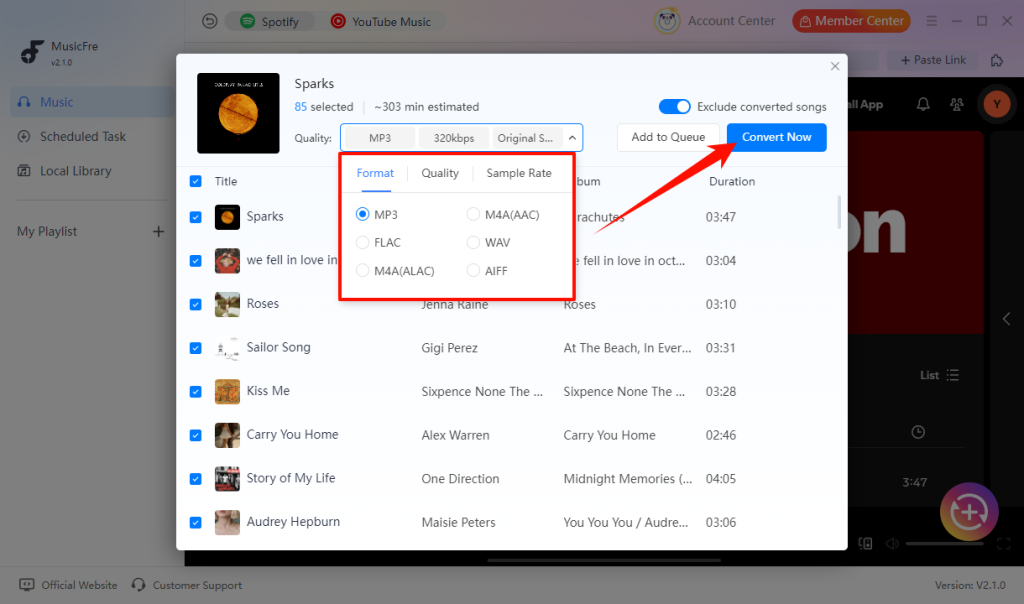
Step 4. Select an output format that works for your device, then click Convert Now and wait for the process to finish.
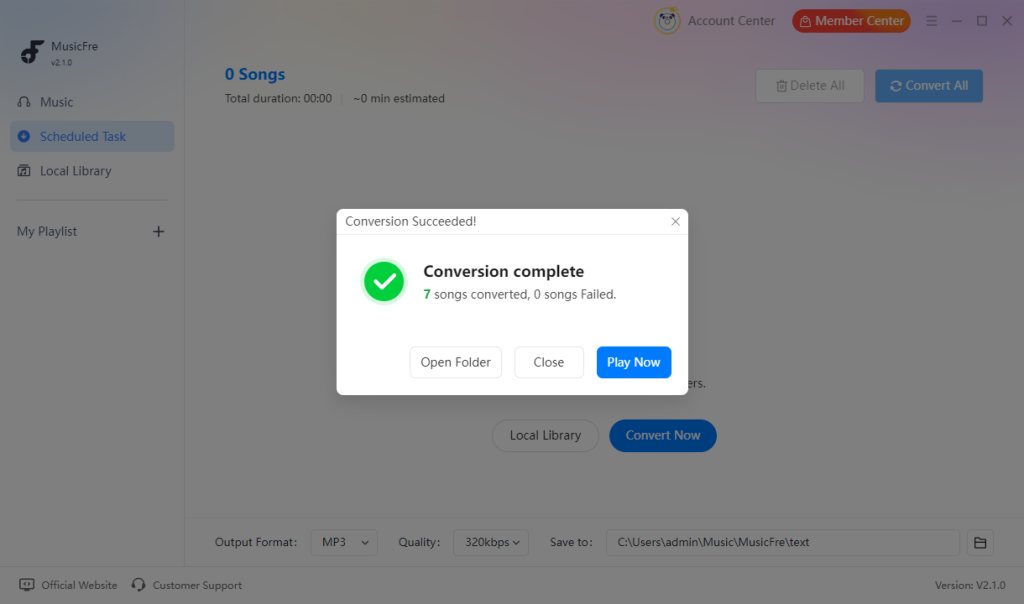
Step 5. After conversion, open the output folder and play the files with a compatible music player. You can also move the files to supported devices or storage media for offline playback.
Note: Use MusicFre only for content you are authorized to convert and use. Make sure your use complies with applicable copyright laws and the terms of the music services you use.
FAQs About Spotify Logging Me Out
1Will I lose my Spotify playlists if I get logged out?
No. Playlists and liked songs are linked to your Spotify account. If they are missing, make sure you signed in to the correct account.
2Can I recover a deleted Spotify playlist?
Possibly. If the playlist was deleted, you may be able to restore it from your account’s Recover Playlists page, typically within 90 days.
3Why does Spotify keep logging me out on only one device?
The issue is usually related to that device’s app, browser settings, or stored data rather than your Spotify account.
4Can I use Spotify on multiple devices?
Yes, but you can only actively play music on one device at a time with the same account.
Final Thoughts
Being signed out of Spotify occasionally is usually not a serious problem, but repeated logouts can become frustrating when you rely on the service for everyday listening. Instead of repeatedly signing in, pay attention to when the logout happens and what changes around it, such as switching networks, using a different device, or changing your account settings.
If you want a more reliable way to access your music, keeping music available for offline playback can also reduce your dependence on an active Spotify session. This gives you another way to enjoy your music when an internet connection or Spotify access is not available.