中文 (台灣)
  日本語
日本語  한국어
한국어  Italiano
  Français
  Português
  Español

How to Convert Spotify Music to AAC Easily (2026 Updated)
- Category:Spotify Music Tips
- Xiny
- 2026-08-15
If you want to save Spotify music as AAC files, you may find that Spotify does not offer a direct download option for this format. In fact, Spotify’s offline downloads are only available inside the app and cannot be transferred or played as local audio files.
For users who want more flexibility, converting Spotify music to AAC can be a practical solution. AAC offers efficient compression, good sound quality for everyday listening, and wide compatibility with modern devices. In this post, we’ll explain the differences between AAC and M4A, and show you how to save Spotify music in AAC format. Let’s get started.
What is AAC Format?
AAC stands for Advanced Audio Coding. It is a popular lossy audio format designed to provide high-quality sound while keeping file sizes relatively small.
“Lossy” means that the file is compressed by removing some audio data. That does not automatically mean the result sounds poor. AAC is a practical choice for everyday music listening because it offers:
- Efficient compression for smaller music files
- A balanced option for quality and storage
- Convenient playback on many current devices
- A suitable format for Apple-focused music libraries
Compatibility can still vary by device and application, so it is a good idea to test one converted track on your intended player before converting an entire playlist.
AAC vs. M4A: What Is the Difference?
When looking for a way to convert Spotify songs to AAC, many users may notice that some converters show M4A (AAC) as the output option. This can be confusing because AAC and M4A are related but not the same thing.
AAC is an audio codec, which defines how audio data is compressed and encoded. M4A is a container format. It is a file type that often stores AAC audio.
In many cases, when you choose AAC output in a converter, the final file may be saved as an M4A file containing AAC audio. This provides better compatibility with many devices and music players.
| Feature | AAC | M4A |
| Type | Audio codec | Audio container |
| Purpose | Compresses audio data | Stores audio and metadata |
| Common extension | .aac | .m4a |
| Used for | Audio encoding | Music files with AAC audio |
Why Convert Spotify Music to AAC?
AAC is not necessarily the right output format for every listener. However, it can be a smart choice when your devices, storage space, and local-library workflow suit it.
1.Save Storage Space for a Local Music Library
AAC is generally more storage-efficient than WAV and many lossless formats, allowing you to maintain good audio quality without creating extremely large files.
2.Play Music on Apple Devices and Compatible Players
AAC is widely supported in the Apple ecosystem, making M4A(AAC) a convenient choice for iPhone, iPad, Mac, and Apple Music users. It is also compatible with many modern media players.
3.Keep Songs, Albums, and Playlists Organized Locally
Saving Spotify music as AAC files gives you more control over your local library. You can arrange tracks by artist, album, playlist, or folder structure based on your own listening habits.
4.Choose AAC When MP3 Is Not Your Preferred Format
MP3 is widely supported, but AAC can be a useful alternative for listeners who prefer a more modern compressed format. It offers a practical balance between file size, playback compatibility, and everyday listening needs.
Best Way to Save Spotify Music to AAC Format
For users who want to save Spotify music in AAC format on Windows or Mac, MusicFre offers a straightforward desktop solution. It lets you add Spotify songs, albums, and playlists, choose an AAC output format, and save the converted files to a local folder for easier management.
- – Save individual songs, full albums, or playlists in one workflow
- – Adjust available output settings, such as format and audio quality
- – Keep available music information, including song title, artist, album, and cover art
- – Find and organize converted files directly on your computer
Follow the steps below to save Spotify music as AAC files with MusicFre.
Step 1. Download the version of MusicFre that matches your Windows PC or Mac, then install and open the program.






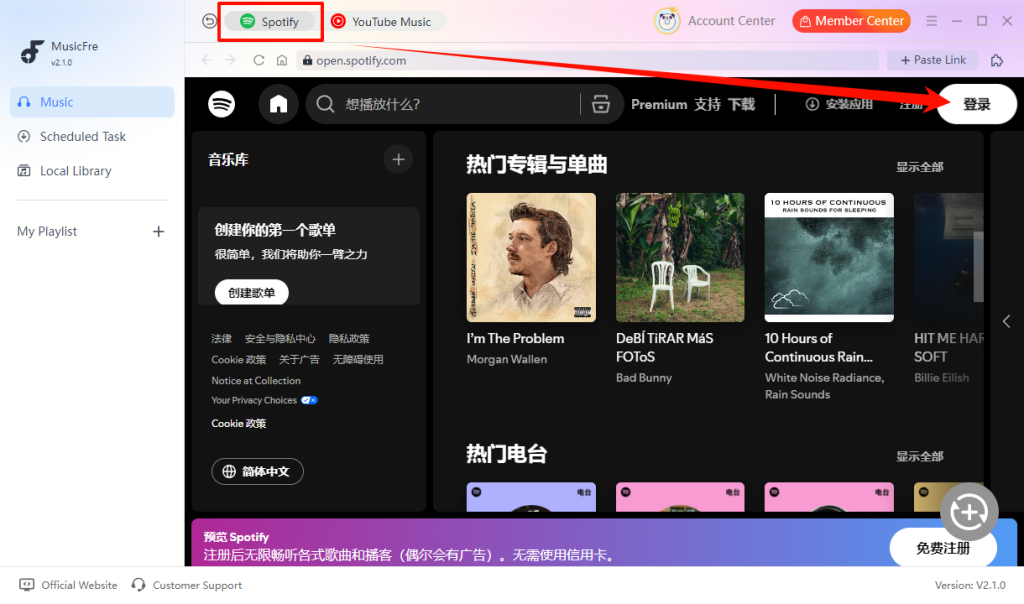
Step 2. Choose Spotify from the MusicFre interface and sign in to your account in the built-in Spotify workspace.
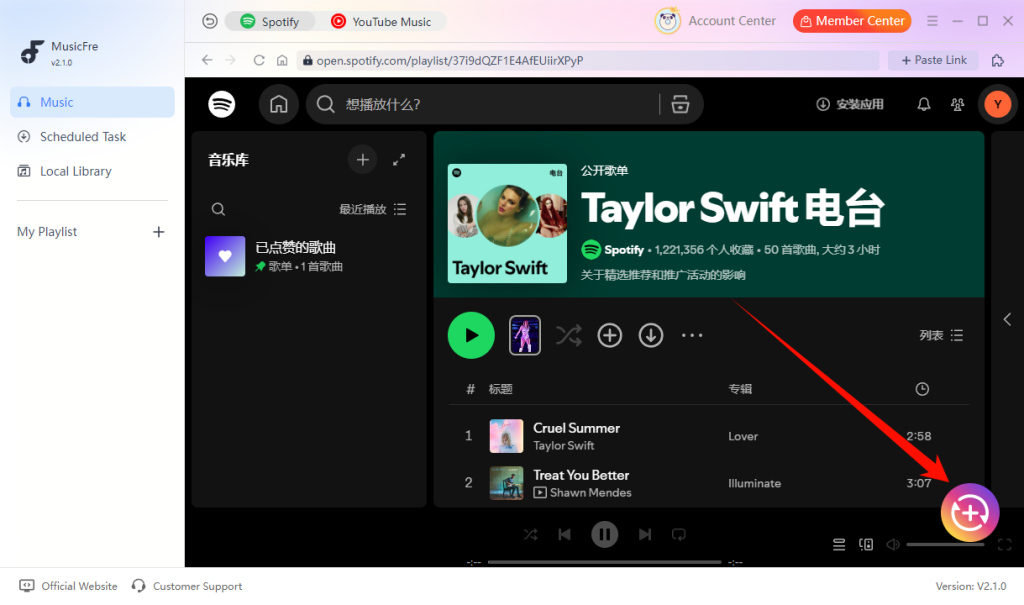
Step 3. Open the track, album, or playlist you want to save, then click the “+” button to dd it to the conversion list.
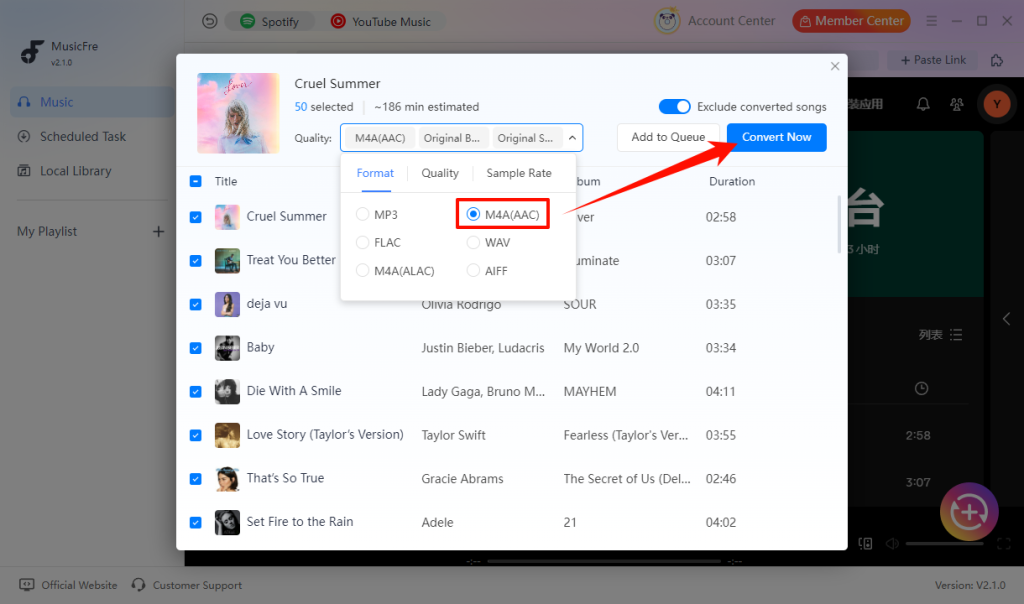
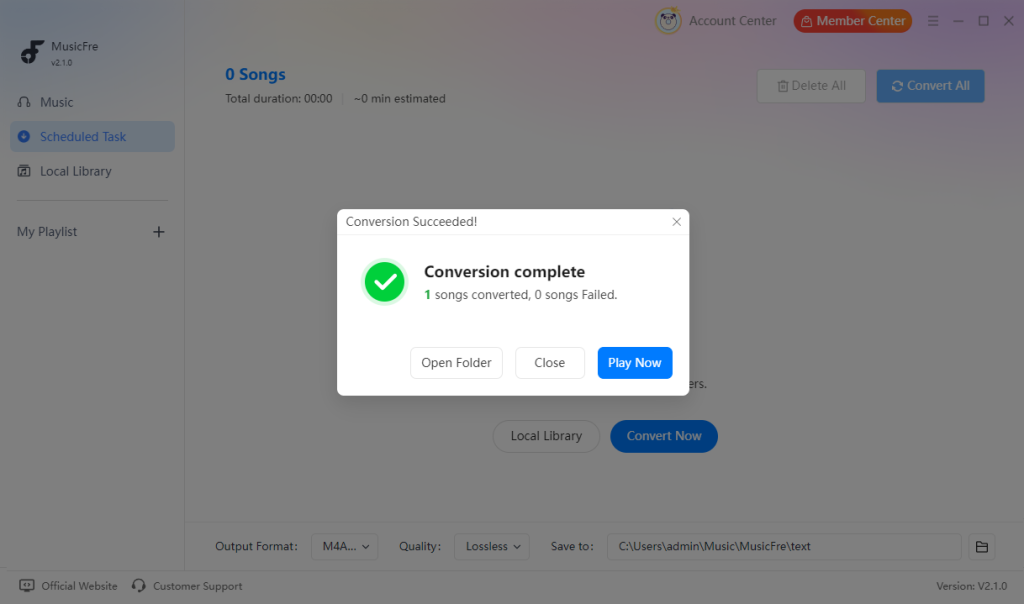
Step 4. Set the output format to “M4A(AAC)”, then click “Convert Now” to begin the conversion.
Step 5. After the process is complete, you can access the converted AAC files from the Open Folder.
Alternative Ways to Save Spotify Music as AAC
A desktop converter is not the only type of solution people consider; there are other methods available. Some users search for an online Spotify to AAC converter, while others use an audio recorder.
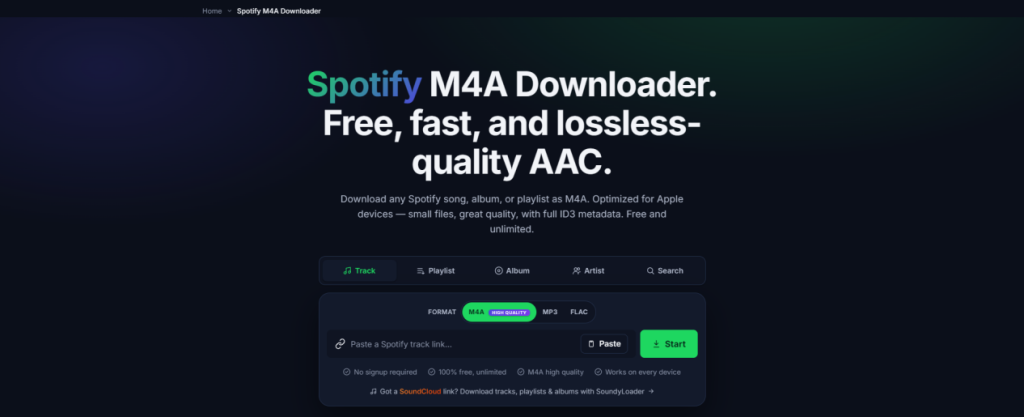
Method 1.Use an Online Spotify to AAC Converter
Online converters may appeal to users who only need a simple, occasional workflow and do not want to install an application.
However, online tools can vary in terms of supported formats, playlist handling, file limits, stability, advertising, privacy practices, and security. Before using one, check whether it supports the output format you need and review its terms and privacy information.
The process typically involves the following steps:
Step 1. Open Spotify and copy the link for the song, album, or playlist you want to use.
Step 2. Visit a trusted online converter website and paste the Spotify link into the input box.
Step 3. Choose AAC or M4A(AAC) if the service offers either format.
Step 4. Start the conversion process and download the converted AAC file when it is ready.
Method 2.Record Spotify Music and Save It as AAC
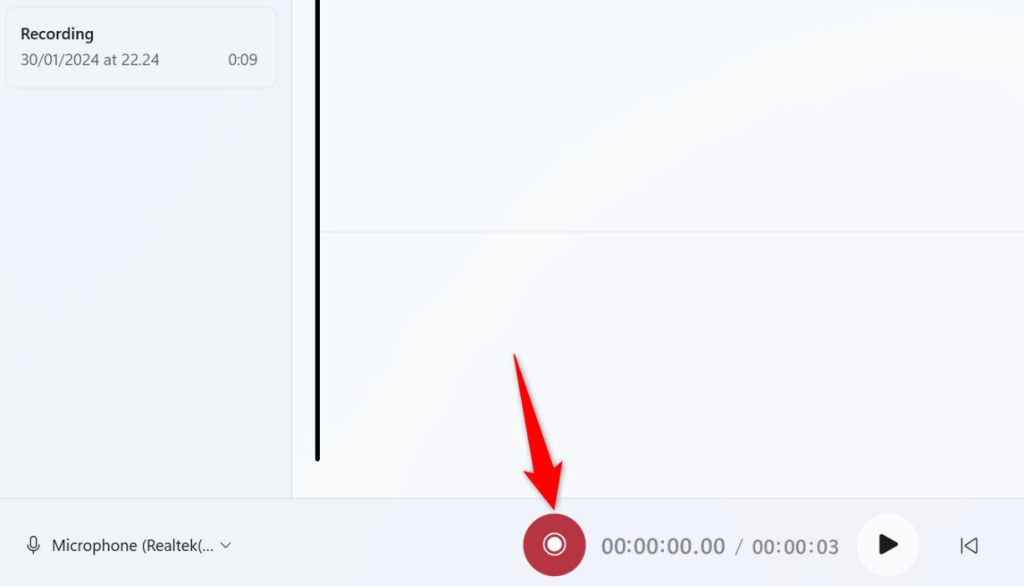
Another option is to use an audio recorder to capture the sound playing through a computer. Some recording programs can save recorded system audio as AAC, M4A, MP3, or another supported format.
However, recording works in real time, meaning a three-minute song takes three minutes to record. It is also less convenient when converting multiple songs or playlists.
Here’s how to complete the process step by step:
Step 1. Use an audio-recording application that supports exporting to AAC.
Step 2. Open the output settings and select AAC or M4A(AAC).
Step 3. Start the recording first, then play the selected Spotify song.
Step 4. Stop the recorder when the track ends, then save the file.
Recommended AAC Settings for Different Listening Scenarios
Choosing the right AAC quality depends on how you plan to use the converted music.
| Usage Scenario | Recommended AAC Settings |
| Mobile listening | 128-192 kbps |
| Daily music playback | 192-256 kbps |
| High-quality listening | 256 kbps or higher |
| Audio editing or archiving | Higher bitrate settings |
For most listeners, 192-256 kbps AAC provides a good balance between sound quality and file size.
FAQs About Spotify to AAC
1Can I download Spotify songs to AAC directly from Spotify?
No. Spotify does not provide an option to export songs as AAC files. You need a third-party converter to save Spotify music as local AAC files.
2Do I need Spotify Premium to save music as AAC with MusicFre?
No. MusicFre supports both Spotify Free and Premium accounts.
3Does a higher AAC bitrate always improve sound quality?
Not always. A higher bitrate can preserve more audio details, but it cannot improve the quality beyond the original audio source.
4Will the converted files keep song titles and cover art?
Yes. MusicFre can retain available metadata, including the title, artist, album, and cover art.
5Where can I find the converted AAC files?
After conversion, click Open Folder in MusicFre to access the output files.
Conclusion
Saving Spotify music as AAC files can be a useful way to create a more flexible local music library. Compared with larger lossless formats, AAC offers a practical balance between sound quality, file size, and device compatibility.
Whether you choose a desktop converter, an online tool, or an audio recorder, the right method depends on your needs. For users who prefer a simple and efficient way, MusicFre provides a straightforward option worth trying. With output settings that match your devices and listening habits, you can enjoy a better listening experience.