中文 (台灣)
  日本語
日本語  한국어
한국어  Italiano
  Français
  Português
  Español

How to Convert Spotify Music to AIFF (2026 Full Guide)
- Category:Spotify Music Tips
- Xiny
- 2026-08-18
Spotify is one of the most popular platforms for listening to music, but its offline downloads are only available within the Spotify app and cannot be exported as independent audio files. For users who want more flexibility for DJing, editing, music management, or local playback, converting Spotify music to AIFF can be a practical solution.
In this guide, you will learn what AIFF is, why users choose AIFF for Spotify songs, how to convert Spotify music to AIFF with MusicFre, and whether AIFF, WAV, or FLAC is the best format for your needs.
What is AIFF Format?
AIFF stands for Audio Interchange File Format. Developed by Apple, it is a lossless audio file format designed to store high-quality sound data. Unlike lossy formats, AIFF keeps audio in an uncompressed form, preserving the original details of the recording. This makes it a popular choice for users who need high-quality audio files for music production, DJ libraries, editing, and professional playback.
However, it is important to understand that AIFF preserves audio quality rather than improving it. Converting an existing lossy audio source to AIFF does not restore audio detail that was not present in the original file. AIFF provides an uncompressed file format, but it does not automatically turn a compressed source into high-resolution audio.
Why Save Spotify Songs as AIFF Files?
AIFF is not the best choice for every listener, but it can be a strong fit when compatibility, metadata, and uncompressed audio are more important than file size.
Here are some common reasons to choose AIFF:
1.Better for DJ libraries
AIFF is supported by many popular DJ applications, including Rekordbox, Serato, and Traktor. It can be a practical format for users who want to organize tracks for mixing and performance.
2.Keep music metadata intact
AIFF files can retain important track information, such as the title, artist, album, track number, genre, and artwork. This makes a large music library easier to search, sort, and manage.
3.Suitable for editing and production
Because AIFF is typically uncompressed, it is often preferred for audio editing, sampling, and music-production workflows where file size is less important than working with an uncompressed file.
4.More flexibility for local playback
Spotify offline downloads are designed to be played within the Spotify app. AIFF files can instead be organized in local folders and used with compatible music players, DJ software, and supported devices.
How to Download Spotify Music to AIFF?
Since Spotify does not provide a direct option to export songs as AIFF files, users who need local AIFF tracks for DJing, editing, or offline playback need a tool that can create AIFF output files and save them to a computer.
MusicFre is designed for this workflow. It lets users add Spotify songs, albums, and playlists, choose AIFF as the output format, and save the converted files to a local folder. Instead of manually handling tracks one by one, you can review multiple songs in a playlist, select the tracks you need, and process them in batches. MusicFre also provides parameter settings for choosing the file format, retaining the original sample rate, and setting the output folder, making it easier to build a local AIFF music library.
The conversion process only takes a few simple steps. Follow the steps below to save Spotify songs, albums, or playlists as AIFF files with MusicFre.
Step 1. Download and Launch MusicFre
Download MusicFre from its official website and install it on your computer. After installation, launch the program and enter the main interface.






Step 2. Set AIFF as the Output Format
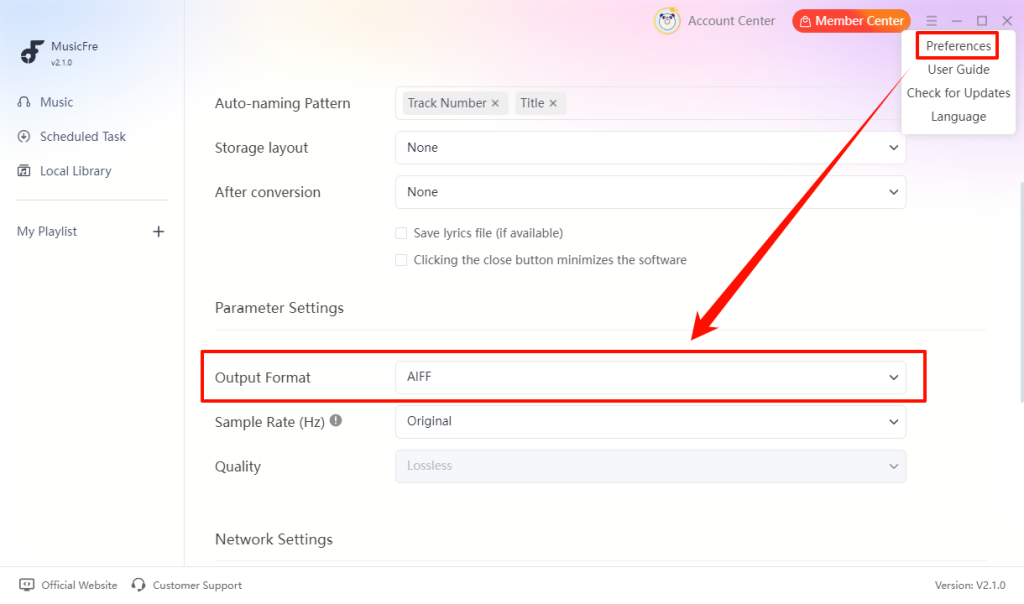
Click the menu icon in the upper-right corner and select “Preferences”. In “Parameter Settings”, choose “AIFF” as the output format.
Step 3. Add the Spotify Songs, Album, or Playlist You Want
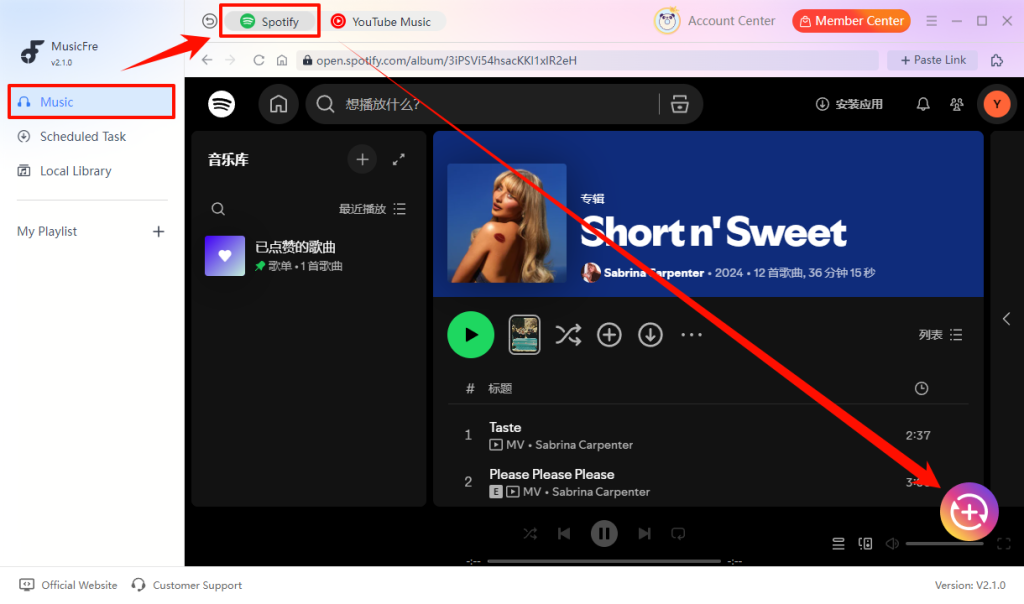
Click “Music” in the left sidebar and select “Spotify” at the top. ind the song, album, artist, or playlist you want to convert, then click the “+” button to add to the conversion list.
Step 4. Convert Spotify Music to AIFF
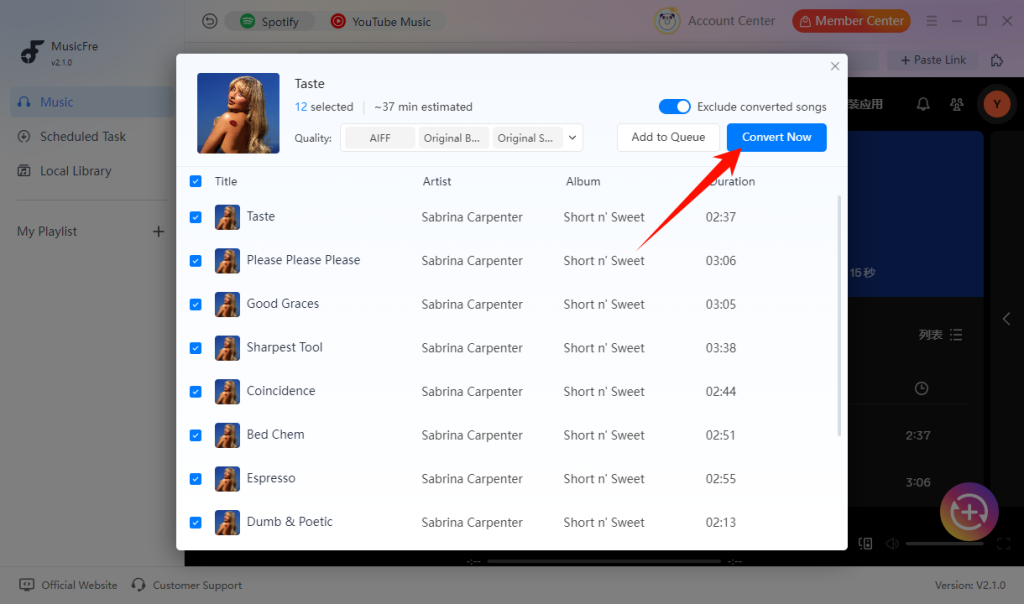
Review the track list and uncheck any songs you do not need. Click “Convert Now” to begin converting the selected Spotify songs to AIFF files.
Step 5. Access the Converted AIFF Files
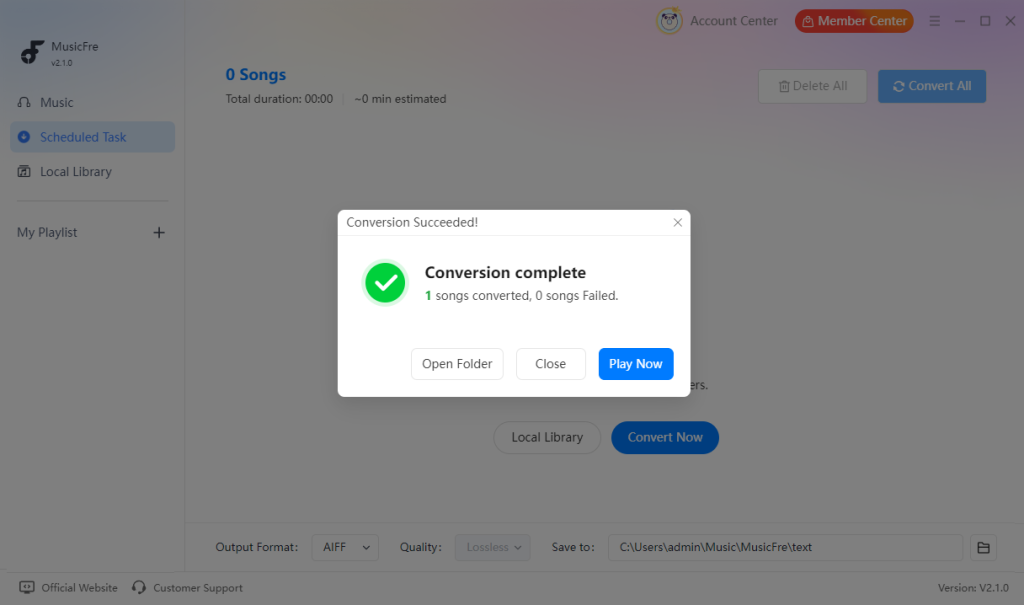
When the conversion is complete, click “Open Folder” to access the saved AIFF files, or select “Play Now” to preview the converted track.
AIFF vs WAV vs FLAC: Which Lossless Format Is Better?
AIFF is not the only lossless format available for a local music library. WAV and FLAC are also popular choices, but each format is better suited to a different workflow.
In terms of audio fidelity, AIFF, WAV, and FLAC can all deliver lossless audio when created from the same source. The main differences are file size, metadata support, and device or software compatibility.
| Format | Audio Type | File Size | Metadata Support | Best For |
| AIFF | Usually uncompressed | Large | Good (supports track information and artwork) | Apple devices, DJ libraries, audio editing, professional workflows |
| WAV | Usually uncompressed | Large | Limited (basic metadata support, varies by software) | Recording, music production, and broad compatibility |
| FLAC | Lossless compressed | Smaller | Excellent (supports rich metadata and cover art) | Saving storage space and archiving music |
Which Lossless Format Should You Choose?
There is no single”best” lossless audio format for everyone. The right choice depends on your needs:
- Choose AIFF if you need uncompressed files for DJ software, editing, or a Mac-based music library with clear metadata.
- Choose WAV if you work with music-production software or need a widely supported uncompressed format.
- Choose FLAC if you want lossless audio while keeping file sizes smaller and saving storage space.
Recommended AIFF Settings for Different Uses
Choosing the right settings helps you avoid unnecessarily large files while keeping the format compatible with your intended workflow.
| Use case | Recommended setting | Why |
| Local music library | 44.1 kHz / 16-bit | A practical, widely compatible default |
| DJ software library | 44.1 kHz / 16-bit | Works well for most DJ workflows and saves storage |
| Video or production project | 48 kHz / 24-bit when required | Matches common video-project standards |
| Portable storage | Consider FLAC or MP3 instead | AIFF can consume space quickly |
FAQs About Spotify to AIFF
1Is AIFF the same as AIF?
Yes. .aiff and .aif are different filename extensions for the same AIFF audio format.
2Why are AIFF files larger than Spotify downloads?
AIFF files are uncompressed, so they usually take more storage space than Spotify’s offline files.
3Why is album artwork or track information missing in my player?
Some media players do not read all AIFF metadata consistently. Refresh or reimport the files, and check them in another compatible player.
4Can I play AIFF files on my phone?
Yes, but compatibility depends on your phone and music player. iPhones can play AIFF files through compatible apps, while Android users may need a third-party player that supports AIFF.
In Conclusion
Converting Spotify music to AIFF is a practical option when you need local files for DJing, editing, or managing a music library outside the Spotify app. AIFF offers an uncompressed format with useful metadata support, making it well-suited for workflows where audio quality, organization, and compatibility are important.
Before converting, consider your available storage space, playback devices, and intended use. If AIFF fits your workflow, MusicFre provides a simple way to select your Spotify music, choose AIFF as the output format, and save the converted files to your computer.