中文 (台灣)
  日本語
日本語  한국어
한국어  Italiano
  Français
  Português
  Español

How to Copy Music from Spotify to USB Drive (Free & Easy)
- Category:Spotify Music Tips
- Xiny
- 2026-08-25
Want to move your Spotify music to a USB drive for offline listening, car playback, or use on other devices? Many users search for a way to copy music from Spotify to USB, but Spotify does not provide a direct option to transfer downloaded songs to external storage.
The reason is that Spotify offline downloads are protected files that can only be played inside the Spotify app. If you want to put Spotify music on a USB drive, you need to save the songs as regular audio files first and then transfer them to your USB device. This post explains the full Spotify to USB process, including format selection, USB preparation, and car playback tips. Let’s dive into the details.
Can You Copy Spotify Music Directly to a USB Drive?
Not in the way most people expect. Spotify music cannot be copied directly to a USB drive.
Although Spotify Premium allows you to download music for offline listening, those downloads remain tied to the Spotify app and your account. They are not ordinary audio files that can be copied to a USB drive and played by a car stereo or USB music player.
Even if you change Spotify’s offline storage location to a USB drive, it still does not turn the downloads into regular MP3, WAV, or FLAC files.
If your goal is to use Spotify songs on a USB drive, you need to save them as local audio files in a format supported by your device.
What You Need Before Transferring Spotify Music to a USB Drive
Before transferring Spotify music to a USB drive, prepare the following:
1.A USB flash drive with enough storage space
The required capacity depends on the number of songs and audio quality settings. For a typical car music collection, a 16 GB or 32 GB USB drive is usually enough. If you plan to store a large playlist collection or use lossless audio files, a 64 GB drive may be more practical.
2.A computer to manage your music files
A computer helps you organize, manage, and transfer music files to the USB drive. It is also needed for preparing songs before moving them to external storage.
3.A compatible audio format and playback device
Make sure your USB playback device supports the audio format you use. MP3 is widely supported, but some devices may have limited format compatibility and only work with formats like WAV, FLAC, or AAC. Check the device manual if needed. It is also worth checking the USB port in your car, as some ports are intended only for charging and cannot read music files.
How to Download Spotify Music to a USB Drive
Since Spotify does not allow users to export downloaded songs directly, the practical way to transfer Spotify music to a USB is to save the songs as regular audio files first.
MusicFre is designed to save Spotify songs, albums, playlists, and podcasts as common local audio files. It supports multiple output formats, including MP3, WAV, FLAC, AAC, and M4A, allowing you to choose the format that best fits your playback device.
The basic workflow is as follows:
Step 1.Download and Install MusicFre
Download MusicFre from the official website and install it on your Windows or Mac computer. Once the installation is complete, launch the program to get started.






Step 2.Add Spotify Songs, Albums, or Playlists
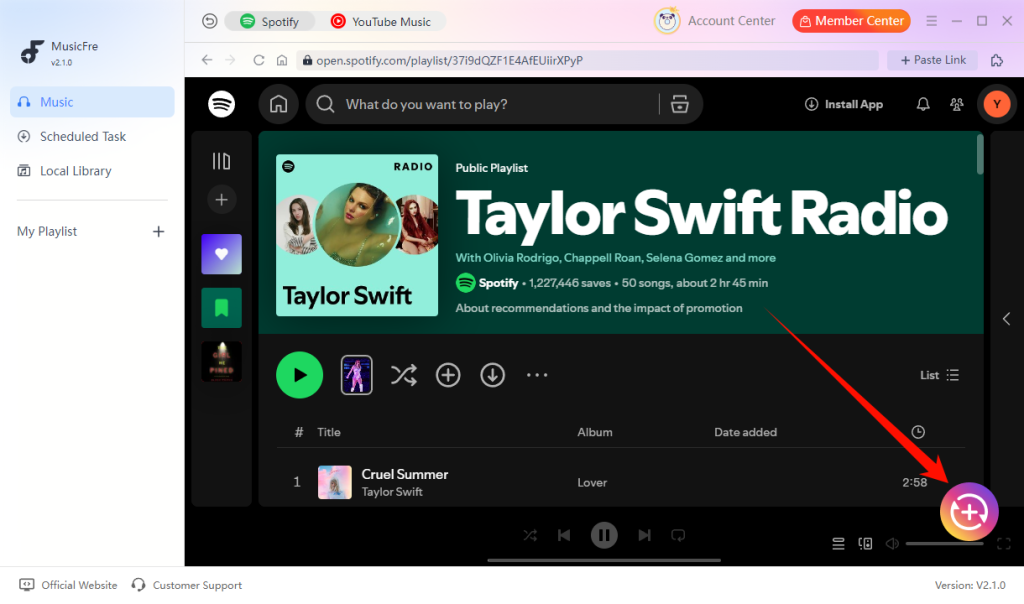
Open the Spotify interface in MusicFre and sign in to your Spotify account. Find the song, album, playlist, or podcast you want to save, then click the “+” button to add it to the conversion list.
Step 3.Choose an Output Format
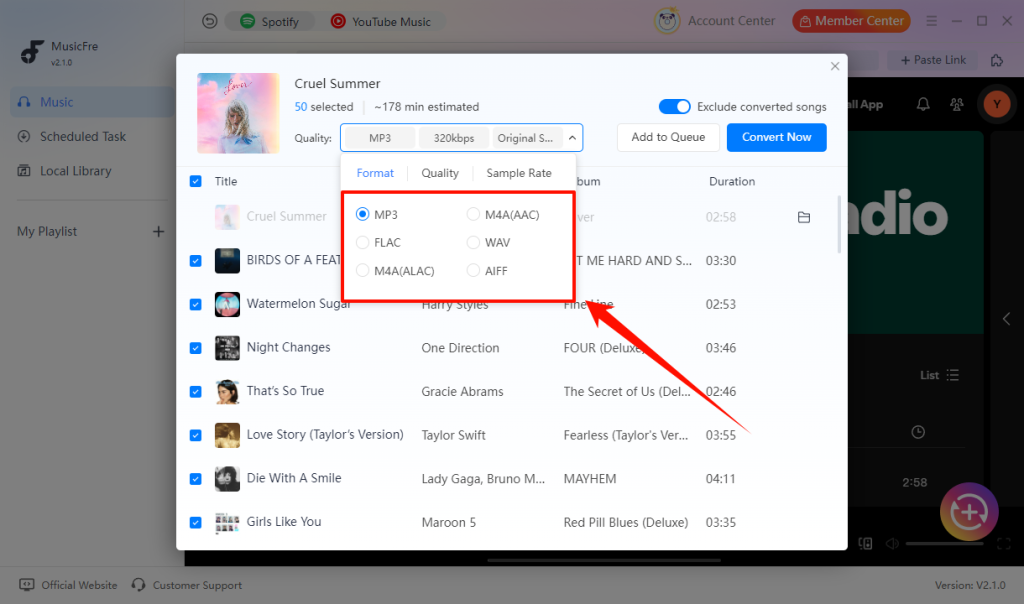
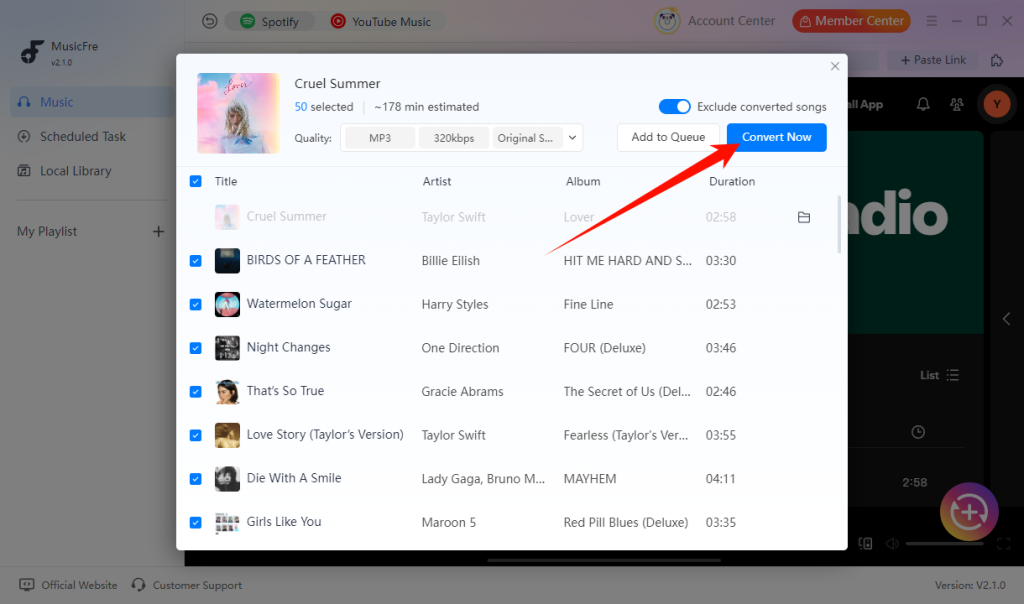
Set the output format from the Quality menu at the top of the pop-up window. You can also adjust the audio quality and sample rate according to your needs.
Step 4.Convert Spotify Music to Local Files
After confirming the settings, click Convert Now. MusicFre will process the selected tracks and save them as local audio files on your computer.
Step 5.Open the Converted Music Files
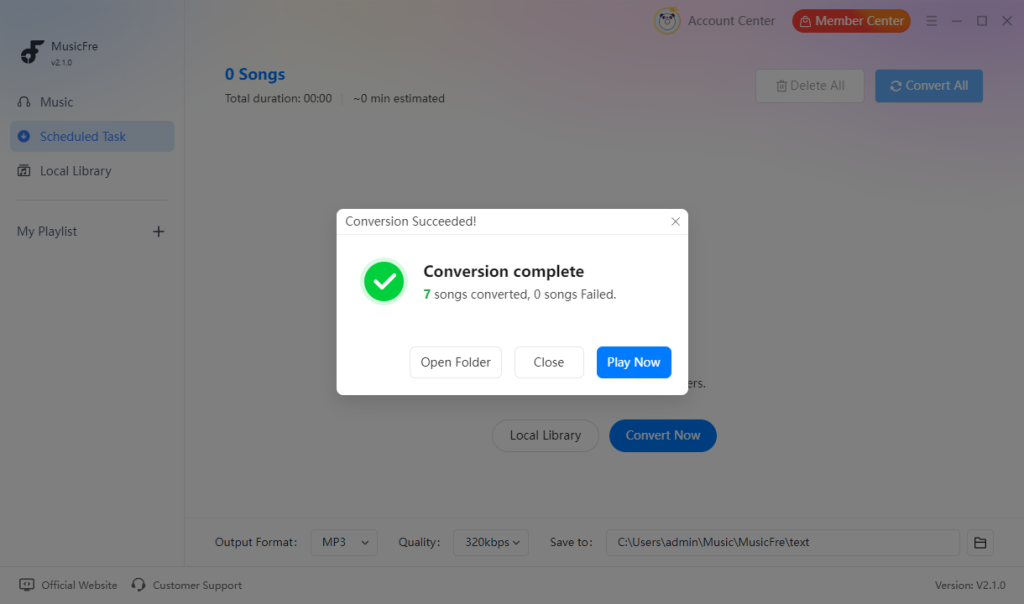
When the conversion is complete, click Open Folder to access the music files. You can also click Play Now to preview a track before transferring.
Step 6. Copy Music Files to Your USB Drive
Insert the USB drive into your computer and wait for it to appear in File Explorer on Windows or Finder on Mac.
Then:
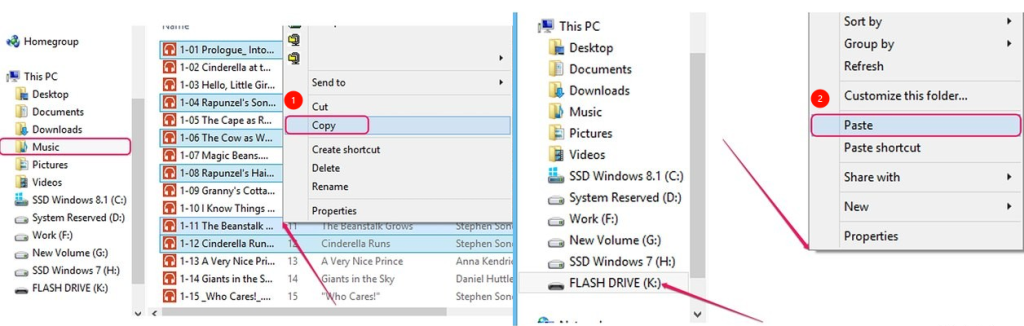
1. Open the folder containing your saved music files.
2. Select the songs, albums, or playlist folders you want to transfer.
3. Copy and paste them into the USB drive.
Step 7.Safely eject the USB device and test playback
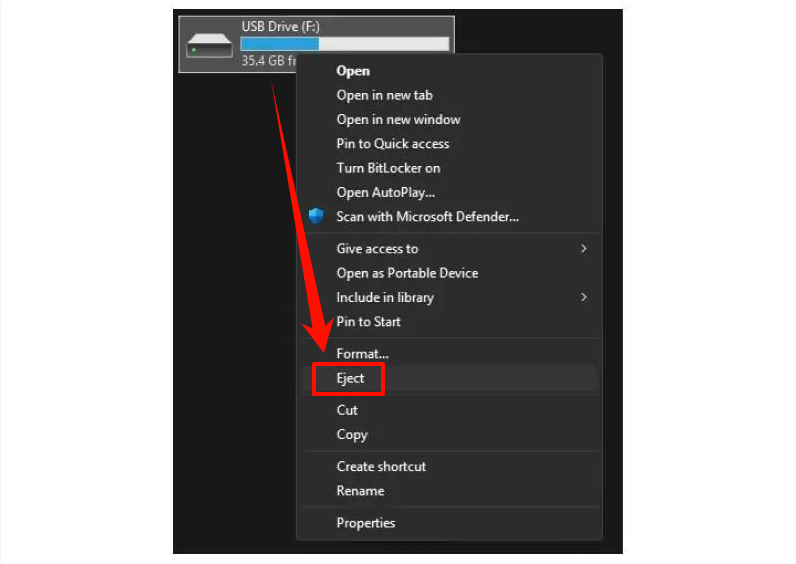
Once the transfer is complete, use the Eject or Safely Remove Hardware option on your computer. Then connect the USB drive to your car stereo or other playback device and test a few songs.
Which Audio Format Is Best for a USB Drive?
Choosing the right audio format is an important step when transferring Spotify music to a USB drive. The best format depends on where you plan to play your music.
Here is a quick comparison of common audio formats:
| Format | Audio Quality | Compatibility | Limitation | Best For |
| MP3 | Good | Excellent | Lower quality than lossless formats | Car stereos and most USB devices |
| FLAC | Lossless | Medium | Larger files and limited support | High-quality audio systems |
| WAV | Lossless | Medium | Very large file size | Professional audio playback |
| M4A/AAC | Good | Medium | Less compatible with older systems | Apple devices and some modern players |
For most users who want to play Spotify music from a USB drive in a car, MP3 at 320 kbps is a practical choice that offers a good balance of sound quality, storage space, and compatibility. Before converting music, check your car stereo or playback device manual to confirm the supported formats.
How to Prepare a USB Drive for Spotify Music Playback in Car
Copying music files is only part of the job. A USB drive also needs to be prepared in a way that your car stereo can read.
1. Check the USB File System
Copying music files to a USB drive is only part of the process. Before adding your music, make sure the USB drive is properly prepared and uses a file system that your car stereo or playback device can recognize.
Common USB file systems include:
- FAT32: A reliable choice for many car stereos and basic USB music players.
- exFAT: Supports larger files and bigger storage devices but may not work with some older systems.
- NTFS: Commonly used on computers, but many car audio systems cannot read it.
2. Keep Folder Names and File Names Simple
Older media systems can struggle with unusual symbols, very long filenames, or deeply nested folders.
For better compatibility:
- Use short folder names.
- Avoid special characters when possible.
- Keep folders organized by playlist, artist, or genre.
- Avoid putting thousands of files into one folder if your car system is slow to load.
3. Test a Small Batch First
Before copying your entire Spotify playlist collection, move a few songs to the USB drive and test them in the target device. This small test can quickly reveal whether your car supports the selected audio format, folder structure, and USB file system.
FAQs About Spotify to USB
1Does Spotify music quality change after transferring to USB?
No. The USB drive itself does not affect audio quality. The final quality depends on the output format and settings you choose when saving the music files.
Q2: How many songs can a USB drive hold?
2How many songs can a USB drive hold?
It depends on the drive capacity and file format. A 16 GB USB drive can typically hold around 3,000 to 4,000 MP3 songs at 320 kbps, while a 32 GB drive can hold roughly twice as many.
Q3: Will album art and artist information appear on my car screen?
3Will album art and artist information appear on my car screen?
MusicFre preserves available song metadata, including title, artist, album, and cover art. However, whether this information appears on screen depends on your car stereo. Some basic systems display only file names.
Q4: How can I make sure songs play in the right order?
4How can I make sure songs play in the right order?
Many car stereos sort songs alphabetically by filename. Add track numbers at the beginning of filenames to keep them in order.
In Conclusion
Transferring Spotify music to a USB drive is not as simple as copying offline downloads from the Spotify app. The practical solution is to create local audio files in a format your target device can read, then move them to a properly prepared USB drive.
For the best compatibility, use a widely supported format like MP3, check your device requirements, and test a few songs before moving your entire music library.
With the right preparation, you can create a USB music collection that works reliably wherever you want to listen.